Are you tired of walking into a room only to see your Wi-Fi signal drop to a single bar? It’s a frustratingly common problem. You pay for high-speed internet, but dead zones in your own home prevent you from enjoying it everywhere. For AT&T customers, there’s a streamlined solution designed to solve this exact issue. An AT&T Wi-Fi extender isn’t just another piece of hardware; it’s a key to unlocking consistent, powerful Wi-Fi coverage throughout your entire space. This guide will walk you through everything you need to know, from setup to optimization, ensuring you get the most out of your home network.
What Exactly is an AT&T Wi-Fi Extender?
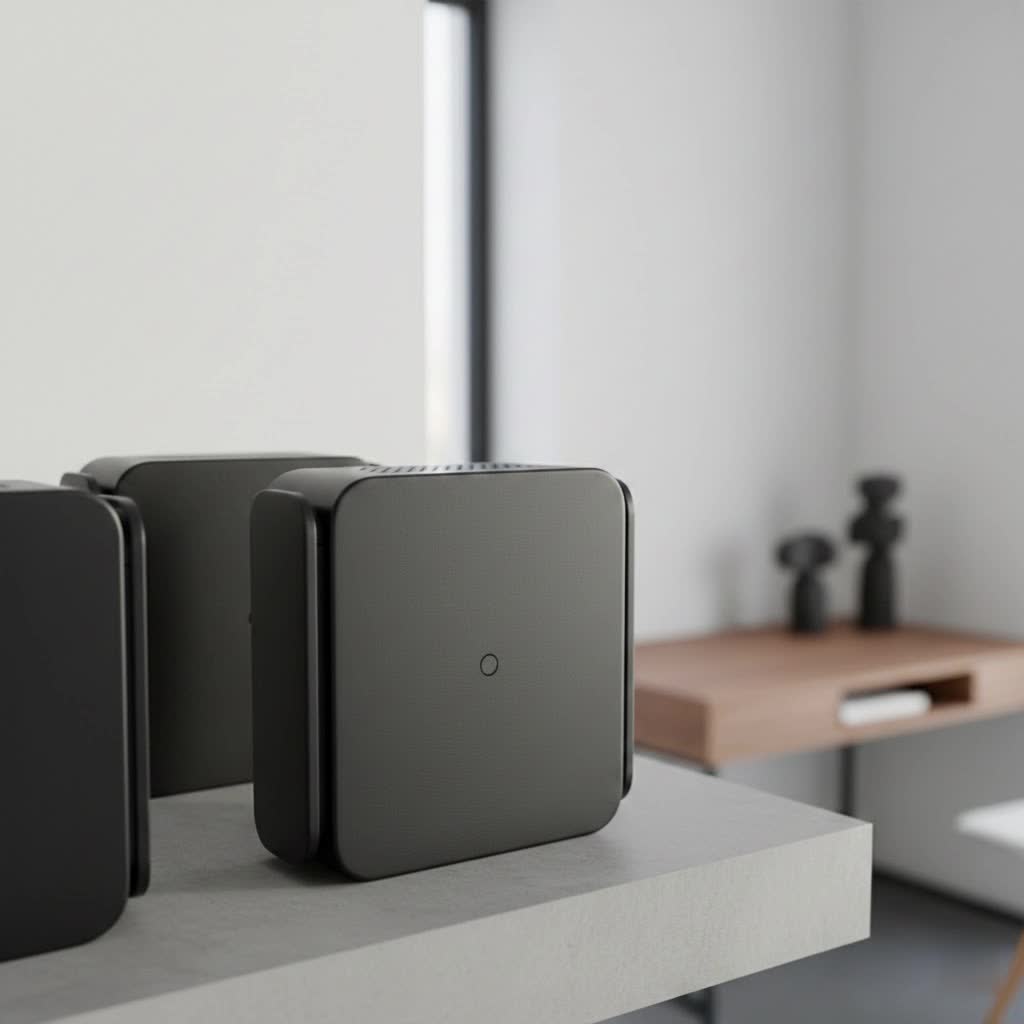
The official product is the AT&T Smart Wi-Fi Extender. Unlike a generic, third-party extender that simply repeats a signal, this device is engineered to integrate seamlessly with your AT&T Wi-Fi Gateway. Its primary job is to eliminate Wi-Fi dead zones—those annoying areas where your connection is weak or non-existent—by extending the reach of your home network. It works by creating a single, intelligent mesh network, providing a reliable connection in every corner of your home, from the basement to the upstairs office.
How Does the AT&T Smart Wi-Fi Extender Work?
The secret to the extender’s effectiveness lies in its use of mesh technology. Instead of creating a separate, secondary network (like many older extenders, which forced you to manually switch connections), the AT&T Smart Wi-Fi Extender works in tandem with your gateway to form one unified network.
This intelligent system automatically manages your connection. Key features include:
- Band Steering: Automatically directs your devices to the best available Wi-Fi frequency (2.4 GHz for range or 5 GHz for speed) to optimize performance and reduce congestion.
- Seamless Roaming: Allows your devices to switch between the gateway and the extender without interruption as you move through your house. This means you can walk from the living room to the backyard during a video call without a single dropped frame.
“The biggest mistake people make is extender placement,” notes David Chen, a Senior Network Engineer with over 15 years of experience. “It’s not about putting it in the dead zone, but rather halfway to it. That’s where the magic happens, allowing the extender to receive a strong signal it can then rebroadcast effectively.”
Do You Need an AT&T Wi-Fi Extender?
Wondering if an extender is the right solution for you? If you experience any of the following, it’s a strong indicator that you could benefit from one:
- Persistent Dead Zones: Certain rooms, like a back bedroom or a finished basement, have little to no Wi-Fi signal.
- Constant Buffering: Videos buffer endlessly when you’re far from the main router, even on a fast internet plan.
- Large Home or Multiple Floors: The signal from your gateway struggles to cover the entire square footage or penetrate multiple levels.
- Challenging Layout: Your home has thick walls, brick fireplaces, or other obstructions that block Wi-Fi signals.
- Outdoor Coverage Needs: You want a reliable connection on your patio, deck, or in the garage.
Step-by-Step Guide: How to Install Your AT&T Wi-Fi Extender
AT&T has made the installation process remarkably simple, primarily using their Smart Home Manager app.
- Download the App: If you haven’t already, download the “AT&T Smart Home Manager” app from the Apple App Store or Google Play Store and sign in with your AT&T user ID and password.
- Find the Perfect Spot: Identify the location of your dead zone. Place the AT&T Wi-Fi extender about halfway between your gateway and that area. The ideal location is out in the open, not tucked away in a cabinet or behind furniture.
- Plug It In: Connect the extender to a power outlet. It will begin to boot up. Wait for the light on the front to start blinking green, which may take a few minutes.
- Pair with Your Gateway: Press the “WPS” button on your AT&T Gateway. Within two minutes, press the “WPS” button on the back of your extender. The light will flash quickly during pairing.
- Confirm the Connection: Once the light on the extender turns solid green, the pairing is complete. The device is now broadcasting your Wi-Fi network. You can open the Smart Home Manager app to verify that the extender is active and check the signal strength.
Tips for Optimizing Your Extender’s Performance
Once your extender is running, a few tweaks can ensure you’re getting peak performance.
- Elevation is Key: Place the extender on a shelf or table rather than on the floor. A higher position helps the signal travel further.
- Avoid Interference: Keep the extender away from large metal objects, microwave ovens, and cordless phones, which can interfere with the signal.
- Use the App: The Smart Home Manager app is your best friend. It includes tools to map your network, test signal strength in different rooms, and identify potential issues.
- Consider a Wired Backhaul: For maximum speed and stability, the extender has an Ethernet port. If you can run an Ethernet cable from your gateway to the extender, it will use this wired connection (known as a backhaul) to deliver the fastest possible speeds.
Common Problems and Easy Troubleshooting Steps
Even the best technology can have hiccups. Here are solutions to common issues you might encounter with your AT&T Wi-Fi extender.
What if the extender’s light is blinking red?
|
Our Picks for the Best Wifi Extender in 2026
As an Amazon Associate I earn from qualifying purchases.
|
||
| Num | Product | Action |
|---|---|---|
| 1 | Amazon eero 7 with 1 month free eero Plus (auto-renews) - Supports internet plans up to 2.5 Gbps, Coverage up to 2,000 sq. ft., Connect 120+ devices, 1-pack |

|
| 2 | WiFi Extender with 4 Antennas 1200Mbps - Dual Band 5GHz/2.4GHz, WiFi Extender Signal Booster with 3 Modes Support, WiFi Repeater with 12880 Sq.ft 105 Devices, Easy Set Up for Home |
|
| 3 | TP-Link AC1900 WiFi Range Extender RE550 - Dual-Band Wireless Repeater Amplifier w/Gigabit Ethernet Port - Up to 2200 Sq. Ft., 32 Devices - Internet Signal Booster - APP Setup - EasyMesh Compatible |
|
| 4 | 2025 Fastest WiFi Extender, WiFi Repeater, WiFi Booster, Covers Up to 10000 Sq.ft and 80 Devices, Internet Booster - with Ethernet Port, Quick Setup, Home Wireless Signal Booster |
|
| 5 | TP-Link AX3000 WiFi 6 Range Extender - PCMag Editor\'s Choice - Dual-Band Wireless Repeater w/Ethernet Port - Up to 2400 Sq. Ft., 64 Devices - Internet Signal Booster - APP Setup - EasyMesh (RE715X) |
|
| 6 | 2025 WiFi Extenders Signal Booster for Home Long Range Up to 9800 sq. ft & 40 Devices, WiFi Extender Signal Booster, Quick Setup-Medium, Internet Repeater, WiFi Extender |
|
| 7 | Amazon eero 6+ mesh wifi system with 1 month free eero Plus (auto-renews) - Coverage up to 4,500 sq. ft., Connect 75+ devices, 3-pack |
|
| 8 | TP-Link AC1200 WiFi Extender, 2023 Engadget Best Budget Pick, 1.2Gbps Signal Booster for Home, Dual Band 5GHz/2.4GHz, Covers Up to 1500 Sq.ft and 30 Devices,Support Onemesh, One Ethernet Port (RE315) |
|
| 9 | Amazon eero 6 mesh wifi extender with 1-month free eero Plus (auto-renews) - Add up to 1,500 sq. ft. of Wi-Fi 6 coverage to your existing eero mesh wifi network |
|
| 10 | WiFi Extender, WiFi Extenders Signal Booster for Home Up to 5000 sq.ft and 50 Devices, WiFi Range Extender, Wireless Repeater, Long Range Amplifier with Ethernet Port, 1-Tap Setup, Alexa Compatible |
|
A blinking red light means the extender is too far from the gateway to get a reliable signal. Unplug it and move it to a location closer to your main gateway, then wait for it to reconnect and show a green light.
Why are my internet speeds still slow?
If your speeds are slow even after installation, check the extender’s placement. It might be in a spot with interference. Use the Smart Home Manager app to run a channel scan, which can move your network to a less congested Wi-Fi channel. A simple restart of both your gateway and extender can also resolve many speed issues.
What should I do if my devices can’t connect?
First, reboot the extender by unplugging it for 30 seconds. If that doesn’t work, try re-pairing it with the gateway using the WPS buttons. Ensure that no new devices in your home, like a new microwave or smart speaker, are causing signal interference.
AT&T Wi-Fi Extender vs. Third-Party Extenders
While you can technically use any brand of extender, the AT&T Smart Wi-Fi Extender offers significant advantages for AT&T Internet customers.
| Feature | AT&T Smart Wi-Fi Extender | Standard Third-Party Extender |
|---|---|---|
| Network Name (SSID) | Single, unified network name | Often creates a separate network |
| Setup & Management | Simple via Smart Home Manager app | Requires a separate app or web UI |
| Integration | Optimized for AT&T Gateways | Generic; may have compatibility issues |
| Roaming | Seamless, automatic switching | Often requires manual network switching |
| Support | Covered by AT&T customer support | Supported by the third-party manufacturer |
Frequently Asked Questions (FAQ)
How much does the AT&T Wi-Fi Extender cost?
AT&T often provides the first Smart Wi-Fi Extender at no cost for customers with certain internet plans, especially AT&T Fiber. Additional extenders are typically available for a one-time fee or a small monthly rental charge.
Can I use more than one extender?
Yes, you can use multiple extenders to cover a very large or complex home. The Smart Home Manager app can help you determine if another extender would be beneficial.
Is the AT&T Wi-Fi Extender compatible with all AT&T gateways?
It is designed to work with most modern AT&T gateways, including the BGW320, BGW210, and Pace 5268AC. The Smart Home Manager app will confirm compatibility.
Does the extender work well with AT&T Fiber?
Absolutely. It’s the ideal companion for an AT&T Fiber plan, ensuring that your lightning-fast speeds are available throughout your entire home.
Can I use a different brand of extender with my AT&T service?
Yes, you can. However, you will lose the benefits of seamless integration, a single network name, and easy management through the AT&T app. For most users, the official extender provides a more user-friendly experience.
Conclusion: Is the AT&T Wi-Fi Extender Worth It?
For any AT&T Internet customer battling inconsistent Wi-Fi, the AT&T Wi-Fi extender is an outstanding solution. Its strength lies in its simplicity and deep integration with the AT&T ecosystem. By creating a smart, seamless mesh network, it eliminates dead zones without the technical headaches often associated with third-party devices. It transforms your home Wi-Fi from a source of frustration into a reliable, powerful network that just works. If you’re ready to say goodbye to buffering and dead spots for good, it’s time to extend your signal.
