The Netgear AC1200 WiFi Range Extender effectively eliminates WiFi dead zones by capturing your existing router’s signal and rebroadcasting it, providing theoretical speeds up to 1200Mbps across dual bands (2.4GHz and 5GHz). This device is a popular and user-friendly solution for extending network coverage in small to medium-sized homes, ensuring reliable WiFi in previously weak signal areas. As a network specialist with over 15 years of experience, I’ve found the AC1200 series to be a consistently reliable choice for improving home network coverage.
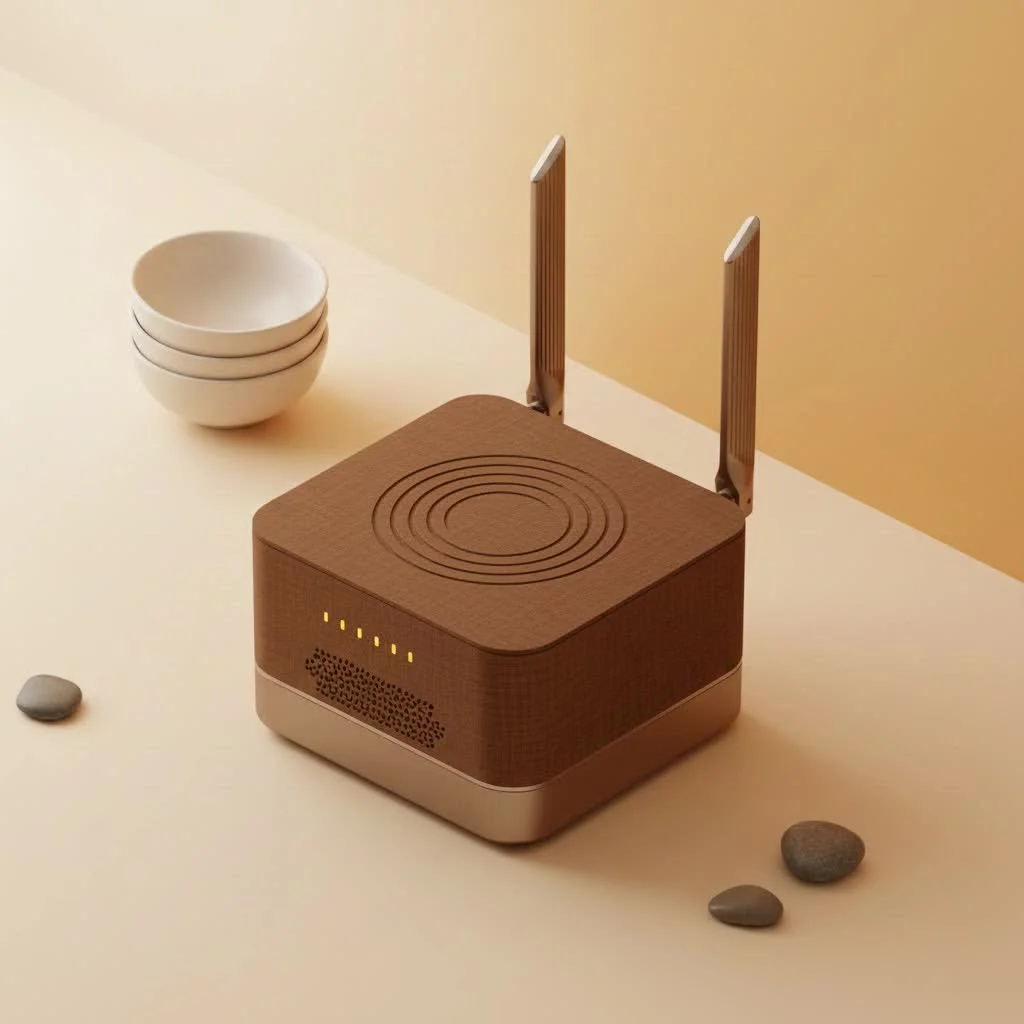
What Exactly is the Netgear AC1200 WiFi Range Extender?
A WiFi extender acts as a bridge, capturing the existing wireless signal from your main router and rebroadcasting it to areas with weak or non-existent signals. The “AC1200” designation refers to its speed capabilities, indicating it’s a dual-band extender operating on two distinct frequencies:
- 2.4GHz: This band provides broader coverage at slower speeds, ideal for web browsing and email.
- 5GHz: This band offers faster speeds over a shorter range, perfect for bandwidth-intensive tasks like 4K video streaming and online gaming.
By combining these, the AC1200 can deliver theoretical speeds up to 1200Mbps, creating a more robust and reliable network throughout your home. Many models also feature Netgear’s “FastLane Technology,” which allows you to dedicate one band for connecting to the router and the other for connecting to your devices, optimizing performance.
Step-by-Step Guide: Setting Up Your Netgear AC1200 Extender
Setting up your Netgear AC1200 is straightforward, with two primary methods available. Before starting, plug the extender into a power outlet in the same room as your router for the initial setup.
Method 1: The WPS Button (The Super Easy Way)
WPS (Wi-Fi Protected Setup) is the simplest method if your router supports it, which most modern routers do.
- Power On: Plug in the extender and wait for the power LED to turn solid green.
- Press WPS on Extender: Press the WPS button on the side of the extender. The WPS LED will start to blink.
- Press WPS on Router: Within two minutes, press the WPS button on your main router.
- Wait for Connection: The WPS LED on the extender will turn solid green, indicating a successful connection to the 2.4GHz band of your router.
- Repeat for 5GHz (Optional): If you have a dual-band router, repeat the process to connect the 5GHz band.
- Relocate: Unplug the extender and move it to a new location, approximately halfway between your router and the area with poor WiFi. The router link LED will help you find the optimal spot; a solid green light is best.
Method 2: Using the Web Browser Setup
|
Our Picks for the Best Wifi Extender in 2026
As an Amazon Associate I earn from qualifying purchases.
|
||
| Num | Product | Action |
|---|---|---|
| 1 | WiFi Extender with 4 Antennas 1200Mbps - Dual Band 5GHz/2.4GHz, WiFi Extender Signal Booster with 3 Modes Support, WiFi Repeater with 12880 Sq.ft 105 Devices, Easy Set Up for Home |

|
| 2 | WiFi Extender, WiFi Extenders Signal Booster for Home Up to 5000 sq.ft and 50 Devices, WiFi Range Extender, Wireless Repeater, Long Range Amplifier with Ethernet Port, 1-Tap Setup, Alexa Compatible |
|
| 3 | TP-Link AC1200 WiFi Extender, 2023 Engadget Best Budget Pick, 1.2Gbps Signal Booster for Home, Dual Band 5GHz/2.4GHz, Covers Up to 1500 Sq.ft and 30 Devices,Support Onemesh, One Ethernet Port (RE315) |
|
| 4 | Amazon eero 6+ mesh wifi system with 1 month free eero Plus (auto-renews) - Coverage up to 4,500 sq. ft., Connect 75+ devices, 3-pack |
|
| 5 | Amazon eero 7 with 1 month free eero Plus (auto-renews) - Supports internet plans up to 2.5 Gbps, Coverage up to 2,000 sq. ft., Connect 120+ devices, 1-pack |
|
| 6 | TP-Link AC1900 WiFi Range Extender RE550 - Dual-Band Wireless Repeater Amplifier w/Gigabit Ethernet Port - Up to 2200 Sq. Ft., 32 Devices - Internet Signal Booster - APP Setup - EasyMesh Compatible |
|
| 7 | 2025 WiFi Extenders Signal Booster for Home Long Range Up to 9800 sq. ft & 40 Devices, WiFi Extender Signal Booster, Quick Setup-Medium, Internet Repeater, WiFi Extender |
|
| 8 | Amazon eero 6 mesh wifi extender with 1-month free eero Plus (auto-renews) - Add up to 1,500 sq. ft. of Wi-Fi 6 coverage to your existing eero mesh wifi network |
|
| 9 | TP-Link AX3000 WiFi 6 Range Extender - PCMag Editor\'s Choice - Dual-Band Wireless Repeater w/Ethernet Port - Up to 2400 Sq. Ft., 64 Devices - Internet Signal Booster - APP Setup - EasyMesh (RE715X) |
|
| 10 | 2025 Fastest WiFi Extender, WiFi Repeater, WiFi Booster, Covers Up to 10000 Sq.ft and 80 Devices, Internet Booster - with Ethernet Port, Quick Setup, Home Wireless Signal Booster |
|
If your router lacks a WPS button or you prefer more control, the web browser setup is the alternative.
- Power On: Plug in the extender and wait for the power LED to turn solid green.
- Connect to the Extender’s Network: On your computer, smartphone, or tablet, navigate to your WiFi settings and connect to the network named NETGEAR_EXT.
- Launch Browser: Open a web browser. The Netgear installation assistant should launch automatically. If it doesn’t, manually type
mywifiext.netinto the address bar. - Follow the Wizard: The on-screen setup wizard, often called the Netgear Genie, will guide you. It will scan for available WiFi networks.
- Select Your Network: Choose your home’s 2.4GHz and 5GHz WiFi networks from the list and enter your existing WiFi password when prompted.
- Configure Extended Network: You can choose to give your new extended networks a different name (SSID), such as “MyHomeWiFi_EXT,” or use the same name as your main network. Using a different name makes it easier to identify which network you’re connected to.
- Finalize and Relocate: Once setup is complete, you can unplug the extender and move it to its ideal location.
Expert Tip from David Chen, TVCSP Network Engineer: “For 90% of users, the WPS method is flawless and takes less than five minutes. However, I recommend the browser setup for those who want to customize their network names. Differentiating the extender’s SSID helps you manually switch to the strongest signal source, giving you more control over your device’s connection.”
How to Get the Best Performance from Your Extender
Setup is the initial step. To truly eliminate dead zones and achieve expected speeds, proper placement and configuration are crucial.
- The Halfway Rule: The most critical factor for performance is placement. Position the extender roughly halfway between your router and the WiFi dead zone. Placing it too close to the router won’t extend the range significantly, while placing it too far will result in a weak signal that it can only rebroadcast weakly.
- Check the LEDs: The status lights on the extender are essential indicators. Look for a solid green light, which signifies a strong connection to your router. If the light is amber or red, the extender is too far from the router and needs to be moved closer.
- Avoid Obstructions: Place the extender in an open area, away from thick walls, metal objects, and appliances like microwaves or cordless phones, which can interfere with the signal.
- Update Your Firmware: Netgear regularly releases firmware updates that improve performance, patch security vulnerabilities, and fix bugs. Periodically log into the extender’s settings via
mywifiext.netto check for and install any available updates.
Common Netgear AC1200 Problems and How to Fix Them
Even reliable technology can encounter issues. Here are common problems you might face and their quick solutions.
Why Can’t I Connect to the Extender’s Network?
This is often a setup issue. The first step is to perform a factory reset. Locate the small, recessed reset button on the extender. While the extender is powered on, use a paperclip to press and hold the button for approximately 10 seconds. The lights will flash, indicating a reset. Then, carefully repeat the setup process.
My Extender Keeps Disconnecting. What’s Wrong?
Intermittent connections are typically caused by a poor link to the main router. The extender is likely too far away. Try moving it to a power outlet closer to the router. Also, check for signal interference from other electronic devices.
Why Are My Speeds So Slow Through the Extender?
An extender can only rebroadcast the signal it receives. If it’s placed in an area with a weak signal from the router, your extended signal will also be weak. Use the LED indicators to find a better location. For advanced users, enabling FastLane Technology can also boost speed by dedicating one band for communication with the router.
Is the Netgear AC1200 the Right Extender for You?
The Netgear AC1200 is an excellent and affordable solution for most small to medium-sized homes experiencing WiFi dead zones. It offers a strong balance of performance, ease of use, and features.
Pros:
- Easy setup with both WPS and web-based options.
- Dual-band support for better speed and less interference.
- Compact design that plugs directly into a wall outlet.
- Affordable price point for its capabilities.
Cons:
- Performance can vary significantly based on home layout and placement.
- Not as seamless as a more expensive mesh WiFi system.
For larger, multi-story homes or users requiring the absolute highest performance in every room, a mesh WiFi system might be a better, though more expensive, option. However, for resolving specific dead zones in a typical home, the Netgear AC1200 is a reliable workhorse.
Frequently Asked Questions (FAQ)
How do I reset the Netgear AC1200 extender?
To perform a factory reset, locate the reset button (often in a small pinhole). While the device is on, use a paperclip to press and hold the button for about 10 seconds until the device LEDs blink.What does the AC1200 speed mean?
AC1200 is a combination of the maximum theoretical speeds on both WiFi bands: up to 300Mbps on the 2.4GHz band and up to 867Mbps on the 5GHz band. Real-world speeds will be lower.Can I use a different network name (SSID) for the extender?
Yes. During the web browser setup, you are given the option to customize the SSID. It is often recommended to add “_EXT” to your existing network name to easily distinguish it.Does the Netgear AC1200 work with any router?
Yes, the Netgear AC1200 is a universal range extender, meaning it is designed to work with any standard WiFi router, regardless of the brand.Your Home, Fully Connected
Dealing with WiFi dead spots can be incredibly frustrating, but it doesn’t have to be a permanent problem. The Netgear AC1200 WiFi Range Extender offers a simple, effective, and budget-friendly way to push a strong signal into every corner of your living space. By following the setup steps and placement tips in this guide, you can enjoy seamless streaming, gaming, and browsing from anywhere in your home. Take back your WiFi and make dead zones a thing of the past.
Set Up Your Netgear AC1200 WiFi Range Extender
This guide provides two straightforward methods to set up your Netgear AC1200 WiFi Range Extender, ensuring you can quickly eliminate WiFi dead zones in your home.
1Power On and Initial PlacementPlug in the Netgear AC1200 extender into a power outlet in the same room as your main router. Wait for the power LED indicator to turn solid green, signifying it's ready for setup.
2Choose Setup Method: WPS or Web BrowserYou can either use the WPS button method for a quick setup if your router supports it, or the web browser method for more control over network settings. The WPS method involves pressing buttons on both devices, while the web browser method requires connecting to the extender's temporary network and following an on-screen wizard.
3Connect to Your Home NetworkFor WPS, press the WPS button on the extender, then on your router within two minutes. For web browser setup, connect to the 'NETGEAR_EXT' network, open a browser to mywifiext.net, and select your home's 2.4GHz and 5GHz networks, entering your WiFi password.
4Configure Extended Network (Optional for Web Browser)If using the web browser setup, you'll have the option to customize the name (SSID) of your extended WiFi networks. It's often recommended to add a suffix like '_EXT' to easily differentiate it from your main network.
5Relocate for Optimal PerformanceOnce setup is complete, unplug the extender and move it to a location roughly halfway between your main router and the area where you need improved WiFi coverage. Use the extender's router link LED (solid green is best) to find the ideal spot for maximum signal extension.
Get our weekly buyer guide
Practical specs, not advice. Unsubscribe anytime.
The dual-band feature on this Netgear AC1200 is a game-changer. I’ve got a lot of devices, and being able to use both the 2.4GHz and 5GHz bands really helps with congestion. Speeds are pretty consistent, though I haven’t hit the theoretical 1200Mbps, it’s still a huge improvement for my home office.
I was so tired of my WiFi dropping in the back bedroom, it was a total dead zone. This Netgear AC1200 extender was super easy to set up, literally took me like 5 minutes. Now I get a strong signal everywhere, even out on the patio. Definitely worth it for anyone struggling with spotty coverage.
Honestly, I’m not a tech person at all, but this Netgear AC1200 was surprisingly user-friendly. I just followed the quick guide and it was up and running. My kids can finally stream their shows without buffering in the basement. It really does eliminate those annoying dead zones.
It does extend the signal, which is good, but I found the placement to be a bit finicky. Had to try a few different outlets before I got a really stable connection. It’s better than nothing for my garage, but I was hoping for a bit more plug-and-play simplicity. Still, it solved the weak signal issue.