Is your desktop or laptop constantly battling a weak, inconsistent Wi-Fi signal? You’re not alone. Many PC users struggle with poor connectivity, especially when their computer is far from the main router. A dedicated wifi extender for PC can be the game-changer you need, transforming sluggish internet into a smooth, reliable experience. This guide will walk you through everything, from understanding how these devices work to setting one up and troubleshooting common issues, ensuring your PC gets the robust connection it deserves.
What Exactly is a Wifi Extender and How Does It Work for Your PC?
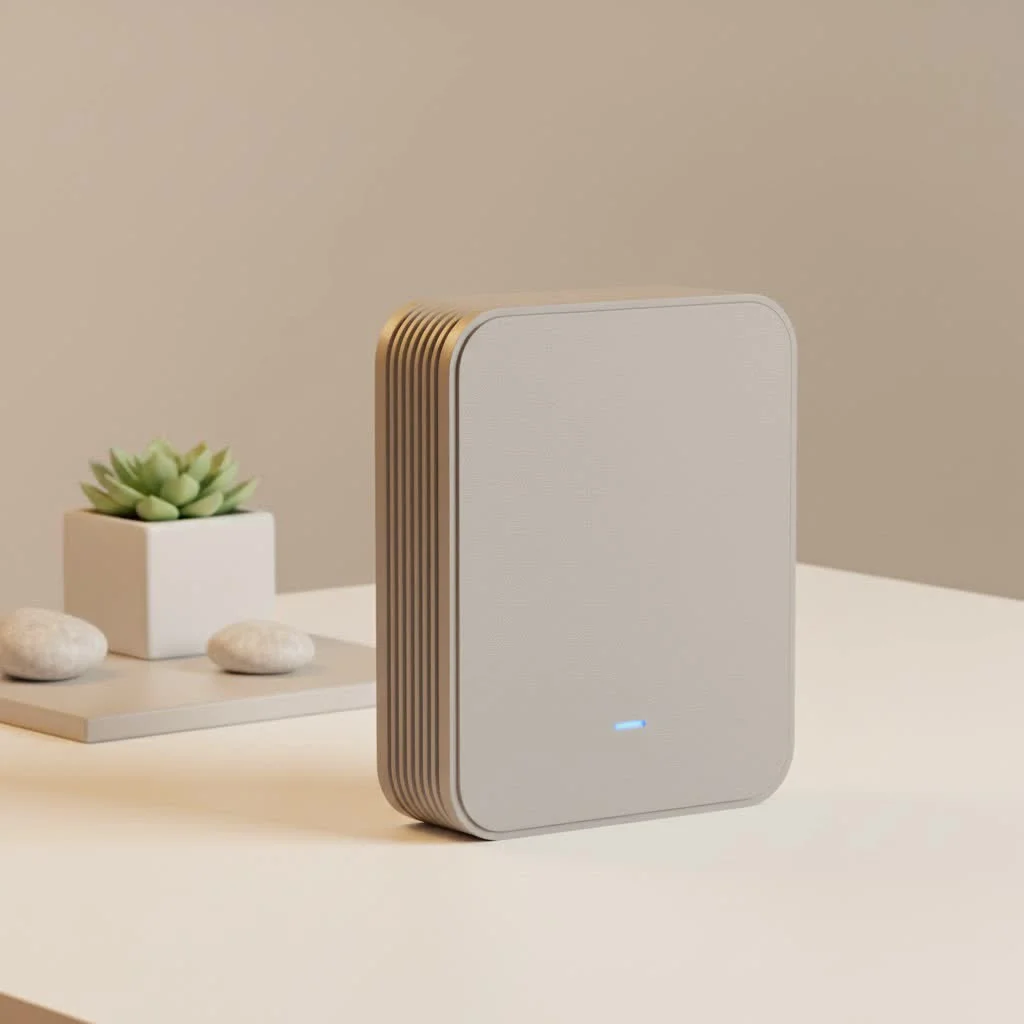
A Wi-Fi extender, also known as a range extender or booster, is a device designed to expand the coverage area of your existing Wi-Fi network. It essentially picks up the Wi-Fi signal from your router, amplifies it, and then rebroadcasts it, creating a secondary network that reaches previously dead zones or areas with weak signals. For your PC, this means bridging the gap between your computer and the main router, delivering a stronger, more stable connection. Instead of your PC straining to catch a faint signal, it connects to the extender, which is closer and has a better line of sight to the router, ensuring a seamless data flow.
Different Types of Wifi Extenders Tailored for PC Connectivity
When looking for a wifi extender for PC, you’ll encounter a few primary types, each with unique advantages:
Plug-in Wall Extenders
These compact devices plug directly into a wall outlet. They are typically discreet and easy to set up, making them ideal for smaller spaces or quick fixes. Many come with an Ethernet port, allowing you to connect your desktop PC directly via a cable for a more stable and potentially faster connection than Wi-Fi alone.
Desktop Extenders
Larger than their plug-in counterparts, desktop extenders often feature external antennas and more robust hardware. They offer greater range and performance, often supporting faster Wi-Fi standards. Their size means they usually provide multiple Ethernet ports, which is a significant plus for gaming PCs or workstations that benefit from a wired connection.
Powerline Adapters (An Alternative to Consider)
While not strictly Wi-Fi extenders, powerline adapters deserve a mention, especially for desktop PCs. They use your home’s existing electrical wiring to transmit network data. You plug one adapter into a wall outlet near your router (and connect it via Ethernet) and another near your PC (also connected via Ethernet). Some powerline adapters also include a Wi-Fi broadcasting feature, effectively making them Wi-Fi extenders that leverage your electrical system for the backhaul connection.
The Good and the Not-So-Good: Pros and Cons of Using a Wifi Extender for Your PC
Like any technology, Wi-Fi extenders come with their own set of advantages and disadvantages. Understanding these can help you decide if a wifi extender for PC is the right solution for your specific needs.
Advantages:
|
Our Picks for the Best Wifi Extender in 2026
As an Amazon Associate I earn from qualifying purchases.
|
||
| Num | Product | Action |
|---|---|---|
| 1 | 2025 WiFi Extenders Signal Booster for Home Long Range Up to 9800 sq. ft & 40 Devices, WiFi Extender Signal Booster, Quick Setup-Medium, Internet Repeater, WiFi Extender |

|
| 2 | Amazon eero 6+ mesh wifi system with 1 month free eero Plus (auto-renews) - Coverage up to 4,500 sq. ft., Connect 75+ devices, 3-pack |
|
| 3 | WiFi Extender, WiFi Extenders Signal Booster for Home Up to 5000 sq.ft and 50 Devices, WiFi Range Extender, Wireless Repeater, Long Range Amplifier with Ethernet Port, 1-Tap Setup, Alexa Compatible |
|
| 4 | TP-Link AC1200 WiFi Extender, 2023 Engadget Best Budget Pick, 1.2Gbps Signal Booster for Home, Dual Band 5GHz/2.4GHz, Covers Up to 1500 Sq.ft and 30 Devices,Support Onemesh, One Ethernet Port (RE315) |
|
| 5 | Amazon eero 6 mesh wifi extender with 1-month free eero Plus (auto-renews) - Add up to 1,500 sq. ft. of Wi-Fi 6 coverage to your existing eero mesh wifi network |
|
| 6 | 2025 Fastest WiFi Extender, WiFi Repeater, WiFi Booster, Covers Up to 10000 Sq.ft and 80 Devices, Internet Booster - with Ethernet Port, Quick Setup, Home Wireless Signal Booster |
|
| 7 | WiFi Extender with 4 Antennas 1200Mbps - Dual Band 5GHz/2.4GHz, WiFi Extender Signal Booster with 3 Modes Support, WiFi Repeater with 12880 Sq.ft 105 Devices, Easy Set Up for Home |
|
| 8 | Amazon eero 7 with 1 month free eero Plus (auto-renews) - Supports internet plans up to 2.5 Gbps, Coverage up to 2,000 sq. ft., Connect 120+ devices, 1-pack |
|
| 9 | TP-Link AX3000 WiFi 6 Range Extender - PCMag Editor\'s Choice - Dual-Band Wireless Repeater w/Ethernet Port - Up to 2400 Sq. Ft., 64 Devices - Internet Signal Booster - APP Setup - EasyMesh (RE715X) |
|
| 10 | TP-Link AC1900 WiFi Range Extender RE550 - Dual-Band Wireless Repeater Amplifier w/Gigabit Ethernet Port - Up to 2200 Sq. Ft., 32 Devices - Internet Signal Booster - APP Setup - EasyMesh Compatible |
|
- Extended Coverage: The most obvious benefit is eliminating Wi-Fi dead zones, allowing your PC to connect reliably from anywhere in your home.
- Improved Signal Strength: Your PC will receive a much stronger signal, leading to fewer drops and more consistent performance.
- Enhanced Speed (in weak signal areas): While extenders can sometimes introduce a slight speed reduction, in areas where your PC previously had a very weak signal, the boost in strength often results in a noticeable improvement in actual usable speed.
- Cost-Effective: Often a more affordable solution than upgrading to a mesh Wi-Fi system or running long Ethernet cables.
- Easy Setup: Most modern extenders are designed for quick and intuitive installation.
- Ethernet Port Benefits: Many extenders feature Ethernet ports, allowing you to connect your desktop PC directly for maximum stability and speed, bypassing wireless interference.
Disadvantages:
- Potential Speed Reduction: Extenders receive and then rebroadcast the signal, which can sometimes lead to a halving of bandwidth, especially with older single-band models.
- Increased Latency: The additional hop between your PC, the extender, and the router can introduce a slight delay (latency), which might be noticeable in online gaming or video conferencing.
- Network Congestion: If many devices connect to the extender, it can become a bottleneck.
- Placement Sensitivity: Optimal performance heavily relies on strategic placement between the router and your PC.
- Separate Network Name: Sometimes, the extender creates a separate network name (SSID), which can be confusing for some users, though many now offer “one Wi-Fi name” features.
Step-by-Step: Installing and Configuring Your Wifi Extender for PC
Getting your wifi extender for PC up and running is typically a straightforward process. Follow these steps for a smooth setup:
1. Unboxing and Initial Placement
- Unbox your new Wi-Fi extender.
- Find a power outlet roughly halfway between your main Wi-Fi router and your PC. Avoid placing it directly next to your router or too close to your PC in a dead zone. The goal is to find a spot where it still receives a strong signal from the router.
- Plug in the extender. Wait for the power indicator light to stabilize.
2. Connecting to the Extender (Initial Setup)
- Method A (WPS – Wi-Fi Protected Setup): If both your router and extender have a WPS button, press the WPS button on your extender first, then immediately press the WPS button on your router. Wait for the connection indicator lights to show a successful link. This is often the quickest method.
- Method B (Web Browser Setup):
- Connect your PC to the extender’s default Wi-Fi network (the name is usually on a sticker on the extender, e.g., “TP-Link_Extender”).
- Open a web browser on your PC and type in the extender’s default IP address or web address (e.g.,
192.168.0.254ortplinkrepeater.net). This information is in your extender’s manual. - Follow the on-screen prompts to create an administrator password, select your main Wi-Fi network from the list, and enter its password.
- You might be prompted to give the extended network a new name or keep the same name as your main network. For simplicity, many users choose to keep the same name.
- Complete the setup wizard.
3. Final Placement and Connection to Your PC
- Once configured, the extender’s indicator lights (usually signal strength indicators) will guide you to the optimal placement. If the signal is weak, move it closer to the router. If it’s excellent, you might try moving it slightly further away towards your PC.
- Connecting your PC:
- Wireless: On your PC, disconnect from your main Wi-Fi network and connect to the new extended network (if you gave it a different name) or simply stay connected if the extender uses the same SSID and your PC automatically roams.
- Wired (Recommended for Desktops): If your extender has an Ethernet port, run an Ethernet cable from the extender’s port directly to your PC’s Ethernet port. This provides the most stable and often fastest connection.
“Many users overlook the power of an Ethernet connection from their extender directly to their desktop PC,” says Minh Le, Lead Network Architect at TVCSP. “It completely bypasses potential wireless interference and offers a significant boost in stability for critical tasks like gaming or large file transfers.”
Maximizing Your Connection: Tips to Optimize Your Wifi Extender for PC Performance
To ensure your wifi extender for PC delivers the best possible performance, consider these optimization tips:
- Optimal Placement is Key: Reiterate the “halfway point” rule, but also experiment. Walls, large appliances, and even aquariums can block Wi-Fi signals. Try different outlets and orientations.
- Firmware Updates: Always keep your extender’s firmware updated. Manufacturers frequently release updates that improve performance, add features, and fix bugs. Check your extender’s web interface for update options.
- Avoid Interference: Place your extender away from microwave ovens, cordless phones, Bluetooth devices, and other electronics that operate on similar frequencies (2.4 GHz).
- Use Dual-Band (If Available): If your extender and router support dual-band (2.4 GHz and 5 GHz), utilize the 5 GHz band for your PC if possible. It offers faster speeds with less interference, although its range is shorter. The 2.4 GHz band provides better range but slower speeds and more congestion.
- Ethernet Backhaul (if supported): Some advanced extenders support Ethernet backhaul, meaning you can connect the extender to your main router via an Ethernet cable. This provides a dedicated, high-speed connection between the two, significantly improving extender performance.
- Quality of Service (QoS) Settings: Some extenders and routers allow you to prioritize network traffic. If your PC is used for gaming or streaming, configure QoS settings to give it preference.
Troubleshooting Common Issues with Your Wifi Extender and PC
Even with careful setup, you might encounter occasional hiccups. Here’s how to troubleshoot common problems with your wifi extender for PC:
“My PC isn’t connecting to the extender!”
- Check Power: Ensure the extender is plugged in and powered on.
- Verify Setup: Re-run the setup process to ensure it’s correctly linked to your main router.
- Correct Network: Confirm your PC is attempting to connect to the correct extended network name (SSID).
- Signal Strength: Check the extender’s signal indicator lights. If they show a weak signal from the router, move the extender closer to the router.
“My internet speed is still slow on my PC!”
- Placement: The most common culprit. The extender might be too far from the router, receiving a weak signal to extend. Move it closer to the router.
- Interference: Check for interfering devices nearby.
- Bandwidth Halving: This is a natural limitation of some extenders. If extreme speed is critical, consider a dual-band extender, a powerline adapter with Ethernet to your PC, or a mesh Wi-Fi system.
- Router Speed: Ensure your main router is providing adequate speed. Sometimes the bottleneck isn’t the extender but the source.
“My PC keeps disconnecting from the extender!”
- Firmware Update: Ensure both your extender and PC’s Wi-Fi adapter drivers are up to date.
- Overlapping Signals: If you have multiple Wi-Fi networks (router, extender, neighbors), there might be channel interference. Try changing the Wi-Fi channel on your main router (and potentially the extender if it allows).
- Extender Overload: Too many devices connected to the extender might be causing instability.
Top Considerations When Choosing a Wifi Extender for Your PC
Selecting the best wifi extender for PC involves considering several factors to match your specific needs:
- Wi-Fi Standard (Wi-Fi 5 / 802.11ac or Wi-Fi 6 / 802.11ax): Always try to match your extender’s standard to your router’s for optimal performance. Wi-Fi 6 offers significant improvements in speed and efficiency.
- Dual-Band vs. Tri-Band: Dual-band extenders operate on 2.4 GHz and 5 GHz. Tri-band extenders add a second 5 GHz band, often dedicated as a backhaul link to the router, minimizing speed reduction.
- Ethernet Ports: Crucial for desktop PCs. Look for extenders with Gigabit Ethernet ports (1000 Mbps) for the fastest wired connections.
- Mesh Compatibility: Some extenders can integrate into mesh systems, offering seamless roaming and better overall coverage.
- Ease of Setup: Look for features like WPS, intuitive web interfaces, or companion apps for easy installation.
- Brand Reputation: Stick with reputable brands known for network equipment for reliability and support.
Frequently Asked Questions About Wifi Extenders for PCs
How can a wifi extender improve my PC’s gaming experience?
A Wi-Fi extender can significantly improve your PC’s gaming experience by providing a stronger, more stable connection, reducing lag and disconnections, especially if your PC is far from the main router. Connecting your gaming PC to the extender via an Ethernet cable can further minimize latency and packet loss.
Can I use any wifi extender with any PC?
Yes, Wi-Fi extenders are generally universal and work with any PC that has Wi-Fi capabilities or an Ethernet port. The extender creates or extends a standard Wi-Fi network, which any modern PC can connect to.
Is it better to connect my PC to the extender wirelessly or with an Ethernet cable?
Connecting your PC to the extender with an Ethernet cable is almost always better for desktop PCs. It provides a more stable, faster, and lower-latency connection compared to connecting wirelessly, bypassing potential wireless interference.
Will a wifi extender make my internet faster on my PC?
A Wi-Fi extender primarily extends coverage and strengthens the signal. While it won’t increase your overall internet speed beyond what your ISP provides, it will make your internet feel faster on your PC in areas where the signal was previously weak, as it delivers a more reliable and consistent connection.
What’s the difference between a wifi extender and a mesh Wi-Fi system for my PC?
A Wi-Fi extender typically creates a separate, extended network and might introduce some speed degradation. A mesh Wi-Fi system uses multiple nodes to create a single, seamless Wi-Fi network throughout your home, often offering better performance, coverage, and roaming capabilities without the same speed drawbacks as traditional extenders. For a single PC in a dead zone, an extender might suffice, but for whole-home coverage and multiple devices, mesh is often superior.
How far can a wifi extender reach for my PC?
The range of a Wi-Fi extender for your PC depends on various factors, including the extender’s power, your router’s signal strength, and environmental factors like walls and interference. Generally, it can extend coverage by an additional 1,000 to 2,000 square feet, but real-world results vary.
Conclusion: Unleash Your PC’s Full Connectivity Potential
A wifi extender for PC isn’t just a gadget; it’s a vital tool for anyone struggling with inconsistent Wi-Fi on their desktop or laptop. By understanding how these devices work, choosing the right type, and following simple setup and optimization techniques, you can transform your PC’s connectivity from frustrating to flawless. Whether you’re streaming 4K content, engaging in competitive online gaming, or simply browsing the web, a well-implemented Wi-Fi extender can provide the stable, strong connection your PC deserves. Don’t let weak signals hold you back – take control of your network and experience the full potential of your PC.
Get our weekly buyer guide
Practical specs, not advice. Unsubscribe anytime.