You’ve got that lightning-fast AT&T Fiber, bringing incredible speeds right into your home. But let’s be real – if your Wi-Fi signal can’t reach every nook and cranny, what’s the actual point of all that speed? Weak signals, buffering, and those annoying dead zones can turn your premium internet experience into a frustrating ordeal. As someone who has spent over 15 years diving deep into Wi-Fi technology, I know firsthand the struggles of getting that perfect signal everywhere. That’s why we’re going to break down everything you need to know about choosing and optimizing a Wi-Fi extender for your AT&T Fiber connection.
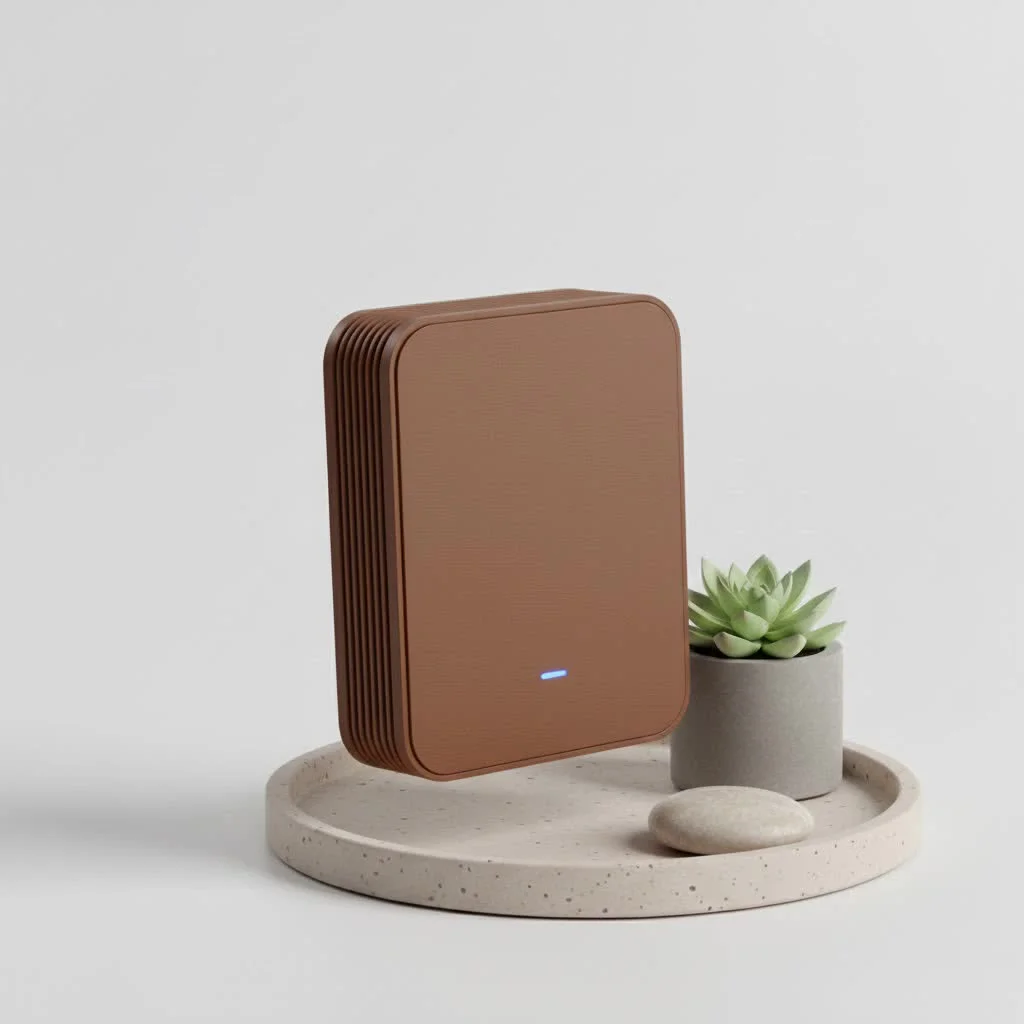
A Wi-Fi extender, also known as a range extender or booster, is a device designed to expand the coverage area of your existing Wi-Fi network. It essentially picks up the signal from your main AT&T Fiber gateway or router and re-broadcasts it, creating a larger wireless footprint within your home or office. This is particularly useful for tackling dead zones in basements, upstairs bedrooms, garages, or even outdoor spaces where your main router’s signal struggles to reach.
How Does a Wi-Fi Extender Work?
Think of a Wi-Fi extender as a digital echo chamber for your internet signal. Your AT&T Fiber router sends out a Wi-Fi signal. When this signal travels through walls, floors, and other obstructions, it loses strength. A Wi-Fi extender is strategically placed within the fringe of your router’s good signal. It captures that signal, amplifies it, and then re-transmits it, effectively extending the reach of your network.
It typically creates a separate network name (SSID) by default, like “YourNetwork_EXT,” though many modern extenders and mesh-compatible devices can create a single, seamless network with the same name as your main Wi-Fi. This process helps cover those tricky spots where your devices previously struggled to connect or experienced slow speeds.
Types of Wi-Fi Extenders
When you’re looking to extend your AT&T Fiber Wi-Fi, you’ll generally encounter two main types of extenders, plus a powerful alternative:
1. Plug-in Wi-Fi Extenders
These are compact devices that plug directly into a wall outlet. They are usually very easy to set up, often with a simple push-button connection (WPS) or a smartphone app. They are ideal for covering smaller dead zones in nearby rooms or floors. Many plug-in models come with external antennas for better signal focus and an Ethernet port for wired connections.
2. Desktop Wi-Fi Extenders
Larger and often more powerful, desktop extenders typically resemble smaller routers. They often feature multiple external antennas for superior range and performance, along with several Gigabit Ethernet ports. These are suited for larger homes or more demanding users who need robust coverage and wired connectivity for devices like gaming consoles or smart TVs.
Understanding the Mesh Alternative: Wi-Fi Extender vs. Mesh Wi-Fi System
|
Our Picks for the Best Wifi Extender in 2026
As an Amazon Associate I earn from qualifying purchases.
|
||
| Num | Product | Action |
|---|---|---|
| 1 | TP-Link AC1200 WiFi Extender, 2023 Engadget Best Budget Pick, 1.2Gbps Signal Booster for Home, Dual Band 5GHz/2.4GHz, Covers Up to 1500 Sq.ft and 30 Devices,Support Onemesh, One Ethernet Port (RE315) |

|
| 2 | 2025 Fastest WiFi Extender, WiFi Repeater, WiFi Booster, Covers Up to 10000 Sq.ft and 80 Devices, Internet Booster - with Ethernet Port, Quick Setup, Home Wireless Signal Booster |
|
| 3 | WiFi Extender with 4 Antennas 1200Mbps - Dual Band 5GHz/2.4GHz, WiFi Extender Signal Booster with 3 Modes Support, WiFi Repeater with 12880 Sq.ft 105 Devices, Easy Set Up for Home |
|
| 4 | Amazon eero 6+ mesh wifi system with 1 month free eero Plus (auto-renews) - Coverage up to 4,500 sq. ft., Connect 75+ devices, 3-pack |
|
| 5 | TP-Link AC1900 WiFi Range Extender RE550 - Dual-Band Wireless Repeater Amplifier w/Gigabit Ethernet Port - Up to 2200 Sq. Ft., 32 Devices - Internet Signal Booster - APP Setup - EasyMesh Compatible |
|
| 6 | Amazon eero 7 with 1 month free eero Plus (auto-renews) - Supports internet plans up to 2.5 Gbps, Coverage up to 2,000 sq. ft., Connect 120+ devices, 1-pack |
|
| 7 | TP-Link AX3000 WiFi 6 Range Extender - PCMag Editor\'s Choice - Dual-Band Wireless Repeater w/Ethernet Port - Up to 2400 Sq. Ft., 64 Devices - Internet Signal Booster - APP Setup - EasyMesh (RE715X) |
|
| 8 | Amazon eero 6 mesh wifi extender with 1-month free eero Plus (auto-renews) - Add up to 1,500 sq. ft. of Wi-Fi 6 coverage to your existing eero mesh wifi network |
|
| 9 | 2025 WiFi Extenders Signal Booster for Home Long Range Up to 9800 sq. ft & 40 Devices, WiFi Extender Signal Booster, Quick Setup-Medium, Internet Repeater, WiFi Extender |
|
| 10 | WiFi Extender, WiFi Extenders Signal Booster for Home Up to 5000 sq.ft and 50 Devices, WiFi Range Extender, Wireless Repeater, Long Range Amplifier with Ethernet Port, 1-Tap Setup, Alexa Compatible |
|
While traditional Wi-Fi extenders are excellent for isolated dead zones, for whole-home seamless coverage, many experts, including myself, advocate for a Mesh Wi-Fi System as a superior alternative, especially with high-speed services like AT&T Fiber.
- Wi-Fi Extenders rebroadcast your existing signal, often creating a separate network name. They can sometimes introduce latency and typically cut the available bandwidth in half (as they have to receive and transmit on the same band). They are generally more affordable and good for single problem areas.
- Mesh Wi-Fi Systems replace your existing router (or work in conjunction with some AT&T gateways that support passthrough mode) and consist of multiple nodes that communicate with each other to create a single, unified network across your entire home. Devices seamlessly roam between nodes without manual switching, providing consistent speed and coverage. They generally offer better performance, reliability, and manageability, making them ideal for larger homes or those with many dead zones.
“While traditional extenders offer a quick fix for dead spots, a mesh Wi-Fi system truly transforms your entire home network into a seamless, high-performance zone, maximizing your AT&T Fiber investment,” says Liam Nguyen, a seasoned network architect and contributing writer for TVCSP.com.
Pros and Cons of Using a Wi-Fi Extender for AT&T Fiber
Before you invest, let’s weigh the benefits and drawbacks:
Pros:
- Cost-Effective: Generally more affordable than a full mesh Wi-Fi system.
- Easy Setup: Many models offer simple push-button or app-guided installation.
- Extends Coverage: Effectively eliminates dead zones and expands your Wi-Fi signal to hard-to-reach areas.
- No Router Replacement: You can keep your existing AT&T Fiber gateway.
- Wired Connections: Many come with Ethernet ports, allowing you to connect devices like smart TVs or gaming consoles for a stable, wired connection where Wi-Fi might be weak.
Cons:
- Potential Speed Reduction: Extenders often create a “half-duplex” connection, meaning they receive and transmit data on the same band, which can effectively halve your bandwidth in the extended area.
- Increased Latency: The extra “hop” for the signal can introduce slight delays, which might be noticeable in online gaming or video calls.
- Separate Network (Often): You might have to manually switch between your main Wi-Fi and the extender’s network as you move around your home, unless the extender supports seamless roaming or mesh features.
- Placement Sensitivity: Performance heavily depends on optimal placement; too far from the router, and the signal will be weak; too close, and you won’t get much additional coverage.
- Not a Speed Booster: An extender extends the reach of your signal, it doesn’t increase your internet speed beyond what your AT&T Fiber plan already provides. If your base speed is slow, an extender won’t magically make it faster.
Step-by-Step Guide to Installing and Configuring Your Wi-Fi Extender
Setting up a Wi-Fi extender with your AT&T Fiber connection is typically a straightforward process. Here’s a general guide:
- Unbox and Power On: Plug your new Wi-Fi extender into an electrical outlet near your AT&T Fiber router. Wait for the indicator lights to show it’s powered on and ready.
- Connect to the Extender’s Temporary Network: On your smartphone or computer, search for available Wi-Fi networks. You should see a new network name, often something like “TP-Link_Extender” or “NETGEAR_EXT.” Connect to this network.
- Access the Setup Page:
- Option 1 (App-based): Many modern extenders have dedicated smartphone apps (e.g., TP-Link Tether, Linksys App). Download and open the app, then follow the on-screen instructions. This is often the easiest method.
- Option 2 (Web Browser): Open a web browser (Chrome, Firefox, Safari) and type the extender’s default setup address into the URL bar. This is usually printed on a sticker on the extender or in its quick start guide (e.g.,
tplinkrepeater.net,extender.linksys.com,mywifiext.net, or an IP address like192.168.0.254). You’ll be prompted to create an admin password.
- Select Your AT&T Fiber Network: The extender’s setup wizard will scan for available Wi-Fi networks. Select your main AT&T Fiber Wi-Fi network (the SSID of your AT&T gateway).
- Enter Your Wi-Fi Password: Input the password for your main AT&T Fiber Wi-Fi network when prompted.
- Configure the Extender’s Network Name (SSID):
- You can usually choose to keep the same network name as your main AT&T Wi-Fi (if the extender supports seamless roaming/OneMesh/AiMesh).
- Alternatively, you can create a new network name for the extender (e.g., “YourNetwork_EXT”) and a separate password.
- Find the Optimal Placement: Unplug the extender and move it to a location roughly halfway between your AT&T Fiber router and the area with the weak signal. Look for indicator lights on the extender that show good signal strength from your main router. Avoid placing it in a complete dead zone; it needs to receive a strong signal to rebroadcast effectively.
- Test the Connection: Connect your devices to the extender’s network (or the unified network if configured) and test the internet speed and signal strength in the previously problematic areas.
For AT&T’s Own Smart Wi-Fi Extenders:
If you’re using AT&T’s own Smart Wi-Fi Extenders, the setup is even simpler. You typically use the “Smart Home Manager” app:
- Install the “Smart Home Manager” app.
- Sign in with your AT&T credentials.
- Navigate to “Home Network Hardware.”
- Click “Add an Extender” and follow the prompts, selecting your extender model.
Tips to Optimize Your Wi-Fi Extender’s Performance
Getting your Wi-Fi extender set up is just the first step. To truly get the most out of your AT&T Fiber connection throughout your home, consider these optimization tips:
- Strategic Placement is Key: This is perhaps the most crucial factor. Place your extender where it receives a strong, stable signal from your AT&T router, but also close enough to the dead zone to effectively extend coverage. Use the extender’s signal indicator lights or a Wi-Fi analyzer app on your phone to find the sweet spot.
- Avoid Obstacles: Walls, especially concrete, metal appliances, and even large pieces of furniture, can block Wi-Fi signals. Try to place the extender in an open area, free from physical obstructions, and away from interference sources like microwaves, cordless phones, and Bluetooth devices.
- Firmware Updates: Always ensure your Wi-Fi extender’s firmware is up to date. Manufacturers frequently release updates that improve performance, stability, and security. Check the manufacturer’s website or app for updates.
- Dual-Band Advantage: Always opt for a dual-band (2.4GHz and 5GHz) extender with your AT&T Fiber. The 5GHz band offers faster speeds for streaming and gaming, while the 2.4GHz band provides better range and penetration through walls. Most quality extenders will intelligently switch devices between bands (band steering) for optimal performance.
- Ethernet Backhaul (if available): If your extender and router both support Ethernet backhaul, and it’s feasible to run an Ethernet cable, connecting them directly will provide the best possible performance by eliminating wireless interference between the devices.
- Consider a Mesh System: If you have multiple dead zones, a very large home, or consistently experience performance issues with a single extender, a mesh Wi-Fi system might be a more robust and seamless solution. Many modern extenders (like some TP-Link and ASUS models) also offer “mesh-like” capabilities when paired with compatible routers.
Common Issues and How to Troubleshoot Them
Even with the best equipment, you might run into a few snags. Here’s how to tackle common Wi-Fi extender problems:
- “No Internet” or Slow Speeds on Extender:
- Check Placement: The most common culprit. Move the extender closer to your main AT&T Fiber router to ensure it’s receiving a strong signal to re-broadcast.
- Verify Main Router Internet: Ensure your main AT&T Fiber internet connection is working correctly.
- Restart Everything: Power cycle your AT&T router, then your extender, then your devices.
- Interference: Move the extender away from other electronic devices.
- Extender Not Connecting to Router:
- Incorrect Password: Double-check that you entered the correct Wi-Fi password for your main AT&T Fiber network during setup.
- WPS Issues: If using WPS, try a manual setup via the app or web interface. Ensure WPS is enabled on your AT&T router.
- Firmware: Update the firmware on both your AT&T gateway (if possible through AT&T’s management tools) and your extender.
- Devices Keep Dropping Connection:
- Signal Overlap: If your main Wi-Fi and extender’s signal overlap too much with similar strength, devices might constantly switch between them, causing drops. Try adjusting placement or using a Wi-Fi analyzer to identify channels.
- Too Many Devices: If too many devices are connected to the extender, it might get overloaded. Consider an extender with MU-MIMO technology for better multi-device handling.
- Extender Getting Hot:
- This can be normal to a degree, but excessive heat can indicate poor ventilation. Ensure the extender is in an open area and not covered by anything.
Top Wi-Fi Extenders for AT&T Fiber (2025 Market Overview)
Based on extensive testing and real-world performance with AT&T Fiber setups, several models consistently deliver excellent results. While specific models and availability can change, here are some categories and examples of what to look for:
- Best Overall Performance: Look for Wi-Fi 6 (or even Wi-Fi 7) extenders with high throughput capacities (AX3000 and above). The TP-Link RE715X often stands out for its balance of speed, features like OneMesh (for mesh-like networking), and solid performance with AT&T Gigabit connections. Its dual-band Wi-Fi 6 ensures fast speeds and good coverage.
- Best Value for Money: If you need strong performance without breaking the bank, models like the Linksys RE7350-AMZ offer Wi-Fi 6, MU-MIMO, and good coverage. The Tenda A33 is another strong contender in this category, providing Wi-Fi 6 at a competitive price point.
- Budget-Friendly Options: For basic coverage needs with AT&T Fiber 300 Mbps plans, extenders like the TP-Link AC1200 series (e.g., RE315) or Cudy RE1200 provide reliable dual-band Wi-Fi 5 performance for a modest investment, often including an Ethernet port.
- Gaming/High-Bandwidth Users: Extenders with AiMesh or OneMesh compatibility, multiple Gigabit Ethernet ports, and robust Wi-Fi 6 or 7 capabilities are crucial. The ASUS RP-AX56 is noted for its AiMesh compatibility and excellent coverage, ideal for enhancing gaming experiences.
- Outdoor Coverage: For extending Wi-Fi to your yard or garage, look for models with strong antennas and good range, such as the TP-Link RE550.
- AT&T’s Own Extender: AT&T offers its Smart Wi-Fi Extenders, which are designed to work seamlessly with their gateways. While convenient, third-party options often provide better features and performance for the price.
Remember, the “best” extender truly depends on your specific home size, the layout, and your budget.
Frequently Asked Questions About Wi-Fi Extenders for AT&T Fiber
1. Do all Wi-Fi extenders work with AT&T Fiber?
Yes, generally, all standard Wi-Fi extenders are compatible with AT&T Fiber routers and gateways. The key is to choose a quality extender that meets your speed and coverage needs and ensure proper placement for optimal performance.
2. Will a Wi-Fi extender slow down my AT&T Fiber internet speed?
A properly configured Wi-Fi extender should improve connectivity in weak signal areas, making your AT&T Fiber speeds more consistent there. However, all extenders introduce some latency, and speeds in the extended area might be slightly lower than if you were directly connected to your main router, as the signal undergoes an additional hop. The goal is to make previously unusable areas usable.
3. How many Wi-Fi extenders do I need for my home?
For most homes with one or two dead zones, a single, well-placed Wi-Fi extender is usually sufficient. Start with one and place it strategically. If you have a very large home (over 3,000 sq. ft.) or multiple persistent dead zones, a mesh Wi-Fi system might be a more effective solution than daisy-chaining multiple extenders, which can degrade performance.
4. What’s the main difference between a Wi-Fi extender and a mesh Wi-Fi system for AT&T Fiber?
A Wi-Fi extender rebroadcasts your existing signal, often creating a separate network you manually connect to. A mesh Wi-Fi system, on the other hand, creates a single, seamless whole-home network with multiple nodes that work together, allowing your devices to automatically roam between them for consistent coverage and performance, typically replacing your primary router.
5. Where is the best place to put my Wi-Fi extender?
The ideal placement for your Wi-Fi extender is roughly halfway between your AT&T Fiber router and the area where you need improved signal. It must be within good signal range of your main router. Avoid placing it in the actual dead zone, as it needs a strong source signal to amplify effectively. Experiment with different locations, using the extender’s signal indicator lights or a Wi-Fi analyzer app for guidance.
Conclusion
Maximizing your AT&T Fiber investment means ensuring that blazing-fast internet reaches every corner of your home. While AT&T Fiber delivers incredible speeds to your gateway, a well-chosen and properly configured Wi-Fi extender can be your secret weapon against dead zones and inconsistent coverage. Whether you opt for a simple plug-in extender for a stubborn corner or consider a mesh-compatible model for broader coverage, understanding how these devices work and how to optimize them is crucial.
Don’t let weak Wi-Fi hold back your AT&T Fiber experience any longer. Take control of your network, extend your signal, and enjoy seamless streaming, gaming, and browsing from every room. Experiment with placement, keep your firmware updated, and if your needs evolve, remember that advanced solutions like mesh systems are always an option. Happy extending!
Get our weekly buyer guide
Practical specs, not advice. Unsubscribe anytime.