Are you tired of WiFi dead zones in your home, especially when your most important devices—like a gaming console or work desktop—need a stable, wired connection? It’s a common frustration: the router is in the living room, but your office is two floors up, and running a 50-foot Ethernet cable just isn’t an option. This is where a wifi range extender with ethernet becomes an essential tool, bridging the gap between wireless convenience and wired performance. It’s the simple, effective solution to finally get that reliable connection for your stationary devices, no matter how far they are from your router.
What is a WiFi Range Extender with Ethernet?
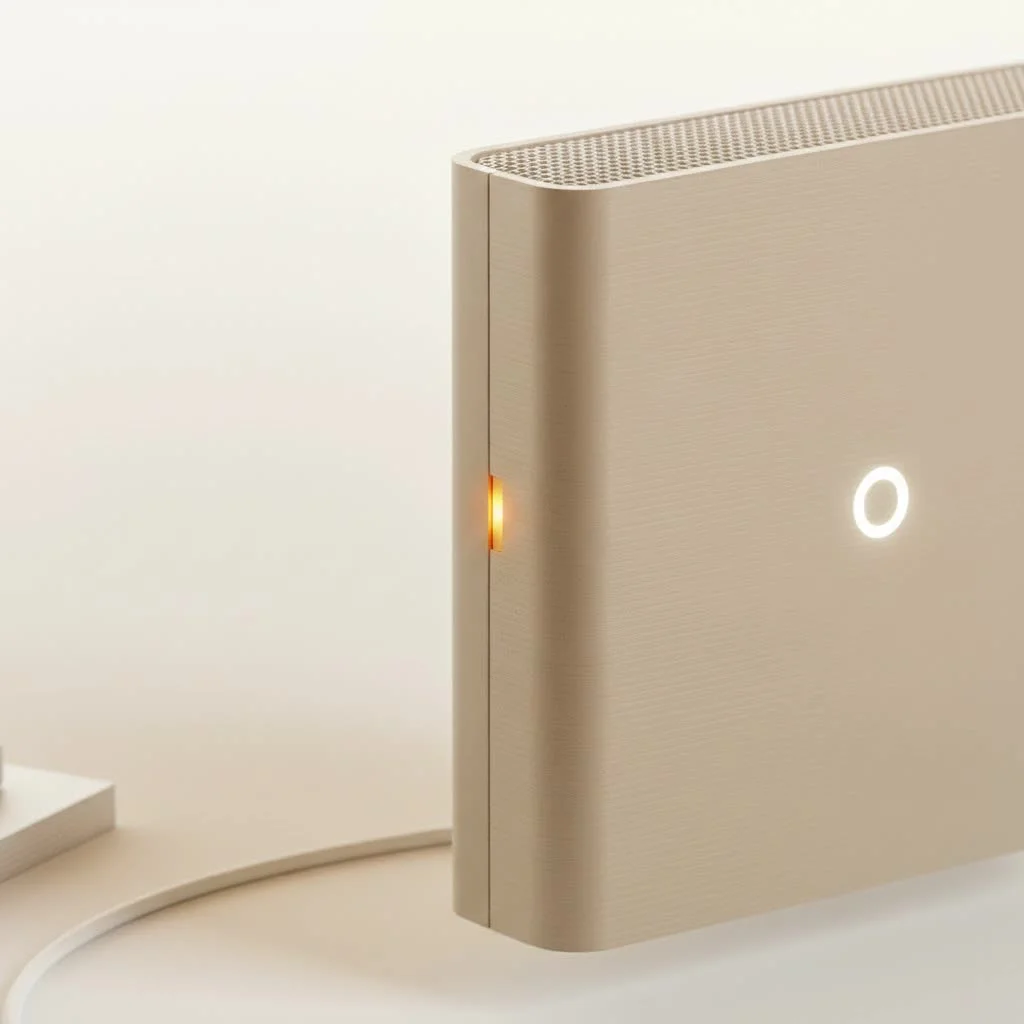
A WiFi range extender, also known as a WiFi booster, is a device that captures the existing wireless signal from your main router and rebroadcasts it, extending the coverage area of your network. A wifi range extender with ethernet port does this and adds a crucial feature: a physical LAN port. This allows you to connect a device directly to the extender using an Ethernet cable, essentially creating a wired connection where one didn’t exist before. Think of it as a wireless bridge that brings a stable, wired internet access point to any room in your house.
Key Benefits of an Extender with an Ethernet Port
While standard extenders are great for mobile devices, the addition of an Ethernet port unlocks a new level of performance and versatility. It’s not just about extending WiFi; it’s about upgrading connectivity for your most critical hardware.
Connect Your Wired-Only Devices
Many devices offer the best performance with a wired connection but lack built-in WiFi capabilities. This includes older smart TVs, desktop computers, gaming consoles like the PlayStation or Xbox, and network-attached storage (NAS) devices. A WiFi extender with an Ethernet port allows you to connect these devices to your network wirelessly without needing to run cables through your entire home.
Achieve a More Stable, Faster Connection
A wired connection is inherently more stable and often faster than a wireless one. It is not susceptible to the same interference from other wireless networks, appliances, or physical obstructions. By plugging your device directly into the extender’s Ethernet port, you bypass potential wireless instability, resulting in:
- Reduced Lag for Gaming: A stable connection minimizes latency and ping, which is crucial for competitive online gaming.
- Buffer-Free 4K Streaming: Streaming high-resolution content requires significant, consistent bandwidth that a wired connection can provide reliably.
- Reliable Video Conferencing: For a home office setup, a stable connection ensures your Zoom or Teams calls are clear and don’t drop out.
Unlock Access Point Mode for Superior Speed
|
Our Picks for the Best Wifi Extender in 2026
As an Amazon Associate I earn from qualifying purchases.
|
||
| Num | Product | Action |
|---|---|---|
| 1 | 2025 Fastest WiFi Extender, WiFi Repeater, WiFi Booster, Covers Up to 10000 Sq.ft and 80 Devices, Internet Booster - with Ethernet Port, Quick Setup, Home Wireless Signal Booster |

|
| 2 | 2025 WiFi Extenders Signal Booster for Home Long Range Up to 9800 sq. ft & 40 Devices, WiFi Extender Signal Booster, Quick Setup-Medium, Internet Repeater, WiFi Extender |
|
| 3 | TP-Link AX3000 WiFi 6 Range Extender - PCMag Editor\'s Choice - Dual-Band Wireless Repeater w/Ethernet Port - Up to 2400 Sq. Ft., 64 Devices - Internet Signal Booster - APP Setup - EasyMesh (RE715X) |
|
| 4 | Amazon eero 6+ mesh wifi system with 1 month free eero Plus (auto-renews) - Coverage up to 4,500 sq. ft., Connect 75+ devices, 3-pack |
|
| 5 | Amazon eero 6 mesh wifi extender with 1-month free eero Plus (auto-renews) - Add up to 1,500 sq. ft. of Wi-Fi 6 coverage to your existing eero mesh wifi network |
|
| 6 | Amazon eero 7 with 1 month free eero Plus (auto-renews) - Supports internet plans up to 2.5 Gbps, Coverage up to 2,000 sq. ft., Connect 120+ devices, 1-pack |
|
| 7 | TP-Link AC1900 WiFi Range Extender RE550 - Dual-Band Wireless Repeater Amplifier w/Gigabit Ethernet Port - Up to 2200 Sq. Ft., 32 Devices - Internet Signal Booster - APP Setup - EasyMesh Compatible |
|
| 8 | WiFi Extender with 4 Antennas 1200Mbps - Dual Band 5GHz/2.4GHz, WiFi Extender Signal Booster with 3 Modes Support, WiFi Repeater with 12880 Sq.ft 105 Devices, Easy Set Up for Home |
|
| 9 | TP-Link AC1200 WiFi Extender, 2023 Engadget Best Budget Pick, 1.2Gbps Signal Booster for Home, Dual Band 5GHz/2.4GHz, Covers Up to 1500 Sq.ft and 30 Devices,Support Onemesh, One Ethernet Port (RE315) |
|
| 10 | WiFi Extender, WiFi Extenders Signal Booster for Home Up to 5000 sq.ft and 50 Devices, WiFi Range Extender, Wireless Repeater, Long Range Amplifier with Ethernet Port, 1-Tap Setup, Alexa Compatible |
|
Many WiFi extenders with an Ethernet port can also function in “Access Point” (AP) mode. In this configuration, you connect the extender to your main router via an Ethernet cable. The extender then broadcasts a new, powerful WiFi signal from that location. While it requires a physical cable run to the extender, AP mode eliminates the speed loss that can sometimes occur when an extender is just wirelessly repeating a signal. This is the ideal setup for maximum performance in a large home or office.
As networking specialist Johnathan Carter often states, “The single greatest advantage of an extender with an Ethernet port is its flexibility. It can solve the simple problem of connecting a printer in another room, or it can be configured as a high-speed access point to provide wired-level performance for an entire entertainment center.”
How to Set Up Your WiFi Range Extender with Ethernet
Setting up your extender is typically a straightforward process. While the exact steps may vary slightly between manufacturers, most follow one of these two methods.
Method 1: The WPS (Wi-Fi Protected Setup) Method
This is the easiest method if your router supports WPS.
- Plug It In: Place the extender in an outlet in the same room as your router for the initial setup.
- Press the WPS Button: Press the WPS button on your main router.
- Press the Extender’s WPS Button: Within two minutes, press the WPS button on your WiFi extender. The lights on the extender should blink and then turn solid, indicating a successful connection.
- Relocate the Extender: Unplug the extender and move it to a location halfway between your router and the area with a weak signal. Plug it back in and wait for it to boot up. A signal indicator light will tell you if the location is optimal.
- Connect Your Device: You can now connect your computer, smart TV, or gaming console to the extender’s Ethernet port.
Method 2: The Web Browser Setup
If your router doesn’t have a WPS button, or if you prefer more control, you can use a web browser.
- Plug In the Extender: Plug the extender into an outlet near a computer or smartphone.
- Connect to the Extender’s Network: On your computer or phone, look for a new WiFi network, usually named after the extender’s brand (e.g., “TP-Link_Extender”). Connect to it.
- Open a Web Browser: Launch any web browser. You should be automatically redirected to the extender’s setup page. If not, type the default IP address (often
192.168.0.254) or a URL liketplinkrepeater.netinto the address bar. This information is found in the manual. - Follow the On-Screen Wizard: The setup wizard will guide you through creating a password, selecting your home WiFi network, and entering its password.
- Relocate and Connect: Once setup is complete, move the extender to its ideal location and connect your wired device via the Ethernet port.
Tips for Optimizing Your Extender’s Performance
To get the best results from your wifi range extender with ethernet, placement and configuration are key.
- Find the Sweet Spot: The extender needs to be close enough to the router to receive a strong, stable signal, but far enough away to extend coverage to your dead zone. Most extenders have an indicator light to help you find the optimal location.
- Avoid Obstructions: Keep the extender away from thick walls, metal objects, and appliances like microwaves that can interfere with the wireless signal.
- Update the Firmware: Manufacturers regularly release firmware updates that can improve performance, add new features, and patch security vulnerabilities. Check the manufacturer’s website periodically.
- Use a Different Network Name (SSID): While many extenders default to using the same network name as your router, consider giving the extended network a slightly different name (e.g., “HomeNetwork_EXT”). This allows you to manually choose which network to connect to, ensuring your devices don’t accidentally stay connected to the weaker signal.
Frequently Asked Questions (FAQ)
Can I plug my PC directly into a WiFi extender?
Yes, absolutely. This is one of the primary reasons to buy a wifi range extender with ethernet. It allows you to provide a stable, wired connection to a desktop PC that may be located far from your router.
Is an extender with an Ethernet port faster than one without?
The Ethernet port provides a wired connection from the extender to your device, which is generally faster and more reliable than a WiFi connection over that same short distance. It eliminates a potential wireless bottleneck, making it ideal for high-bandwidth activities like gaming or streaming 4K video.
Does a WiFi extender with an Ethernet port reduce lag for gaming?
Yes, it can significantly reduce lag and latency. Gaming performance relies heavily on a stable connection. By connecting your console or PC to the extender via Ethernet, you avoid the potential signal fluctuations and interference inherent in a purely wireless setup, leading to a smoother online experience.
How far should a WiFi extender be from the router?
The ideal location is approximately halfway between your router and the WiFi dead zone. It needs to be within the reliable range of your router’s signal to function effectively. Use the signal strength indicator light on the extender to find the best placement.
Can I connect a network switch to a WiFi extender’s Ethernet port?
Yes. If your extender only has one Ethernet port but you want to connect multiple wired devices (e.g., a gaming console, a smart TV, and a desktop PC), you can connect a simple unmanaged network switch to the port. This will give you several additional ports to use.
The Final Verdict
For too long, users have been forced to choose between the reach of WiFi and the reliability of a wired connection. A wifi range extender with ethernet eliminates that compromise. It is a versatile, powerful, and affordable solution for defeating dead zones and bringing high-performance internet to every corner of your home. Whether you’re a gamer seeking lower ping, a remote worker needing flawless video calls, or simply want to stream movies without buffering, this device is your answer to a stronger, more stable home network.
Get our weekly buyer guide
Practical specs, not advice. Unsubscribe anytime.
This device is exactly what I needed for my smart home hub. It was always dropping connection because it was on the edge of my network. Now, with the extender rebroadcasting the signal, everything is much more stable. It’s a simple, effective solution for those tricky spots.
I was so tired of my gaming console constantly lagging because it was too far from the router. Running a 50-foot Ethernet cable was definitely not an option for me. This extender with an Ethernet port has been a game-changer! My connection is super stable now, even two floors up.
My home office used to be a total dead zone, especially for my work desktop. I needed a wired connection but couldn’t get one directly from the router. This WiFi booster really helped bridge that gap. Setup was pretty straightforward, and I’m finally getting reliable speeds for my stationary devices.
I got one of these to help with the WiFi in my basement. It definitely extended the range, but the speed isn’t quite as fast as I hoped for my streaming devices. It’s better than nothing, but I still get some buffering sometimes. Maybe I need to try a different brand.