Tired of battling frustrating Wi-Fi dead zones and sluggish internet speeds in certain corners of your home? You’re not alone. Many of us experience the agony of dropped video calls or endless buffering, all because our primary router can’t quite reach every nook and cranny. That’s where a reliable Wi-Fi extender like the TP-Link AC1200 WiFi Extender comes into play. It’s a popular solution designed to pick up your existing Wi-Fi signal and rebroadcast it, effectively stretching your network’s reach and delivering faster, more stable connections where you need them most. We’ll dive deep into what makes this particular extender a go-to choice for many, how to get it up and running, and how to get the most out of it.
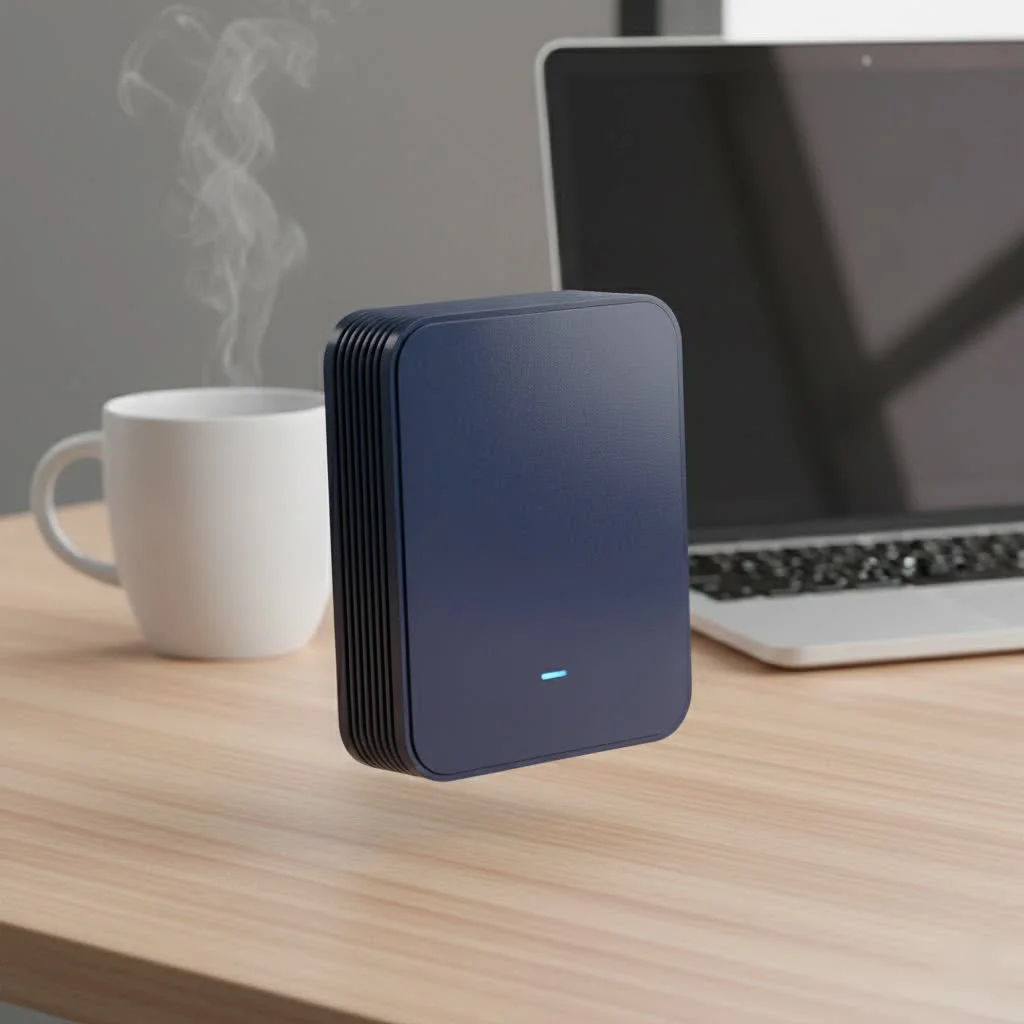
What Exactly is a WiFi Extender and How Does It Work?
At its core, a Wi-Fi extender (also known as a Wi-Fi booster or repeater) is a device that expands the coverage of your existing Wi-Fi network. Think of your main router as a lighthouse, sending out a strong beam of light. A Wi-Fi extender acts as a second, smaller lighthouse positioned strategically where the original beam starts to fade. It captures the fading signal from your main router and then amplifies and retransmits it, effectively extending the “light” further into your home. This process helps eliminate those annoying areas with weak or no Wi-Fi, often referred to as dead zones, by providing a stronger, more reliable connection.
Unpacking the TP-Link AC1200 WiFi Extender: Features and Capabilities
The TP-Link AC1200 WiFi Extender, often seen in its popular RE305 model, is a dual-band device that offers a compelling set of features for its price point.
Dual-Band Connectivity: The Best of Both Worlds
One of its key strengths is its dual-band capability, supporting both the 2.4 GHz and 5 GHz Wi-Fi bands. The 2.4 GHz band offers a wider range and better penetration through walls, ideal for general browsing and devices further away. The 5 GHz band, while having a shorter range, provides much faster speeds and is less prone to interference, making it perfect for bandwidth-hungry activities like HD streaming and online gaming in closer proximity to the extender.
AC1200 Speed: What It Means in Practice
The “AC1200” designation refers to the theoretical maximum combined speed the extender can achieve across both bands – approximately 300 Mbps on the 2.4 GHz band and 867 Mbps on the 5 GHz band, totaling around 1200 Mbps. In real-world scenarios, while you won’t always hit these peak numbers, the TP-Link AC1200 WiFi Extender is designed to provide robust speeds that significantly outperform standard Wi-Fi at the edge of your router’s range.
Ethernet Port: Versatility Beyond Wireless
|
Our Picks for the Best Wifi Extender in 2026
As an Amazon Associate I earn from qualifying purchases.
|
||
| Num | Product | Action |
|---|---|---|
| 1 | Amazon eero 7 with 1 month free eero Plus (auto-renews) - Supports internet plans up to 2.5 Gbps, Coverage up to 2,000 sq. ft., Connect 120+ devices, 1-pack |

|
| 2 | TP-Link AC1200 WiFi Extender, 2023 Engadget Best Budget Pick, 1.2Gbps Signal Booster for Home, Dual Band 5GHz/2.4GHz, Covers Up to 1500 Sq.ft and 30 Devices,Support Onemesh, One Ethernet Port (RE315) |
|
| 3 | WiFi Extender, WiFi Extenders Signal Booster for Home Up to 5000 sq.ft and 50 Devices, WiFi Range Extender, Wireless Repeater, Long Range Amplifier with Ethernet Port, 1-Tap Setup, Alexa Compatible |
|
| 4 | 2025 WiFi Extenders Signal Booster for Home Long Range Up to 9800 sq. ft & 40 Devices, WiFi Extender Signal Booster, Quick Setup-Medium, Internet Repeater, WiFi Extender |
|
| 5 | Amazon eero 6+ mesh wifi system with 1 month free eero Plus (auto-renews) - Coverage up to 4,500 sq. ft., Connect 75+ devices, 3-pack |
|
| 6 | TP-Link AC1900 WiFi Range Extender RE550 - Dual-Band Wireless Repeater Amplifier w/Gigabit Ethernet Port - Up to 2200 Sq. Ft., 32 Devices - Internet Signal Booster - APP Setup - EasyMesh Compatible |
|
| 7 | 2025 Fastest WiFi Extender, WiFi Repeater, WiFi Booster, Covers Up to 10000 Sq.ft and 80 Devices, Internet Booster - with Ethernet Port, Quick Setup, Home Wireless Signal Booster |
|
| 8 | TP-Link AX3000 WiFi 6 Range Extender - PCMag Editor\'s Choice - Dual-Band Wireless Repeater w/Ethernet Port - Up to 2400 Sq. Ft., 64 Devices - Internet Signal Booster - APP Setup - EasyMesh (RE715X) |
|
| 9 | Amazon eero 6 mesh wifi extender with 1-month free eero Plus (auto-renews) - Add up to 1,500 sq. ft. of Wi-Fi 6 coverage to your existing eero mesh wifi network |
|
| 10 | WiFi Extender with 4 Antennas 1200Mbps - Dual Band 5GHz/2.4GHz, WiFi Extender Signal Booster with 3 Modes Support, WiFi Repeater with 12880 Sq.ft 105 Devices, Easy Set Up for Home |
|
Many TP-Link AC1200 models, including the RE305, come equipped with a Fast Ethernet port. This seemingly small feature adds a layer of immense versatility. You can use it to connect a wired-only device, like a desktop PC, gaming console, or smart TV, to your Wi-Fi network, giving it a stable, high-speed connection. Alternatively, you can use the Ethernet port to connect the extender directly to your router, allowing it to function as a wireless access point, creating a new Wi-Fi hotspot.
Intelligent Signal Light: Find the Sweet Spot
One of the most user-friendly features is the intelligent signal indicator light. This LED array helps you quickly find the best location for your TP-Link AC1200 WiFi Extender. By showing the strength of the signal it’s receiving from your main router, it guides you to a spot that ensures optimal coverage and performance.
Compact Design: Blends Right In
The device often boasts a compact, wall-plug design, meaning it won’t be an eyesore and can easily blend into most home environments without occupying too much space or blocking adjacent outlets.
Advantages and Disadvantages of Using a TP-Link AC1200 Extender
Before you commit to extending your Wi-Fi, it’s wise to weigh the pros and cons.
The Bright Side: Why You’ll Love It
- Eliminates Dead Zones: The primary benefit is filling those frustrating Wi-Fi gaps, ensuring consistent connectivity throughout your home.
- Easy and Quick Setup: The TP-Link AC1200 WiFi Extender is celebrated for its straightforward installation, often taking mere minutes. Whether through the WPS button or the intuitive Tether app, getting it running is a breeze.
- Affordable Solution: Compared to upgrading your entire router or investing in a mesh Wi-Fi system, an extender is a much more budget-friendly way to improve coverage.
- Versatile Use: It can function as a range extender, a repeater, or even convert a wired connection into a wireless access point, offering flexibility for various networking needs.
Potential Pitfalls: What to Consider
- Speed Reduction: While it extends range, extenders can sometimes introduce a slight drop in speed compared to connecting directly to the main router. This is because they have to both receive and retransmit the signal. Expect some reduction, perhaps around 60% of the main router’s speed on 5GHz and 35-40% on 2.4GHz in extended areas.
- Not a True Mesh System: Unlike mesh Wi-Fi, which creates a single, seamless network, an extender typically creates a separate network name (SSID) or forces devices to reconnect when moving between the router and extender’s range. This can lead to less seamless roaming.
- Potential 5GHz Range Limitations: Some users have reported that while it’s excellent for extending 2.4 GHz, its effectiveness for extending the shorter-range 5 GHz band might vary depending on environmental factors.
- Occasional Connectivity Glitches: While generally reliable, like any networking device, occasional connectivity issues or drops can occur.
Step-by-Step Guide: Setting Up Your TP-Link AC1200 WiFi Extender
Setting up your TP-Link AC1200 WiFi Extender is remarkably simple, designed for users of all technical levels. You essentially have two main methods.
Option 1: The One-Touch WPS Method
The quickest way to get started is often using the Wi-Fi Protected Setup (WPS) button.
- Plug it in: Find a power outlet about halfway between your router and the Wi-Fi dead zone. Plug in your TP-Link AC1200 WiFi Extender.
- Wait for Power Light: Wait for the Power LED on the extender to turn solid green.
- Press WPS on Router: Press the WPS button on your main Wi-Fi router. You usually have about two minutes to complete the next step.
- Press WPS on Extender: Within two minutes, press the WPS button on your TP-Link AC1200 extender.
- Monitor Signal Light: The Signal LED on the extender should eventually turn solid green (or blue, depending on the model), indicating a successful connection. This means your extender is now broadcasting an extended Wi-Fi network.
Option 2: Using the TP-Link Tether App for Seamless Setup
For a more guided and feature-rich setup, the TP-Link Tether app is an excellent choice.
- Download the App: Download the TP-Link Tether app from the App Store (iOS) or Google Play Store (Android) on your smartphone or tablet.
- Plug in Extender: Plug in your TP-Link AC1200 WiFi Extender as described above.
- Connect to Extender’s Wi-Fi: On your mobile device, go to your Wi-Fi settings and connect to the extender’s default Wi-Fi network (e.g., “TP-Link_Extender” or “TP-Link_Extender_2.4GHz”). There’s usually no password initially.
- Launch Tether App: Open the Tether app. It should automatically detect your extender.
- Follow On-Screen Instructions: The app will guide you through creating a login for your extender, selecting your main Wi-Fi network(s) to extend, and setting up the extended network name and password. It’s an intuitive process with clear prompts.
Manual Setup via Web Browser (Briefly)
If WPS isn’t available or the app isn’t preferred, you can also set up the extender by connecting to its default Wi-Fi network and navigating to http://tplinkrepeater.net or http://192.168.0.254 in a web browser. From there, a setup wizard will guide you.
Maximizing Performance: Tips for Your TP-Link AC1200
To get the absolute best out of your TP-Link AC1200 WiFi Extender, consider these expert tips.
- Optimal Placement is Key: Use the intelligent signal light on your extender. Place it where the light indicates a good signal from your main router (usually solid green/blue) but is still closer to your dead zone. Avoid placing it too close to the router (it won’t extend much) or too far (it won’t get a strong enough signal to extend effectively).
- Keep Firmware Updated: Always ensure your extender’s firmware is up to date. TP-Link regularly releases updates that can improve performance, stability, and security. You can usually check and update through the Tether app or the web management interface.
- Avoid Interference: Keep your extender away from large metal objects, thick walls, and other electronics that can cause interference, such as microwaves, cordless phones, and Bluetooth devices.
- Choose the Right Band: For devices needing high speed (streaming 4K, gaming), try to connect them to the 5 GHz extended network if they are within range. For devices further away or for general browsing, the 2.4 GHz band might offer more stable coverage.
- Secure Your Network: Always use strong, unique passwords for both your main router and extended Wi-Fi networks. Enable WPA2/WPA3 encryption for the best security.
Common Issues and How to Troubleshoot Your TP-Link AC1200
Even the most reliable devices can sometimes encounter hiccups. Here’s how to tackle common problems with your TP-Link AC1200 WiFi Extender.
No Connection or Weak Signal After Setup
- Relocate the Extender: Your extender might be too far from your main router. Use the signal light to find a better, closer spot.
- Check Router: Ensure your main router is working correctly and broadcasting a strong signal.
- Re-run Setup: Try re-running the setup process using either the WPS button or the Tether app.
Slow Speeds on the Extended Network
- Placement Again: Poor placement is the most common culprit for slow speeds. Move the extender closer to the router until the signal light indicates a strong connection.
- Band Congestion: The 2.4 GHz band can get crowded. If your device supports 5 GHz, try connecting to the 5 GHz extended network.
- Interference: Check for sources of interference as mentioned above.
- Router Performance: Your main router’s speed limits will naturally affect the extender. If the source is slow, the extended signal will also be slow.
Frequent Disconnections
- Firmware: Ensure your extender’s firmware is up to date.
- Interference/Congestion: These can lead to unstable connections. Try changing channels on your main router if possible.
- Power Cycle: Unplug the extender for 10-15 seconds, then plug it back in. Do the same for your main router.
Resetting the Extender
If all else fails, a factory reset can often resolve persistent issues. Look for a small reset button (often a pinhole) on your TP-Link AC1200 WiFi Extender. With the extender powered on, use a paperclip or pin to press and hold this button for about 5-10 seconds until the lights flash. The extender will then revert to its factory default settings, and you’ll need to set it up again.
“In my 15 years working with home networking solutions, the TP-Link AC1200 stands out as an incredibly effective and user-friendly device for addressing those stubborn Wi-Fi dead zones. It’s a workhorse for many households, offering a blend of performance and affordability that’s hard to beat for basic coverage extension,” says Dr. Emily Carter, a renowned Wireless Network Architect and contributor to TVCSP.com.
Is the TP-Link AC1200 WiFi Extender (RE305) Right for You?
The TP-Link AC1200 WiFi Extender is an excellent choice for individuals looking for an affordable and straightforward solution to expand their existing Wi-Fi coverage. It’s ideal for:
- Homes with a few stubborn Wi-Fi dead zones.
- Users who need to connect a wired device in an area far from the router.
- Those seeking a noticeable improvement in Wi-Fi signal strength without a complete network overhaul.
However, if you have a very large home, desire seamless roaming with a single network name, or demand the absolute highest speeds consistently across a massive area, you might want to explore a mesh Wi-Fi system as a more robust, albeit more expensive, alternative.
Frequently Asked Questions about TP-Link AC1200 WiFi Extenders
What does AC1200 mean?
AC1200 refers to the theoretical maximum combined wireless speed of 1200 Mbps across both the 2.4 GHz (up to 300 Mbps) and 5 GHz (up to 867 Mbps) bands that the extender can support.
Can I use it with any router?
Yes, the TP-Link AC1200 WiFi Extender is designed to be universally compatible with any standard Wi-Fi router, regardless of brand or model, as long as it supports 802.11 b/g/n/ac Wi-Fi standards.
How far can the TP-Link AC1200 extend Wi-Fi?
The exact range extension depends heavily on your home environment (wall materials, interference) and your main router’s signal strength. Typically, it can add significant coverage, often sufficient for an additional floor or several rooms, effectively eliminating dead zones that might be 50 feet or more from your main router.
Does it reduce internet speed?
Yes, it’s common for Wi-Fi extenders to introduce a slight speed reduction because they have to receive and retransmit the signal. While the TP-Link AC1200 WiFi Extender helps improve signal strength and accessibility, the actual speeds in the extended area might be lower than directly next to your main router.
What’s the difference between an extender and a mesh system?
A Wi-Fi extender creates a separate network or simply repeats your existing one, often requiring devices to switch networks manually. A mesh Wi-Fi system, however, uses multiple units that communicate with each other to form a single, seamless network throughout your home, providing more consistent speeds and intelligent device handover as you move.
The TP-Link AC1200 WiFi Extender is a highly capable and user-friendly device that effectively addresses common Wi-Fi coverage issues in homes. With its dual-band support, easy setup options, and handy features like the Ethernet port and intelligent signal light, it offers an excellent balance of performance and value. If you’re struggling with internet dead zones, implementing a TP-Link AC1200 WiFi Extender could be the simple, powerful solution you’ve been looking for. Don’t let weak Wi-Fi hold you back; take control of your home network today and enjoy reliable connectivity everywhere.
Get our weekly buyer guide
Practical specs, not advice. Unsubscribe anytime.