Is your home plagued by frustrating Wi-Fi dead zones, those notorious spots where your internet connection mysteriously vanishes? You’re not alone! In our modern, connected world, a robust and reliable Wi-Fi signal is less of a luxury and more of a necessity. If you’re an ASUS router owner, or simply looking for an effective way to expand your existing network, an ASUS WiFi range extender might be precisely what you need. As a seasoned expert with over 15 years in the field and a content creator for TVCSP, I’m here to demystify these devices, helping you confidently choose, set up, and optimize your ASUS WiFi range extender for seamless connectivity throughout your entire home.
What Exactly is an ASUS WiFi Range Extender?
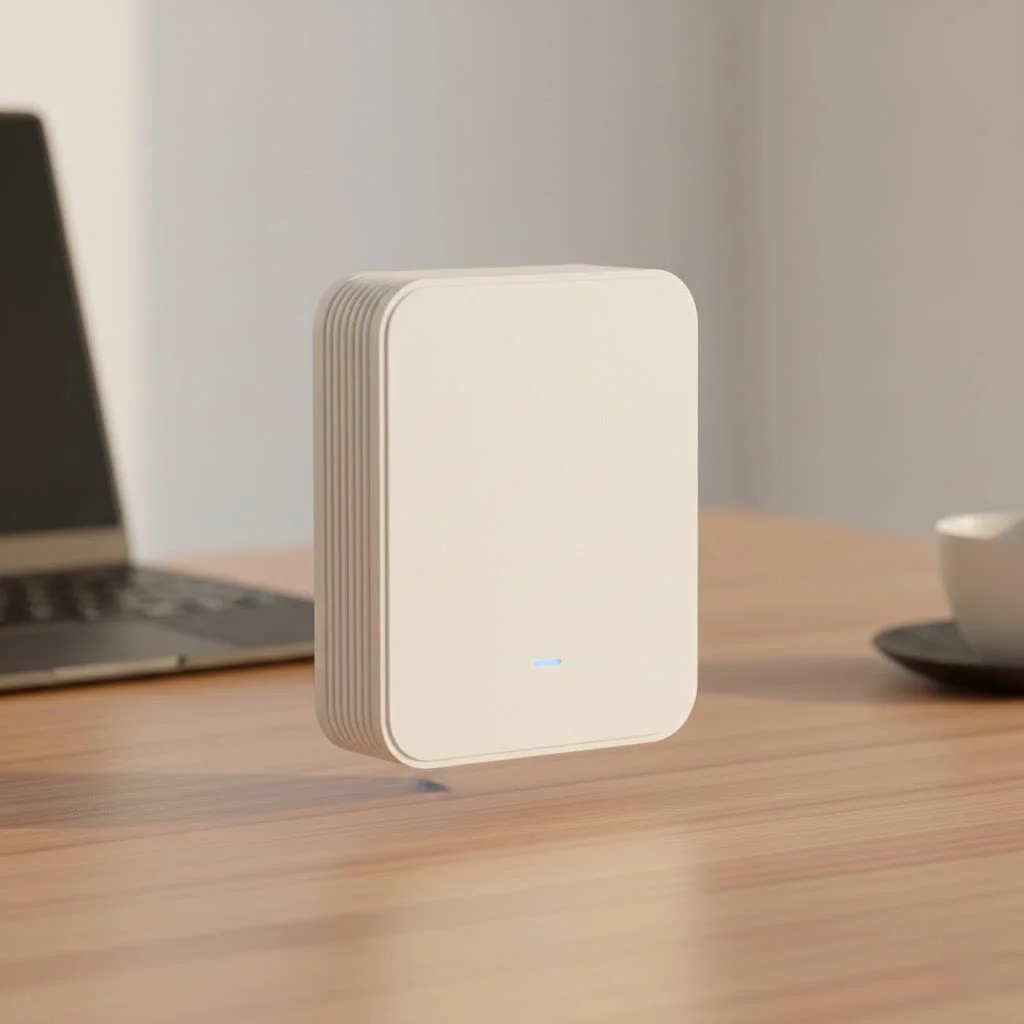
At its core, an ASUS WiFi range extender is a device designed to expand the coverage of your existing wireless network. Think of it as a helpful bridge that picks up your router’s Wi-Fi signal, amplifies it, and then rebroadcasts it to areas where the original signal struggles to reach. Also commonly known as a Wi-Fi repeater or booster, these devices are a straightforward solution to conquer those annoying signal drop-offs, slow speeds, and unreliable connections in distant rooms, basements, or outdoor spaces. For browse all wifi extenders articles on this site.
Unlike a second router creating an entirely new network, an ASUS extender works in “repeater mode,” extending the reach of your primary network. This allows devices further away from your main router to connect to the extender and still access the internet through your existing setup, effectively painting your entire home with a consistent Wi-Fi signal.
Types of ASUS WiFi Range Extenders
ASUS offers a variety of range extenders to suit different needs and preferences, though most typically come in a convenient plug-in form factor. These compact devices simply plug directly into a wall outlet, making them incredibly easy to deploy without needing extra cables or clutter.
Newer ASUS models often incorporate the latest Wi-Fi standards, like Wi-Fi 6 (802.11ax) and even Wi-Fi 7 (802.11be), offering significant improvements in speed, efficiency, and capacity, especially in busy network environments. Devices like the ASUS RP-AX58 or the cutting-edge RP-BE58 are prime examples of these advanced extenders. Many modern ASUS extenders are also AiMesh compatible, meaning they can seamlessly integrate into an existing ASUS AiMesh system, transforming into a mesh node for a more unified and powerful whole-home network solution. This provides excellent flexibility for future upgrades.
The Pros and Cons: Is an ASUS Extender Right for You?
Choosing to use an ASUS WiFi range extender comes with its own set of advantages and disadvantages. Understanding these can help you decide if it’s the best solution for your home networking woes.
Advantages of ASUS WiFi Range Extenders
|
Our Picks for the Best Wifi Extender in 2026
As an Amazon Associate I earn from qualifying purchases.
|
||
| Num | Product | Action |
|---|---|---|
| 1 | Amazon eero 7 with 1 month free eero Plus (auto-renews) - Supports internet plans up to 2.5 Gbps, Coverage up to 2,000 sq. ft., Connect 120+ devices, 1-pack |

|
| 2 | WiFi Extender, WiFi Extenders Signal Booster for Home Up to 5000 sq.ft and 50 Devices, WiFi Range Extender, Wireless Repeater, Long Range Amplifier with Ethernet Port, 1-Tap Setup, Alexa Compatible |
|
| 3 | TP-Link AC1900 WiFi Range Extender RE550 - Dual-Band Wireless Repeater Amplifier w/Gigabit Ethernet Port - Up to 2200 Sq. Ft., 32 Devices - Internet Signal Booster - APP Setup - EasyMesh Compatible |
|
| 4 | 2025 WiFi Extenders Signal Booster for Home Long Range Up to 9800 sq. ft & 40 Devices, WiFi Extender Signal Booster, Quick Setup-Medium, Internet Repeater, WiFi Extender |
|
| 5 | 2025 Fastest WiFi Extender, WiFi Repeater, WiFi Booster, Covers Up to 10000 Sq.ft and 80 Devices, Internet Booster - with Ethernet Port, Quick Setup, Home Wireless Signal Booster |
|
| 6 | Amazon eero 6+ mesh wifi system with 1 month free eero Plus (auto-renews) - Coverage up to 4,500 sq. ft., Connect 75+ devices, 3-pack |
|
| 7 | TP-Link AC1200 WiFi Extender, 2023 Engadget Best Budget Pick, 1.2Gbps Signal Booster for Home, Dual Band 5GHz/2.4GHz, Covers Up to 1500 Sq.ft and 30 Devices,Support Onemesh, One Ethernet Port (RE315) |
|
| 8 | WiFi Extender with 4 Antennas 1200Mbps - Dual Band 5GHz/2.4GHz, WiFi Extender Signal Booster with 3 Modes Support, WiFi Repeater with 12880 Sq.ft 105 Devices, Easy Set Up for Home |
|
| 9 | Amazon eero 6 mesh wifi extender with 1-month free eero Plus (auto-renews) - Add up to 1,500 sq. ft. of Wi-Fi 6 coverage to your existing eero mesh wifi network |
|
| 10 | TP-Link AX3000 WiFi 6 Range Extender - PCMag Editor\'s Choice - Dual-Band Wireless Repeater w/Ethernet Port - Up to 2400 Sq. Ft., 64 Devices - Internet Signal Booster - APP Setup - EasyMesh (RE715X) |
|
- Cost-Effective Solution: Generally, ASUS extenders are a more affordable way to improve Wi-Fi coverage compared to investing in an entirely new mesh Wi-Fi system.
- Easy Installation: Most ASUS models boast a simple setup process, often achievable through a dedicated mobile app or a quick WPS button press.
- Expands Coverage Instantly: They are excellent for eliminating isolated dead zones and extending your network to hard-to-reach areas, such as a backyard patio or a distant bedroom.
- Universal Compatibility: Many ASUS WiFi extenders are designed to work seamlessly with any standard Wi-Fi router, regardless of brand, making them a versatile choice.
- Smart Features: Some ASUS extenders feature intuitive LED indicators that help you find the optimal placement, ensuring you get the best possible signal strength from your main router.
Disadvantages of ASUS WiFi Range Extenders
- Potential Speed Reduction: Because an extender needs to receive and then rebroadcast the signal using the same wireless band, it can sometimes lead to a halving of bandwidth to connected devices.
- Separate Network SSIDs: While some extenders can use the same SSID as your main router, many create a separate network name (e.g., “YourWiFi_EXT”), which might require devices to manually switch networks as you move around.
- Less Seamless Roaming: Devices might cling to a weaker signal from your main router even when closer to the extender, leading to dropped connections or slower performance until you manually switch.
- Limited Central Management: Unlike mesh systems, traditional extenders are often managed individually, which can be less convenient if you have multiple units.
“ASUS WiFi extenders are a fantastic entry point for anyone struggling with dead zones. They offer a simple, cost-effective boost to your existing Wi-Fi, but it’s crucial to understand their limitations compared to a full mesh system,” advises network architect, Alex Chen.
Step-by-Step: How to Set Up Your ASUS WiFi Range Extender
Setting up your ASUS WiFi range extender is a straightforward process, thanks to user-friendly options. Here’s a breakdown of the most common methods:
Preparation: Optimal Placement is Key
Before you even start, pick the right spot. An extender isn’t meant to sit right next to your router (that won’t extend anything!) nor should it be too far from it (it won’t receive a strong enough signal). The ideal location is roughly halfway between your main router and the Wi-Fi dead zone you want to cover. Look for models with LED signal indicators; these lights often show you if the signal from your main router is strong enough at the extender’s location.
Method 1: Using the ASUS Extender App (Recommended)
This is often the quickest and most intuitive way to get your extender up and running.
- Power On: Plug your ASUS WiFi extender into an electrical outlet near your main router initially.
- Download the App: On your smartphone (iOS or Android), download and install the ASUS Extender App.
- Connect to Extender’s Default Network: Go to your phone’s Wi-Fi settings and connect to the extender’s default Wi-Fi network. You’ll usually find the default SSID printed on a sticker on the extender itself (e.g., “ASUS_RP-AX58”).
- Launch and Follow Prompts: Open the ASUS Extender App.
- Tap “Setup Extender” and follow the on-screen instructions.
- Choose the Wi-Fi network you want to extend from your main router and enter its password.
- You’ll likely be prompted to create a new Wi-Fi network name (SSID) and password for your extender (or choose to use the same as your router).
- Set up an administration account and password for accessing the extender’s settings.
- Relocate: Once the setup is complete and the extender reboots, unplug it and move it to your optimal halfway location. The settings are saved, so you don’t need to reconfigure it.
Method 2: Via Web Browser (Web GUI)
If you prefer using a computer or encounter issues with the app, the web-based graphical user interface (Web GUI) is a reliable alternative.
- Power On & Connect: Plug in your extender and connect your computer to its default Wi-Fi network (or via an Ethernet cable if available).
- Access Web GUI: Open a web browser and type
http://repeater.asus.comor the extender’s default IP address (often192.168.1.1) into the address bar and press Enter. If these don’t work, check your extender’s manual for the correct address. - Quick Internet Setup (QIS): The Web GUI will likely guide you through a Quick Internet Setup (QIS) wizard.
- Select “Repeater mode” as your operation mode.
- Scan for available Wi-Fi networks and choose your main router’s network.
- Enter your main router’s Wi-Fi password.
- Configure a new SSID and password for your extender’s network, or choose to synchronize with your main router’s credentials.
- Create an administrator username and password for the extender.
- Apply and Relocate: Save your settings, wait for the extender to reboot, and then move it to its ideal placement.
Method 3: WPS Button Setup
For a quick setup with WPS-enabled routers, this method can be very convenient.
- Power On: Plug in your ASUS extender in close proximity to your main router.
- Press WPS on Router: Press the WPS button on your main Wi-Fi router.
- Press WPS on Extender: Within two minutes, press the WPS button on your ASUS WiFi range extender. The WPS LED on both devices should blink and then turn solid when the connection is established.
- Relocate: Once connected, unplug the extender and move it to your optimal halfway point.
Optimizing Your ASUS WiFi Extender’s Performance
Even after successful setup, a few tweaks can significantly boost your ASUS WiFi range extender’s efficiency.
- Strategic Placement: As mentioned, optimal placement is crucial. Use your extender’s signal strength indicators (if available) or the ASUS Extender app’s guidance to find the sweet spot—where it receives a strong signal from the router and can effectively extend it to dead zones. Avoid placing it near large metal objects or appliances like microwaves and refrigerators, which can cause interference.
- Keep Firmware Updated: ASUS regularly releases firmware updates to improve performance, add features, and patch security vulnerabilities. Periodically check for and install the latest firmware via the ASUS Extender App or the Web GUI. This ensures your extender is running at its best and most secure.
- Minimize Interference: Electronic devices, cordless phones, and even neighboring Wi-Fi networks can interfere with your extender’s signal. Experiment with different Wi-Fi channels on your main router if you suspect interference, or move potential culprits away from your extender.
- Utilize Dual-Band Capabilities: If your ASUS extender is a dual-band model (supporting both 2.4GHz and 5GHz), ensure your devices are connecting to the appropriate band. The 2.4GHz band offers wider coverage but lower speeds, while 5GHz provides faster speeds over shorter distances. Intelligent extenders will manage this automatically, but sometimes manual selection on your device can help.
Troubleshooting Common ASUS Extender Issues
Even the best technology can hit a snag. Here are common issues with an ASUS WiFi range extender and how to tackle them:
- No Internet Connection or Frequent Disconnections:
- Power Cycle: Unplug both your main router and the extender from power for 30 seconds, then plug them back in. Wait for both to fully boot up.
- Placement Check: The extender might be too far from your main router. Relocate it closer, observing its signal indicator lights.
- Firmware: Ensure both your router and extender have the latest firmware updates.
- Factory Reset: If all else fails, perform a factory reset on the extender (usually a small button you press and hold for 5-10 seconds with a paperclip). You’ll then need to set it up again.
- Slow Speeds:
- Placement: Again, poor placement is a major culprit. Ensure the extender has a strong signal from the main router.
- Interference: Check for household appliances or other wireless devices that might be causing signal interference.
- Bandwidth Limitations: Remember that extenders inherently split bandwidth. If you require consistently high speeds in extended areas, a mesh system might be a better long-term solution.
- Setup Failure:
- Correct Credentials: Double-check that you’ve entered the exact Wi-Fi password for your main router during setup. Typos are common!
- Connect to Extender’s Default SSID: When using the app or web GUI, ensure your device is connected to the extender’s default Wi-Fi network first, not your main router’s.
- Reset: A factory reset can clear any corrupted settings and allow for a fresh setup attempt.
ASUS WiFi Extender vs. AiMesh: Which is Better?
This is a question we get all the time at TVCSP! While an ASUS WiFi range extender is great for simple coverage boosts, ASUS also offers its powerful AiMesh technology.
- ASUS AiMesh allows you to combine multiple compatible ASUS routers (and some extenders, like the RP-AX58) to create a single, unified, whole-home mesh Wi-Fi system.
- Seamless Roaming: With AiMesh, your devices automatically switch to the strongest signal as you move around your home, without you ever noticing or having to manually reconnect. This creates one seamless Wi-Fi network with a single SSID.
- Centralized Management: You manage the entire AiMesh network from a single interface, usually the ASUS Router app, making it easy to control settings, security, and connected devices across all nodes.
- Dedicated Backhaul (on some models): High-end AiMesh systems or dedicated mesh units often use a third Wi-Fi band or an Ethernet cable for “backhaul”—the communication between mesh nodes. This dedicated channel ensures that client bandwidth isn’t impacted, leading to much better performance than a typical extender.
When to choose:
- ASUS WiFi Range Extender: Best for addressing a single, isolated dead zone, if you’re on a budget, or if you have an older, non-ASUS router you want to keep.
- ASUS AiMesh: Ideal for larger homes with multiple dead zones, if you need consistently high speeds throughout your property, or if you want a truly seamless and centrally managed Wi-Fi experience. Many new ASUS extenders, like the RP-AX58, can serve as a stepping stone, offering both standalone extender functionality and the ability to join an AiMesh network later.
Top ASUS WiFi Range Extenders for 2025
As the landscape of Wi-Fi technology evolves, ASUS continues to innovate. Here are a couple of standout ASUS WiFi range extender models to consider for 2025:
- ASUS RP-AX58 AX3000 Dual Band Range Extender: This is a strong contender for those seeking a modern upgrade. It supports Wi-Fi 6 (AX3000) for faster speeds and greater network efficiency. It’s also AiMesh compatible, offering an excellent upgrade path for creating a mesh network in the future. Users praise its solid performance and easy installation.
- ASUS RP-AX56 AX1800 Dual Band Range Extender: A slightly more budget-friendly Wi-Fi 6 option, the RP-AX56 still delivers reliable performance and extends coverage effectively. It’s also AiMesh compatible, making it a flexible choice for improving your home’s wireless reach.
- ASUS RP-BE58 BE3600 Dual Band Range Extender: For those future-proofing their network, the RP-BE58 embraces the latest Wi-Fi 7 (BE3600) standard. While Wi-Fi 7 routers are still emerging, this extender is ready to provide top-tier performance and coverage in larger homes and is also AiMesh compatible.
When choosing, consider your current router’s capabilities, your home’s size, and your budget to find the perfect match.
Frequently Asked Questions (FAQ)
Q: Can an ASUS extender work with any router?
A: Yes, most ASUS WiFi range extenders are designed to be universally compatible and will work with any standard Wi-Fi router, regardless of the brand.
Q: Will an ASUS extender slow down my internet?
A: A traditional range extender can sometimes lead to a reduction in bandwidth because it uses the same wireless channel to receive and rebroadcast the signal. However, modern dual-band and Wi-Fi 6 ASUS extenders, especially when optimally placed, can mitigate this effect.
Q: How do I reset my ASUS WiFi extender?
A: To factory reset your ASUS WiFi extender, locate the small reset button (often recessed) on the device. With a straightened paperclip, press and hold the button for about 5-10 seconds until the power LED starts to flash. Release it, and the extender will reboot to its default settings, requiring a fresh setup.
Q: What’s the best placement for an ASUS extender?
A: The ideal placement for an ASUS WiFi range extender is roughly halfway between your main router and the area where you need improved Wi-Fi coverage. Many ASUS extenders have LED indicators that can help you determine if the signal from your main router is strong enough at that location.
Q: Is ASUS AiMesh better than a traditional extender?
A: For comprehensive whole-home coverage, seamless roaming, and centralized management, an ASUS AiMesh system is generally superior to a traditional extender. AiMesh creates a single, unified network, while extenders typically rebroadcast a signal that can sometimes lead to less smooth transitions between networks. However, for isolated dead zones or budget constraints, an ASUS extender is a perfectly viable and effective solution.
Conclusion
An ASUS WiFi range extender can be a game-changer for anyone struggling with inconsistent Wi-Fi coverage. By understanding what they are, how they work, and how to effectively set them up and troubleshoot them, you can transform your home into a haven of reliable connectivity. Whether you opt for a straightforward repeater or explore the advanced capabilities of an AiMesh-compatible model, ASUS provides robust solutions to ensure your digital life stays uninterrupted. Don’t let dead zones dictate your internet experience—take control and extend your reach with confidence. If you’ve successfully boosted your home network with an ASUS extender, we’d love to hear about your experience and the difference it made!
Get our weekly buyer guide
Practical specs, not advice. Unsubscribe anytime.