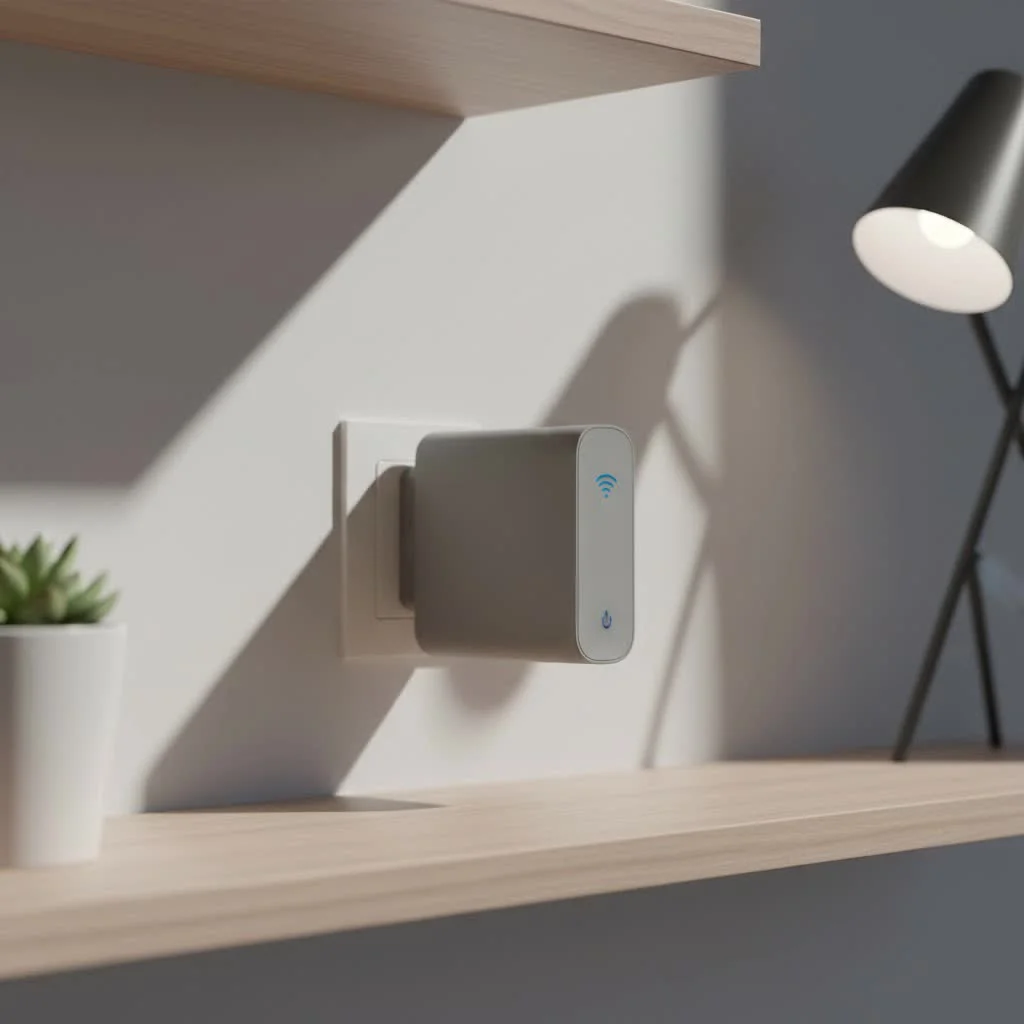
A Nighthawk WiFi extender from Netgear expands your existing WiFi network by capturing, amplifying, and rebroadcasting the signal to eliminate dead zones and improve coverage. These devices are compatible with any standard WiFi router and can significantly enhance connectivity in areas with weak or non-existent signals, such as basements or upper floors.
As a network specialist with over 15 years of hands-on experience, I’ve installed, tested, and troubleshot hundreds of these devices. This comprehensive guide will walk you through everything you need to know, transforming you from a WiFi novice into a home network hero. For explore our wifi extenders reviews on this site.
What is a Nighthawk WiFi Extender and How Does It Work?
A Nighthawk WiFi extender, also known as a WiFi booster or repeater, is a device designed to expand the coverage of your existing WiFi network. It works by capturing the wireless signal from your main router, amplifying it, and then rebroadcasting the boosted signal to areas where the connection is weak or non-existent.
Think of it like a relay race for your WiFi. Your router is the first runner, and the extender is the second, taking the signal baton and carrying it further down the track to reach the finish line—your devices in far-off rooms. This simple yet effective process helps eliminate dead zones in basements, upper floors, or even your backyard.
Choosing the Right Nighthawk Extender for You
Netgear offers a range of Nighthawk extenders, and the best one for you depends on your home size, internet speed, and specific needs.
Key Features to Consider
- WiFi Speed (AC and AX Standards): WiFi 5 (AC) is common, but WiFi 6 (AX) is the latest standard, offering faster speeds, better performance in crowded networks, and improved efficiency. If you have a WiFi 6 router and many connected devices, a Nighthawk AX extender is a worthwhile investment.
- Coverage Area: Extenders are rated for the amount of square footage they can cover. Choose one that matches or slightly exceeds the size of your home to ensure complete coverage.
- Mesh Technology: Some advanced Nighthawk extenders feature Mesh capabilities. This allows them to create a seamless network with a single network name (SSID). You can move throughout your house without your device disconnecting and reconnecting, which is perfect for video calls and streaming.
- Wired Ports: Ethernet ports on an extender allow you to connect devices like gaming consoles, smart TVs, or desktop PCs directly for a more stable, faster wired connection.
As network engineer David Chen often states, “A WiFi extender is only as good as the signal it receives from the router. Proper placement is just as critical as the model you choose.”
Popular Nighthawk Extender Models
|
Our Picks for the Best Wifi Extender in 2026
As an Amazon Associate I earn from qualifying purchases.
|
||
| Num | Product | Action |
|---|---|---|
| 1 | TP-Link AX3000 WiFi 6 Range Extender - PCMag Editor\'s Choice - Dual-Band Wireless Repeater w/Ethernet Port - Up to 2400 Sq. Ft., 64 Devices - Internet Signal Booster - APP Setup - EasyMesh (RE715X) |

|
| 2 | Amazon eero 6 mesh wifi extender with 1-month free eero Plus (auto-renews) - Add up to 1,500 sq. ft. of Wi-Fi 6 coverage to your existing eero mesh wifi network |
|
| 3 | Amazon eero 6+ mesh wifi system with 1 month free eero Plus (auto-renews) - Coverage up to 4,500 sq. ft., Connect 75+ devices, 3-pack |
|
| 4 | TP-Link AC1200 WiFi Extender, 2023 Engadget Best Budget Pick, 1.2Gbps Signal Booster for Home, Dual Band 5GHz/2.4GHz, Covers Up to 1500 Sq.ft and 30 Devices,Support Onemesh, One Ethernet Port (RE315) |
|
| 5 | TP-Link AC1900 WiFi Range Extender RE550 - Dual-Band Wireless Repeater Amplifier w/Gigabit Ethernet Port - Up to 2200 Sq. Ft., 32 Devices - Internet Signal Booster - APP Setup - EasyMesh Compatible |
|
| 6 | 2025 Fastest WiFi Extender, WiFi Repeater, WiFi Booster, Covers Up to 10000 Sq.ft and 80 Devices, Internet Booster - with Ethernet Port, Quick Setup, Home Wireless Signal Booster |
|
| 7 | 2025 WiFi Extenders Signal Booster for Home Long Range Up to 9800 sq. ft & 40 Devices, WiFi Extender Signal Booster, Quick Setup-Medium, Internet Repeater, WiFi Extender |
|
| 8 | WiFi Extender with 4 Antennas 1200Mbps - Dual Band 5GHz/2.4GHz, WiFi Extender Signal Booster with 3 Modes Support, WiFi Repeater with 12880 Sq.ft 105 Devices, Easy Set Up for Home |
|
| 9 | Amazon eero 7 with 1 month free eero Plus (auto-renews) - Supports internet plans up to 2.5 Gbps, Coverage up to 2,000 sq. ft., Connect 120+ devices, 1-pack |
|
| 10 | WiFi Extender, WiFi Extenders Signal Booster for Home Up to 5000 sq.ft and 50 Devices, WiFi Range Extender, Wireless Repeater, Long Range Amplifier with Ethernet Port, 1-Tap Setup, Alexa Compatible |
|
| Model | WiFi Standard | Key Feature | Best For |
|---|---|---|---|
| Nighthawk X4S (EX7500) | WiFi 5 (AC2200) | Tri-Band, Mesh | Medium to large homes with many devices. |
| Nighthawk X6S (EX8000) | WiFi 5 (AC3000) | Tri-Band, High-Power | Large homes demanding top performance. |
| Nighthawk AX8 (EAX80) | WiFi 6 (AX6000) | 8-Stream WiFi 6 | Future-proofing and homes with WiFi 6 routers. |
| Nighthawk AX1800 (EAX20) | WiFi 6 (AX1800) | 4-Stream WiFi 6 | Small to medium homes wanting WiFi 6 speeds. |
How to Set Up Your Nighthawk WiFi Extender
Setting up your Nighthawk WiFi extender is straightforward. Netgear provides a few simple methods. The most common is using the Web Browser Setup.
- Plug It In: Place the extender in the same room as your router for the initial setup. Plug it into a power outlet and wait for the Power LED to turn solid green.
- Connect to the Extender: On your computer or mobile device, go to your WiFi settings and connect to the extender’s network, which is typically named
NETGEAR_EXT. - Launch the Setup Wizard: Open a web browser. It should automatically redirect you to the Netgear installation assistant. If it doesn’t, navigate to
mywifiext.net. - Create an Account: You’ll be prompted to create a Netgear account. This is used for managing your device and receiving support.
- Select Your Network: The extender will scan for nearby WiFi networks. Select your home WiFi network from the list and enter its password.
- Configure the Extended Network: You can choose to give your extended network a new name (SSID) or use the same name as your main network for a more seamless experience (recommended if you have a Mesh-capable extender).
- Relocate Your Extender: Once the setup is complete, unplug the extender. Move it to a new location about halfway between your router and the area with a weak signal. The device’s signal strength indicator LED will help you find the optimal spot—a solid green or blue light is ideal.
Tips to Maximize Your Extender’s Performance
Getting the most out of your Nighthawk WiFi extender involves more than just plugging it in.
- Optimal Placement: The extender needs to receive a strong signal from the router to broadcast a strong signal. Avoid placing it in the dead zone itself. Instead, place it on the edge of your router’s good coverage area, halfway to the dead zone.
- Avoid Obstructions: Keep the extender away from thick walls (especially concrete or brick), large metal objects, and appliances like microwaves or cordless phones, which can interfere with the signal.
- Update Firmware: Regularly check for and install firmware updates through the Netgear Nighthawk app or the web interface. Updates often include performance improvements, new features, and critical security patches.
- Use the Right WiFi Band: Most Nighthawk extenders are dual-band or tri-band. Use the 5GHz band for devices that need higher speed and are closer to the extender (like streaming devices and gaming consoles). Use the 2.4GHz band for devices that are further away or don’t require high speeds (like smart home gadgets).
Common Nighthawk Extender Problems and Solutions
Even the best tech can run into issues. Here are some common problems and how to fix them.
Why is my extender constantly disconnecting?
This is often a sign of poor placement. The extender might be too far from the router and is struggling to maintain a stable connection. Try moving it closer to the router until the indicator light shows a strong link. Interference from other electronic devices could also be the culprit.
I can’t connect to the extended network.
First, double-check that you entered the correct password for your main WiFi network during setup. A simple typo is a common mistake. If the password is correct, try power cycling both your router and the extender. Unplug them, wait 30 seconds, and plug them back in.
The extender’s speed is much slower than my router’s.
An extender will always have some speed loss because it has to receive and then retransmit the signal. However, if the speed is drastically slower, ensure you are connected to the 5GHz band for high-bandwidth activities. Also, confirm the extender is placed in a spot where it gets a strong signal from the router.
Frequently Asked Questions (FAQ)
Can a Nighthawk WiFi extender work with any router?
Yes, Netgear Nighthawk extenders are universally compatible and will work with any standard WiFi router, regardless of the brand.
Does a WiFi extender slow down my internet?
A WiFi extender does not slow down your overall internet speed from your provider. However, it rebroadcasts a signal, which introduces a tiny amount of latency. For most users, the benefit of having a strong signal in a previously dead zone far outweighs this minimal speed reduction.
What is the difference between a WiFi extender and a Mesh system?
A traditional extender creates a separate, extended network, and your devices have to switch between the router’s network and the extender’s. A Mesh system creates a single, seamless network, allowing devices to switch connections automatically for the best performance. Many modern Nighthawk extenders now include Mesh capabilities.
How do I know if my extender is in the right spot?
Nighthawk extenders have a signal strength indicator LED. After setup, when you move the extender to its final location, wait for this light to turn on. A solid green or blue light indicates a strong connection to the router, which is optimal. An amber or red light means it’s too far away.
Can I use two Nighthawk extenders at the same time?
While you technically can, it’s generally not recommended. Chaining extenders can lead to significant performance degradation and network complexity. If your home is too large for a single extender, a Mesh WiFi system is a much better solution.
Conclusion
A Nighthawk WiFi extender is a powerful and effective tool for banishing WiFi dead zones and ensuring a fast, stable internet connection throughout your home. By choosing the right model for your needs, finding the optimal placement, and following a few simple setup steps, you can significantly enhance your home network. Don’t let poor signal strength dictate where you can work, stream, or play. Take control of your connectivity and enjoy seamless WiFi in every room.
Frequently Asked Questions
Can a Nighthawk WiFi extender work with any router brand?
Yes, Netgear Nighthawk extenders are designed for universal compatibility. They will work with any standard WiFi router, regardless of its brand or manufacturer, to expand your network coverage.
Does using a WiFi extender reduce my overall internet speed?
A WiFi extender does not inherently slow down your internet speed from your provider. While it introduces a minimal amount of latency by rebroadcasting the signal, for most users, the benefit of a strong signal in a previously weak area far outweighs this slight reduction in speed.
What is the key difference between a WiFi extender and a Mesh system?
A traditional WiFi extender creates a separate network, requiring devices to switch between the router's and extender's SSIDs. In contrast, a Mesh WiFi system creates a single, seamless network where devices automatically connect to the strongest signal, providing uninterrupted performance. Many modern Nighthawk extenders now offer Mesh capabilities.
How can I tell if my Nighthawk extender is placed correctly?
Nighthawk extenders feature a signal strength indicator LED. After moving the extender to its desired location, observe this light. A solid green or blue light indicates an optimal, strong connection to the router, while an amber or red light suggests it is too far away and needs to be repositioned closer.
Is it possible to use multiple Nighthawk extenders in one home?
While technically possible, using two Nighthawk extenders simultaneously is generally not recommended. Chaining extenders can lead to significant performance degradation and increased network complexity. For very large homes, a dedicated Mesh WiFi system is a much more effective and reliable solution.
Set Up Your Nighthawk WiFi Extender
Follow these simple steps to set up your Netgear Nighthawk WiFi extender using the web browser method and optimize its placement for the best performance.
Place the extender in the same room as your router for the initial setup. Plug it into a power outlet and wait for the Power LED to turn solid green. Then, connect your computer or mobile device to the extender's network, typically named NETGEAR_EXT.
Open a web browser. It should automatically redirect you to the Netgear installation assistant. If not, manually navigate to mywifiext.net to begin the setup process.
Create a Netgear account when prompted. The extender will scan for nearby WiFi networks; select your home network and enter its password. You can choose to give your extended network a new name or use the same name as your main network for a seamless experience, especially with Mesh-capable extenders.
Once setup is complete, unplug the extender. Move it to a new location about halfway between your router and the area with a weak signal. The device's signal strength indicator LED (solid green or blue) will help you find the ideal spot for maximum coverage.
Get our weekly buyer guide
Practical specs, not advice. Unsubscribe anytime.
I’ve tried a few different WiFi boosters before, but the Nighthawk really stands out. My main router is in the living room, and the signal barely reached my home office upstairs. This device fixed that completely. The speed is consistent, and I haven’t had any drops since installing it.
Our house has always had issues with WiFi reaching the backyard, which is a bummer for outdoor movie nights. This Nighthawk extender solved that problem perfectly! Now we can stream without any buffering, even quite a distance from the house. It’s compatible with our old router too, which was a pleasant surprise.
I was so tired of dead zones in my basement, especially when trying to stream movies. This Nighthawk extender was a game-changer! The setup was surprisingly straightforward, and now I have full bars everywhere. Definitely worth the investment for anyone struggling with weak signals.
The Nighthawk extender definitely improved my WiFi coverage, especially in the far corners of my house. However, I did find the initial pairing process a bit finicky. It took a couple of tries to get it to connect properly with my existing router, which was a little frustrating. Once it was up, though, it’s been working well.