In the fast-paced world of online gaming, every millisecond counts. A stable, low-latency internet connection isn’t just a luxury; it’s a necessity for competitive play and an enjoyable experience. Many gamers face the frustrating reality of Wi-Fi dead zones, weak signals, and unexpected lag spikes that can turn a triumphant moment into a crushing defeat. You’ve invested in your gaming rig, your monitor, your peripherals – why let a spotty Wi-Fi connection hold you back? As your trusted experts at TVCSP.com, with over 15 years in the field, we understand these frustrations deeply. We’re here to cut through the jargon and show you how a wifi extender for gaming can either be your salvation or a frustrating misstep, and most importantly, how to make the right choice to optimize your lag-free online play.
What is a Wi-Fi Extender and How Does It Work?
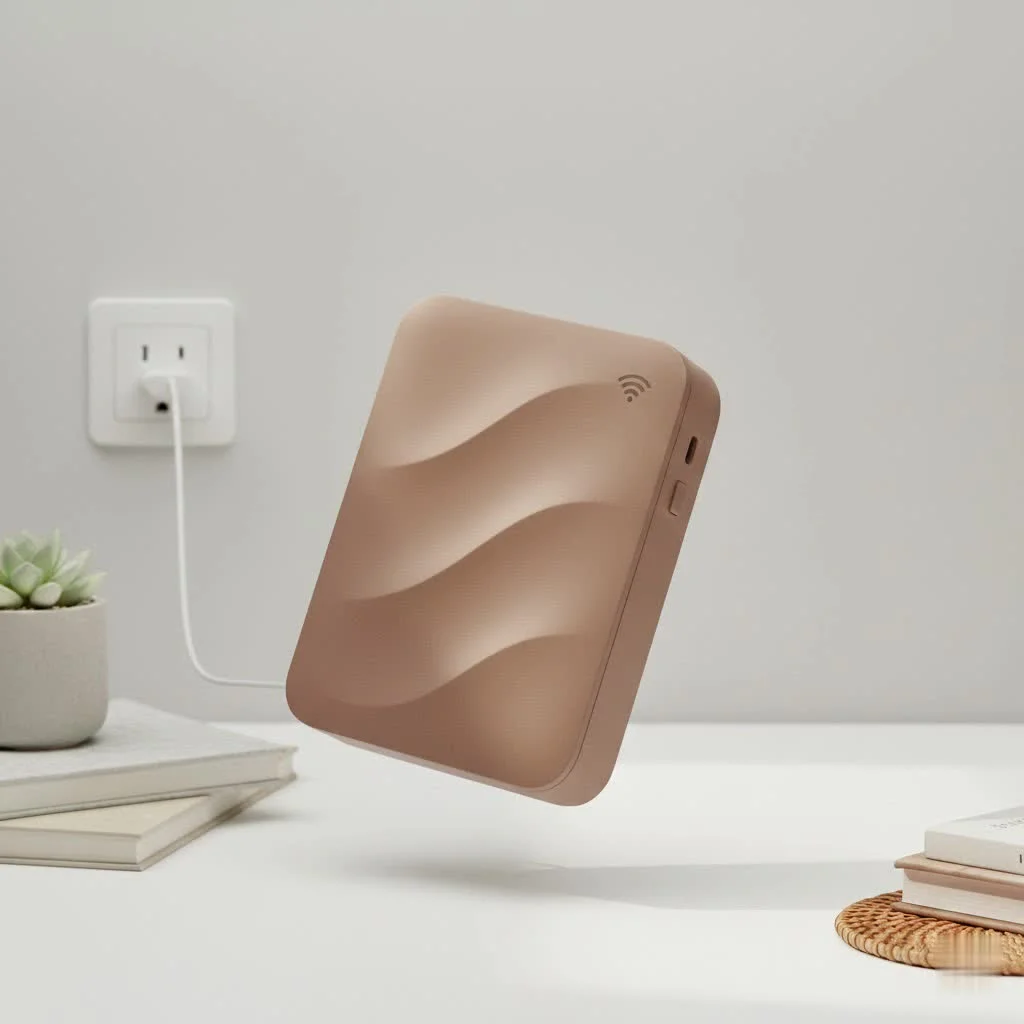
Before we dive into the specifics of gaming, let’s clarify what a Wi-Fi extender actually is and its fundamental function. A Wi-Fi extender, sometimes called a range extender, signal booster, or Wi-Fi repeater, is a device designed to expand the coverage of your existing wireless network. Think of it as a digital relay station. It receives the Wi-Fi signal from your main router, amplifies it, and then rebroadcasts it, effectively extending your network’s reach into areas where the signal was previously weak or non-existent – those infamous “dead zones.”
There are generally two common styles:
- Wall-Plug Extenders: These are compact units that plug directly into a power outlet, making them discreet and easy to place.
- Desktop Extenders: These are larger, often resembling small routers, and typically offer more advanced features and external antennas for better signal manipulation.
The Gamer’s Dilemma: Do Wi-Fi Extenders Really Work for Gaming?
This is the million-dollar question for any serious gamer: Can a wifi extender for gaming truly deliver the performance needed for intense online sessions? The honest answer is: yes, they can help, but they are not always the ideal solution and come with specific caveats.
Latency (Ping) Explained: Why It’s Critical for Gaming
For gamers, raw speed (download/upload Mbps) isn’t the only metric that matters; latency, often referred to as “ping,” is arguably even more crucial. Latency measures the time it takes for a data packet to travel from your gaming device to the game server and back. Lower ping means faster communication, resulting in more responsive gameplay and a significant advantage in competitive titles. High ping manifests as “lag,” where your actions in-game appear delayed, leading to frustration and often, defeat.
The “Double Hop” Effect: How Extenders Can Increase Latency
The primary drawback of standard Wi-Fi extenders for gaming lies in what’s known as the “double hop” effect. When you connect to an extender, your data packets travel from your gaming device to the extender, and then from the extender to your main router, and finally to the internet. This extra step in the data’s journey inherently adds to the latency. While modern extenders are designed to minimize this, it’s an unavoidable part of their operation. Cheaper, less powerful extenders are particularly prone to increasing latency and causing lag spikes, which can severely impact fast-paced online games like first-person shooters.
When a Wifi Extender Can Help for Gaming
Despite the latency considerations, a well-chosen and correctly configured wifi extender for gaming can be a valuable tool in certain situations:
- Eliminating Dead Zones: If your gaming setup is in a part of your home completely cut off from your router’s Wi-Fi signal, an extender can bring any signal to that area, making online gaming possible where it wasn’t before.
- Improving Signal Strength (But Not Necessarily Quality): An extender can boost the signal strength in a weak area, providing a more consistent connection, even if the underlying latency is slightly higher than a direct connection. This can be beneficial for less latency-sensitive games (e.g., turn-based RPGs).
- Providing a Wired Connection: Many modern Wi-Fi extenders feature one or more Gigabit Ethernet ports. This is a game-changer for gamers! By connecting your gaming PC or console directly to the extender via an Ethernet cable, you can bypass the wireless “double hop” for your device, often achieving a much more stable and lower-latency connection than relying purely on the extender’s Wi-Fi. This is frequently touted as the best way to utilize a Wi-Fi extender for gaming.
Key Features to Look for in a Gaming Wi-Fi Extender
If you’re considering a wifi extender for gaming, choosing the right one is paramount. Not all extenders are created equal, especially when minimizing latency and maximizing stability for online play. Here’s what to prioritize:
Dual-Band or Tri-Band Technology
|
Our Picks for the Best Wifi Extender in 2026
As an Amazon Associate I earn from qualifying purchases.
|
||
| Num | Product | Action |
|---|---|---|
| 1 | TP-Link AX3000 WiFi 6 Range Extender - PCMag Editor\'s Choice - Dual-Band Wireless Repeater w/Ethernet Port - Up to 2400 Sq. Ft., 64 Devices - Internet Signal Booster - APP Setup - EasyMesh (RE715X) |

|
| 2 | 2025 WiFi Extenders Signal Booster for Home Long Range Up to 9800 sq. ft & 40 Devices, WiFi Extender Signal Booster, Quick Setup-Medium, Internet Repeater, WiFi Extender |
|
| 3 | Amazon eero 6 mesh wifi extender with 1-month free eero Plus (auto-renews) - Add up to 1,500 sq. ft. of Wi-Fi 6 coverage to your existing eero mesh wifi network |
|
| 4 | WiFi Extender with 4 Antennas 1200Mbps - Dual Band 5GHz/2.4GHz, WiFi Extender Signal Booster with 3 Modes Support, WiFi Repeater with 12880 Sq.ft 105 Devices, Easy Set Up for Home |
|
| 5 | 2025 Fastest WiFi Extender, WiFi Repeater, WiFi Booster, Covers Up to 10000 Sq.ft and 80 Devices, Internet Booster - with Ethernet Port, Quick Setup, Home Wireless Signal Booster |
|
| 6 | Amazon eero 6+ mesh wifi system with 1 month free eero Plus (auto-renews) - Coverage up to 4,500 sq. ft., Connect 75+ devices, 3-pack |
|
| 7 | TP-Link AC1200 WiFi Extender, 2023 Engadget Best Budget Pick, 1.2Gbps Signal Booster for Home, Dual Band 5GHz/2.4GHz, Covers Up to 1500 Sq.ft and 30 Devices,Support Onemesh, One Ethernet Port (RE315) |
|
| 8 | WiFi Extender, WiFi Extenders Signal Booster for Home Up to 5000 sq.ft and 50 Devices, WiFi Range Extender, Wireless Repeater, Long Range Amplifier with Ethernet Port, 1-Tap Setup, Alexa Compatible |
|
| 9 | Amazon eero 7 with 1 month free eero Plus (auto-renews) - Supports internet plans up to 2.5 Gbps, Coverage up to 2,000 sq. ft., Connect 120+ devices, 1-pack |
|
| 10 | TP-Link AC1900 WiFi Range Extender RE550 - Dual-Band Wireless Repeater Amplifier w/Gigabit Ethernet Port - Up to 2200 Sq. Ft., 32 Devices - Internet Signal Booster - APP Setup - EasyMesh Compatible |
|
- Dual-Band (2.4GHz and 5GHz): Essential for gaming. The 2.4GHz band offers wider coverage but is often congested and slower. The 5GHz band provides faster speeds and less interference, making it ideal for gaming. A good gaming extender will allow you to dedicate the 5GHz band to your gaming devices.
- Tri-Band with Dedicated Backhaul: The gold standard for extenders. Tri-band extenders add a third, dedicated 5GHz band exclusively for communication between the extender and your main router. This “dedicated backhaul” eliminates the “double hop” bandwidth reduction, significantly improving performance and reducing latency for connected devices.
Wi-Fi 6 or Wi-Fi 7 (802.11ax/be)
Newer Wi-Fi standards bring significant improvements that directly benefit gaming:
- Lower Latency: Wi-Fi 6 (802.11ax) and Wi-Fi 7 (802.11be) are designed for more efficient data handling, reducing latency compared to older Wi-Fi 5 (802.11ac) devices.
- MU-MIMO (Multi-User, Multiple-Input, Multiple-Output): Allows the router/extender to communicate with multiple devices simultaneously rather than sequentially. This is crucial in households with multiple users or smart devices, ensuring your gaming session isn’t bogged down by others streaming or downloading.
- OFDMA (Orthogonal Frequency-Division Multiple Access): In Wi-Fi 6, OFDMA allows a single transmission to carry data for multiple clients, further improving efficiency and reducing latency in congested networks.
Gigabit Ethernet Port
As mentioned, this is critical. An extender with a Gigabit Ethernet port allows you to plug your gaming PC or console directly into the extender using a standard Ethernet cable. This creates a stable, low-latency wired connection from your device to the extender, which then wirelessly (or via a dedicated backhaul) communicates with the router. This setup often provides a far superior gaming experience than relying solely on the extender’s wireless signal. Look for extenders with multiple Gigabit ports if you have several wired devices.
High Speed Rating
Match or exceed your router’s speed capabilities. While an extender won’t make your internet faster than your ISP plan, a high-speed extender (e.g., AX3000, AX6000) ensures it doesn’t become a bottleneck, especially when using the 5GHz band or a wired connection through the extender.
Easy Setup and Management App
Modern extenders often come with user-friendly mobile apps (like TP-Link Tether or Netgear Nighthawk App) that guide you through the setup process, help find the optimal placement, and allow for easy management of network settings, including prioritizing devices.
Setting Up Your Wifi Extender for Optimal Gaming Performance
Even the best wifi extender for gaming won’t perform optimally if not set up correctly. Follow these steps to maximize your chances for a smooth gaming experience:
Step-by-Step Extender Setup Instructions
- Initial Placement (Near Router): For the first-time setup, plug your extender into a power outlet close to your main Wi-Fi router. This ensures a strong signal for the initial configuration. Wait for the power LED to show a solid light, indicating it’s ready.
- Connect and Configure:
- WPS (Wi-Fi Protected Setup): The easiest method. Press the WPS button on your router, then, within two minutes, press the WPS button on your extender. An indicator light on the extender will confirm a successful connection.
- Manual Setup (via App or Web Browser): If WPS isn’t available or preferred, connect your computer or mobile device to the extender’s default Wi-Fi network (SSID usually printed on the extender). Open the companion app or a web browser and navigate to the extender’s setup page (often an IP address like
192.168.0.254or a specific URL). Follow the prompts to select your main Wi-Fi network(s), enter its password, and create new network names/passwords for your extended network if desired.
- Finding the Sweet Spot (Optimal Placement): Once configured, unplug the extender and move it to a location roughly halfway between your main router and your gaming area (the “dead zone”). The goal is for the extender to receive a strong signal from the router while still being close enough to your gaming device to provide a robust connection. Many extenders have LED indicators to help you gauge the signal strength at its current location, guiding you to the best spot.
- Avoid Obstacles: Keep the extender away from thick walls, large metal objects, and other electronics (like microwaves, cordless phones) that can interfere with Wi-Fi signals.
- Connecting Your Gaming Device:
- Wired Connection (Recommended): If your extender has an Ethernet port, connect your gaming console or PC directly to it using a high-quality Ethernet cable. This provides the most stable and lowest-latency connection for your gaming.
- Wireless Connection: If a wired connection isn’t possible, ensure your gaming device is connected to the extender’s 5GHz band for better performance.
Optimizing Your Network: Beyond the Extender
A wifi extender for gaming is just one piece of the puzzle. To truly optimize your online gaming experience, consider these broader network best practices:
- Router Placement: Your main router’s location is critical. Place it in a central, open area of your home, away from obstructions, to maximize its primary signal.
- Minimize Interference: Other wireless devices, Bluetooth peripherals, even neighboring Wi-Fi networks can cause interference. Try to position your gaming setup and extender away from these potential disruptors.
- Quality of Service (QoS): Many modern routers and some advanced extenders offer QoS settings. Enable QoS and prioritize your gaming devices or gaming traffic to ensure they get preferential bandwidth, even when other devices are active on the network.
- Firmware Updates: Regularly update the firmware on both your router and your Wi-Fi extender. Manufacturers frequently release updates that improve performance, add features, and patch security vulnerabilities.
- Consider a Wired Connection Directly to the Router: While this article focuses on extenders, it’s always worth reiterating that a direct Ethernet connection from your gaming device to your main router remains the absolute gold standard for minimal latency and maximum stability in gaming. If possible, run a long Ethernet cable.
Common Issues and Troubleshooting for Gaming with an Extender
Even with the best setup, you might encounter issues. Here are common problems and quick troubleshooting tips:
- Persistent Lag Spikes/High Ping:
- Recheck Placement: Your extender might be too far from the router or too close to the gaming device (creating a weak link). Use the extender’s signal indicator or app to find a better middle ground.
- Interference: Move the extender or gaming device away from other electronics.
- Channel Congestion: In your router’s settings, try switching to a less congested Wi-Fi channel (especially for 2.4GHz). The 5GHz band is generally less crowded.
- Network Congestion: Are too many devices using the network simultaneously? Limit background downloads or streaming during gaming sessions.
- Frequent Disconnects:
- Firmware: Ensure both router and extender firmware are up to date.
- Signal Strength: The extender might be placed in a spot where it struggles to maintain a stable connection with the router.
- Overheating: Some extenders can run warm. Ensure adequate ventilation.
- Slower Speeds Than Expected:
- Bandwidth Reduction: Remember the “double hop” effect. If not using a dedicated backhaul or wired connection, a speed reduction is expected.
- Router Limitations: Your extender can’t provide speeds faster than your main router or your internet plan.
- Legacy Devices: Older Wi-Fi 4 or Wi-Fi 5 devices might limit overall network performance.
Wifi Extender vs. Alternatives for Gaming: A Quick Look
While a wifi extender for gaming can be helpful, it’s important to know the alternatives that might offer a more robust solution, depending on your specific home environment and budget.
- Powerline Adapters: These devices use your home’s existing electrical wiring to transmit network data. They can provide a more stable, lower-latency wired connection to your gaming device compared to a wireless extender, as they bypass Wi-Fi interference. However, their performance can be inconsistent, heavily dependent on the quality and age of your home’s electrical wiring.
- Mesh Wi-Fi Systems: A mesh system consists of multiple Wi-Fi nodes that work together to create a single, seamless Wi-Fi network covering your entire home. Unlike extenders, which simply repeat a signal, mesh nodes communicate intelligently, often with a dedicated wireless “backhaul” for optimal data transfer between them. They offer excellent whole-home coverage and generally superior performance and lower latency than traditional extenders, making them a premium alternative for gaming. However, they are typically more expensive.
- Direct Ethernet Connection: For the ultimate gaming experience, nothing beats a direct, wired Ethernet connection from your gaming PC or console straight to your main router. This eliminates all wireless interference and multi-hop latency, providing the most reliable and lowest-ping connection possible.
Expert Recommendations: What TVCSP Advises
At TVCSP, we believe in providing practical, real-world advice. When it comes to a wifi extender for gaming, our recommendation hinges on your unique situation:
- For the Casual Gamer in a Dead Zone: If your primary issue is merely getting any signal to your gaming area, and you play less latency-sensitive games, a modern dual-band Wi-Fi 6 extender with a good speed rating (e.g., TP-Link RE650 or RE700X) can be a cost-effective solution. Ensure it has a Gigabit Ethernet port if you can use it.
- For the Serious Gamer with Limited Options: If running an Ethernet cable directly to your router is impossible, and you seek the best possible performance through an extender, invest in a high-end Wi-Fi 6 or Wi-Fi 7 extender, ideally with tri-band technology and a dedicated backhaul (e.g., Netgear Nighthawk AX8 (EAX80) or TP-Link RE715X AX3000). Always utilize the Gigabit Ethernet port on the extender for your gaming device.
- Consider Alternatives First: If budget allows and performance is critical, explore powerline adapters (though test their consistency in your home) or, ideally, a robust mesh Wi-Fi system. A mesh system with a dedicated wireless backhaul will often provide a more stable and lower-latency wireless gaming experience across a larger area than a single extender.
Conclusion: Level Up Your Gaming Experience
Navigating the complexities of home networking for gaming can be daunting, but with the right knowledge and tools, you can conquer those frustrating lag monsters and enjoy a smoother, more responsive online experience. A wifi extender for gaming can indeed play a vital role in extending your network’s reach, especially when a direct wired connection isn’t feasible. By understanding the importance of features like dual-band/tri-band Wi-Fi 6/7, and critically, the Gigabit Ethernet port, you can transform a weak signal into a viable gaming connection.
Remember, the goal is not just any connection, but a stable, low-latency one. Always prioritize a wired connection when possible. But when the digital battlefield extends beyond your router’s reach, a strategically chosen and expertly placed Wi-Fi extender can be the upgrade you need to keep you in the game, competitive and frustration-free. Now go forth, gamer, and experience the thrill of victory with a connection that won’t let you down!
Get our weekly buyer guide
Practical specs, not advice. Unsubscribe anytime.