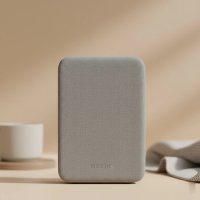
Are you tired of sluggish internet, frustrating dead zones, or dropped connections plaguing your Xfinity home network? You’re not alone. Many Xfinity customers experience these common WiFi woes, especially in larger homes or those with unique layouts. The good news is that a quality WiFi extender can be the game-changer you need, transforming your internet experience from frustrating to seamless. Finding the best WiFi extender for Xfinity means understanding your specific needs, compatibility, and the latest technology. This guide, crafted by an expert with over 15 years in the field and content creator for TVCSP.com, will cut through the jargon, empowering you to make an informed decision and reclaim your home’s WiFi coverage.
Understanding WiFi Extenders: The Basics
Before we dive into specific recommendations, let’s lay the groundwork. What exactly are these devices, and how do they work their magic?
What Exactly is a WiFi Extender?
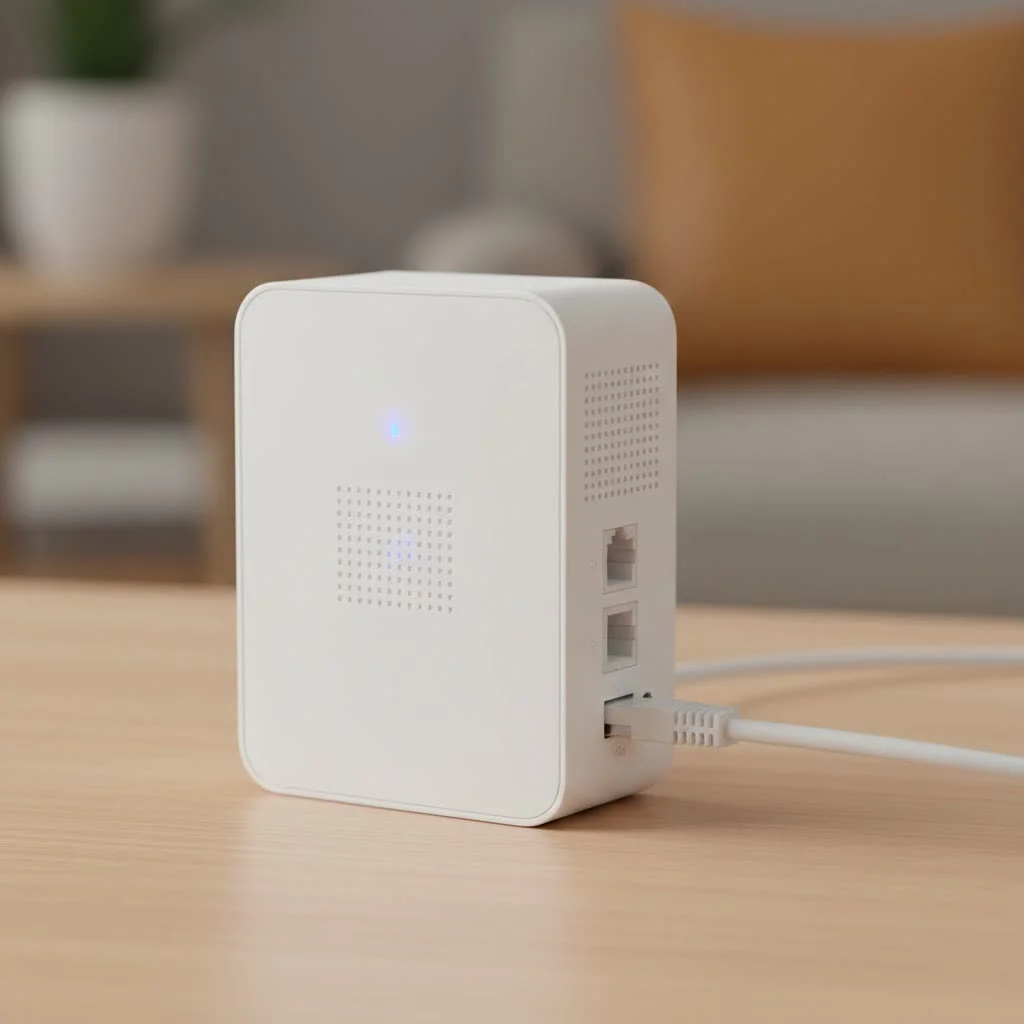
A WiFi extender, often called a range extender or booster, is a device designed to expand the coverage area of your existing wireless network. Think of it as a relay station for your WiFi signal. Your Xfinity Gateway (your modem and router combo) broadcasts a WiFi signal, but this signal weakens over distance and when it encounters obstacles like walls, floors, and furniture. An extender picks up this weakened signal and re-broadcasts it, effectively stretching your WiFi’s reach to those previously unreachable corners of your home.
How Do WiFi Extenders Work?
The process is fairly straightforward. Your WiFi extender connects wirelessly to your Xfinity Gateway, captures the WiFi signal, and then amplifies and re-transmits it as a new network or as part of your existing one. This creates a larger wireless footprint. Most modern extenders operate on both 2.4 GHz and 5 GHz frequency bands, similar to your Xfinity Gateway, to provide flexible and high-speed connections. Some even feature Gigabit Ethernet ports, allowing you to connect wired devices for maximum stability and speed in extended areas.
Types of WiFi Extenders: Range vs. Mesh Systems
While the term “WiFi extender” is often used broadly, there are two main types to consider: traditional range extenders and mesh WiFi systems.
Traditional Range Extenders: These are typically plug-and-play devices that connect to your existing WiFi network and create a new, extended network. They’re often a cost-effective solution for covering a specific dead zone. However, they might create a separate network name (SSID), meaning your devices might not seamlessly switch between your main Xfinity WiFi and the extender’s network. This can sometimes lead to manual switching or temporary connection drops.
Mesh WiFi Systems: This technology represents the next evolution in home WiFi coverage. Instead of a single extender, a mesh system consists of multiple units (nodes or satellites) that work together to create a unified, seamless network throughout your entire home. Xfinity’s own xFi Pods and third-party mesh systems (like TP-Link Deco or Netgear Orbi) fall into this category. The primary advantage here is “one WiFi name” and seamless roaming, meaning your devices automatically connect to the strongest signal as you move around, without you ever noticing a switch. This is particularly beneficial for smart homes with many connected devices or for activities like video calls and online gaming where consistent connectivity is crucial. Xfinity’s own extenders are designed to integrate directly with your xFi Gateway, creating this seamless mesh experience.
Why Your Xfinity Home Might Need a WiFi Extender
Even with Xfinity’s powerful xFi Gateways, certain factors can lead to poor WiFi performance:
- Dead Zones: These are areas in your home where the WiFi signal is weak or nonexistent. They’re common in larger multi-story homes, basements, garages, or even just rooms far from the main router.
- Slow Speeds: While your Xfinity internet plan might promise blazing-fast speeds, a weak WiFi signal can drastically reduce those speeds at the edges of your network, leading to buffering, lag, and frustrating delays.
- Dropped Connections: Devices constantly disconnecting and reconnecting can be a sign that your WiFi signal is struggling to reach them reliably.
- Physical Obstacles: Walls (especially thick ones), metal objects, large appliances, and even dense furniture can absorb or block WiFi signals.
- Interference: Other electronic devices, such as microwaves, cordless phones, and even your neighbors’ WiFi networks, can interfere with your signal.
A WiFi extender addresses these issues head-on, delivering a stronger, more consistent signal to every corner of your Xfinity-powered home.
Key Considerations for Choosing the Best WiFi Extender for Xfinity
When looking for the best WiFi extender for Xfinity, it’s essential to consider several factors to ensure you pick a device that truly meets your needs and integrates well with your existing setup.
- Compatibility with Xfinity Gateway: While most third-party extenders are universally compatible, some offer better integration. Xfinity’s own xFi Pods or Xfinity WiFi Extenders are designed to work seamlessly with xFi Gateways (XB7, XB8, XB10), leveraging the Xfinity app for easy setup and management. If you use an older Xfinity Gateway, confirm the extender’s compatibility.
- WiFi Standards (Wi-Fi 5, Wi-Fi 6, Wi-Fi 7):
- Wi-Fi 5 (802.11ac): Still common, offers good speeds for most uses.
- Wi-Fi 6 (802.11ax): The current standard, offering faster speeds, better performance in congested environments, and improved efficiency for multiple devices. Many newer Xfinity Gateways support Wi-Fi 6.
- Wi-Fi 7 (802.11be): The newest standard, providing even higher speeds and lower latency, ideal for future-proofing your network, especially with Xfinity Gigabit plans.
- Dual-Band vs. Tri-Band:
- Dual-band (2.4 GHz and 5 GHz) is standard.
- Tri-band extenders add a second 5 GHz band, or sometimes a 6 GHz band (for Wi-Fi 6E/7). This dedicated backhaul band helps the extender communicate with your Xfinity Gateway without slowing down client connections, offering superior performance, especially for demanding tasks. Xfinity’s own extenders are often tri-band.
- Coverage Area: Extenders are rated for how much square footage they can add. Consider your home’s size and the areas needing coverage. Manufacturers typically list approximate coverage areas (e.g., 1,500 sq ft, 2,300 sq ft).
- Ethernet Ports: If you have devices like gaming consoles, smart TVs, or desktop PCs that benefit from a wired connection, look for extenders with Gigabit Ethernet ports.
- Setup and Management:
- Xfinity App: For xFi Pods and Xfinity Extenders, the Xfinity app offers an incredibly easy, guided setup.
- WPS (Wi-Fi Protected Setup): Many third-party extenders support WPS for a quick, button-press connection.
- Dedicated Apps/Web Interface: Other extenders come with their own apps or web interfaces for more control.
- Cost: Prices vary widely based on features and performance. Xfinity’s own extenders are available for purchase, and they often offer discounts or bundles with certain plans.
Top Picks: Best WiFi Extender for Xfinity in 2025
Based on our extensive research and hands-on experience, here are some of the best WiFi extenders for Xfinity customers, catering to various needs and budgets:
Xfinity’s Own Solutions
|
Our Picks for the Best Wifi Extender in 2026
As an Amazon Associate I earn from qualifying purchases.
|
||
| Num | Product | Action |
|---|---|---|
| 1 | TP-Link AC1200 WiFi Extender, 2023 Engadget Best Budget Pick, 1.2Gbps Signal Booster for Home, Dual Band 5GHz/2.4GHz, Covers Up to 1500 Sq.ft and 30 Devices,Support Onemesh, One Ethernet Port (RE315) |

|
| 2 | WiFi Extender, WiFi Extenders Signal Booster for Home Up to 5000 sq.ft and 50 Devices, WiFi Range Extender, Wireless Repeater, Long Range Amplifier with Ethernet Port, 1-Tap Setup, Alexa Compatible |
|
| 3 | Amazon eero 6+ mesh wifi system with 1 month free eero Plus (auto-renews) - Coverage up to 4,500 sq. ft., Connect 75+ devices, 3-pack |
|
| 4 | Amazon eero 6 mesh wifi extender with 1-month free eero Plus (auto-renews) - Add up to 1,500 sq. ft. of Wi-Fi 6 coverage to your existing eero mesh wifi network |
|
| 5 | WiFi Extender with 4 Antennas 1200Mbps - Dual Band 5GHz/2.4GHz, WiFi Extender Signal Booster with 3 Modes Support, WiFi Repeater with 12880 Sq.ft 105 Devices, Easy Set Up for Home |
|
| 6 | 2025 Fastest WiFi Extender, WiFi Repeater, WiFi Booster, Covers Up to 10000 Sq.ft and 80 Devices, Internet Booster - with Ethernet Port, Quick Setup, Home Wireless Signal Booster |
|
| 7 | TP-Link AX3000 WiFi 6 Range Extender - PCMag Editor\'s Choice - Dual-Band Wireless Repeater w/Ethernet Port - Up to 2400 Sq. Ft., 64 Devices - Internet Signal Booster - APP Setup - EasyMesh (RE715X) |
|
| 8 | 2025 WiFi Extenders Signal Booster for Home Long Range Up to 9800 sq. ft & 40 Devices, WiFi Extender Signal Booster, Quick Setup-Medium, Internet Repeater, WiFi Extender |
|
| 9 | Amazon eero 7 with 1 month free eero Plus (auto-renews) - Supports internet plans up to 2.5 Gbps, Coverage up to 2,000 sq. ft., Connect 120+ devices, 1-pack |
|
| 10 | TP-Link AC1900 WiFi Range Extender RE550 - Dual-Band Wireless Repeater Amplifier w/Gigabit Ethernet Port - Up to 2200 Sq. Ft., 32 Devices - Internet Signal Booster - APP Setup - EasyMesh Compatible |
|
For Xfinity customers seeking the most seamless integration and ease of use, Xfinity’s proprietary solutions are often the first choice.
- Xfinity xFi Pods (or Xfinity WiFi Extender): These compact, plug-in devices are specifically designed to work with your xFi Gateway. They create a mesh WiFi network, extending coverage and eliminating dead zones with a single, unified WiFi name. Setup is incredibly simple through the Xfinity app. The newer generation offers enhanced performance and is tri-band.
- Pros: Seamless integration with xFi Gateway, easy setup via Xfinity app, unified WiFi network (mesh), strong performance for compatible gateways.
- Cons: Only compatible with xFi Gateways, may not offer the absolute highest speeds compared to some premium third-party Wi-Fi 6E/7 options.
- Xfinity Pro WiFi Extender: A premium option for Xfinity Pro subscribers, this tri-band Wi-Fi 6 extender is compatible with XB7, XB8, or XB10 gateways. It boasts features like 4G LTE backup (with a compatible plan) for internet outages and optional battery backup, ensuring your critical devices stay connected even when the main broadband is down.
- Pros: Advanced Wi-Fi 6, tri-band, 4G LTE backup for outages (with Xfinity Pro), seamless integration, strong security.
- Cons: Requires Xfinity Pro subscription, compatible only with specific xFi Gateways (XB7, XB8, XB10), higher price point.
Third-Party Recommendations
If you’re looking for more advanced features, specific performance metrics, or prefer a third-party brand, these options offer excellent compatibility with Xfinity Gateways.
- NETGEAR Wi-Fi Mesh Range Extender EX7300 / NETGEAR WiFi 6 (EAX15): NETGEAR is a veteran in networking, and their extenders are highly rated. The EX7300 is a robust dual-band extender with FastLane technology for high-speed connections. The newer EAX15 brings Wi-Fi 6 to the table, offering improved efficiency and speeds up to AX1800, making it an excellent compact choice for Xfinity networks.
- Pros: Reliable brand, dual-band (EX7300) or Wi-Fi 6 (EAX15), good coverage, often supports one WiFi name for mesh-like experience.
- Cons: Higher price point for some models, can be bulky (EX7300).
- TP-Link RE715X AX3000 / TP-Link Deco BE63 (Wi-Fi 7 Mesh): TP-Link offers a wide range of extenders. The RE715X AX3000 is a fantastic long-range Wi-Fi 6 extender, delivering strong performance for Xfinity’s Gigabit plans with speeds up to 3Gbps and a 160MHz 5GHz band. For the ultimate future-proof solution, the TP-Link Deco BE63 offers Wi-Fi 7 tri-band mesh, ideal for large homes and the fastest Xfinity plans.
- Pros: Excellent range, Wi-Fi 6 (RE715X) or Wi-Fi 7 (Deco BE63), high speeds, OneMesh compatibility for unified network with TP-Link routers.
- Cons: Deco BE63 is a premium investment, RE715X is a traditional extender unless paired with OneMesh router.
- Linksys RE7000 Max-Stream AC1900+ / Linksys RE7350: Linksys extenders are known for their strong performance and user-friendly features. The RE7000 includes Crossband Technology to maximize speed and Spot Finder Technology for optimal placement. The RE7350 offers Wi-Fi 6 and a compact design.
- Pros: Good performance, useful placement tools, Wi-Fi 6 (RE7350), generally compatible with major ISPs like Xfinity.
- Cons: Setup can sometimes be complex, some models may not offer the absolute highest speeds.
- Asus RP-AX58: This Wi-Fi 6 extender is a slightly more affordable alternative to top-tier models, combining fast speeds, cross-compatibility with any router, and a coverage area of up to 2,200 square feet. It’s a strong contender for those seeking Wi-Fi 6 performance without breaking the bank.
- Pros: Wi-Fi 6, good coverage, strong upload speeds, cross-compatible.
- Cons: May require specific Asus routers for AiMesh functionality.
- Rockspace AC1200 Wi-Fi Range Extender: For budget-conscious Xfinity customers, the Rockspace AC1200 offers dual-band technology and smart signal indicators for easy positioning, covering up to 1292 sq ft.
- Pros: Budget-friendly, dual-band, easy positioning.
- Cons: Lower speeds and coverage compared to premium options.
Step-by-Step Guide: Setting Up Your WiFi Extender with Xfinity
Setting up your new WiFi extender, especially the best WiFi extender for Xfinity, is generally a straightforward process. Here’s a general guide:
Preparation
- Identify Dead Zones: Walk around your home and note where your Xfinity WiFi signal drops or becomes weak.
- Unpack Your Extender: Familiarize yourself with the device, including power ports and any WPS buttons.
- Charge Devices (if applicable): Ensure your mobile device (for app-based setup) or laptop is charged.
Placement Tips
Optimal placement is crucial for your extender’s effectiveness.
- Midway Point: Place the extender roughly halfway between your Xfinity Gateway and the dead zone you want to cover. It needs to receive a strong enough signal from your Gateway to re-broadcast effectively.
- Open and Unobstructed: Avoid placing your extender in tight spaces, behind large furniture, or near thick walls. Walls, floors, and metal objects can interfere with signals.
- Elevate It: Position the extender at least a few feet off the floor, ideally on a shelf or tabletop, to allow the signal to propagate better.
- Away from Interference: Keep it away from other electronics like microwaves, cordless phones, and large appliances that can cause interference.
- Use the Signal Indicator: Many extenders have LED indicators to help you find the best placement for optimal signal strength.
Installation
The installation method depends on your chosen extender:
- For Xfinity xFi Pods/Extenders:
- Plug the Pod/Extender into an indoor electrical outlet.
- Download and open the Xfinity app on your mobile device.
- Tap “More” at the bottom of the screen, then “Add a Device,” and “WiFi Extender.”
- Follow the on-screen instructions in the app to pair it with your xFi Gateway. The app will guide you through optimizing placement and connection.
- For Third-Party Extenders (WPS Method):
- Plug the extender into a power outlet near your Xfinity Gateway.
- Wait for the extender to power on and its LED indicator to show it’s ready for setup.
- Press the WPS button on your Xfinity Gateway.
- Within two minutes, press the WPS button on your WiFi extender.
- The extender’s LED light should indicate a successful connection (often a solid green or blue).
- Move the extender to its optimal midway placement and power it on. Check if the connection remains stable.
- For Third-Party Extenders (Manual/App Method):
- Plug the extender into a power outlet near your Xfinity Gateway.
- On a computer or mobile device, connect to the extender’s temporary WiFi network (usually named something like “YourExtender_Setup”).
- Open a web browser and navigate to the extender’s default setup address (e.g.,
http://re.tplinkwifi.netfor TP-Link, or an IP address like192.168.1.254). - Follow the on-screen wizard to select your Xfinity WiFi network and enter its password.
- You may have the option to keep the same network name (SSID) for a more seamless experience or create a new one. For a true mesh experience with non-mesh extenders, consider creating a new SSID.
- Move the extender to its optimal midway placement and power it on.
Optimizing Your Xfinity WiFi Extender’s Performance
Once your extender is set up, a few tweaks can ensure you’re getting the absolute best performance from your best WiFi extender for Xfinity.
- Optimal Placement is Key: Reiterate the importance of placing the extender at the sweet spot between your Xfinity Gateway and your coverage area. Use signal strength indicators (on the extender itself or via a mobile app) to fine-tune its position.
- Firmware Updates: Regularly check for and install firmware updates for your extender. These updates often include performance improvements, bug fixes, and security patches that can significantly boost your WiFi speeds and stability. You can usually do this via the extender’s dedicated app or web interface.
- Minimize Interference: While you’ve placed it away from obvious sources during setup, be mindful of new devices or changes in your home that could introduce interference. Try to keep other electronics at a distance.
- Wired Connections for Demanding Devices: For devices that require maximum speed and stability, like gaming consoles or 4K streaming boxes, use an Ethernet cable to connect them directly to the extender’s Gigabit Ethernet port (if available). This bypasses wireless congestion entirely, providing a more robust connection.
- Channel Selection: In congested areas, your WiFi signal might be fighting with neighbors’ networks on the same channel. Use the Xfinity app or a WiFi analyzer tool to identify less congested WiFi channels (especially for 2.4 GHz, typically channels 1, 6, or 11 are recommended) and manually switch your Xfinity Gateway’s channels if needed.
Troubleshooting Common WiFi Extender Issues with Xfinity
Even with the best WiFi extender for Xfinity, you might encounter occasional hiccups. Here’s how to tackle them:
- Extender Not Connecting:
- Check Power: Ensure the extender is plugged in and powered on.
- Relocation: Move the extender closer to your Xfinity Gateway to establish the initial connection, then reposition it.
- Restart: Reboot both your Xfinity Gateway and the extender.
- Factory Reset: If all else fails, perform a factory reset on the extender and try the setup process again.
- Slow Speeds:
- Placement: The most common culprit. Ensure your extender is not too far from the Gateway. If the signal it receives is weak, the signal it re-broadcasts will also be weak.
- Interference: Look for sources of interference (microwaves, cordless phones) near the extender or Gateway.
- Bandwidth Overload: Too many devices on one band can slow things down. If your extender is dual or tri-band, ensure devices are distributed efficiently (e.g., 5 GHz for high-bandwidth tasks).
- Xfinity Plan Speed: Remember that an extender cannot magically make your internet faster than your Xfinity plan’s maximum speed.
- Frequent Disconnections:
- Signal Strength: A fluctuating signal to the extender can cause instability. Adjust placement.
- Firmware: Outdated firmware can lead to instability. Update it.
- Overheating: Ensure the extender is well-ventilated and not in an enclosed space.
- Separate SSIDs (and how to manage/avoid):
- If your third-party extender creates a separate network name (e.g., “YourNetwork_EXT”), your devices might not automatically switch to the stronger signal. For a truly seamless experience, consider a mesh WiFi system like Xfinity’s xFi Pods or a third-party mesh system that supports “one WiFi name” technology. Some modern range extenders also support this feature, often called “OneMesh” or “Smart Roaming.”
“In my 15 years in networking, the biggest mistake people make with extenders is improper placement. A well-placed, mid-range extender often outperforms a top-tier one stuck in a corner.” – Dr. Anya Sharma, Lead Network Architect at TVCSP
Frequently Asked Questions (FAQ)
Do I need a special WiFi extender for Xfinity?
While most third-party WiFi extenders are universally compatible with any router, including Xfinity Gateways, Xfinity also offers its own xFi Pods and Xfinity WiFi Extenders which are specifically designed for seamless integration and management through the Xfinity app. These proprietary solutions often provide a more unified mesh experience.
Can I use xFi Pods with a non-Xfinity router?
No, Xfinity xFi Pods are designed to work exclusively with Xfinity xFi Gateways (like the XB7, XB8, or XB10) and an active Xfinity internet plan. They cannot be used with third-party routers.
Where should I place my WiFi extender?
The ideal placement for your WiFi extender is approximately halfway between your Xfinity Gateway and the area where you need improved WiFi coverage. It needs to be close enough to receive a strong signal from your Gateway to effectively re-broadcast it, and in an open, unobstructed location.
Will a WiFi extender slow down my internet?
A properly configured WiFi extender should improve coverage without significantly degrading speeds within its extended range. However, all wireless extensions inherently introduce some latency. An extender works by relaying the signal, and that process can slightly reduce overall throughput compared to a direct connection to the main router. Premium dual-band or tri-band extenders minimize this effect.
What’s the difference between a WiFi extender and a mesh WiFi system?
A traditional WiFi extender typically connects to your existing router and re-broadcasts the signal, often creating a separate network name. A mesh WiFi system, on the other hand, uses multiple units (nodes) to create a single, unified WiFi network with seamless roaming, meaning your devices automatically connect to the strongest signal as you move around your home.
How many WiFi extenders do I need for my Xfinity home?
The number of extenders needed depends on the size and layout of your home, as well as the severity of your dead zones. Xfinity suggests one extender for 1-2 story homes with 3-4 bedrooms and two extenders for larger homes with 5+ bedrooms. For particularly large or complex homes, a full mesh WiFi system might be more effective.
Can I use a Wi-Fi 6 extender with an older Xfinity Gateway?
Yes, you can typically use a Wi-Fi 6 extender with an older Xfinity Gateway that supports Wi-Fi 5 (802.11ac) or even Wi-Fi 4 (802.11n). The extender will operate at the highest common standard between itself and your Gateway, or it can create a new Wi-Fi 6 network for devices that support it. You won’t get full Wi-Fi 6 speeds from the Gateway itself, but the extender can still improve coverage and potentially offer faster speeds for Wi-Fi 6-compatible devices within its range.
Conclusion
Say goodbye to the frustrations of dead zones and unreliable internet. Investing in the best WiFi extender for Xfinity can dramatically improve your home networking experience, providing consistent, high-speed coverage wherever you need it most. Whether you opt for the seamless integration of Xfinity’s own xFi Pods or a powerful third-party solution from brands like NETGEAR or TP-Link, understanding your home’s needs and the technology available is the first step. Take control of your home WiFi, eliminate those annoying signal drops, and enjoy a truly connected lifestyle with the perfect WiFi extender for your Xfinity service. Your network, your rules!
Get our weekly buyer guide
Practical specs, not advice. Unsubscribe anytime.