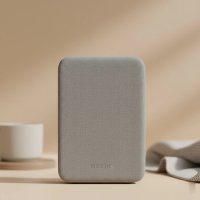
Ever found yourself in that “digital dead zone” at home? You know, that one spot where your Wi-Fi signal just refuses to reach, turning streaming into buffering nightmares and video calls into pixelated puzzles. If running lengthy Ethernet cables isn’t an option and traditional Wi-Fi extenders just aren’t cutting it, you’re in the right place. As a seasoned expert from TVCSP, I’m here to demystify the powerline WiFi extender – a clever solution that uses your home’s existing electrical wiring to deliver robust internet exactly where you need it.
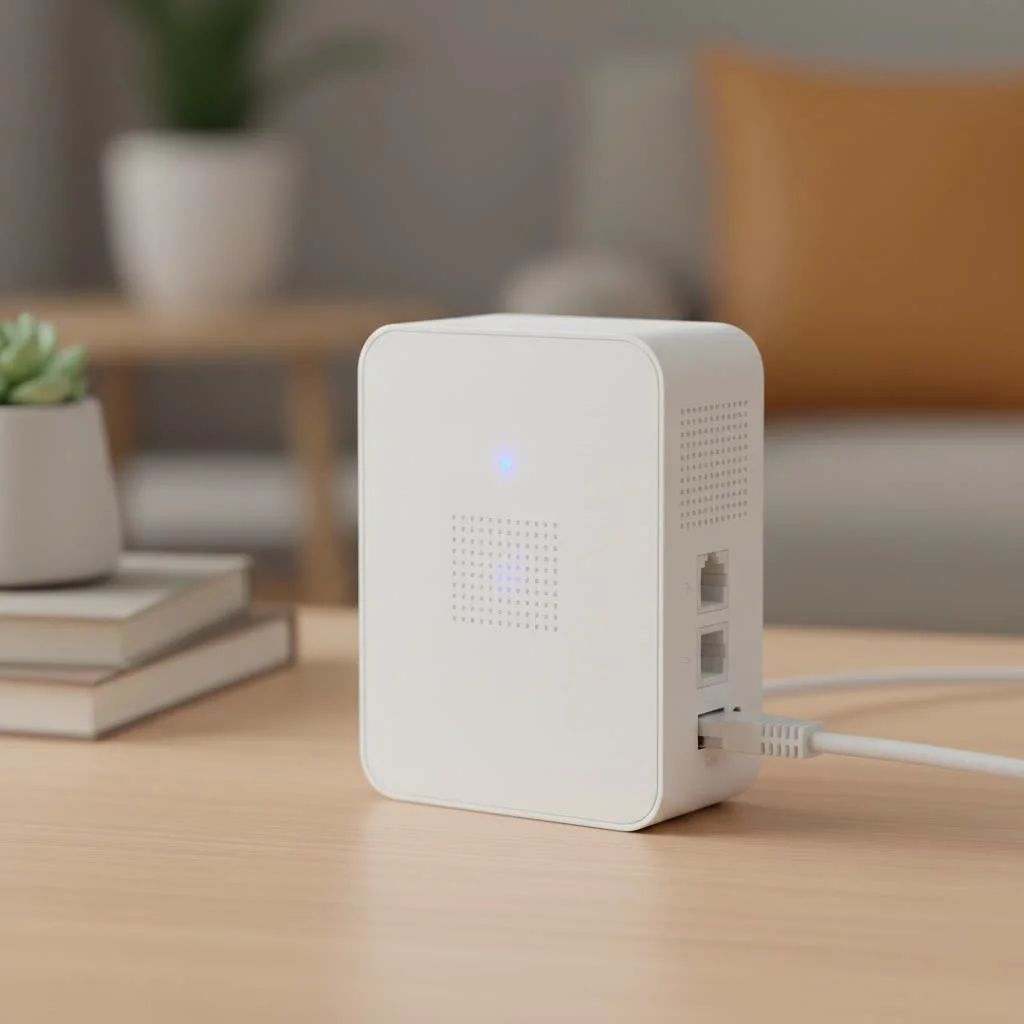
Let’s plug into the world of powerline technology and transform your home network experience!
What is a Powerline WiFi Extender and How Does It Work?
At its core, a powerline WiFi extender is a brilliant piece of networking hardware that transforms your home’s electrical wiring into a high-speed data network. Imagine your electrical outlets not just powering your devices, but also carrying your internet signal – that’s the magic of powerline technology.
Here’s how it typically works: You use a kit that includes at least two devices. The first, often called the adapter, plugs into a wall socket near your router and connects to it with an Ethernet cable. This adapter takes your internet data and converts it into a high-frequency electrical signal. This signal then travels through the copper electrical wiring already running through your walls, just like electricity for your lights and appliances.
The second device, the powerline WiFi extender, plugs into another wall outlet in a different room – perhaps your basement office, attic studio, or that far-flung bedroom where Wi-Fi traditionally struggles. This extender picks up the data signal from the electrical wiring, decodes it, and then either provides an Ethernet port for a wired connection or broadcasts a brand-new Wi-Fi signal, essentially creating a new, strong access point in that area.
What’s truly fascinating is that power and data can coexist on the same wires without clashing. Your home’s power runs at a low frequency (50-60 Hz), while powerline adapters use much higher frequencies for data transmission, ensuring they don’t interfere with each other. It’s like turning your home’s entire electrical system into a silent, invisible data highway, delivering internet to every nook and cranny.
Beyond Basics: Types of Powerline WiFi Extenders
When exploring powerline WiFi extenders, you’ll encounter a few different flavors, each designed to meet specific needs. Understanding these types will help you choose the perfect fit for your digital demands.
Wired Powerline Adapters
|
Our Picks for the Best Wifi Extender in 2026
As an Amazon Associate I earn from qualifying purchases.
|
||
| Num | Product | Action |
|---|---|---|
| 1 | Amazon eero 6+ mesh wifi system with 1 month free eero Plus (auto-renews) - Coverage up to 4,500 sq. ft., Connect 75+ devices, 3-pack |

|
| 2 | Amazon eero 7 with 1 month free eero Plus (auto-renews) - Supports internet plans up to 2.5 Gbps, Coverage up to 2,000 sq. ft., Connect 120+ devices, 1-pack |
|
| 3 | TP-Link AC1200 WiFi Extender, 2023 Engadget Best Budget Pick, 1.2Gbps Signal Booster for Home, Dual Band 5GHz/2.4GHz, Covers Up to 1500 Sq.ft and 30 Devices,Support Onemesh, One Ethernet Port (RE315) |
|
| 4 | WiFi Extender, WiFi Extenders Signal Booster for Home Up to 5000 sq.ft and 50 Devices, WiFi Range Extender, Wireless Repeater, Long Range Amplifier with Ethernet Port, 1-Tap Setup, Alexa Compatible |
|
| 5 | 2025 Fastest WiFi Extender, WiFi Repeater, WiFi Booster, Covers Up to 10000 Sq.ft and 80 Devices, Internet Booster - with Ethernet Port, Quick Setup, Home Wireless Signal Booster |
|
| 6 | Amazon eero 6 mesh wifi extender with 1-month free eero Plus (auto-renews) - Add up to 1,500 sq. ft. of Wi-Fi 6 coverage to your existing eero mesh wifi network |
|
| 7 | 2025 WiFi Extenders Signal Booster for Home Long Range Up to 9800 sq. ft & 40 Devices, WiFi Extender Signal Booster, Quick Setup-Medium, Internet Repeater, WiFi Extender |
|
| 8 | WiFi Extender with 4 Antennas 1200Mbps - Dual Band 5GHz/2.4GHz, WiFi Extender Signal Booster with 3 Modes Support, WiFi Repeater with 12880 Sq.ft 105 Devices, Easy Set Up for Home |
|
| 9 | TP-Link AC1900 WiFi Range Extender RE550 - Dual-Band Wireless Repeater Amplifier w/Gigabit Ethernet Port - Up to 2200 Sq. Ft., 32 Devices - Internet Signal Booster - APP Setup - EasyMesh Compatible |
|
| 10 | TP-Link AX3000 WiFi 6 Range Extender - PCMag Editor\'s Choice - Dual-Band Wireless Repeater w/Ethernet Port - Up to 2400 Sq. Ft., 64 Devices - Internet Signal Booster - APP Setup - EasyMesh (RE715X) |
|
These are the most fundamental type. A wired powerline adapter kit typically includes two units: one that connects to your router and a second that plugs into a distant wall outlet, offering one or more Ethernet ports. They are ideal if you primarily need a stable, high-speed wired connection for devices like desktop PCs, gaming consoles, smart TVs, or network-attached storage (NAS) devices in areas where Wi-Fi is weak. Their main advantage is delivering lower latency and more consistent speeds, as data travels directly through the electrical lines, avoiding wireless interference.
Wi-Fi Powerline Adapters
Also known as powerline Wi-Fi extenders, these hybrid devices offer the best of both worlds. Like wired adapters, they transmit data over your electrical wiring. However, the remote unit also features a built-in wireless access point, broadcasting a new Wi-Fi signal in addition to offering Ethernet ports. This is a game-changer for eliminating Wi-Fi dead zones, as it doesn’t just “extend” a weak signal, but rather creates a fresh, strong wireless hotspot. Many models offer dual-band Wi-Fi (2.4 GHz and 5 GHz), providing flexibility for various devices and higher potential speeds.
Pass-Through Powerline Adapters
Ever worried about sacrificing a precious wall outlet for your networking gear? Pass-through powerline adapters solve this common dilemma. These units come with an integrated electrical socket, allowing you to plug another appliance or power strip directly into the adapter itself. This ensures that you don’t lose the functionality of your wall outlet, making them particularly beneficial in homes or offices where power points are at a premium.
The Power and The Pitfalls: Pros and Cons
While powerline WiFi extenders offer an elegant solution to network expansion, like any technology, they come with their own set of advantages and disadvantages. It’s crucial to weigh these before deciding if it’s the right choice for you.
Pros
- Wired Connection Without New Cables: This is arguably the biggest selling point. Powerline technology leverages your existing electrical infrastructure, eliminating the need to drill holes, run unsightly Ethernet cables through walls, or invest in expensive wiring installations. It’s a clean, efficient way to get a wired connection anywhere you have an outlet.
- Superior Wi-Fi Extension (Overcoming Physical Obstacles): Unlike traditional Wi-Fi extenders that simply rebroadcast a potentially weak signal, powerline Wi-Fi extenders transmit data through physical wiring. This means they can often bypass thick walls, multiple floors, and other structural barriers that would severely degrade a wireless signal, bringing a strong new Wi-Fi hotspot to truly problematic areas.
- Offloads Network Traffic: By connecting high-bandwidth devices (like gaming PCs or 4K streaming boxes) via a wired powerline connection, you reduce the load on your main Wi-Fi network. This frees up wireless bandwidth for other devices like phones and tablets, leading to better overall performance for everyone.
- Ease of Setup (Plug and Play): Most powerline kits are designed for simplicity. In many cases, it’s a matter of “plug in, pair, and play.” You don’t need to be a networking guru to get them up and running, making them accessible to a wide range of users.
- Flexibility: Once paired, powerline adapters are highly portable. You can move the extender unit to different outlets within the same electrical circuit, allowing you to adapt your network coverage as your needs change.
Cons
- Circuit Dependency: This is the most significant limitation. Powerline adapters perform best when both units are on the same electrical circuit. Performance can degrade significantly, or the connection may even fail, if the adapters are on different circuits, different electrical phases, or separated by a circuit breaker panel. Older or complex home wiring can be particularly challenging.
- Interference from Appliances: Electrical “noise” generated by high-power appliances can disrupt powerline signals. Devices like washing machines, refrigerators, microwaves, vacuum cleaners, and even some lighting systems can introduce interference, leading to slower speeds or dropped connections.
- Variable Speeds: While manufacturers advertise impressive “up to” speeds (e.g., 2000 Mbps), actual real-world performance is heavily dependent on the quality and age of your home’s electrical wiring. Older, corroded, or poorly insulated wiring can drastically reduce speeds far below advertised rates.
- No Power Strips or Surge Protectors: For optimal performance, powerline adapters should always be plugged directly into a wall outlet. Plugging them into power strips, extension cords, or surge protectors can introduce interference and significantly degrade the signal or prevent them from working altogether.
- Limited Advanced Configuration: While easy to set up, some basic powerline models may offer fewer advanced configuration options compared to a full-fledged mesh Wi-Fi system or a dedicated access point, which might be a drawback for advanced users.
As our very own networking guru, Dr. Elara Vance, often says, “Powerline technology is a marvel for bringing connectivity through the veins of your home, but remember, the quality of those veins directly dictates the strength of your digital pulse.”
Setting Up Your Powerline WiFi Extender: A Step-by-Step Guide
Getting your powerline WiFi extender up and running is typically a straightforward process. Follow these steps to establish a stable and extended network throughout your home.
1. Preparation: Choose Your Outlets Wisely
Before you even unbox, identify the best locations. Remember:
- Direct to Wall: Always plug powerline adapters directly into a wall socket. Avoid power strips, extension cords, or surge protectors, as they can interfere with the signal.
- Same Circuit (Ideally): For best performance, try to ensure both your main adapter and the extender are on the same electrical circuit. While some adapters can cross circuits, performance often degrades.
2. Connect the Primary Adapter
- Placement: Plug one powerline adapter (often the slightly larger unit) into a wall outlet close to your main Wi-Fi router.
- Ethernet Connection: Use an Ethernet cable (usually included in the kit) to connect this powerline adapter to an available LAN port on your Wi-Fi router. Ensure both ends are securely clicked into place.
3. Place and Power On the Extender
- Placement: Take the second powerline unit – the Wi-Fi extender – and plug it into a wall outlet in the area where you need improved Wi-Fi coverage.
- Power On: Both units should now have their power indicator lights turn on.
4. Pair the Devices
This step creates a secure connection between your powerline units.
- Initial Pairing (Recommended): For optimal pairing, it’s often recommended to plug both the adapter and extender into wall sockets in the same room initially, close to each other.
- Initiate Pairing:
- On the primary powerline adapter, press the “Pair” button (often a small button with a house icon or two arrows) for approximately one second. Its power light should start blinking.
- Within two minutes, go to the powerline Wi-Fi extender and press its “Pair” button for about one second. Its power light will also start blinking rapidly.
- Confirmation: Once successfully paired, the “Powerline” or “House” LED on both devices should turn solid green, indicating a strong connection has been established. If the light is red, it suggests a poor signal, and you might need to try a different outlet.
5. Customizing Wi-Fi Settings (Optional, but Recommended)
After pairing, your powerline Wi-Fi extender will typically broadcast a new Wi-Fi network with a default name (SSID) and password printed on its label. For a seamless experience, you can often “clone” your existing Wi-Fi network’s name and password:
- Wi-Fi Clone Button: If your router supports WPS (Wi-Fi Protected Setup), you might find a “Wi-Fi Clone” or “WPS” button on your extender. Press this button for one second, then quickly press the WPS button on your main router. The extender should automatically copy your router’s Wi-Fi name and password.
- Manual Configuration: If Wi-Fi cloning doesn’t work or your router lacks WPS, you can usually configure the extender via a mobile app (e.g., TP-Link’s tpPLC app) or a web browser interface (access instructions typically in the user manual). This allows you to manually set the SSID and password to match your main network, creating a single, unified Wi-Fi experience.
Once these steps are complete, you can relocate your powerline Wi-Fi extender to its desired location if you paired it in the same room. Your devices should now seamlessly connect to the extended network!
Optimizing Performance: Unleashing Your Powerline Extender’s Full Potential
While powerline WiFi extenders are designed for simplicity, a few strategic moves can significantly boost their performance and stability. Here are my pro tips for getting the most out of your setup:
Direct Wall Outlets Are Key
I can’t stress this enough: always plug your powerline adapters directly into a wall socket. Power strips, surge protectors, and extension cords are the archenemies of powerline performance. They act like noise filters, blocking or degrading the high-frequency data signals that travel through your electrical wiring. Think of it like trying to have a clear conversation through a thick, fuzzy blanket – it just doesn’t work as well!
Strategic Placement (Away from Electrical Noise)
Electrical appliances, especially those with motors or heating elements, can introduce “noise” into your electrical system, interfering with your powerline signal. Try to avoid plugging your powerline adapters into outlets directly adjacent to or on the same circuit as devices like:
- Refrigerators and freezers
- Washing machines and tumble dryers
- Microwaves
- Heavy-duty printers
- Air conditioning units
- Fluorescent lights
Experiment with different outlets to find the clearest connection path. Sometimes, moving an adapter just one socket over can make a world of difference.
Keep Firmware Updated
Just like your router, powerline adapters benefit from updated firmware. Manufacturers frequently release updates to improve performance, enhance stability, and fix bugs. Regularly check the manufacturer’s website for your specific model to download and install the latest firmware. This ensures your device is running with the most efficient and reliable software.
Channel Optimization
If your powerline Wi-Fi extender is broadcasting its own Wi-Fi signal and you’re experiencing interference or slow wireless speeds, you might need to adjust its Wi-Fi channel. In crowded areas with many Wi-Fi networks, certain channels can become congested. Using the extender’s management interface (via app or web browser), try manually switching to a less congested Wi-Fi channel (e.g., channels 1, 6, or 11 for 2.4 GHz). This can help reduce interference and improve wireless performance.
Troubleshooting Common Powerline Wi-Fi Extender Issues
Even the most robust powerline setup can occasionally encounter a hiccup. Don’t panic! Most common issues can be resolved with a few simple troubleshooting steps.
Slow Speeds or No Connection
- Check Powerline LEDs: The “Powerline” or “House” LED on both adapters should be solid green. If it’s off, they aren’t communicating. If it’s red or orange, the signal is weak.
- Direct Plug-in: Ensure both units are plugged directly into wall outlets, not power strips or extension cords. This is the most common culprit for poor performance.
- Same Electrical Circuit: Confirm that your powerline units are on the same electrical circuit. Signals struggle or fail to pass between different circuits or electrical phases.
- Relocate Adapters: Try plugging the extender into different wall outlets. Start with one closer to the main adapter to confirm basic functionality, then gradually move it to your desired location, checking the Powerline LED.
- Isolate Interference: Unplug any large appliances near the adapters one by one to see if the speed improves. This helps identify sources of electrical noise.
- Test Router Directly: Connect a device directly to your router via Ethernet. If you still have no internet, the problem lies with your router or ISP, not the powerline system.
Dropped Connections
- Interference & Wiring: Frequent disconnections often point to significant electrical noise or very old, convoluted house wiring. Refer to the “Strategic Placement” tips above.
- Crossing Breaker Panels: If your home has multiple electrical panels or the adapters are on opposite sides of a main breaker, the connection can be unstable. Powerline signals struggle to cross these barriers reliably.
Pairing Problems
- Reset and Re-pair: If adapters refuse to pair, perform a factory reset on both units. This usually involves holding a small reset button (often with a paperclip) for 6-10 seconds until the lights cycle. Then, re-attempt the pairing process as described in the setup guide: press the “Pair” button on one adapter for 1 second, then on the other within two minutes.
- Time Limit: Remember there’s a small window (typically 2 minutes) to press the pair button on the second device after pressing the first.
Forgotten Wi-Fi or Admin Passwords
- Factory Reset: The quickest solution for a forgotten Wi-Fi password or the adapter’s administration login is a factory reset. This will revert the device to its default settings, and you can find the default Wi-Fi name and password printed on a label on the extender itself. You will then need to re-pair the devices and configure Wi-Fi settings again.
If you’ve exhausted these steps and are still facing issues, don’t hesitate to reach out to the manufacturer’s technical support. Sometimes, specific hardware or unique home wiring can require specialized assistance.
Top Powerline Wi-Fi Extenders of 2025
The powerline market is constantly evolving, with new models offering impressive speeds and features. As of 2025, here are some of the standout powerline Wi-Fi extenders and kits that TVCSP recommends, catering to different needs and budgets:
- Devolo Magic 2 Wi-Fi 6: Often hailed as the top pick, the Devolo Magic 2 Wi-Fi 6 combines powerline connectivity with Wi-Fi 6 and mesh capabilities. It offers incredibly fast speeds (up to 2400 Mbps) and creates a seamless, whole-home Wi-Fi network, perfect for larger homes with demanding users.
- TP-Link AV2000 (e.g., TL-PA9020P KIT): This series is renowned for high-speed Ethernet connections and extended range, delivering up to 2000 Mbps. The TL-PA9020P KIT often includes pass-through outlets and multiple Gigabit Ethernet ports, making it excellent for heavy data usage and connecting several wired devices.
- D-Link DHP-W610AV: If your primary goal is robust powerline Wi-Fi extension, the D-Link DHP-W610AV is a strong contender. It turns any power outlet into a dual-band Wi-Fi hotspot with speeds up to 1000 Mbps, effectively eliminating Wi-Fi dead zones.
- Netgear PLP2000: Ideal for environments with heavy data usage, the Netgear PLP2000 provides high-speed wired connections (up to 2000 Mbps) and often includes convenient pass-through outlets and dual Ethernet ports.
- Tenda PH5 AV1000: For those on a budget seeking a powerline adapter with Wi-Fi capabilities, the Tenda PH5 is a solid choice. It offers decent speeds (up to 1000 Mbps) and creates a new Wi-Fi hotspot at an affordable price, making it a great entry-level option.
When choosing, consider your home’s size, your internet speed, the number of devices, and whether you prioritize wired or wireless extension.
Powerline vs. Other Solutions: Making the Right Choice
With so many options for extending your home network, how does a powerline Wi-Fi extender stack up against the alternatives? Let’s take a quick look:
- Vs. Traditional Wi-Fi Extenders: Standard Wi-Fi extenders simply rebroadcast an existing Wi-Fi signal, which often results in halved bandwidth and can struggle with physical obstructions like thick walls. Powerline extenders, by contrast, use your electrical wiring as a dedicated backhaul, creating a new, strong Wi-Fi signal or wired connection that bypasses these physical challenges more effectively. For truly problematic dead zones, powerline often offers a more robust solution.
- Vs. Mesh Wi-Fi Systems: Mesh systems are excellent for seamless, whole-home Wi-Fi, using multiple nodes to create a unified network. Many newer mesh systems use dedicated wireless backhaul bands or even Ethernet backhaul for optimal performance. While mesh systems generally provide superior overall Wi-Fi coverage and roaming, powerline can be a more budget-friendly alternative for specific dead zones or can even complement a mesh system by providing a strong wired backhaul to a distant mesh node.
- Vs. Direct Ethernet Cabling: For raw speed and stability, nothing beats a direct Ethernet cable run. It offers minimal latency and maximum throughput. However, running Ethernet cables can be expensive, messy, and impractical in many homes (especially rented ones). Powerline adapters are the next best thing, providing a wired-like connection without the hassle of new cable installation.
Ultimately, the “best” solution depends on your specific home, budget, and networking needs. For overcoming significant physical barriers and getting a stable connection without extensive cabling, powerline WiFi extenders present a compelling and often overlooked option.
Frequently Asked Questions (FAQ)
Do I need a powerline adapter?
If you have Wi-Fi dead zones, inconsistent wireless coverage, or devices far from your router that would benefit from a more stable connection, and running Ethernet cables isn’t feasible, a powerline adapter is a great solution.
Do powerline adapters work with any router?
Yes, as long as your router has an available Ethernet port to connect the primary powerline adapter, it should be compatible.
How fast are powerline adapters?
Advertised speeds can go up to 2000 Mbps or even 2400 Mbps with newer standards like G.hn. However, actual speeds vary significantly based on your home’s electrical wiring quality, age, distance between adapters, and electrical interference. Expect real-world speeds to be lower than the theoretical maximums.
Can I use multiple powerline adapters in one house?
Absolutely! Most powerline networks can support up to 16 adapters on the same network. However, remember that all devices share the available bandwidth, so adding too many can impact overall performance.
Do powerline adapters work well in older buildings or across different floors?
Performance can be less predictable in older buildings with outdated or complex wiring. They can work across different floors, but performance might drop if adapters are on separate electrical phases or different circuit breaker panels. Testing in specific outlets is recommended.
Are powerline adapters secure enough for home networks?
Yes, most modern powerline adapters use 128-bit AES encryption to secure the data transmitted over your electrical lines, making them safe for home use.
Can powerline adapters replace structured cabling in an office?
While highly effective for extending network access without new cables, powerline adapters are generally considered a temporary or retrofit solution rather than a full replacement for structured Ethernet cabling in large, high-performance office environments. For long-term scalability and maximum reliability, dedicated Ethernet remains superior.
Conclusion
Navigating the complexities of home networking can feel like a maze, but powerline WiFi extenders offer a remarkably elegant and effective path to ubiquitous internet coverage. They ingeniously harness your home’s existing electrical infrastructure, transforming it into a robust data network that can conquer even the most stubborn Wi-Fi dead zones.
From understanding how these clever devices work and choosing the right type, to a straightforward setup process and essential troubleshooting tips, you now have the knowledge to confidently extend and enhance your home Wi-Fi. No more dropped video calls, no more buffering movies, just seamless connectivity.
Empower your home with stable, far-reaching internet. Explore the powerline WiFi extender solutions, apply these practical insights, and feel free to share your experiences and questions with the TVCSP community – we’re always here to help you achieve networking nirvana!
Get our weekly buyer guide
Practical specs, not advice. Unsubscribe anytime.