Tired of walking into a room only to have your video call freeze or your favorite show start buffering endlessly? You’re not alone. WiFi dead zones are a common frustration in modern homes, where a single router struggles to cover every corner. For years, the go-to solution was a traditional WiFi extender, but that often came with its own set of problems, like confusing network names and inconsistent speeds. Enter the Eero Mesh Wifi Extender, a revolutionary approach to home networking that promises to eliminate dead zones for good. If you’re looking for a simple, powerful way to ensure seamless connectivity everywhere in your home, this guide is your starting point.
What is an Eero Mesh WiFi Extender, Really?
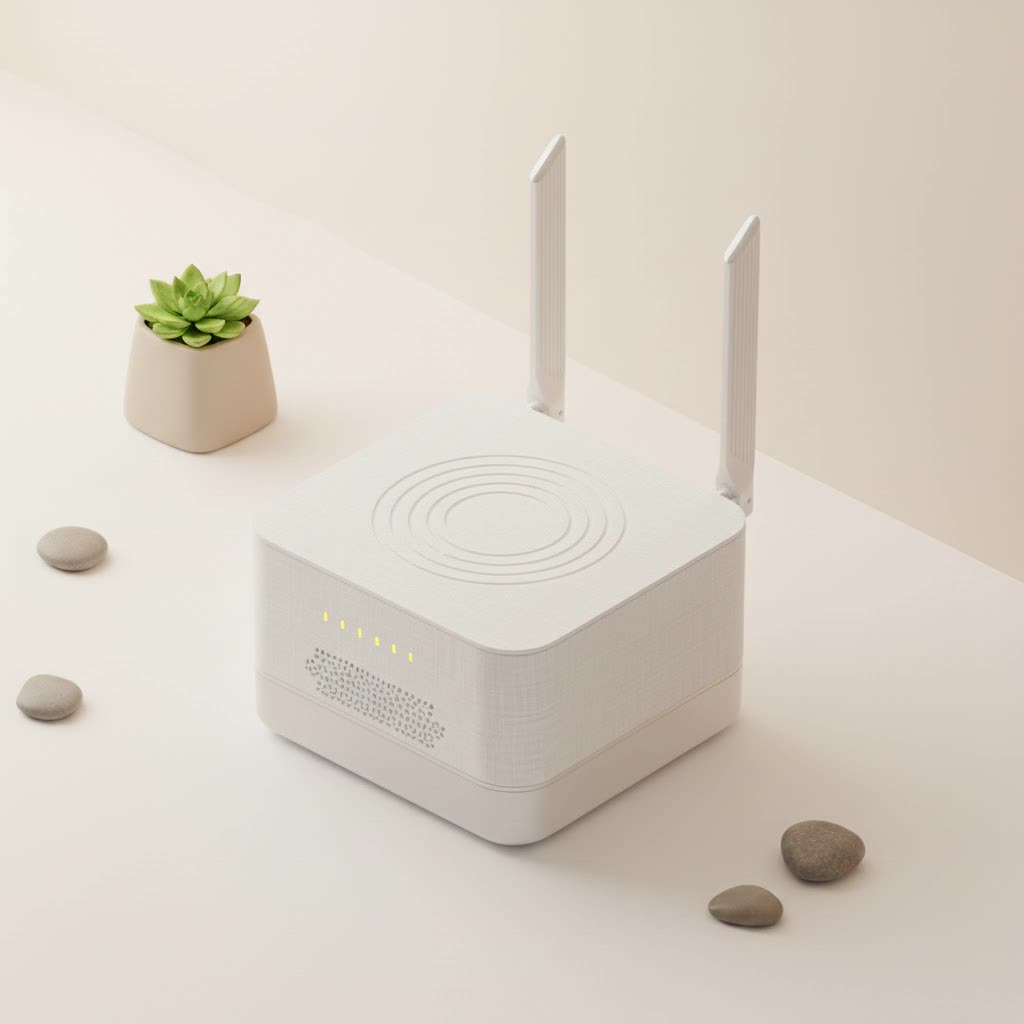
First, let’s clear up a common misconception. While we use the term “extender,” the Eero system is fundamentally different from the traditional extenders you might be familiar with. Eero is a mesh WiFi system. Instead of a single device trying to repeat a signal, a mesh system uses multiple units, or “nodes,” that work together as a team.
The main Eero unit connects directly to your modem and acts as the primary router. Then, you place additional Eero nodes around your home. These nodes communicate with each other, creating a single, unified, and powerful wireless network that blankets your entire space. Unlike old-school extenders that create a separate network (like “HomeWiFi_EXT”), the Eero system maintains one network name, allowing your devices to connect seamlessly to the strongest signal as you move around.
How Does the Eero System Create a Seamless Network?
The magic of an eero mesh wifi extender lies in its intelligent, collaborative technology. The system is built on the principle of creating a single, robust network that feels effortless to the user.
Here’s how it works:
- One Network, No Confusion: All Eero nodes broadcast the same network name (SSID). This means you never have to manually switch between your router and an extender. Your phone, laptop, or smart TV will automatically connect to the nearest Eero node, ensuring you always have the best possible connection.
- Intelligent Traffic Routing: Eero’s technology, often called TrueMesh, intelligently routes internet traffic to avoid congestion. If one node is experiencing interference or has too many devices connected to it, the system will automatically reroute your device’s connection through a different, more efficient path.
- Seamless Handoff: As you walk from the living room to the bedroom, your device is handed off from one Eero node to the next without dropping the connection. This transition is so smooth that you won’t even notice it during a video call or while streaming a movie.
Expert Take: As a network specialist for over a decade, I’ve seen countless products promise to end WiFi woes. “The Eero system was one of the first to truly deliver on that promise for the average consumer,” says network engineer David Chen. “Its ‘set it and forget it’ nature, combined with powerful underlying mesh technology, makes it a top recommendation for most homes.”
A Step-by-Step Guide to Setting Up Your Eero Mesh WiFi Extender
One of Eero’s biggest selling points is its incredibly simple, app-driven setup process. You don’t need to be a tech expert to get it running in minutes.
- Download the Eero App: Before you unplug anything, go to your smartphone’s app store and download the official Eero application. You’ll need to create an account, which is a quick process.
- Connect Your Gateway Eero: The app will guide you, but the first step is to unplug your modem. Then, use the included Ethernet cable to connect your main Eero unit (the gateway) to your modem.
- Power Everything Up: Plug your modem back into the power outlet and wait for it to fully restart (usually 1-2 minutes). Once the modem is online, plug in your gateway Eero unit.
- Follow the In-App Instructions: Open the Eero app. It will use Bluetooth to find your gateway Eero and walk you through creating your new WiFi network name and password.
- Place Your Additional Nodes: Once the gateway is configured, the app will prompt you to add your other Eero nodes. For best results, place them in open spaces, halfway between your gateway and a known dead zone. Avoid placing them behind TVs, in cabinets, or near large metal objects.
- Test Your Placement: The app will test the connection of each new node, letting you know if the placement is good or if it needs to be moved closer to another Eero unit. Once all nodes are online and showing a solid connection, your mesh network is ready.
Eero Mesh vs. Traditional Extenders: A Clear Comparison
Still wondering if an eero mesh wifi extender is worth it compared to a cheaper, traditional extender? This table breaks down the key differences.
| Feature | Eero Mesh WiFi System | Traditional WiFi Extender |
|---|---|---|
| Network Name | One single, unified network name (SSID) | Creates a separate network (e.g., “HomeWiFi_EXT”) |
| Performance | Consistent speeds with intelligent traffic routing | Speed is often cut in half; can be unreliable |
| Ease of Use | Simple app-based setup and management | Can involve complicated web interfaces |
| Roaming | Seamlessly switches devices between nodes | Requires manual switching between networks |
| Coverage | Excellent, whole-home coverage with no dead zones | Good for covering one specific dead spot |
| Cost | Higher initial investment | Generally lower cost |
Pro Tips for Optimizing Your Eero Network Performance
Once your system is up and running, a few small tweaks can ensure you’re getting the best performance possible.
- Centralize Your Gateway: Place the main Eero unit connected to your modem in a central location in your home if possible.
- Think Vertically: If you have a multi-story home, try placing nodes on different floors to ensure vertical coverage. A good rule of thumb is to place a node directly above or below another.
- Avoid Obstructions: The biggest killers of WiFi signals are dense materials. Keep your Eero nodes away from brick walls, large appliances, mirrors, and fish tanks.
- Use the App’s Health Check: The Eero app has built-in tools to check your network’s health and the connection quality of each device. Use this to identify any potential issues.
- Reboot Periodically: Just like any other piece of technology, a simple reboot can often solve mysterious slowdowns. You can easily restart your entire network from within the Eero app.
Frequently Asked Questions (FAQ)
How many Eero devices do I need for my home?
|
Our Picks for the Best Wifi Extender in 2026
As an Amazon Associate I earn from qualifying purchases.
|
||
| Num | Product | Action |
|---|---|---|
| 1 | Amazon eero 7 with 1 month free eero Plus (auto-renews) - Supports internet plans up to 2.5 Gbps, Coverage up to 2,000 sq. ft., Connect 120+ devices, 1-pack |

|
| 2 | TP-Link AC1900 WiFi Range Extender RE550 - Dual-Band Wireless Repeater Amplifier w/Gigabit Ethernet Port - Up to 2200 Sq. Ft., 32 Devices - Internet Signal Booster - APP Setup - EasyMesh Compatible |
|
| 3 | WiFi Extender with 4 Antennas 1200Mbps - Dual Band 5GHz/2.4GHz, WiFi Extender Signal Booster with 3 Modes Support, WiFi Repeater with 12880 Sq.ft 105 Devices, Easy Set Up for Home |
|
| 4 | Amazon eero 6 mesh wifi extender with 1-month free eero Plus (auto-renews) - Add up to 1,500 sq. ft. of Wi-Fi 6 coverage to your existing eero mesh wifi network |
|
| 5 | 2025 Fastest WiFi Extender, WiFi Repeater, WiFi Booster, Covers Up to 10000 Sq.ft and 80 Devices, Internet Booster - with Ethernet Port, Quick Setup, Home Wireless Signal Booster |
|
| 6 | 2025 WiFi Extenders Signal Booster for Home Long Range Up to 9800 sq. ft & 40 Devices, WiFi Extender Signal Booster, Quick Setup-Medium, Internet Repeater, WiFi Extender |
|
| 7 | TP-Link AX3000 WiFi 6 Range Extender - PCMag Editor\'s Choice - Dual-Band Wireless Repeater w/Ethernet Port - Up to 2400 Sq. Ft., 64 Devices - Internet Signal Booster - APP Setup - EasyMesh (RE715X) |
|
| 8 | TP-Link AC1200 WiFi Extender, 2023 Engadget Best Budget Pick, 1.2Gbps Signal Booster for Home, Dual Band 5GHz/2.4GHz, Covers Up to 1500 Sq.ft and 30 Devices,Support Onemesh, One Ethernet Port (RE315) |
|
| 9 | WiFi Extender, WiFi Extenders Signal Booster for Home Up to 5000 sq.ft and 50 Devices, WiFi Range Extender, Wireless Repeater, Long Range Amplifier with Ethernet Port, 1-Tap Setup, Alexa Compatible |
|
| 10 | Amazon eero 6+ mesh wifi system with 1 month free eero Plus (auto-renews) - Coverage up to 4,500 sq. ft., Connect 75+ devices, 3-pack |
|
For most homes, a 3-pack is a great starting point. Eero generally recommends one unit for every 1,500 square feet. A small apartment might only need one or two, while a large, multi-story house could benefit from four or more.
Can I use an eero mesh wifi extender with my existing router?
While you technically can, it’s not recommended. For the best performance, the Eero system is designed to completely replace your current router. The gateway Eero unit will function as your new router.
Is the Eero network secure?
Yes, Eero networks are protected with WPA2 or WPA3 encryption, the current standards for WiFi security. Eero also offers an optional “Secure” subscription service that adds advanced security features, ad blocking, and content filters for extra peace of mind.
Does Eero work with all internet service providers?
Yes, Eero is compatible with virtually all internet service providers (ISPs). As long as your ISP provides a modem with an Ethernet port, you can connect an Eero system.
What’s the difference between Eero 6, Eero Pro 6E, and Eero 7?
The main differences are the WiFi standards they support and their top speeds. Eero 6 supports WiFi 6, Eero Pro 6E supports WiFi 6E (which adds the 6 GHz band for less congestion), and Eero 7 supports the latest WiFi 7 standard. For most users with standard internet plans, the Eero 6 or 6+ is more than sufficient.
The Final Verdict
For homeowners plagued by unreliable connections and frustrating dead zones, the eero mesh wifi extender system is a game-changer. It replaces the complicated, often ineffective solutions of the past with a simple, smart, and powerful system that provides consistent coverage to every room. While the initial investment is higher than a single traditional extender, the performance, reliability, and sheer ease of use make it a worthwhile upgrade for anyone who depends on a strong internet connection. Stop fighting with your WiFi and let a mesh system do the work for you.
