Is your WiFi signal struggling to reach every corner of your home? You’re not alone. Dead zones, buffering video calls, and slow downloads are common frustrations. A Nighthawk Wifi Extender from Netgear might be the perfect solution to eliminate these issues and blanket your entire home in a strong, reliable connection. But with various models and technical specs, choosing and setting up the right one can feel daunting.
As a network specialist with over 15 years of hands-on experience, I’ve installed, tested, and troubleshot hundreds of these devices. This comprehensive guide will walk you through everything you need to know, transforming you from a WiFi novice into a home network hero.
What is a Nighthawk WiFi Extender and How Does It Work?
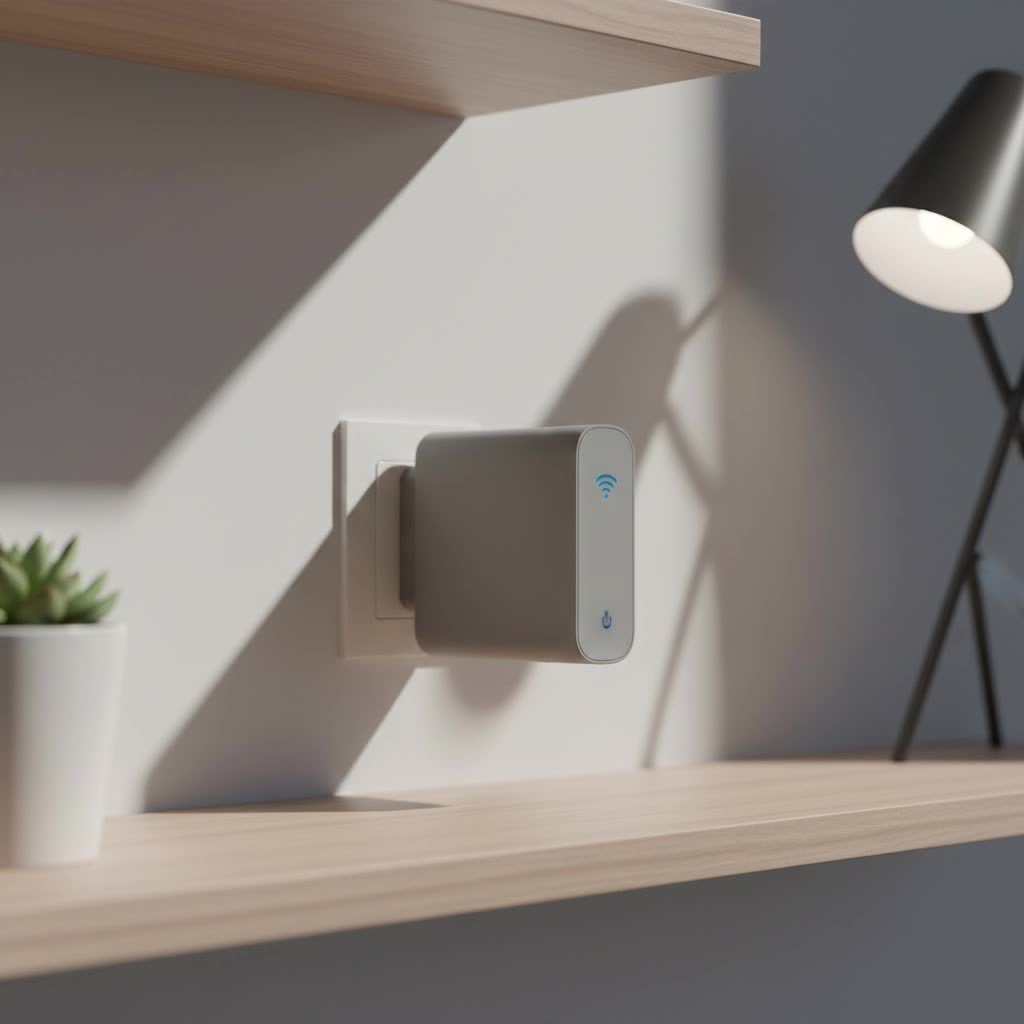
A Nighthawk WiFi extender, also known as a WiFi booster or repeater, is a device designed to expand the coverage of your existing WiFi network. It works by capturing the wireless signal from your main router, amplifying it, and then rebroadcasting the boosted signal to areas where the connection is weak or non-existent.
Think of it like a relay race for your WiFi. Your router is the first runner, and the extender is the second, taking the signal baton and carrying it further down the track to reach the finish line—your devices in far-off rooms. This simple yet effective process helps eliminate dead zones in basements, upper floors, or even your backyard.
Choosing the Right Nighthawk Extender for You
Netgear offers a range of Nighthawk extenders, and the best one for you depends on your home size, internet speed, and specific needs.
Key Features to Consider
- WiFi Speed (AC and AX Standards): WiFi 5 (AC) is common, but WiFi 6 (AX) is the latest standard, offering faster speeds, better performance in crowded networks, and improved efficiency. If you have a WiFi 6 router and many connected devices, a Nighthawk AX extender is a worthwhile investment.
- Coverage Area: Extenders are rated for the amount of square footage they can cover. Choose one that matches or slightly exceeds the size of your home to ensure complete coverage.
- Mesh Technology: Some advanced Nighthawk extenders feature Mesh capabilities. This allows them to create a seamless network with a single network name (SSID). You can move throughout your house without your device disconnecting and reconnecting, which is perfect for video calls and streaming.
- Wired Ports: Ethernet ports on an extender allow you to connect devices like gaming consoles, smart TVs, or desktop PCs directly for a more stable, faster wired connection.
|
Our Picks for the Best Wifi Extender in 2026
As an Amazon Associate I earn from qualifying purchases.
|
||
| Num | Product | Action |
|---|---|---|
| 1 | Amazon eero 6 mesh wifi extender with 1-month free eero Plus (auto-renews) - Add up to 1,500 sq. ft. of Wi-Fi 6 coverage to your existing eero mesh wifi network |

|
| 2 | 2025 WiFi Extenders Signal Booster for Home Long Range Up to 9800 sq. ft & 40 Devices, WiFi Extender Signal Booster, Quick Setup-Medium, Internet Repeater, WiFi Extender |
|
| 3 | TP-Link AC1200 WiFi Extender, 2023 Engadget Best Budget Pick, 1.2Gbps Signal Booster for Home, Dual Band 5GHz/2.4GHz, Covers Up to 1500 Sq.ft and 30 Devices,Support Onemesh, One Ethernet Port (RE315) |
|
| 4 | Amazon eero 6+ mesh wifi system with 1 month free eero Plus (auto-renews) - Coverage up to 4,500 sq. ft., Connect 75+ devices, 3-pack |
|
| 5 | WiFi Extender with 4 Antennas 1200Mbps - Dual Band 5GHz/2.4GHz, WiFi Extender Signal Booster with 3 Modes Support, WiFi Repeater with 12880 Sq.ft 105 Devices, Easy Set Up for Home |
|
| 6 | 2025 Fastest WiFi Extender, WiFi Repeater, WiFi Booster, Covers Up to 10000 Sq.ft and 80 Devices, Internet Booster - with Ethernet Port, Quick Setup, Home Wireless Signal Booster |
|
| 7 | TP-Link AX3000 WiFi 6 Range Extender - PCMag Editor\'s Choice - Dual-Band Wireless Repeater w/Ethernet Port - Up to 2400 Sq. Ft., 64 Devices - Internet Signal Booster - APP Setup - EasyMesh (RE715X) |
|
| 8 | Amazon eero 7 with 1 month free eero Plus (auto-renews) - Supports internet plans up to 2.5 Gbps, Coverage up to 2,000 sq. ft., Connect 120+ devices, 1-pack |
|
| 9 | WiFi Extender, WiFi Extenders Signal Booster for Home Up to 5000 sq.ft and 50 Devices, WiFi Range Extender, Wireless Repeater, Long Range Amplifier with Ethernet Port, 1-Tap Setup, Alexa Compatible |
|
| 10 | TP-Link AC1900 WiFi Range Extender RE550 - Dual-Band Wireless Repeater Amplifier w/Gigabit Ethernet Port - Up to 2200 Sq. Ft., 32 Devices - Internet Signal Booster - APP Setup - EasyMesh Compatible |
|
As network engineer David Chen often states, “A WiFi extender is only as good as the signal it receives from the router. Proper placement is just as critical as the model you choose.”
Popular Nighthawk Extender Models
| Model | WiFi Standard | Key Feature | Best For |
|---|---|---|---|
| Nighthawk X4S (EX7500) | WiFi 5 (AC2200) | Tri-Band, Mesh | Medium to large homes with many devices. |
| Nighthawk X6S (EX8000) | WiFi 5 (AC3000) | Tri-Band, High-Power | Large homes demanding top performance. |
| Nighthawk AX8 (EAX80) | WiFi 6 (AX6000) | 8-Stream WiFi 6 | Future-proofing and homes with WiFi 6 routers. |
| Nighthawk AX1800 (EAX20) | WiFi 6 (AX1800) | 4-Stream WiFi 6 | Small to medium homes wanting WiFi 6 speeds. |
How to Set Up Your Nighthawk WiFi Extender
Setting up your Nighthawk WiFi extender is straightforward. Netgear provides a few simple methods. The most common is using the Web Browser Setup.
- Plug It In: Place the extender in the same room as your router for the initial setup. Plug it into a power outlet and wait for the Power LED to turn solid green.
- Connect to the Extender: On your computer or mobile device, go to your WiFi settings and connect to the extender’s network, which is typically named
NETGEAR_EXT. - Launch the Setup Wizard: Open a web browser. It should automatically redirect you to the Netgear installation assistant. If it doesn’t, navigate to
mywifiext.net. - Create an Account: You’ll be prompted to create a Netgear account. This is used for managing your device and receiving support.
- Select Your Network: The extender will scan for nearby WiFi networks. Select your home WiFi network from the list and enter its password.
- Configure the Extended Network: You can choose to give your extended network a new name (SSID) or use the same name as your main network for a more seamless experience (recommended if you have a Mesh-capable extender).
- Relocate Your Extender: Once the setup is complete, unplug the extender. Move it to a new location about halfway between your router and the area with a weak signal. The device’s signal strength indicator LED will help you find the optimal spot—a solid green or blue light is ideal.
Tips to Maximize Your Extender’s Performance
Getting the most out of your Nighthawk WiFi extender involves more than just plugging it in.
- Optimal Placement: The extender needs to receive a strong signal from the router to broadcast a strong signal. Avoid placing it in the dead zone itself. Instead, place it on the edge of your router’s good coverage area, halfway to the dead zone.
- Avoid Obstructions: Keep the extender away from thick walls (especially concrete or brick), large metal objects, and appliances like microwaves or cordless phones, which can interfere with the signal.
- Update Firmware: Regularly check for and install firmware updates through the Netgear Nighthawk app or the web interface. Updates often include performance improvements, new features, and critical security patches.
- Use the Right WiFi Band: Most Nighthawk extenders are dual-band or tri-band. Use the 5GHz band for devices that need higher speed and are closer to the extender (like streaming devices and gaming consoles). Use the 2.4GHz band for devices that are further away or don’t require high speeds (like smart home gadgets).
Common Nighthawk Extender Problems and Solutions
Even the best tech can run into issues. Here are some common problems and how to fix them.
Why is my extender constantly disconnecting?
This is often a sign of poor placement. The extender might be too far from the router and is struggling to maintain a stable connection. Try moving it closer to the router until the indicator light shows a strong link. Interference from other electronic devices could also be the culprit.
I can’t connect to the extended network.
First, double-check that you entered the correct password for your main WiFi network during setup. A simple typo is a common mistake. If the password is correct, try power cycling both your router and the extender. Unplug them, wait 30 seconds, and plug them back in.
The extender’s speed is much slower than my router’s.
An extender will always have some speed loss because it has to receive and then retransmit the signal. However, if the speed is drastically slower, ensure you are connected to the 5GHz band for high-bandwidth activities. Also, confirm the extender is placed in a spot where it gets a strong signal from the router.
Frequently Asked Questions (FAQ)
Can a Nighthawk WiFi extender work with any router?
Yes, Netgear Nighthawk extenders are universally compatible and will work with any standard WiFi router, regardless of the brand.
Does a WiFi extender slow down my internet?
A WiFi extender does not slow down your overall internet speed from your provider. However, it rebroadcasts a signal, which introduces a tiny amount of latency. For most users, the benefit of having a strong signal in a previously dead zone far outweighs this minimal speed reduction.
What is the difference between a WiFi extender and a Mesh system?
A traditional extender creates a separate, extended network, and your devices have to switch between the router’s network and the extender’s. A Mesh system creates a single, seamless network, allowing devices to switch connections automatically for the best performance. Many modern Nighthawk extenders now include Mesh capabilities.
How do I know if my extender is in the right spot?
Nighthawk extenders have a signal strength indicator LED. After setup, when you move the extender to its final location, wait for this light to turn on. A solid green or blue light indicates a strong connection to the router, which is optimal. An amber or red light means it’s too far away.
Can I use two Nighthawk extenders at the same time?
While you technically can, it’s generally not recommended. Chaining extenders can lead to significant performance degradation and network complexity. If your home is too large for a single extender, a Mesh WiFi system is a much better solution.
Conclusion
A Nighthawk WiFi extender is a powerful and effective tool for banishing WiFi dead zones and ensuring a fast, stable internet connection throughout your home. By choosing the right model for your needs, finding the optimal placement, and following a few simple setup steps, you can significantly enhance your home network. Don’t let poor signal strength dictate where you can work, stream, or play. Take control of your connectivity and enjoy seamless WiFi in every room.
