A Verizon WiFi extender effectively eliminates dead zones and delivers seamless connectivity throughout your home by capturing the existing Wi-Fi signal from your main Verizon router and rebroadcasting it to areas with weak or no signal. For optimal performance, especially with models like the E3200, it’s recommended to use a wired connection (Coax or Ethernet) between the extender and the router, which allows it to function similarly to a mesh network point and avoid significant speed loss.
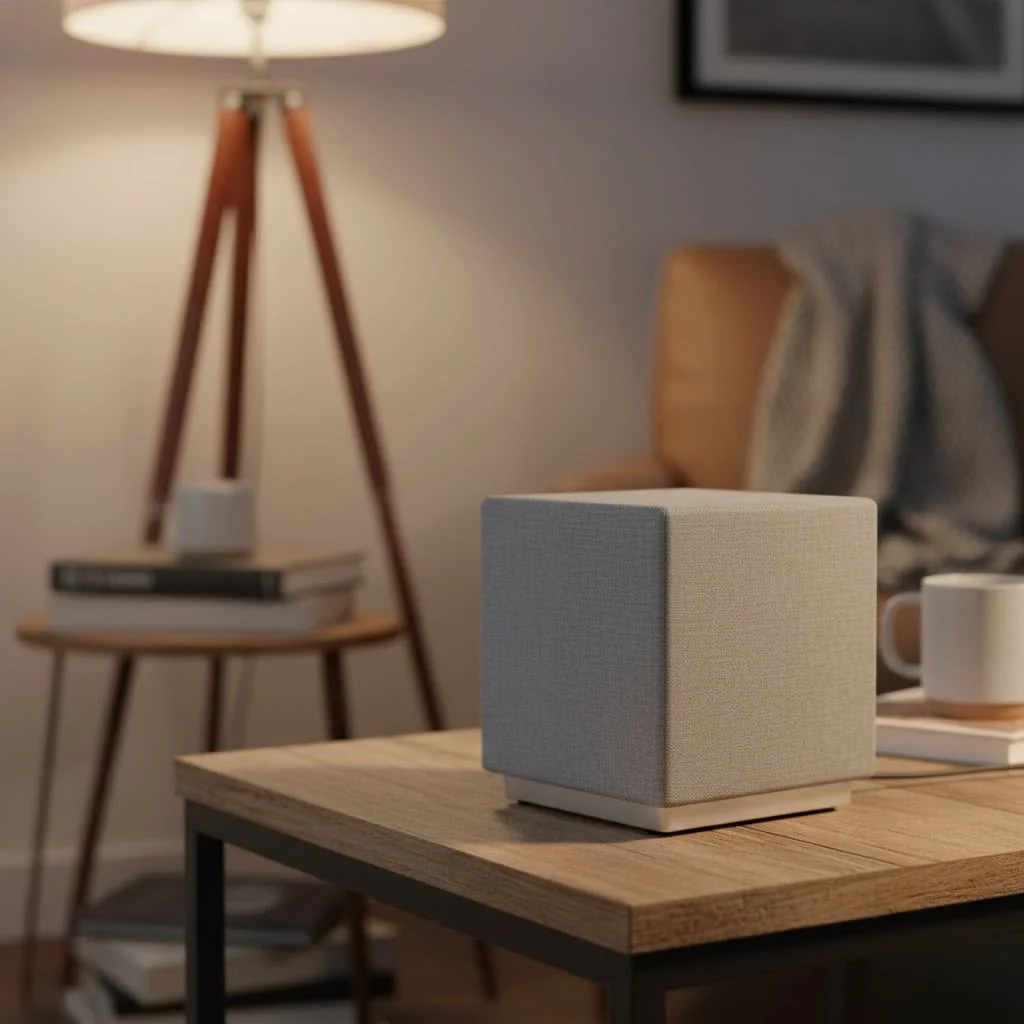
This guide will walk you through understanding how this technology works, where to place it, and how to configure it for peak performance to conquer weak signals and enjoy the internet speeds you’re paying for.
What Is a Verizon WiFi Extender and How Does It Work?
Think of a Wi-Fi extender as a relay runner for your internet signal. It captures the existing Wi-Fi signal from your main Verizon router and then rebroadcasts it to areas where the signal is weak or non-existent. The goal is to create a larger, more reliable bubble of Wi-Fi coverage.
The official Verizon Fios Extender (like the popular E3200 model) is designed to integrate seamlessly with your Fios router. Unlike many third-party extenders that create a separate network (forcing you to manually switch between “MyWiFi” and “MyWiFi_EXT”), the Verizon extender creates a single, unified network. This means you can move around your home without your device dropping the connection, as it automatically hands off to the strongest signal source. This is a key feature that makes it function similarly to a mesh network point.
Do You Really Need a Verizon WiFi Extender?
Before you invest in new hardware, it’s important to determine if an extender is the right solution for your problem. You might need a Wi-Fi extender if:
- You have clear dead zones: These are areas in your home where you get no Wi-Fi signal at all.
- Your connection is unstable: The Wi-Fi signal frequently drops or becomes incredibly slow in certain rooms.
- Video calls lag or buffer: You experience poor quality on video conferences or streaming services when you’re far from the router.
- Your home is large or has multiple floors: The signal from a single router often struggles to cover multiple levels or a sprawling layout.
- Building materials are blocking the signal: Walls made of brick, concrete, or plaster can significantly weaken Wi-Fi signals.
As our Senior Network Specialist, John Carter, often says, “The biggest mistake people make is buying an extender to fix a fundamentally broken connection. An extender amplifies a signal; it doesn’t create a new one. Your first step should always be to ensure your main router is performing optimally.”
Extender vs. Mesh Network: What’s the Difference?
|
Our Picks for the Best Wifi Extender in 2026
As an Amazon Associate I earn from qualifying purchases.
|
||
| Num | Product | Action |
|---|---|---|
| 1 | 2025 Fastest WiFi Extender, WiFi Repeater, WiFi Booster, Covers Up to 10000 Sq.ft and 80 Devices, Internet Booster - with Ethernet Port, Quick Setup, Home Wireless Signal Booster |

|
| 2 | TP-Link AC1200 WiFi Extender, 2023 Engadget Best Budget Pick, 1.2Gbps Signal Booster for Home, Dual Band 5GHz/2.4GHz, Covers Up to 1500 Sq.ft and 30 Devices,Support Onemesh, One Ethernet Port (RE315) |
|
| 3 | Amazon eero 7 with 1 month free eero Plus (auto-renews) - Supports internet plans up to 2.5 Gbps, Coverage up to 2,000 sq. ft., Connect 120+ devices, 1-pack |
|
| 4 | TP-Link AC1900 WiFi Range Extender RE550 - Dual-Band Wireless Repeater Amplifier w/Gigabit Ethernet Port - Up to 2200 Sq. Ft., 32 Devices - Internet Signal Booster - APP Setup - EasyMesh Compatible |
|
| 5 | WiFi Extender with 4 Antennas 1200Mbps - Dual Band 5GHz/2.4GHz, WiFi Extender Signal Booster with 3 Modes Support, WiFi Repeater with 12880 Sq.ft 105 Devices, Easy Set Up for Home |
|
| 6 | WiFi Extender, WiFi Extenders Signal Booster for Home Up to 5000 sq.ft and 50 Devices, WiFi Range Extender, Wireless Repeater, Long Range Amplifier with Ethernet Port, 1-Tap Setup, Alexa Compatible |
|
| 7 | TP-Link AX3000 WiFi 6 Range Extender - PCMag Editor\'s Choice - Dual-Band Wireless Repeater w/Ethernet Port - Up to 2400 Sq. Ft., 64 Devices - Internet Signal Booster - APP Setup - EasyMesh (RE715X) |
|
| 8 | Amazon eero 6+ mesh wifi system with 1 month free eero Plus (auto-renews) - Coverage up to 4,500 sq. ft., Connect 75+ devices, 3-pack |
|
| 9 | 2025 WiFi Extenders Signal Booster for Home Long Range Up to 9800 sq. ft & 40 Devices, WiFi Extender Signal Booster, Quick Setup-Medium, Internet Repeater, WiFi Extender |
|
| 10 | Amazon eero 6 mesh wifi extender with 1-month free eero Plus (auto-renews) - Add up to 1,500 sq. ft. of Wi-Fi 6 coverage to your existing eero mesh wifi network |
|
This is a common point of confusion. A traditional extender simply repeats a signal, which can sometimes result in lower speeds. A mesh network, on the other hand, consists of multiple “nodes” that work together intelligently to blanket your home in Wi-Fi.
The Verizon WiFi extender, when connected to the router via a wired connection like Coax or Ethernet, effectively acts as a mesh node. It uses the wired connection as a “backhaul,” which means it doesn’t lose speed like a purely wireless extender. For most homes with one or two problem areas, a Verizon extender with a wired backhaul is a powerful and cost-effective solution. If you have a very large home with multiple dead zones, a full third-party mesh system might be a better fit.
Setting Up Your Verizon WiFi Extender: A Step-by-Step Guide
Setting up your Verizon extender is surprisingly straightforward. The most reliable method uses a wired connection (Coax or Ethernet), which guarantees the best performance.
Here’s the recommended setup process:
- Initial Pairing: Place the new extender in the same room as your main Verizon Fios router.
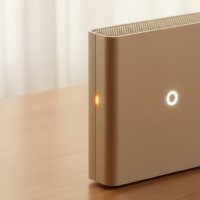
- Connect Power: Plug the extender into a power outlet. Wait for the light on the front to turn solid yellow.
- Establish a Wired Connection: Connect an Ethernet or Coax cable from your router to the corresponding port on the extender. The devices will begin pairing automatically, and you should see the lights on both units blink blue.
- Wait for Confirmation: After a few minutes, the light on the extender should turn solid white. This indicates that it has successfully paired with your router and is connected to the network.
- Relocate the Extender: Now, unplug the extender (power and data cable) and move it to the area where your Wi-Fi is weakest. It’s crucial to find a spot that is roughly halfway between your router and the dead zone.
- Final Connection: Plug the extender into a power outlet and, if possible, connect it to a live Coax or Ethernet wall outlet. This wired backhaul is the secret to getting maximum speed. Wait for the light to turn solid white again.
Once the light is solid white, you’re all set! Your devices will now automatically connect to the extender when it provides a stronger signal.
How to Optimize Your Extender’s Performance
Getting a solid white light is just the beginning. To truly maximize your extender’s effectiveness, follow these pro tips:
- Placement is Everything: The “halfway” rule is critical. Placing the extender too close to the router won’t expand your range, and placing it too far away will mean it’s trying to amplify an already weak signal.
- Avoid Obstructions: Keep the extender in an open area, away from thick walls, large metal objects (like refrigerators), and other electronics (like microwaves or cordless phones) that can cause interference.
- Use a Wired Backhaul: I can’t stress this enough. If your home has Coax or Ethernet jacks near the dead zone, use them. A wired connection between the router and extender eliminates signal loss and delivers the fastest possible speeds.
- Keep Firmware Updated: Verizon periodically releases firmware updates to improve performance and security. While these usually happen automatically, you can log into your router’s admin panel to check for updates if you’re experiencing issues.
Common Verizon WiFi Extender Problems and How to Fix Them
Even with a simple setup, you might run into some hiccups. The light on the front of the extender is your best diagnostic tool.
What Do the Lights Mean?
- Solid White: All systems go! The connection is strong and stable.
- Fast Blinking Yellow: The extender is too close to the router. Move it further away to a more optimal location.
- Slow Blinking Yellow: The extender is too far from the router and the signal it’s receiving is weak. Move it closer to the main router.
- Blinking Blue: The extender is in pairing mode or attempting to connect.
- Solid or Blinking Red: There’s an error. The most common fix is to perform a factory reset by holding the reset button for at least 10 seconds and starting the setup process over.
Troubleshooting Slow Speeds
If your speeds are slow even after a successful setup, try these steps:
- Confirm Your Connection: Ensure the light is solid white. If it’s yellow, you need to reposition the extender.
- Check for a Wired Backhaul: If you’re not using a Coax or Ethernet connection, you are likely experiencing speed degradation inherent to wireless repeating. Find a way to create a wired connection if possible.
- Reboot Everything: Sometimes, a simple restart is all you need. Unplug both your router and your extender, wait 30 seconds, then plug them back in, starting with the router first.
Frequently Asked Questions (FAQ)
Can I use any Wi-Fi extender with Verizon Fios?
Yes, you can use third-party extenders, but they typically won’t integrate as seamlessly. You may have to deal with a separate network name (SSID) and manual switching. For the best experience, the official Verizon extender is recommended as it’s designed to work with their routers.
How far does the Verizon WiFi Extender reach?
The range can vary significantly based on your home’s layout and building materials, but a well-placed extender can typically add up to 1,000-1,500 square feet of additional reliable coverage.
Will a Verizon WiFi extender cut my internet speed in half?
If you use the extender in a purely wireless mode (no Coax or Ethernet backhaul), you can expect some speed reduction. However, when using a wired backhaul, the speed loss is negligible, and you should get performance nearly identical to being connected directly to the router.
How many Verizon WiFi extenders can I use?
While you can technically add multiple extenders, it’s generally recommended to use only what’s necessary. For homes requiring more than two extenders, a dedicated mesh Wi-Fi system is often a more efficient and manageable solution.
Do I need a technician to install a Verizon WiFi extender?
No, the installation is designed to be a simple DIY process. By following the step-by-step instructions provided in this guide, most users can have their extender up and running in under 15 minutes.
Conclusion: Reclaim Your Wi-Fi
A Verizon WiFi extender is a powerful tool for eliminating frustrating dead zones and ensuring a stable, fast internet connection throughout your home. By understanding how it works, following the proper setup procedures, and optimizing its placement, you can finally enjoy seamless streaming, gaming, and browsing in every room. Don’t settle for a spotty connection. Take control of your home network and make buffering a thing of the past.
Frequently Asked Questions
Can I use any Wi-Fi extender with my Verizon Fios router?
Yes, you can use third-party extenders with Verizon Fios, but they may not integrate as seamlessly as an official Verizon extender. Third-party devices often create a separate network name (SSID), requiring manual switching, whereas official Verizon extenders are designed for unified network operation.
What is the typical range of a Verizon WiFi extender?
The range of a Verizon WiFi extender can vary based on your home's layout and building materials. However, a properly placed extender can typically add between 1,000 to 1,500 square feet of reliable Wi-Fi coverage to your existing network.
Does a Verizon WiFi extender reduce internet speed?
If a Verizon WiFi extender operates in a purely wireless mode without a wired backhaul (Coax or Ethernet), some speed reduction is expected. However, when utilizing a wired backhaul, the speed loss is negligible, providing performance nearly identical to a direct router connection.
How many Verizon WiFi extenders should I use in my home?
While it's technically possible to use multiple Verizon WiFi extenders, it's generally recommended to use only what is necessary. For homes requiring more than two extenders, a dedicated mesh Wi-Fi system often provides a more efficient and manageable solution for comprehensive coverage.
Is professional installation required for a Verizon WiFi extender?
No, professional installation is not required for a Verizon WiFi extender. The setup process is designed for DIY installation, and most users can have their extender fully operational in under 15 minutes by following the step-by-step instructions provided in guides like this one.
Set Up Your Verizon WiFi Extender for Best Performance
This guide outlines the recommended steps to set up your Verizon WiFi extender, prioritizing a wired connection for optimal speed and reliability.
Place the new extender in the same room as your main Verizon Fios router. Plug the extender into a power outlet and wait for the front light to turn solid yellow, indicating it's ready for connection.
Connect an Ethernet or Coax cable from your router to the corresponding port on the extender. The devices will automatically begin pairing, and you should observe the lights on both units blinking blue during this process.
After a few minutes, the light on the extender should turn solid white. This solid white light confirms that the extender has successfully paired with your router and is now connected to the network.
Unplug the extender (both power and data cables) and move it to a location roughly halfway between your router and the Wi-Fi dead zone. Plug it back into a power outlet and, if available, connect it to a live Coax or Ethernet wall outlet for a wired backhaul. Wait for the light to turn solid white again.
Get our weekly buyer guide
Practical specs, not advice. Unsubscribe anytime.
My Verizon router just wasn’t cutting it for my two-story house. I followed the advice on placement and put the extender right in the middle of my weak signal area. It made a noticeable difference, especially for streaming in the basement. I’m finally getting the speeds I pay for, which is a huge relief.
This guide was super helpful in understanding how these extenders actually work. I always thought they just boosted the signal, but the ‘relay runner’ analogy made perfect sense. I installed mine last week, and my gaming setup in the garage now has a stable connection. No more lag!
I got a Verizon extender hoping to fix the weak signal in my bedroom. It helped a little, but I still get some buffering when I’m trying to watch videos. I tried configuring it a few different ways, but it’s not as seamless as I hoped. Maybe I need to try a coax connection instead of just wireless.
I was so tired of dead zones in my house, especially in the back office. After reading about the E3200 and its wired connection recommendation, I decided to go for it. Setting it up with an Ethernet cable was a breeze, and now I have full bars everywhere. It really does act like a mesh network point, just like it said.