Are you tired of WiFi dead zones in your home where the signal just disappears? It’s a common frustration when your video call drops in the home office, or you can’t stream a movie in the bedroom. A Rock Space WiFi extender is designed to solve this exact problem, boosting your existing router’s signal to reach every corner of your house. Think of it as a powerful relay station for your internet, ensuring a stable and fast connection wherever you need it. This comprehensive guide will walk you through everything you need to know, from setup to optimization, turning your connectivity woes into a thing of the past.
What is a Rock Space WiFi Extender and How Does It Work?
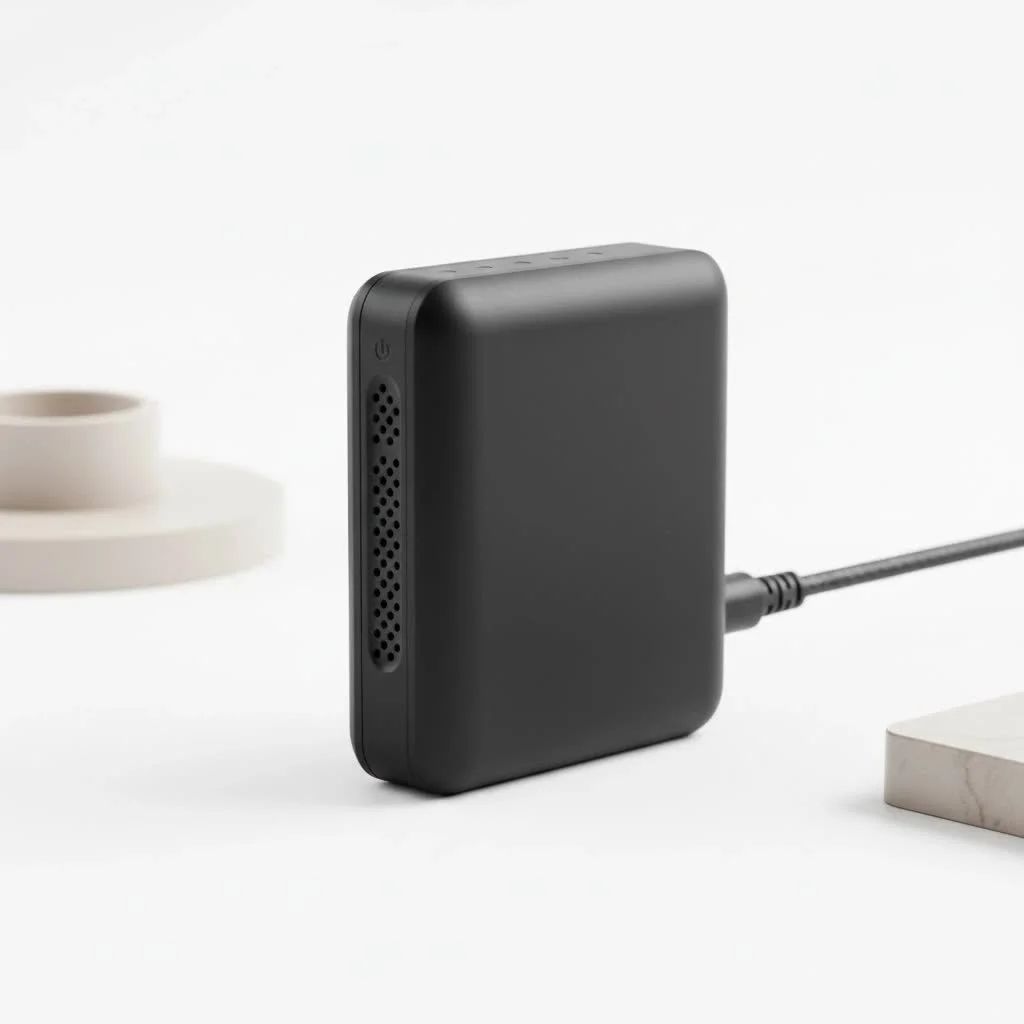
A Rock Space WiFi extender, also known as a WiFi booster or repeater, is a device that captures the existing wireless signal from your main router and rebroadcasts it. This process effectively extends the coverage area of your network, eliminating weak signal spots. For shop curated wifi extenders on this site.
The magic happens through two wireless routers. Your extender connects to your main router, picks up its signal, and then transmits that amplified signal to areas the router couldn’t reach on its own. This creates a stronger, more reliable network throughout a larger space. Rock Space extenders are particularly popular for their “plug-and-play” simplicity and powerful performance, often featuring dual-band technology to reduce interference and provide faster speeds for demanding activities like gaming and 4K streaming.
Key Features of Rock Space Extenders
Rock Space devices pack several features that make them a compelling choice for homeowners. Understanding these can help you appreciate what you’re getting.
- Dual-Band Technology: Most models, like the popular AC1200, operate on both 2.4GHz and 5GHz bands. The 2.4GHz band offers broader coverage, while the 5GHz band provides faster speeds over shorter distances with less interference. The extender can intelligently choose the best band for your devices.
- High-Speed Performance: With models offering combined speeds of up to 1200 Mbps (AC1200) or even 1800 Mbps (AX1800), these extenders can handle multiple devices and high-bandwidth activities without a significant drop in performance.
- Universal Compatibility: Rock Space extenders are designed to work seamlessly with any standard WiFi router or gateway. You don’t need to worry about brand-specific compatibility issues.
- Wide Coverage: A single extender can typically add up to 1,500 square feet of WiFi coverage, making it ideal for medium to large homes.
- Easy Setup: One of the brand’s biggest selling points is its user-friendly installation. You can typically get it running in minutes using either a web browser or the WPS button.
- Ethernet Port: Most models include an Ethernet port, allowing you to connect a wired device like a smart TV, gaming console, or PC directly to the extender for a more stable, faster connection.
How to Set Up Your Rock Space WiFi Extender: A Step-by-Step Guide
Getting your Rock Space WiFi extender up and running is a straightforward process. There are two primary methods: using the WPS button or a web browser. Follow these instructions for a hassle-free installation.
Method 1: Using the WPS Button (The Quickest Way)
|
Our Picks for the Best Wifi Extender in 2026
As an Amazon Associate I earn from qualifying purchases.
|
||
| Num | Product | Action |
|---|---|---|
| 1 | 2025 Fastest WiFi Extender, WiFi Repeater, WiFi Booster, Covers Up to 10000 Sq.ft and 80 Devices, Internet Booster - with Ethernet Port, Quick Setup, Home Wireless Signal Booster |

|
| 2 | Amazon eero 6+ mesh wifi system with 1 month free eero Plus (auto-renews) - Coverage up to 4,500 sq. ft., Connect 75+ devices, 3-pack |
|
| 3 | TP-Link AC1900 WiFi Range Extender RE550 - Dual-Band Wireless Repeater Amplifier w/Gigabit Ethernet Port - Up to 2200 Sq. Ft., 32 Devices - Internet Signal Booster - APP Setup - EasyMesh Compatible |
|
| 4 | WiFi Extender with 4 Antennas 1200Mbps - Dual Band 5GHz/2.4GHz, WiFi Extender Signal Booster with 3 Modes Support, WiFi Repeater with 12880 Sq.ft 105 Devices, Easy Set Up for Home |
|
| 5 | 2025 WiFi Extenders Signal Booster for Home Long Range Up to 9800 sq. ft & 40 Devices, WiFi Extender Signal Booster, Quick Setup-Medium, Internet Repeater, WiFi Extender |
|
| 6 | WiFi Extender, WiFi Extenders Signal Booster for Home Up to 5000 sq.ft and 50 Devices, WiFi Range Extender, Wireless Repeater, Long Range Amplifier with Ethernet Port, 1-Tap Setup, Alexa Compatible |
|
| 7 | Amazon eero 7 with 1 month free eero Plus (auto-renews) - Supports internet plans up to 2.5 Gbps, Coverage up to 2,000 sq. ft., Connect 120+ devices, 1-pack |
|
| 8 | Amazon eero 6 mesh wifi extender with 1-month free eero Plus (auto-renews) - Add up to 1,500 sq. ft. of Wi-Fi 6 coverage to your existing eero mesh wifi network |
|
| 9 | TP-Link AC1200 WiFi Extender, 2023 Engadget Best Budget Pick, 1.2Gbps Signal Booster for Home, Dual Band 5GHz/2.4GHz, Covers Up to 1500 Sq.ft and 30 Devices,Support Onemesh, One Ethernet Port (RE315) |
|
| 10 | TP-Link AX3000 WiFi 6 Range Extender - PCMag Editor\'s Choice - Dual-Band Wireless Repeater w/Ethernet Port - Up to 2400 Sq. Ft., 64 Devices - Internet Signal Booster - APP Setup - EasyMesh (RE715X) |
|
This is the easiest method if your router supports WPS (Wi-Fi Protected Setup).
- Plug It In: Plug the Rock Space extender into a power outlet near your main router. Wait for the power LED to turn solid blue.
- Press the WPS Button on Your Router: Push the WPS button on your router.
- Press the WPS Button on the Extender: Within two minutes, press the WPS button on the Rock Space extender.
- Wait for the Connection: The signal LED on the extender will start blinking. Once it turns solid blue, the connection is successful. The extender has now cloned your router’s password.
- Relocate the Extender: Unplug the extender and move it to a location roughly halfway between your router and the WiFi dead zone. The ideal spot is one where the signal LED remains solid blue, indicating a strong connection to the router.
Method 2: Using a Web Browser
If your router doesn’t have a WPS button or if the first method fails, this is the way to go.
- Plug In and Connect: Plug the extender into an outlet near your computer or smartphone. Wait for the power light to become solid.
- Connect to the Extender’s Network: On your computer or phone, go to your WiFi settings and connect to the network named “rockspace_EXT”.
- Open a Web Browser: Launch any web browser (like Chrome, Safari, or Firefox). You will either be redirected to the setup page automatically, or you will need to manually type
re.rockspace.localor192.168.0.254into the address bar. - Create a Password: You will be prompted to create a login password for the extender’s management page. Make it secure and memorable.
- Select Your WiFi Network: The extender will scan for available WiFi networks. Select your home WiFi network from the list.
- Enter Your WiFi Password: Type in the password for your main WiFi network.
- Configure the Extended Network: You can either keep the same name (SSID) as your main network or give the extended network a new name, often with
_EXTappended. Using the same name allows for seamless roaming. - Apply and Relocate: Click “Extend” or “Apply” to save the settings. The extender will reboot. Once the signal LED turns solid blue, you can unplug it and move it to its optimal location.
“Finding the perfect spot for your extender is crucial. It needs to be close enough to the router to receive a strong signal, but far enough away to effectively extend that signal to your target area. The signal indicator light is your best friend in this process.” – David Chen, Network Installation Specialist
Optimizing Your Rock Space Extender for Peak Performance
Once your extender is set up, a few tweaks can ensure you’re getting the best possible performance.
- Find the Sweet Spot: The extender’s location is the single most important factor. Avoid placing it in the dead zone itself. It needs to be in a location where it can still receive a reliable signal from the router. Use the LED indicator to guide you.
- Minimize Obstructions: Place the extender in an open area, away from thick walls, metal objects, and appliances like microwaves or cordless phones, which can cause signal interference.
- Keep Firmware Updated: Periodically check for firmware updates through the extender’s web management page. Manufacturers release updates to improve performance, patch security vulnerabilities, and add new features.
- Use the Right Band: If you have a dual-band extender, connect devices that require high speeds (like streaming devices and gaming consoles) to the 5GHz band, and use the 2.4GHz band for less demanding tasks and for devices that are farther away.
Common Rock Space WiFi Extender Issues and How to Fix Them
Even with a simple setup, you might encounter an issue. Here’s how to troubleshoot the most common problems.
Problem: The Extender Won’t Connect to the Router
If the signal light keeps blinking or turns red, it’s struggling to connect.
- Solution 1: Move the extender closer to the router during the initial setup process.
- Solution 2: Double-check that you entered the correct WiFi password during the web browser setup. Passwords are case-sensitive.
- Solution 3: Try the WPS setup again, ensuring you press the buttons within the two-minute window.
Problem: Slow Internet Speeds Through the Extender
An extender will always have some speed loss, but it shouldn’t be dramatic.
- Solution 1: The extender might be too far from the router. Move it to a location with a stronger signal (solid blue light).
- Solution 2: There might be too much interference. Try changing the WiFi channel on your main router.
- Solution 3: Connect your device to the 5GHz band if available, as it’s generally faster and less crowded.
Problem: I Can’t Access the Login Page (re.rockspace.local)
Sometimes the web address for setup doesn’t work.
- Solution 1: Make sure you are connected to the extender’s WiFi network (
rockspace_EXT) and not your home WiFi. - Solution 2: Try using the IP address
192.168.0.254instead of the web address. - Solution 3: Clear your browser’s cache or try a different web browser.
Frequently Asked Questions (FAQ)
How do I reset my Rock Space WiFi extender?
To perform a factory reset, find the reset button (it’s usually a small pinhole on the side or bottom of the device). While the extender is plugged in, use a paperclip to press and hold the reset button for about 8-10 seconds, until the lights flash. This will erase all your custom settings.
What do the different signal light colors mean?
Generally, a solid blue light means a strong, stable connection to the router. A solid red or orange light indicates a weak connection, meaning the extender is too far from the router. A blinking light usually means it’s in the process of connecting or there’s an error.
Can I use the same network name (SSID) for the extender?
Yes, you can. Using the same SSID and password as your main router allows your devices to seamlessly switch between the router and the extender as you move around your house. However, some people prefer a separate name (e.g., “HomeWiFi_EXT”) to manually choose which network to connect to.
Is my extended network secure?
Yes. The Rock Space extender uses the same security protocols (like WPA2) as your main router. When you set it up, it copies your existing password, so your extended network is just as secure as your primary one.
Can I connect a gaming console directly to the extender?
Absolutely. Using the Ethernet port on the bottom of the extender to connect your console, smart TV, or PC can provide a more stable and often faster connection than connecting wirelessly, which is ideal for online gaming and streaming.
Conclusion: Is a Rock Space WiFi Extender Your Solution?
For most homes struggling with inconsistent WiFi, a Rock Space WiFi extender is an affordable, effective, and incredibly user-friendly solution. It excels at pushing your network’s boundaries, conquering dead zones in basements, backyards, and upper floors. With its simple setup, reliable performance, and helpful features like an integrated Ethernet port, it empowers you to take control of your home network. By following the steps for proper placement and optimization, you can enjoy a seamless internet experience for work, entertainment, and everything in between.
Get our weekly buyer guide
Practical specs, not advice. Unsubscribe anytime.
I was so tired of my video calls dropping in my home office, it was driving me crazy. This Rock Space extender has been a game-changer! Setup was surprisingly easy, and now I have a strong, stable connection all day. Definitely recommend if you’re dealing with those annoying dead zones.
My bedroom used to be a total black hole for WiFi, making streaming impossible. I picked up a Rock Space booster after reading about how they rebroadcast the signal, and it actually works! The speed isn’t quite as fast as right next to the main router, but it’s totally sufficient for movies now. No more buffering!
The Rock Space extender did help with the signal in my garage, which was a complete dead zone before. However, I found the initial pairing process a bit finicky, took me a few tries to get it connected properly. Once it was up, it’s been pretty consistent, but that setup could be smoother.
This device really lives up to its promise of being a powerful relay station. My whole house, even the back patio, now has excellent WiFi coverage. I can finally work outside without worrying about my internet dropping. It’s made a huge difference for our family’s connectivity.