Xfinity WiFi Extender Pods create a mesh network to eliminate WiFi dead zones and provide seamless coverage throughout your home, working exclusively with a compatible Xfinity Gateway. These devices are designed for easy setup and management via the Xfinity app, offering a significant upgrade over traditional WiFi extenders by maintaining a single network name and optimizing connections intelligently. As a network specialist with over 15 years of experience, I’ve found Xfinity’s approach to be a highly effective solution for improving home network reliability.
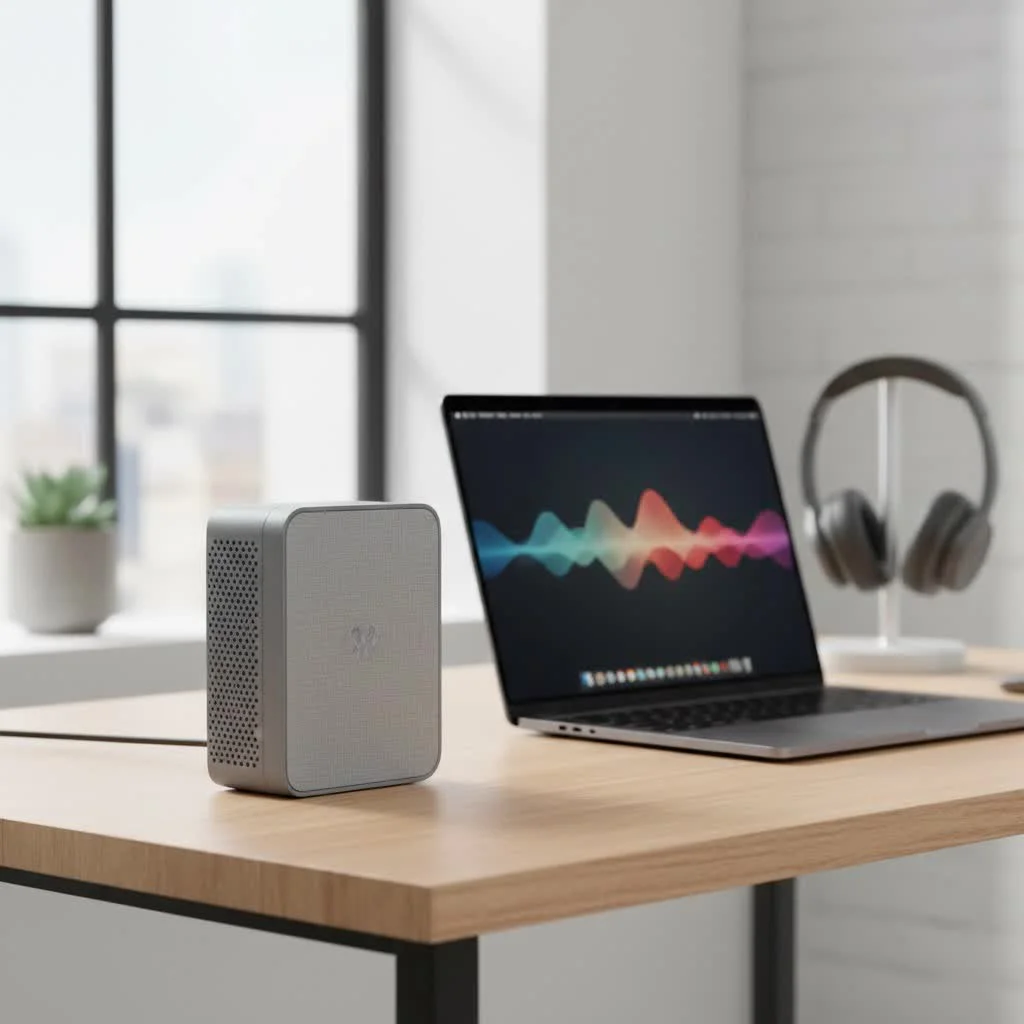
Unlike traditional WiFi extenders that simply repeat a signal (often at a reduced speed), Xfinity Pods create a mesh network. Think of it as a smart, seamless blanket of WiFi coverage that eliminates dead spots without forcing you to switch between different network names. It’s an intelligent system designed to work exclusively with a compatible Xfinity Gateway, ensuring a smooth and integrated experience.
What Are Xfinity Pods and How Do They Work?
At their core, Xfinity Pods are small devices that you plug into electrical outlets around your home to expand your WiFi coverage. They don’t just amplify a signal; they work together with your xFi Gateway to create a single, unified mesh WiFi network. This means your devices will automatically and seamlessly connect to the strongest signal source—be it the Gateway or the nearest Pod—as you move through your house.
The magic lies in the mesh technology. Here’s a simple breakdown:
- Single Network Name (SSID): You see only one WiFi network name, making connections effortless. No more manually switching from “MyWiFi” to “MyWiFi_EXT.”
- Smart Roaming: The system intelligently directs your devices to the best connection point, ensuring stable performance whether you’re streaming in the living room or on a video call in your home office.
- Cloud Optimization: The Xfinity platform continuously analyzes your network usage, device locations, and signal strength, optimizing the connections in the background to prevent congestion and deliver consistent speeds.
This integrated system is a significant step up from older extender technology, which often created more network interference and required manual management.
The Different Generations of Xfinity Pods
Xfinity has released a couple of generations of Pods, and it’s important to know the difference. The latest version, the xFi Pods (2nd Generation), offer significant improvements over the original model. They are equipped with a tri-band radio, which allows them to dedicate one band for communication between the Pods and the Gateway, leaving the other two bands free for your devices. This results in faster speeds and more reliable performance. They also include two Ethernet ports, offering the flexibility of a wired connection for devices like gaming consoles or desktop PCs.
Pros and Cons of Using Xfinity WiFi Extender Pods
Before you invest in Xfinity Pods, it’s crucial to weigh the advantages and disadvantages. They are a fantastic solution for many, but not for everyone.
Advantages of Xfinity Pods
|
Our Picks for the Best Wifi Extender in 2026
As an Amazon Associate I earn from qualifying purchases.
|
||
| Num | Product | Action |
|---|---|---|
| 1 | 2025 WiFi Extenders Signal Booster for Home Long Range Up to 9800 sq. ft & 40 Devices, WiFi Extender Signal Booster, Quick Setup-Medium, Internet Repeater, WiFi Extender |

|
| 2 | Amazon eero 7 with 1 month free eero Plus (auto-renews) - Supports internet plans up to 2.5 Gbps, Coverage up to 2,000 sq. ft., Connect 120+ devices, 1-pack |
|
| 3 | WiFi Extender with 4 Antennas 1200Mbps - Dual Band 5GHz/2.4GHz, WiFi Extender Signal Booster with 3 Modes Support, WiFi Repeater with 12880 Sq.ft 105 Devices, Easy Set Up for Home |
|
| 4 | TP-Link AC1900 WiFi Range Extender RE550 - Dual-Band Wireless Repeater Amplifier w/Gigabit Ethernet Port - Up to 2200 Sq. Ft., 32 Devices - Internet Signal Booster - APP Setup - EasyMesh Compatible |
|
| 5 | Amazon eero 6 mesh wifi extender with 1-month free eero Plus (auto-renews) - Add up to 1,500 sq. ft. of Wi-Fi 6 coverage to your existing eero mesh wifi network |
|
| 6 | Amazon eero 6+ mesh wifi system with 1 month free eero Plus (auto-renews) - Coverage up to 4,500 sq. ft., Connect 75+ devices, 3-pack |
|
| 7 | TP-Link AC1200 WiFi Extender, 2023 Engadget Best Budget Pick, 1.2Gbps Signal Booster for Home, Dual Band 5GHz/2.4GHz, Covers Up to 1500 Sq.ft and 30 Devices,Support Onemesh, One Ethernet Port (RE315) |
|
| 8 | 2025 Fastest WiFi Extender, WiFi Repeater, WiFi Booster, Covers Up to 10000 Sq.ft and 80 Devices, Internet Booster - with Ethernet Port, Quick Setup, Home Wireless Signal Booster |
|
| 9 | WiFi Extender, WiFi Extenders Signal Booster for Home Up to 5000 sq.ft and 50 Devices, WiFi Range Extender, Wireless Repeater, Long Range Amplifier with Ethernet Port, 1-Tap Setup, Alexa Compatible |
|
| 10 | TP-Link AX3000 WiFi 6 Range Extender - PCMag Editor\'s Choice - Dual-Band Wireless Repeater w/Ethernet Port - Up to 2400 Sq. Ft., 64 Devices - Internet Signal Booster - APP Setup - EasyMesh (RE715X) |
|
- Seamless Integration: They are designed to work perfectly with your Xfinity xFi Gateway and are managed directly through the Xfinity app, making setup and control incredibly simple.
- Eliminates Dead Zones: Their primary purpose is to provide reliable coverage throughout your entire home, and they do this very effectively in most standard-sized houses.
- Aesthetic and Discreet: The small, modern design allows them to blend into any room without being an eyesore.
- Ethernet Connectivity (Gen 2): The second-generation Pods include Ethernet ports, adding valuable versatility for wired devices.
Disadvantages of Xfinity Pods
- Proprietary System: Pods only work with a compatible Xfinity xFi Gateway. If you ever switch internet providers, the Pods will become unusable.
- Performance Can Vary: While they improve coverage, they will not make your internet faster than the plan you pay for. Performance can also be affected by home construction materials, layout, and interference.
- Cost: They are an additional expense on top of your monthly internet bill, whether purchased outright or leased.
As network engineer David Chen notes, “Xfinity Pods are an elegant solution for the average Xfinity user struggling with coverage. The plug-and-play setup and app integration remove the technical barriers that often come with third-party mesh systems. However, power users may find them lacking in advanced customization options.”
Step-by-Step Guide: How to Install Your Xfinity Pods
One of the best features of Xfinity Pods is their simple, user-friendly installation process. You don’t need to be a tech expert.
- Check Compatibility: First, ensure you have a compatible xFi Gateway. You can verify this through your Xfinity account or by looking at your equipment.
- Download the Xfinity App: If you haven’t already, download the official Xfinity app on your smartphone. This is where the entire setup process takes place.
- Activate the First Pod:
- Open the Xfinity app and navigate to the WiFi section.
- Select “Add a Pod” and follow the on-screen instructions.
- Plug your first Pod into an electrical outlet in the same room as your Gateway, but not too close. The app will guide you on placement.
- Hold your phone near the Pod to allow it to be detected via Bluetooth. The app will confirm when the Pod is activated, which can take a few minutes.
- Place Additional Pods:
- Once the first Pod is online, the app will prompt you to place your other Pods.
- Place them roughly halfway between your Gateway and the areas with weak WiFi.
- Avoid placing them in areas with physical obstructions, behind large furniture, or near metal objects.
- Let the Network Optimize: After all Pods are online, the system will take about 24-48 hours to fully optimize. It will learn about your home layout and device usage patterns to provide the best possible performance.
Tips for Optimizing Your Xfinity Pods Performance
Once your Pods are set up, a few best practices can help you get the most out of your mesh network.
Placement is Everything
The placement of your Pods is the single most important factor for success.
- Central Location: Place Pods in open areas like hallways, not tucked away in cabinets or behind TVs.
- Midway Point: Position each Pod about halfway between the Gateway and a dead zone, or between another Pod and a dead zone.
- Avoid Obstructions: Keep them away from thick concrete walls, large metal appliances (like refrigerators), and fish tanks, as these can block WiFi signals.
Check Your Connections
Use the Xfinity app to check the connection health of each Pod. If a Pod has a “Poor” connection, try moving it to a different outlet closer to the Gateway or another Pod.
Restart the System
If you’re experiencing issues, sometimes a simple network restart can resolve them. You can do this through the Xfinity app, which will reboot both your Gateway and your Pods in the correct sequence.
Frequently Asked Questions (FAQ)
How many Xfinity Pods do I need?
For most homes under 2,000 square feet with a central Gateway, one or two Pods may be sufficient. For larger, multi-story homes or those with complex layouts, a pack of three or more might be necessary. The Xfinity app can help assess your coverage needs.
Can I use Xfinity Pods with my own modem and router?
No. Xfinity WiFi Extender Pods are designed as a closed system and are only compatible with a leased Xfinity xFi Wireless Gateway.
Do Xfinity Pods slow down internet speed?
Any extender, including a mesh system, will have some level of speed reduction, known as overhead. However, because the Gen 2 Pods use a dedicated band for backhaul (communication with the gateway), the speed reduction is minimal compared to older, single-band extenders. The goal of Pods is to deliver a usable and stable signal to areas that previously had none.
Are the Xfinity Pods worth the money?
If you are an Xfinity customer with an xFi Gateway and have frustrating dead zones, they are often a very worthwhile investment due to their simplicity and seamless integration. If you are tech-savvy and want more control and features, a third-party mesh system from brands like Eero, Nest, or Orbi could be a better, albeit more complex, alternative.
Can I plug a device directly into an Xfinity Pod?
Yes, the second-generation Xfinity Pods each have two Ethernet ports. You can connect devices like a smart TV, gaming console, or computer directly to the Pod for a stable, wired connection.
Conclusion: A Simple Fix for Better WiFi
For the vast majority of Xfinity internet subscribers, the Xfinity WiFi Extender Pods are an excellent and straightforward solution to common household WiFi problems. They replace the complexity of traditional network extenders with a smart, simple, and unified mesh system that just works. By blanketing your home in a single, intelligent network, they eliminate dead zones and provide the reliable connectivity you need for streaming, gaming, and working from home. If you’re tired of buffering and dropped connections, it’s time to consider adding these powerful little devices to your home network.
Frequently Asked Questions
How many Xfinity Pods are typically needed for a home?
For most homes under 2,000 square feet with a central Gateway, one or two Pods are usually sufficient. Larger, multi-story homes or those with complex layouts may require three or more Pods to achieve optimal coverage. The Xfinity app provides tools to assess your specific coverage needs.
Are Xfinity Pods compatible with third-party modems or routers?
No, Xfinity WiFi Extender Pods are designed as a proprietary system. They are exclusively compatible with a leased Xfinity xFi Wireless Gateway and will not function with third-party modems or routers.
Do Xfinity Pods reduce internet speed significantly?
Any extender system, including mesh networks, introduces some speed reduction due to overhead. However, the 2nd Generation Xfinity Pods minimize this by using a dedicated tri-band radio for communication between Pods and the Gateway, resulting in minimal speed loss compared to older, single-band extenders. Their primary goal is to deliver a stable signal to previously uncovered areas.
Are Xfinity Pods a worthwhile investment for better WiFi?
For Xfinity customers with an xFi Gateway experiencing frustrating dead zones, Pods are often a very worthwhile investment due to their simplicity and seamless integration. While tech-savvy users seeking advanced customization might prefer third-party mesh systems like Eero or Orbi, Pods offer an effective, user-friendly solution for most.
Can I connect devices directly to an Xfinity Pod via Ethernet?
Yes, the second-generation Xfinity Pods are equipped with two Ethernet ports each. This allows you to connect devices such as smart TVs, gaming consoles, or desktop computers directly to the Pod for a stable, wired internet connection, enhancing performance for those specific devices.
Get our weekly buyer guide
Practical specs, not advice. Unsubscribe anytime.
The mesh network concept is great, and it did improve coverage in my basement. However, I noticed that sometimes the speed isn’t quite as fast as I’d hoped, especially when I’m streaming 4K video. It’s better than nothing, but I was expecting a bit more of a boost. Still, no more dropped calls in the laundry room.
I appreciate that these pods maintain a single network name. It was always annoying having to switch between networks with my old extender. The intelligent optimization seems to work well too; I haven’t had any issues with devices dropping off. It’s a solid upgrade for anyone with an Xfinity setup.
As someone who understands networking, the mesh system these pods create is far superior to traditional WiFi extenders. The seamless coverage is exactly what I needed for my smart home devices. It’s great to finally have reliable internet in every corner without any fuss. Highly recommend for Xfinity users.
I was so tired of dead zones in my house, especially in the back bedroom. These Xfinity Pods really made a difference! Setup was a breeze using the Xfinity app, just like it said. Now I have strong WiFi everywhere, even on the patio. Definitely worth it if you have an Xfinity Gateway.