Are you tired of Wi-Fi dead zones in your home? It’s a common frustration: you have a strong signal in the living room, but the connection drops the moment you step into the bedroom or office. A Wps Wifi Extender is often touted as the simplest solution to this problem, promising to boost your signal with just the push of a button. But what exactly is it, and is it the right choice for you? As a network specialist with over 15 years of experience, I’m here to demystify the technology, guide you through the setup process, and help you get the most out of your extended network. Welcome to your complete guide, brought to you by TVCSP.
What is a WPS Wifi Extender?
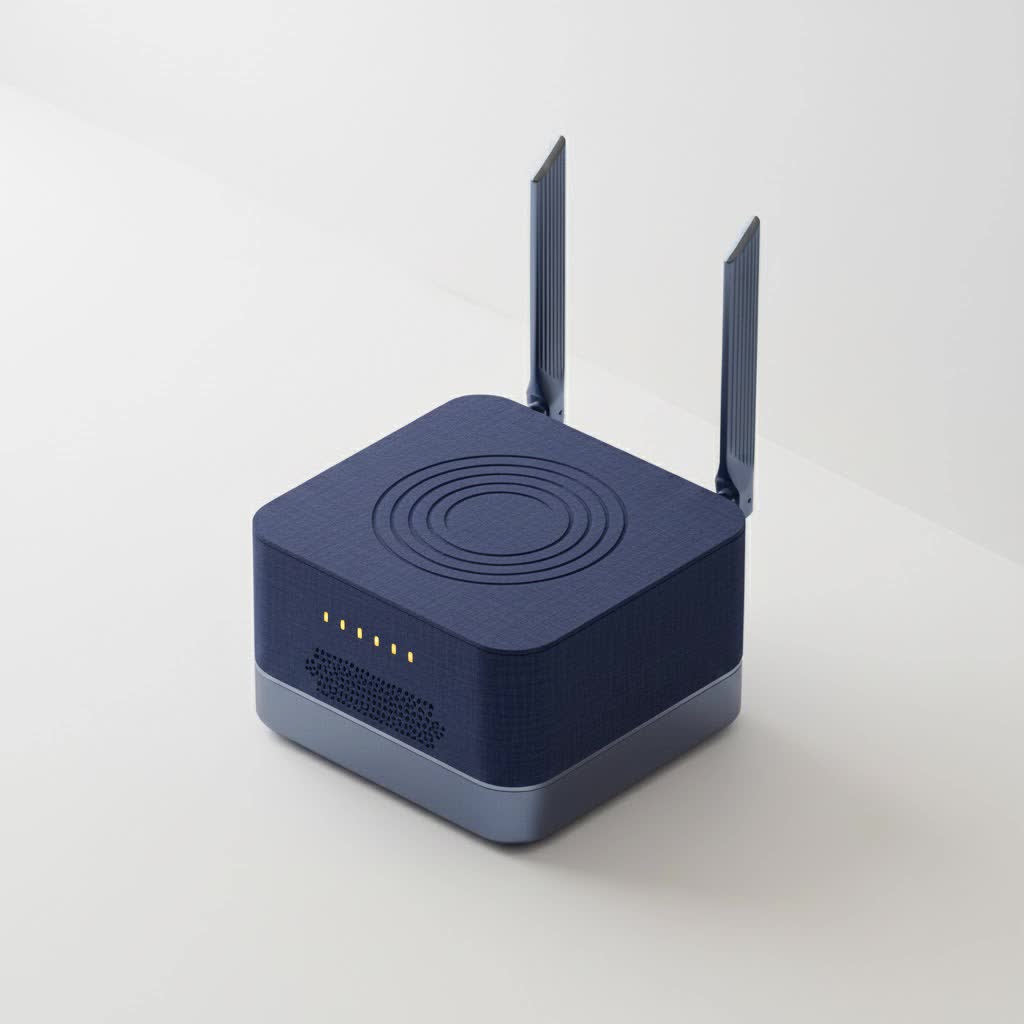
A Wi-Fi extender, also known as a range extender or signal booster, is a device that captures the existing Wi-Fi signal from your router and rebroadcasts it to cover a larger area. This helps eliminate dead spots and improve connectivity in the far corners of your home or office. The “WPS” part stands for Wi-Fi Protected Setup, a network security standard that simplifies the process of connecting devices to a secure wireless network.
A WPS wifi extender, therefore, is a range extender equipped with a WPS button. This feature is designed to create a secure connection between your router and the extender without you needing to manually type in your long, complex Wi–Fi password. It’s all about convenience and speed.
How Does the WPS Feature Simplify Setup?
Traditionally, setting up a Wi-Fi extender involved connecting to its default network, accessing a web-based configuration panel, finding your home network’s name (SSID), and carefully typing in the password. This process, while not overly complex, can be tedious and prone to typos.
The WPS button streamlines this into a two-step dance:
- You press the WPS button on your main router.
- Within two minutes, you press the WPS button on your Wi-Fi extender.
The two devices then perform a “digital handshake,” automatically exchanging the necessary network credentials and establishing a secure connection. It’s a plug-and-play approach that turns a potentially 10-minute task into a 30-second one.
As network engineer John Peterson often states, “WPS was designed to bridge the gap between robust security and user convenience. For most home users setting up an extender, it’s the most straightforward method available, provided it’s used correctly and with an awareness of its limitations.”
Step-by-Step: How to Set Up Your WPS Wifi Extender
Ready to banish those dead zones? Setting up your extender using WPS is incredibly simple. Follow these steps for a seamless installation.
- Unbox and Position: Take your new wifi extender out of the box. For the initial setup, plug it into a power outlet in the same room as your main router. This ensures a strong signal for the pairing process. You can move it later.
- Power Up: Wait for the extender to power on. You should see a power light, which may be solid or blinking depending on the model. Give it a minute to fully boot up.
- Press the WPS Button on Your Router: Locate the WPS button on your main router. It’s often on the back or side and may be labeled “WPS” or show an icon of two circling arrows. Press and hold it for a couple of seconds until the WPS indicator light starts blinking.
- Press the WPS Button on Your Extender: You now have about two minutes to complete the connection. Go to your extender and press its WPS button.
- Wait for the Handshake: The indicator lights on both the extender and the router will blink as they try to connect. Once a secure connection is established, a light on the extender (often labeled “Wi-Fi,” “Signal,” or “Link”) will turn solid green or blue.
- Find the Optimal Location: Now that the extender is paired with your router, you can unplug it and move it to its permanent location. The ideal spot is roughly halfway between your router and the area with the weakest Wi-Fi signal.
- Check the Signal Strength: Plug the extender back in. Most models have a signal strength indicator light. You’re looking for a solid green or blue light, which means it’s receiving a good signal from the router. If the light is amber, red, or off, you’ve placed it too far away. Move it closer to the router and try again.
Once positioned correctly, your devices should be able to connect to the extended network. The new network will often have the same name as your original network but with “_EXT” added to the end.
The Pros and Cons of a WPS Wifi Extender
While the WPS feature is undeniably convenient, it’s important to weigh its advantages and disadvantages before relying on it.
The Upsides: Simplicity and Speed
- Effortless Setup: As outlined above, it’s the easiest way to get an extender up and running.
- No Passwords Needed: You don’t have to remember or re-enter your Wi-Fi password.
- User-Friendly: It’s perfect for individuals who aren’t tech-savvy.
|
Our Picks for the Best Wifi Extender in 2026
As an Amazon Associate I earn from qualifying purchases.
|
||
| Num | Product | Action |
|---|---|---|
| 1 | 2025 WiFi Extenders Signal Booster for Home Long Range Up to 9800 sq. ft & 40 Devices, WiFi Extender Signal Booster, Quick Setup-Medium, Internet Repeater, WiFi Extender |

|
| 2 | Amazon eero 6 mesh wifi extender with 1-month free eero Plus (auto-renews) - Add up to 1,500 sq. ft. of Wi-Fi 6 coverage to your existing eero mesh wifi network |
|
| 3 | Amazon eero 6+ mesh wifi system with 1 month free eero Plus (auto-renews) - Coverage up to 4,500 sq. ft., Connect 75+ devices, 3-pack |
|
| 4 | Amazon eero 7 with 1 month free eero Plus (auto-renews) - Supports internet plans up to 2.5 Gbps, Coverage up to 2,000 sq. ft., Connect 120+ devices, 1-pack |
|
| 5 | TP-Link AX3000 WiFi 6 Range Extender - PCMag Editor\'s Choice - Dual-Band Wireless Repeater w/Ethernet Port - Up to 2400 Sq. Ft., 64 Devices - Internet Signal Booster - APP Setup - EasyMesh (RE715X) |
|
| 6 | TP-Link AC1200 WiFi Extender, 2023 Engadget Best Budget Pick, 1.2Gbps Signal Booster for Home, Dual Band 5GHz/2.4GHz, Covers Up to 1500 Sq.ft and 30 Devices,Support Onemesh, One Ethernet Port (RE315) |
|
| 7 | TP-Link AC1900 WiFi Range Extender RE550 - Dual-Band Wireless Repeater Amplifier w/Gigabit Ethernet Port - Up to 2200 Sq. Ft., 32 Devices - Internet Signal Booster - APP Setup - EasyMesh Compatible |
|
| 8 | WiFi Extender, WiFi Extenders Signal Booster for Home Up to 5000 sq.ft and 50 Devices, WiFi Range Extender, Wireless Repeater, Long Range Amplifier with Ethernet Port, 1-Tap Setup, Alexa Compatible |
|
| 9 | WiFi Extender with 4 Antennas 1200Mbps - Dual Band 5GHz/2.4GHz, WiFi Extender Signal Booster with 3 Modes Support, WiFi Repeater with 12880 Sq.ft 105 Devices, Easy Set Up for Home |
|
| 10 | 2025 Fastest WiFi Extender, WiFi Repeater, WiFi Booster, Covers Up to 10000 Sq.ft and 80 Devices, Internet Booster - with Ethernet Port, Quick Setup, Home Wireless Signal Booster |
|
The Downsides: Security and Compatibility
- Security Vulnerabilities: The original WPS standard, which used a PIN, was found to be vulnerable to brute-force attacks. While modern push-button WPS is more secure, some security experts recommend disabling WPS on the router entirely for maximum protection.
- Requires Router Support: Your main router must also have a WPS button for this method to work. Most modern routers do, but older models may not.
- Lack of Control: The automatic setup gives you less control over network settings, such as naming the extended network or choosing a specific security protocol.
Troubleshooting Common WPS Setup Issues
Sometimes the digital handshake doesn’t go as planned. Here are some common problems and how to fix them.
- The Connection Fails: If the extender’s light never turns solid, the two-minute window may have expired. Try pressing the WPS buttons again. Also, make sure the extender isn’t too far from the router during the initial setup.
- WPS is Disabled on Router: Some routers ship with WPS disabled for security reasons. You may need to log into your router’s admin settings through a web browser and manually enable the feature.
- No WPS Button on Router: If your router lacks a WPS button, you can’t use this setup method. You’ll have to configure the extender manually using its web interface or a dedicated mobile app.
Frequently Asked Questions (FAQ)
Is it safe to use WPS on a wifi extender?
Push-button WPS is generally considered safe for home use, as it requires physical access to your devices and has a very short window for connection. The older PIN-based WPS method is insecure and should be disabled. If you have high-security needs, a manual setup is the most secure option.
Can I use a WPS extender with any router?
You can use a WPS wifi extender with almost any modern router that also has a WPS button. If your router is very old and lacks this feature, you will need to set up the extender using the manual configuration method.
How do I know if the WPS connection was successful?
A dedicated indicator light on the extender will turn solid green or blue. This confirms that it has successfully paired with your router and is broadcasting an extended signal.
Will a WPS wifi extender slow down my internet?
All Wi-Fi extenders can potentially reduce your internet speed by half because they have to receive and then rebroadcast the signal on the same radio channel. For everyday browsing and streaming, this is often unnoticeable. For high-performance gaming or large file transfers, a mesh Wi-Fi system may be a better choice.
Where is the best place to put my wifi extender?
The optimal location is about halfway between your router and the Wi-Fi dead zone. It needs to be close enough to the router to get a strong, stable signal to rebroadcast. Use the extender’s signal strength indicator light to find the perfect spot.
Final Thoughts
A WPS wifi extender is an excellent and user-friendly solution for anyone looking to quickly and easily eliminate Wi-Fi dead spots in their home. The push-button setup removes the technical hurdles, making improved connectivity accessible to everyone. While it’s important to be aware of the security trade-offs, for most households, the convenience far outweighs the minimal risk. By following the simple setup steps and placement tips outlined in this guide, you can enjoy a stronger, more reliable Wi-Fi signal across your entire space.
