Are you tired of WiFi dead zones in your home? It’s a common frustration: you’re trying to stream a movie in the bedroom or take a video call from the home office, only to have the signal drop. If you’re an Xfinity customer, a Comcast Wifi Extender, often known as an xFi Pod, might be the perfect solution to ensure seamless, wall-to-wall connectivity. This comprehensive guide will walk you through everything you need to know, from choosing the right device to setting it up and troubleshooting.
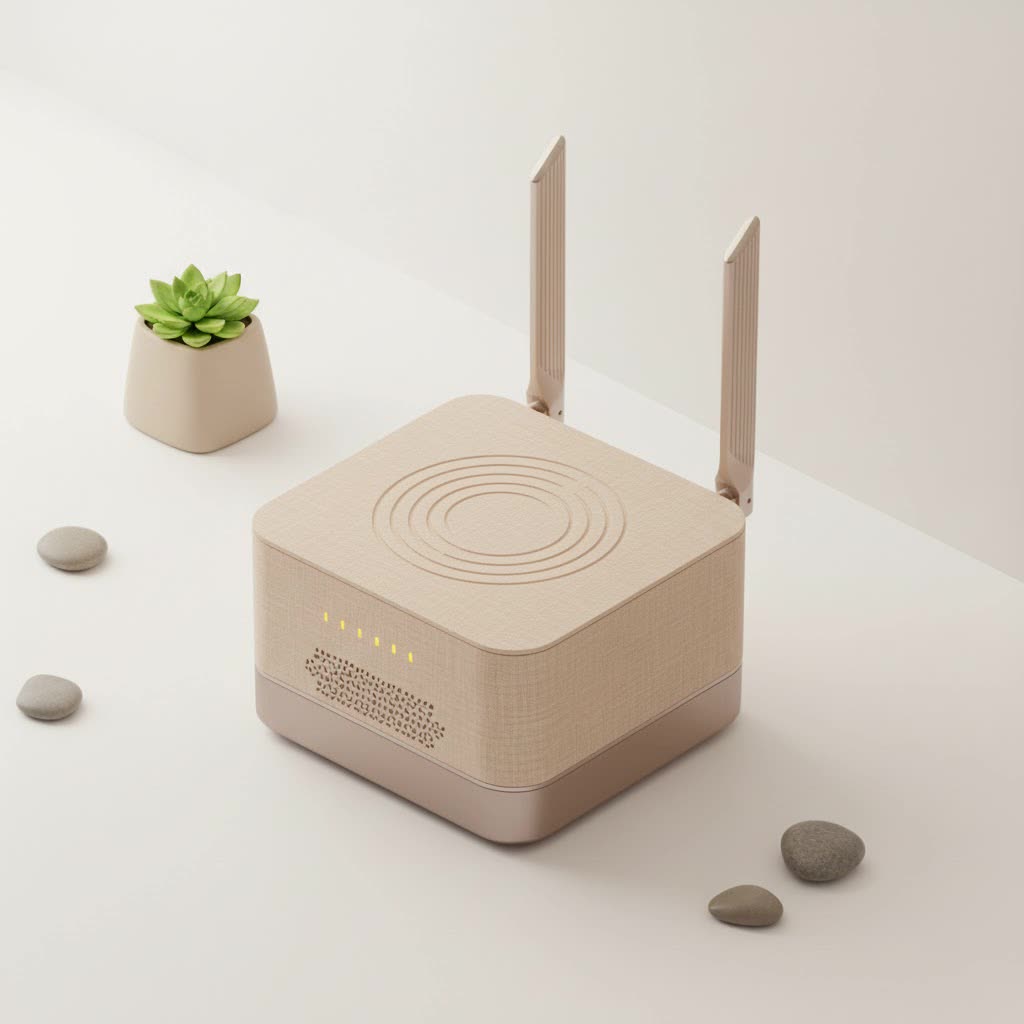
As someone who has spent over 15 years designing and optimizing home networks at TVCSP, I’ve seen firsthand how a well-placed extender can transform a spotty connection into a reliable one. Let’s dive in and eliminate those frustrating dead spots for good.
What is a Comcast WiFi Extender and How Does It Work?
A Comcast WiFi extender is a device designed to expand the reach of your existing Xfinity Gateway’s wireless signal. It doesn’t create a new network; instead, it captures the signal from your primary router and rebroadcasts it, pushing the boundaries of your coverage area further into your home.
Comcast’s official solution is the xFi Pod. These pods create a mesh WiFi network. Unlike traditional extenders that can sometimes create separate, clunky networks, a mesh system works intelligently. All the pods, along with your gateway, operate under a single network name and password. Your devices automatically connect to the strongest signal source as you move around the house, providing a smooth and uninterrupted online experience.
Expert Take: “The beauty of a mesh system like the xFi Pods is its simplicity and intelligence,” notes David Chen, Senior Network Engineer at TVCSP. “It takes the guesswork out of managing your network. The system self-optimizes to ensure your devices are always on the fastest, most stable connection available.”
Do You Really Need an Xfinity WiFi Extender?
Before investing in an extender, it’s worth diagnosing if it’s the right tool for the job. You might need a WiFi extender if:
- You have WiFi dead zones: These are specific areas in your home where the WiFi signal is consistently weak or non-existent.
- Your house is large or has multiple stories: WiFi signals struggle to penetrate thick walls, floors, and other physical obstructions.
- You experience buffering and lag in certain rooms: If your connection is strong near the router but weak elsewhere, an extender can bridge that gap.
- You want to extend coverage to outdoor areas: An extender can help push your signal to a patio, garage, or backyard.
However, if your internet is slow everywhere, even right next to the router, the issue might be your internet plan or the gateway itself, not the signal’s reach.
Choosing the Best WiFi Extender for Comcast Xfinity
When it comes to extending your Comcast internet, you have two primary choices: using Comcast’s own xFi Pods or opting for a third-party WiFi extender.
The Official Solution: Xfinity xFi Pods
For most Xfinity customers, the xFi Pods are the most straightforward and effective option. Because they are designed by Comcast, they integrate seamlessly with the Xfinity Gateway and the Xfinity app.
- Ease of Use: Setup is incredibly simple. You just plug the pod into a power outlet and activate it through the Xfinity app.
- Mesh Technology: They create a single, intelligent mesh network that provides consistent coverage.
- Performance: The latest generation of xFi Pods offers tri-band radio for better performance and faster speeds.
- Cost: You can purchase them directly from Xfinity for a one-time fee, which is often more affordable than high-end third-party mesh systems. A single pod typically costs around $119.
|
Our Picks for the Best Wifi Extender in 2026
As an Amazon Associate I earn from qualifying purchases.
|
||
| Num | Product | Action |
|---|---|---|
| 1 | TP-Link AC1200 WiFi Extender, 2023 Engadget Best Budget Pick, 1.2Gbps Signal Booster for Home, Dual Band 5GHz/2.4GHz, Covers Up to 1500 Sq.ft and 30 Devices,Support Onemesh, One Ethernet Port (RE315) |

|
| 2 | TP-Link AC1900 WiFi Range Extender RE550 - Dual-Band Wireless Repeater Amplifier w/Gigabit Ethernet Port - Up to 2200 Sq. Ft., 32 Devices - Internet Signal Booster - APP Setup - EasyMesh Compatible |
|
| 3 | WiFi Extender with 4 Antennas 1200Mbps - Dual Band 5GHz/2.4GHz, WiFi Extender Signal Booster with 3 Modes Support, WiFi Repeater with 12880 Sq.ft 105 Devices, Easy Set Up for Home |
|
| 4 | 2025 WiFi Extenders Signal Booster for Home Long Range Up to 9800 sq. ft & 40 Devices, WiFi Extender Signal Booster, Quick Setup-Medium, Internet Repeater, WiFi Extender |
|
| 5 | Amazon eero 6+ mesh wifi system with 1 month free eero Plus (auto-renews) - Coverage up to 4,500 sq. ft., Connect 75+ devices, 3-pack |
|
| 6 | Amazon eero 7 with 1 month free eero Plus (auto-renews) - Supports internet plans up to 2.5 Gbps, Coverage up to 2,000 sq. ft., Connect 120+ devices, 1-pack |
|
| 7 | TP-Link AX3000 WiFi 6 Range Extender - PCMag Editor\'s Choice - Dual-Band Wireless Repeater w/Ethernet Port - Up to 2400 Sq. Ft., 64 Devices - Internet Signal Booster - APP Setup - EasyMesh (RE715X) |
|
| 8 | Amazon eero 6 mesh wifi extender with 1-month free eero Plus (auto-renews) - Add up to 1,500 sq. ft. of Wi-Fi 6 coverage to your existing eero mesh wifi network |
|
| 9 | 2025 Fastest WiFi Extender, WiFi Repeater, WiFi Booster, Covers Up to 10000 Sq.ft and 80 Devices, Internet Booster - with Ethernet Port, Quick Setup, Home Wireless Signal Booster |
|
| 10 | WiFi Extender, WiFi Extenders Signal Booster for Home Up to 5000 sq.ft and 50 Devices, WiFi Range Extender, Wireless Repeater, Long Range Amplifier with Ethernet Port, 1-Tap Setup, Alexa Compatible |
|
Comcast generally recommends one pod for a 3-4 bedroom, two-story home and two pods for larger homes with 5+ bedrooms.
Top Third-Party WiFi Extenders for Comcast
While xFi Pods are highly recommended, you can also use a third-party WiFi extender with your Xfinity Gateway. This might be a good option if you already own one or if you’re looking for specific features not offered by the pods.
When choosing a third-party extender, look for:
- Compatibility: Ensure it works with your Xfinity Gateway model.
- Dual-Band or Tri-Band: These offer better performance than single-band extenders.
- WPS Button: A WPS (Wi-Fi Protected Setup) button makes for a much easier setup process.
How to Set Up Your Comcast WiFi Extender
Setting up an extender is usually a quick process. Here’s a step-by-step guide for both xFi Pods and third-party devices.
Setting Up Xfinity xFi Pods
- Placement is Key: Plug your first xFi Pod into an electrical outlet roughly halfway between your gateway and the area with poor WiFi coverage. Ensure it’s not blocked by furniture.
- Download the App: If you don’t already have it, download the Xfinity app from the App Store or Google Play.
- Activate: Log in to the app with your Xfinity ID. Navigate to the “Account” tab, find the “Devices” section, and select “Activate WiFi Extenders.”
- Follow the Prompts: The app will guide you through the rest of the process, which usually takes just a few minutes. Make sure Bluetooth is enabled on your phone for a smoother setup.
Setting Up a Third-Party Extender
- Plug It In: Place the extender in a power outlet near your Xfinity Gateway for the initial setup.
- Use WPS (Easiest Method): Press the WPS button on your Xfinity Gateway, then press the WPS button on your extender within two minutes. The devices should connect automatically.
- Manual Setup: If WPS isn’t an option, connect a device (like a laptop or smartphone) to the extender’s default WiFi network (e.g., “TPLink_Extender”). Open a web browser and follow the manufacturer’s instructions to connect the extender to your main Xfinity home network.
- Relocate: Once setup is complete, you can unplug the extender and move it to a location midway between your router and the dead zone.
Troubleshooting Common WiFi Extender Issues
Even with a simple setup, you might run into issues. Here are some common problems and their solutions:
- Poor Speeds: The extender may be placed too far from the gateway. Try moving it closer to get a stronger signal to rebroadcast.
- Connection Drops: Ensure your Xfinity Gateway’s firmware is up to date. You can check this via the Xfinity app. Also, make sure the extender itself isn’t being blocked by large objects.
- Extender Not Connecting: Double-check that your Xfinity Gateway is not in “Bridge Mode” and that you have a single WiFi network name (SSID) for both the 2.4GHz and 5GHz bands. The extender needs this unified network to function correctly.
Frequently Asked Questions (FAQ)
Q: Can I use any WiFi extender with Comcast Xfinity?
A: Yes, most modern WiFi extenders are compatible with the Xfinity Gateway. However, for the most seamless experience and easiest setup, Comcast’s xFi Pods are specifically designed to create an integrated mesh network with their gateways.
Q: Will a Comcast WiFi extender increase my internet speed?
A: A WiFi extender does not increase the maximum speed of your internet plan. Its purpose is to extend the coverage of your existing signal. It can improve your effective speed in areas where the signal was previously weak, but it won’t exceed the speed you get when standing next to your main router.
Q: Where is the best place to put my WiFi extender?
A: The ideal location is about halfway between your Xfinity Gateway and the WiFi dead zone you want to cover. This allows it to pick up a strong signal from the router and effectively rebroadcast it to the area that needs it.
Q: What is the difference between a WiFi extender and a mesh network?
A: A traditional extender simply repeats a signal, sometimes creating a separate network. A mesh network, like the one created by xFi Pods, uses multiple access points that work together intelligently under a single network name to provide seamless, optimized coverage throughout your home.
Q: How many xFi Pods do I need?
A: For most homes up to four bedrooms, one xFi Pod is sufficient. For larger, multi-story homes (5+ bedrooms), two pods are recommended for optimal coverage.
Conclusion: Say Goodbye to Dead Zones
A Comcast WiFi extender is a powerful and user-friendly solution to one of the most common household tech problems. By strategically extending your network’s reach, you can enjoy a stable, fast connection in every room. For Xfinity users, the seamless integration of xFi Pods offers a clear advantage, creating an intelligent mesh network that just works. Whether you choose the official pods or a compatible third-party device, you’re on your way to eliminating buffering and enjoying the full power of your internet plan, everywhere in your home. Take the step to upgrade your home network—you’ll wonder how you ever managed without it.
