Are you struggling with frustrating WiFi dead zones in your home or office? If you’re invested in the Ubiquiti ecosystem, you’ve likely searched for a Unifi Wifi Extender to solve the problem. However, you might have noticed that Ubiquiti doesn’t sell a product with that exact name. That’s because UniFi takes a more powerful and seamless approach to network expansion: wireless mesh technology. This guide will demystify how to extend your UniFi network, transforming your understanding of what a WiFi extender can and should be.
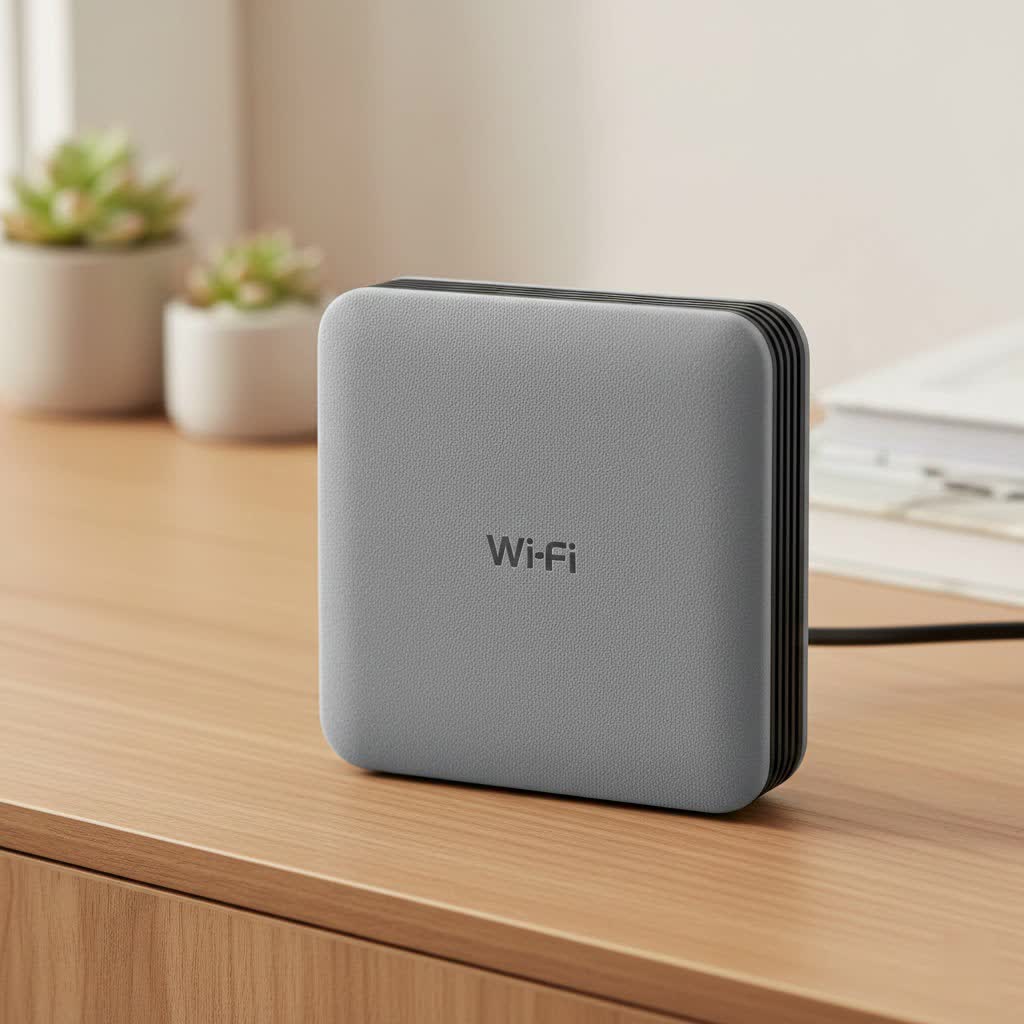
What a “UniFi WiFi Extender” Really Is: The Magic of Mesh
In the world of networking, a traditional WiFi extender is a simple device that picks up your existing WiFi signal, amplifies it, and rebroadcasts it. While this can work, it often comes with significant downsides, such as slower speeds, a different network name (SSID), and clunky handoffs as you move around. UniFi does it differently.
Instead of a basic repeater, UniFi uses its powerful Access Points (APs) in a “mesh” configuration. A mesh AP connects wirelessly to another UniFi AP that is hardwired to your network. This creates a single, unified network with one name, allowing your devices to seamlessly roam between access points without dropping the connection. This wireless connection between APs is known as a “wireless uplink.”
“The beauty of the UniFi mesh system is its integration. You’re not just patching a weak spot; you’re intelligently expanding a cohesive network ecosystem. All management is done from a single interface, giving you unparalleled control and performance compared to off-the-shelf extenders.” – David Lee, Senior Network Engineer at TVCSP.
The Best UniFi Devices for Extending Your WiFi
While most modern UniFi APs can function in a mesh capacity, some are specifically designed for this purpose, offering the perfect blend of performance, form factor, and ease of deployment.
Top Recommendation: The UniFi 6 Mesh (U6-Mesh)
For most users looking to extend their network, the UniFi 6 Mesh is the perfect solution. It’s a compact, powerful device that brings the latest WiFi 6 technology to your network.
- WiFi 6 Performance: Offers higher speeds, greater capacity, and better efficiency in crowded environments compared to older WiFi standards.
- Flexible Design: Its sleek, compact design allows for versatile placement. You can set it on a desk, mount it on a wall, or even place it outdoors thanks to its weather-resistant casing.
- 4×4 MU-MIMO: This technology allows the AP to communicate with multiple devices simultaneously, reducing wait times and improving overall network performance.
- Easy Deployment: Simply power it up within range of an existing UniFi AP, and adopt it into your UniFi Network Controller.
|
Our Picks for the Best Wifi Extender in 2026
As an Amazon Associate I earn from qualifying purchases.
|
||
| Num | Product | Action |
|---|---|---|
| 1 | WiFi Extender with 4 Antennas 1200Mbps - Dual Band 5GHz/2.4GHz, WiFi Extender Signal Booster with 3 Modes Support, WiFi Repeater with 12880 Sq.ft 105 Devices, Easy Set Up for Home |

|
| 2 | WiFi Extender, WiFi Extenders Signal Booster for Home Up to 5000 sq.ft and 50 Devices, WiFi Range Extender, Wireless Repeater, Long Range Amplifier with Ethernet Port, 1-Tap Setup, Alexa Compatible |
|
| 3 | 2025 Fastest WiFi Extender, WiFi Repeater, WiFi Booster, Covers Up to 10000 Sq.ft and 80 Devices, Internet Booster - with Ethernet Port, Quick Setup, Home Wireless Signal Booster |
|
| 4 | Amazon eero 6+ mesh wifi system with 1 month free eero Plus (auto-renews) - Coverage up to 4,500 sq. ft., Connect 75+ devices, 3-pack |
|
| 5 | 2025 WiFi Extenders Signal Booster for Home Long Range Up to 9800 sq. ft & 40 Devices, WiFi Extender Signal Booster, Quick Setup-Medium, Internet Repeater, WiFi Extender |
|
| 6 | Amazon eero 7 with 1 month free eero Plus (auto-renews) - Supports internet plans up to 2.5 Gbps, Coverage up to 2,000 sq. ft., Connect 120+ devices, 1-pack |
|
| 7 | TP-Link AC1900 WiFi Range Extender RE550 - Dual-Band Wireless Repeater Amplifier w/Gigabit Ethernet Port - Up to 2200 Sq. Ft., 32 Devices - Internet Signal Booster - APP Setup - EasyMesh Compatible |
|
| 8 | TP-Link AX3000 WiFi 6 Range Extender - PCMag Editor\'s Choice - Dual-Band Wireless Repeater w/Ethernet Port - Up to 2400 Sq. Ft., 64 Devices - Internet Signal Booster - APP Setup - EasyMesh (RE715X) |
|
| 9 | Amazon eero 6 mesh wifi extender with 1-month free eero Plus (auto-renews) - Add up to 1,500 sq. ft. of Wi-Fi 6 coverage to your existing eero mesh wifi network |
|
| 10 | TP-Link AC1200 WiFi Extender, 2023 Engadget Best Budget Pick, 1.2Gbps Signal Booster for Home, Dual Band 5GHz/2.4GHz, Covers Up to 1500 Sq.ft and 30 Devices,Support Onemesh, One Ethernet Port (RE315) |
|
The U6-Mesh is the ideal Unifi WiFi extender because it was built from the ground up to excel at wireless uplinking while delivering top-tier performance.
Other Capable UniFi Access Points
If you have other needs or already own different models, many other UniFi APs can serve as excellent mesh points:
- UniFi 6 Pro (U6-Pro): A powerful ceiling-mounted AP that can also be used wirelessly to extend coverage to another part of a building.
- UniFi 6 Lite (U6-Lite): A budget-friendly WiFi 6 option that works well for extending coverage in less demanding areas.
How to Set Up Your UniFi Wireless Mesh Point
Setting up a UniFi AP as a wireless extender is straightforward through the UniFi Network Application.
- Enable Meshing: In your UniFi Controller settings, navigate to
Settings > WiFi > AP Site Settings. Ensure that “Meshing” is turned on. - Initial Adoption (Wired): For the smoothest setup, it’s highly recommended to first connect your new mesh AP to your network using an Ethernet cable. Power it on and wait for it to appear in your UniFi Controller’s “Devices” tab. Click “Adopt.”
- Update and Configure: Once adopted, update the device’s firmware to the latest version. You can set a static IP address or make other configuration changes now.
- Go Wireless: After the AP is fully updated and provisioned, you can unplug it from the Ethernet cable and move it to your desired location. Make sure it’s within good wireless range of a hardwired UniFi AP.
- Establish Wireless Uplink: Plug the AP into its power source (e.g., a PoE injector). It will boot up and automatically search for a wireless uplink. In the UniFi Controller, the device’s status will change to “Isolated” and then “Connected (Wireless),” indicating it has successfully established a mesh connection.
Tips for Optimizing Your Extended UniFi Network
Placement is everything when it comes to a wireless mesh network. Follow these tips to get the best performance:
- Find the Sweet Spot: Place your mesh AP about halfway between your primary hardwired AP and the WiFi dead zone. You need a location where it can still receive a strong signal to extend.
- Check Signal Strength: In the UniFi Controller, you can view the signal strength of the wireless uplink. Aim for a signal of -65 dBm or better for optimal performance.
- Minimize Obstructions: Walls (especially brick and concrete), large metal objects, and appliances can weaken the signal between your APs. Try to maintain a clear line of sight if possible.
- Use the 5 GHz Band: For the best performance, ensure your wireless uplink is using the 5 GHz band, which is faster and less prone to interference than the 2.4 GHz band. The UniFi Controller typically handles this automatically.
UniFi Mesh vs. Traditional Extenders
| Feature | UniFi Mesh System | Traditional WiFi Extender |
|---|---|---|
| Network Name (SSID) | Single, unified network | Often creates a separate _EXT network |
| Performance | High-speed, minimal performance loss | Significant speed reduction (often 50% or more) |
| Management | Centralized via UniFi Controller | Individual device login, separate interfaces |
| Roaming | Seamless handoff between APs | Clunky; devices “stick” to one AP |
| Cost | Higher initial investment | Generally cheaper |
| Setup | Requires UniFi Controller | Simple plug-and-play |
Frequently Asked Questions (FAQ)
What is the actual range of a UniFi 6 Mesh?
The range can vary significantly based on your environment. In an open space, it can cover up to 1,500 sq. ft. (140 sq. m). However, walls, floors, and interference will reduce this. Proper placement is key to maximizing its effective range.
Can I use a UniFi AP as an extender with a non-UniFi router?
No. The UniFi mesh feature (wireless uplink) is a proprietary technology that requires the UniFi Network Controller and other UniFi APs to function. You must have an existing UniFi network to use one of their APs as a wireless extender.
Is a wired (Ethernet) connection always better than a wireless uplink?
Yes, a wired connection will always provide the best possible speed and stability. A wireless uplink is a fantastic solution when running an Ethernet cable is impractical or impossible, but it will always have some performance overhead compared to a direct wired connection.
How many UniFi APs can I have in a single mesh network?
While there isn’t a hard limit, performance will degrade with each wireless “hop.” For best results, you should design your network so that mesh APs connect directly back to a wired AP. Avoid “daisy-chaining” multiple wireless APs in a row.
Do I need a UniFi Dream Machine or Cloud Key to use mesh?
You need to run the UniFi Network Application (Controller) somewhere. This can be on a dedicated device like a Dream Machine or Cloud Key, or you can install the free software on a computer (PC, Mac, Linux) that is running on your network.
Conclusion: The Superior Way to Extend WiFi
While you may have started your search for a Unifi WiFi extender, you’ve now discovered a more robust and professional solution. By leveraging the power of UniFi’s mesh technology, you can eliminate dead zones, maintain peak performance, and manage your entire network from a single, intuitive interface. For a truly seamless and powerful network extension, choose a dedicated mesh device like the UniFi 6 Mesh and enjoy flawless connectivity throughout your entire space.
