Tired of WiFi dead zones in your home where videos buffer endlessly and web pages refuse to load? You’re not alone. In today’s connected world, consistent and reliable internet coverage throughout your entire house is no longer a luxury—it’s a necessity. If you’re an Xfinity internet customer, you’ve likely heard about the Xfinity Wifi Extender as a potential solution. But what is it, and is it the right choice for you?
As a WiFi technology expert with over 15 years in the field, I’ve seen countless products promise to solve connectivity woes. Today, we’re taking a deep dive into Xfinity’s solution, often known as xFi Pods, to give you a clear, no-nonsense guide. We’ll cover everything from what they do and how to set them up to how they stack up against other options on the market.
What Exactly Is an Xfinity WiFi Extender?
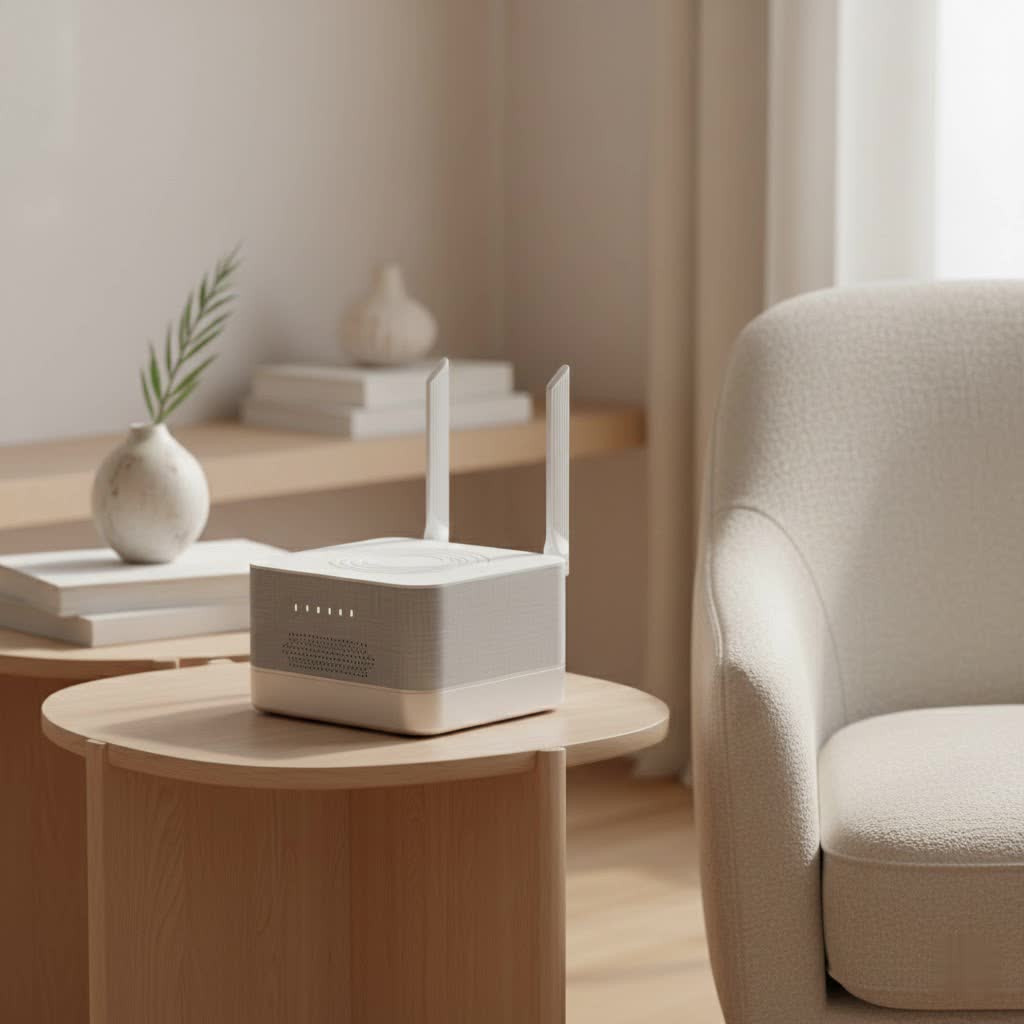
An Xfinity WiFi Extender, officially called an xFi Pod, is a small device that plugs into an electrical outlet to expand your home’s WiFi coverage. It works exclusively with a compatible Xfinity Gateway (the modem/router combo provided by Xfinity). Instead of acting as a separate network, these Pods integrate seamlessly to create a mesh WiFi network.
Think of it like this: your Xfinity Gateway is the main speaker in a large house. The further you get from it, the harder it is to hear. An xFi Pod acts like a smaller, synchronized speaker in another room, picking up the signal from the main one and rebroadcasting it, so you have clear audio everywhere. This mesh system ensures your devices stay connected to the strongest signal as you move around your home, without needing to manually switch networks.
How Do I Know If I Need a WiFi Extender?
If you’re experiencing areas in your home with weak or non-existent WiFi, a WiFi extender might be the solution. Common signs that you could benefit from an extender include:
- WiFi Dead Zones: Certain rooms, basements, or even your backyard have no WiFi signal at all.
- Inconsistent Speeds: Your internet is fast near the router but slows to a crawl in other areas.
- Dropped Connections: Video calls freeze, or online games lag when you’re far from your Gateway.
- Buffering: Streaming services constantly buffer on TVs or devices in certain parts of the house.
It’s important to note that an extender is designed to improve coverage, not to increase the maximum speed of your internet plan. Its goal is to deliver a more consistent and reliable connection to those hard-to-reach places.
Step-by-Step: How to Set Up an Xfinity WiFi Extender
One of the biggest advantages of the xFi Pods is their incredibly simple setup process, which is managed entirely through the Xfinity app.
- Download the App: If you haven’t already, download the Xfinity app on your smartphone from the Google Play Store or Apple App Store.
- Find the Right Spot: Placement is key. Your first Pod should be placed about halfway between your Xfinity Gateway and the area where the WiFi signal is weak. Avoid hiding it behind furniture or near other electronics that could cause interference.
- Plug It In: Simply plug the xFi Pod into an open electrical outlet.
- Activate Through the App: Open the Xfinity app and sign in. Navigate to the section for adding a device (it may be under a “More” or “Account” tab). Select “xFi Pods” and the app will guide you through a few simple steps to detect and activate your extender.
The app will confirm once the Pod is online and integrated into your network. The whole process typically takes just a few minutes.
Xfinity xFi Pods vs. Third-Party WiFi Extenders
While xFi Pods are designed for simplicity and seamless integration, they aren’t the only option. Universal or third-party WiFi extenders from brands like Netgear, TP-Link, and Linksys are also widely available. Let’s break down the pros and cons.
Xfinity xFi Pods
- Pros:
- Effortless Setup: Integration with the Xfinity Gateway and app is flawless and user-friendly.
- Mesh Network: Creates a single, unified network name (SSID) for seamless roaming.
- Centralized Management: You can monitor and manage the Pods directly from your Xfinity app.
- Cons:
- Compatibility: Only works with a compatible Xfinity Gateway. If you switch internet providers, they become unusable.
- Speed Limitations: According to Xfinity, the second-generation Pods have a maximum throughput of around 500 Mbps. If you have a gigabit plan, the Pod will be a bottleneck.
|
Our Picks for the Best Wifi Extender in 2026
As an Amazon Associate I earn from qualifying purchases.
|
||
| Num | Product | Action |
|---|---|---|
| 1 | WiFi Extender, WiFi Extenders Signal Booster for Home Up to 5000 sq.ft and 50 Devices, WiFi Range Extender, Wireless Repeater, Long Range Amplifier with Ethernet Port, 1-Tap Setup, Alexa Compatible |

|
| 2 | 2025 Fastest WiFi Extender, WiFi Repeater, WiFi Booster, Covers Up to 10000 Sq.ft and 80 Devices, Internet Booster - with Ethernet Port, Quick Setup, Home Wireless Signal Booster |
|
| 3 | Amazon eero 7 with 1 month free eero Plus (auto-renews) - Supports internet plans up to 2.5 Gbps, Coverage up to 2,000 sq. ft., Connect 120+ devices, 1-pack |
|
| 4 | Amazon eero 6+ mesh wifi system with 1 month free eero Plus (auto-renews) - Coverage up to 4,500 sq. ft., Connect 75+ devices, 3-pack |
|
| 5 | TP-Link AC1200 WiFi Extender, 2023 Engadget Best Budget Pick, 1.2Gbps Signal Booster for Home, Dual Band 5GHz/2.4GHz, Covers Up to 1500 Sq.ft and 30 Devices,Support Onemesh, One Ethernet Port (RE315) |
|
| 6 | TP-Link AC1900 WiFi Range Extender RE550 - Dual-Band Wireless Repeater Amplifier w/Gigabit Ethernet Port - Up to 2200 Sq. Ft., 32 Devices - Internet Signal Booster - APP Setup - EasyMesh Compatible |
|
| 7 | TP-Link AX3000 WiFi 6 Range Extender - PCMag Editor\'s Choice - Dual-Band Wireless Repeater w/Ethernet Port - Up to 2400 Sq. Ft., 64 Devices - Internet Signal Booster - APP Setup - EasyMesh (RE715X) |
|
| 8 | 2025 WiFi Extenders Signal Booster for Home Long Range Up to 9800 sq. ft & 40 Devices, WiFi Extender Signal Booster, Quick Setup-Medium, Internet Repeater, WiFi Extender |
|
| 9 | WiFi Extender with 4 Antennas 1200Mbps - Dual Band 5GHz/2.4GHz, WiFi Extender Signal Booster with 3 Modes Support, WiFi Repeater with 12880 Sq.ft 105 Devices, Easy Set Up for Home |
|
| 10 | Amazon eero 6 mesh wifi extender with 1-month free eero Plus (auto-renews) - Add up to 1,500 sq. ft. of Wi-Fi 6 coverage to your existing eero mesh wifi network |
|
Third-Party WiFi Extenders
- Pros:
- Universal Compatibility: They work with virtually any router or gateway from any internet provider.
- Wider Selection: You can choose from a vast range of models with different features and price points, including high-performance options.
- Potentially Higher Speeds: Many models are available that can support gigabit speeds.
- Cons:
- More Complex Setup: Configuration can be more involved, often requiring you to log into a separate web interface.
- Separate Networks: Some cheaper models create a new network name (e.g., “MyWiFi_EXT”), forcing you to switch networks manually.
| Feature | Xfinity xFi Pods | Third-Party Extenders |
|---|---|---|
| Setup | Extremely easy via Xfinity app | Can be more technical |
| Compatibility | Xfinity Gateway only | Works with any router |
| Network | Seamless mesh network | Varies (mesh or separate network) |
| Management | Xfinity app | Typically a separate app or web portal |
| Performance | Good for coverage, speed-limited | Wide range of performance options |
Tips for Optimizing Your WiFi Extender’s Performance
Once your Xfinity WiFi extender is set up, a few best practices can ensure you’re getting the best possible performance.
- Strategic Placement: The “halfway” rule is a great starting point. The extender needs to be close enough to the Gateway to receive a strong signal but far enough away to extend it to the dead zone.
- Avoid Obstructions: Keep extenders out in the open. Don’t place them behind large furniture, inside cabinets, or near thick concrete or brick walls if possible.
- Minimize Interference: Household appliances like microwaves and cordless phones can interfere with WiFi signals. Try to keep your extender away from these devices.
- Don’t Overdo It: Adding too many extenders can sometimes create more interference and degrade performance. For most homes (3-4 bedrooms), one Pod is sufficient. Larger homes may require two.
Frequently Asked Questions (FAQ)
Do xFi Pods make your WiFi slower?
An extender will inherently have slower speeds than connecting directly to your main Gateway because it’s re-broadcasting a signal. However, in a dead zone where you had little to no signal before, the connection provided by the Pod will be significantly faster and more stable.
Can I use my own WiFi extender with Xfinity?
Yes, you can absolutely use a third-party WiFi extender with your Xfinity Gateway. Just be aware that the setup and management will be separate from the Xfinity ecosystem.
How many xFi Pods do I need for my home?
Xfinity recommends one Pod for a 1-2 story home with 3-4 bedrooms. For larger homes (5+ bedrooms) or homes with challenging layouts or construction materials (like concrete walls), two Pods may be necessary.
Can I plug an Ethernet cable into an xFi Pod?
Yes, the second-generation xFi Pods come with two Gigabit Ethernet ports. This is a fantastic feature for connecting stationary devices like a gaming console, smart TV, or desktop computer for a more stable, wired connection.
Is there a monthly fee for using an Xfinity WiFi Extender?
No, there is no monthly fee for the device itself. You purchase the xFi Pods for a one-time cost from Xfinity.
The Final Verdict
For the average Xfinity internet customer struggling with WiFi dead zones, the Xfinity WiFi extender (xFi Pod) is an excellent choice. Its greatest strengths are its incredible ease of setup and its seamless integration into the Xfinity ecosystem, creating a true mesh network that just works. While it may not offer the top-tier speeds required by power users with gigabit plans, it delivers on its promise to provide consistent, reliable coverage throughout your home.
If you value simplicity and want a solution that you can set up in minutes and manage from an app you already use, the xFi Pod is hard to beat. If you are more tech-savvy or need to support speeds over 500 Mbps, exploring high-performance third-party options might be a better route. Ultimately, banishing dead zones is achievable, allowing you to enjoy the full benefit of your internet connection in every corner of your home.
