Dealing with Wi-Fi dead zones and frustratingly slow internet in certain corners of your home is a modern-day struggle we all know too well. You’ve likely heard of Wi-Fi extenders as a potential fix, but a more elegant and powerful solution has emerged: mesh Wi-Fi systems. The Google Nest Wifi extender, more accurately known as a Nest Wifi point, is a leading example of this technology. It’s designed not just to broaden your signal’s reach but to create a consistently strong and intelligent network that covers your entire home, from the basement media room to the upstairs office.
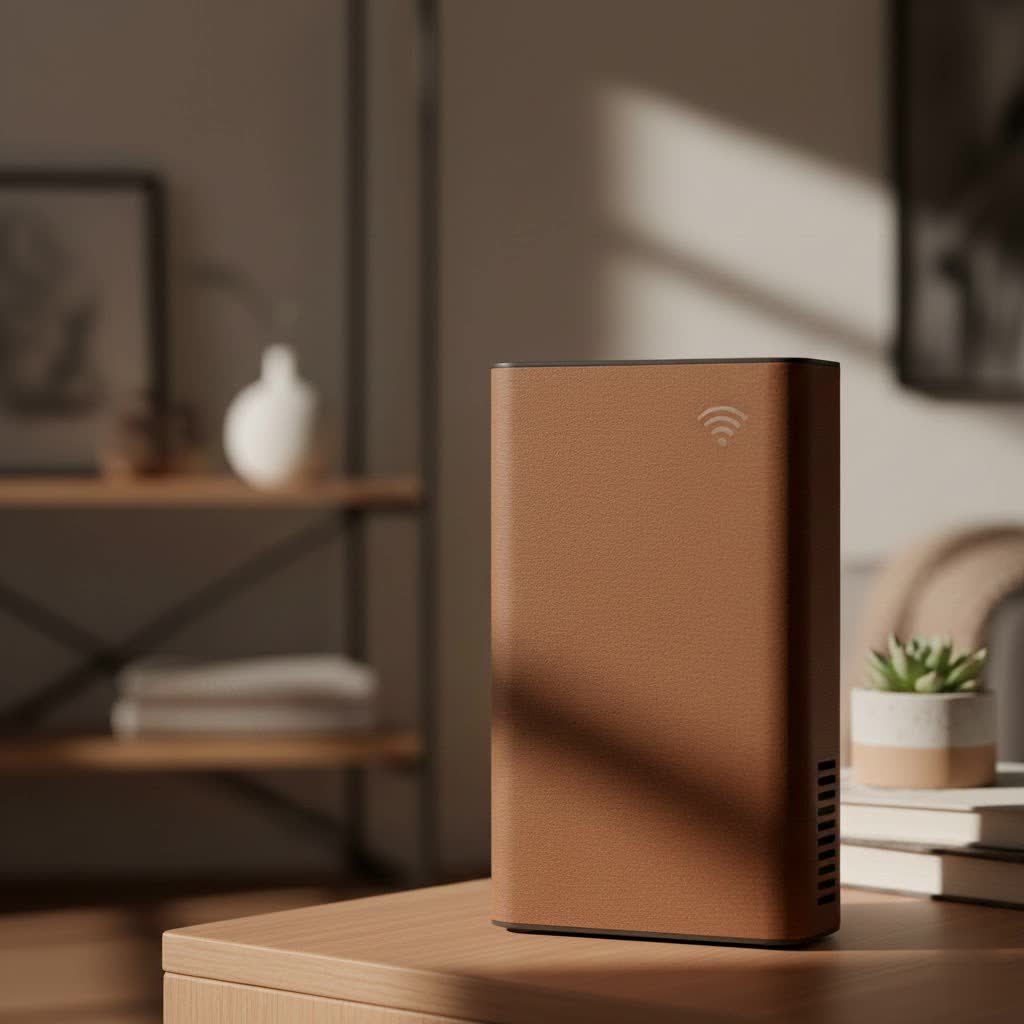
As a network specialist with over 15 years of hands-on experience at TVCSP, I’ve seen the evolution from clunky traditional extenders to the seamless experience that mesh systems like Google Nest Wifi provide. This guide will walk you through everything you need to know about this game-changing device, helping you understand how it works, how to set it up, and how to get the most out of it.
What Exactly is a Google Nest Wifi Extender?
First, let’s clear up a common misconception. The term “Google Nest Wifi extender” is often used, but the device is officially called a Nest Wifi point. Unlike a traditional extender that creates a separate, secondary network, the Nest Wifi point works with a Nest Wifi router to form a single, unified mesh network.
“Think of a traditional extender like a relay runner who shouts a message to the next person. The message gets there, but it’s a bit slower and can get distorted,” explains David Chen, a senior network architect. “A mesh system, like Nest Wifi, is more like a team of runners passing a baton seamlessly. The message stays strong and consistent, and you never notice the handoff.”
Mesh technology is the key difference. The Nest Wifi router and its points work together intelligently to ensure your devices are always on the clearest channel with the most bandwidth. This results in a stable, high-speed connection as you move around your home, eliminating the need to manually switch between your main network and an extender’s network.
The Key Differences: Nest Wifi Point vs. Traditional Extender
Understanding the distinction between these two technologies is crucial for making an informed decision. While both aim to expand Wi-Fi coverage, their methods and results are vastly different.
| Feature | Nest Wifi Point (Mesh System) | Traditional Wi-Fi Extender |
|---|---|---|
| Network Name | Creates a single, unified network (SSID) throughout your home. | Creates a separate, new network (e.g., “HomeWifi_EXT”). |
| Performance | Maintains high speeds by intelligently routing traffic. | Often cuts bandwidth in half as it has to receive and rebroadcast signals on the same channel. |
| Ease of Use | Your devices switch between points automatically and seamlessly. | You may need to manually switch networks as you move. |
| Management | Simple, centralized management through the Google Home app. | Typically requires logging into a separate web interface for configuration. |
| Extra Features | Integrated Google Assistant smart speaker in each point. | Generally offers no additional smart features. |
Step-by-Step Guide: How to Set Up Your Google Nest Wifi Extender
One of the most significant advantages of the Nest Wifi system is its incredibly simple setup process, all managed through the user-friendly Google Home app.
Before you begin, you will need:
- A Google Account
- The Google Home app installed on an Android or iOS device
- An active internet service with a modem
Here is a step-by-step guide to get your new mesh network up and running:
- Set Up the Main Router: First, set up your primary Nest Wifi router. This device connects directly to your modem via an Ethernet cable. Place it in a central, open location in your home, like on a shelf or TV stand.
- Power Up Your Point: Choose a location for your Nest Wifi point (the “extender”). It should be placed roughly halfway between the main router and the area with poor Wi-Fi. Plug it into a power outlet.
- Open the Google Home App: On your smartphone or tablet, open the app. It should automatically detect the new Nest Wifi point. If not, tap the ‘+’ icon to add a new device.
- Follow the On-Screen Prompts: The app will guide you through the entire process. It will ask you to scan a QR code on the bottom of the point to connect it to your system.
- Run a Mesh Test: Once the setup is complete, the app will perform a mesh test. This confirms that your router and point are communicating effectively and delivering a strong signal. The light on the point will turn solid white when everything is ready.
Optimizing Your Google Nest Wifi Point for Peak Performance
Proper placement and a little fine-tuning can make a big difference in your network’s performance.
- Strategic Placement is Key: Don’t hide your Nest Wifi point in a cabinet or behind the sofa. For the best signal, place it in an open area, preferably at waist height or higher.
- Avoid Obstructions: Keep points away from thick concrete walls, large metal objects, and appliances like microwave ovens or cordless phones, which can interfere with the signal.
- Use the Mesh Test Feature: The mesh test in the Google Home app is your best friend. Use it to check the connection strength of your points. The app will tell you if a point has a “Weak” or “Good” connection, helping you find the optimal location.
- Don’t Overdo It: While it might be tempting to add many points, too many can sometimes cause interference. For most homes, the main router plus one or two points is sufficient.
Common Problems and How to Troubleshoot Them
Even the best systems can encounter hiccups. Here are some common issues and their solutions:
Why is my Nest Wifi point offline?
|
Our Picks for the Best Wifi Extender in 2026
As an Amazon Associate I earn from qualifying purchases.
|
||
| Num | Product | Action |
|---|---|---|
| 1 | TP-Link AC1200 WiFi Extender, 2023 Engadget Best Budget Pick, 1.2Gbps Signal Booster for Home, Dual Band 5GHz/2.4GHz, Covers Up to 1500 Sq.ft and 30 Devices,Support Onemesh, One Ethernet Port (RE315) |

|
| 2 | Amazon eero 7 with 1 month free eero Plus (auto-renews) - Supports internet plans up to 2.5 Gbps, Coverage up to 2,000 sq. ft., Connect 120+ devices, 1-pack |
|
| 3 | 2025 WiFi Extenders Signal Booster for Home Long Range Up to 9800 sq. ft & 40 Devices, WiFi Extender Signal Booster, Quick Setup-Medium, Internet Repeater, WiFi Extender |
|
| 4 | TP-Link AC1900 WiFi Range Extender RE550 - Dual-Band Wireless Repeater Amplifier w/Gigabit Ethernet Port - Up to 2200 Sq. Ft., 32 Devices - Internet Signal Booster - APP Setup - EasyMesh Compatible |
|
| 5 | Amazon eero 6 mesh wifi extender with 1-month free eero Plus (auto-renews) - Add up to 1,500 sq. ft. of Wi-Fi 6 coverage to your existing eero mesh wifi network |
|
| 6 | 2025 Fastest WiFi Extender, WiFi Repeater, WiFi Booster, Covers Up to 10000 Sq.ft and 80 Devices, Internet Booster - with Ethernet Port, Quick Setup, Home Wireless Signal Booster |
|
| 7 | TP-Link AX3000 WiFi 6 Range Extender - PCMag Editor\'s Choice - Dual-Band Wireless Repeater w/Ethernet Port - Up to 2400 Sq. Ft., 64 Devices - Internet Signal Booster - APP Setup - EasyMesh (RE715X) |
|
| 8 | WiFi Extender with 4 Antennas 1200Mbps - Dual Band 5GHz/2.4GHz, WiFi Extender Signal Booster with 3 Modes Support, WiFi Repeater with 12880 Sq.ft 105 Devices, Easy Set Up for Home |
|
| 9 | WiFi Extender, WiFi Extenders Signal Booster for Home Up to 5000 sq.ft and 50 Devices, WiFi Range Extender, Wireless Repeater, Long Range Amplifier with Ethernet Port, 1-Tap Setup, Alexa Compatible |
|
| 10 | Amazon eero 6+ mesh wifi system with 1 month free eero Plus (auto-renews) - Coverage up to 4,500 sq. ft., Connect 75+ devices, 3-pack |
|
If a point shows as “Offline” in the app, the first step is to unplug it from power, wait about a minute, and plug it back in. If that doesn’t work, try moving it closer to the main router to re-establish the connection.
Why are my internet speeds still slow?
Run a speed test within the Google Home app to check the speed coming from your internet provider. If that speed is slow, the issue may be with your service. If the incoming speed is fast, use the mesh test to ensure your point has a strong connection.
How do I stop my connection from dropping?
Intermittent connection drops are often caused by signal interference. Try moving your router and points away from other electronic devices. You can also restart your entire network from the Google Home app, which can often resolve minor software glitches.
Is the Google Nest Wifi System Right for You?
The Google Nest Wifi system is a fantastic choice for most modern homes, especially for users who value simplicity, performance, and smart home integration.
Pros:
- Seamless Coverage: Eliminates dead zones with a single, reliable network.
- Effortless Setup: The Google Home app makes installation a breeze.
- Smart Speaker Integration: Each Nest Wifi point doubles as a powerful Google Assistant speaker.
- Sleek, Minimalist Design: The devices are designed to blend into your home decor.
Cons:
- Higher Cost: It’s more expensive than traditional routers and extenders.
- Limited Hardware Ports: The main router has only one extra Ethernet port, and the points have none.
- Fewer Advanced Settings: Power users may find the configuration options too basic compared to high-end traditional routers.
Frequently Asked Questions (FAQ)
Can I use a Nest Wifi point with any router?
No, a Nest Wifi point is designed to work exclusively with a Nest Wifi or Google Wifi router as part of a mesh system. It cannot be used as a standalone extender for a third-party router.
How many Nest Wifi points do I need for my home?
A single Nest Wifi router can cover up to 2,200 square feet. Each additional Nest Wifi point adds another 1,600 square feet of coverage. A router and one point are generally sufficient for homes up to 3,800 square feet.
Does the Nest Wifi point have an Ethernet port?
No, the Nest Wifi points do not have any Ethernet ports. Only the main Nest Wifi router has an Ethernet port for connecting wired devices.
What’s the difference between Nest Wifi and the older Google Wifi?
Nest Wifi is the newer generation, offering faster speeds, better coverage, and the integration of a Google Assistant speaker into the points. The systems are cross-compatible, so you can add Nest Wifi points to an existing Google Wifi network.
Is the Google Nest Wifi extender the same as the Nest Wifi Pro?
No. The Nest Wifi Pro is a newer, more advanced system that supports the latest Wi-Fi 6E standard, offering faster speeds and less interference. However, Nest Wifi Pro devices are not backward compatible with older Nest Wifi or Google Wifi systems.
Your Partner in a Connected Home
Ultimately, the Google Nest Wifi extender or point is more than just a tool to boost your signal; it’s the foundation of a modern, connected, and hassle-free smart home. By replacing outdated technology with an intelligent mesh system, you’re not just fixing dead zones—you’re upgrading to a faster, more reliable, and seamless internet experience for all your devices. Here at TVCSP, we believe in empowering users with the knowledge to make smart decisions, and we’re confident that the Nest Wifi system is a top-tier solution for achieving flawless connectivity throughout your home.
