A WiFi extender with an ethernet port is a versatile device that boosts your wireless signal and provides a stable, wired connection for demanding devices, effectively eliminating WiFi dead zones and improving network stability. This dual functionality makes it a powerful upgrade for homes struggling with inconsistent internet, offering both extended wireless coverage and reliable wired access where needed most.
What Exactly is a WiFi Extender with an Ethernet Port?
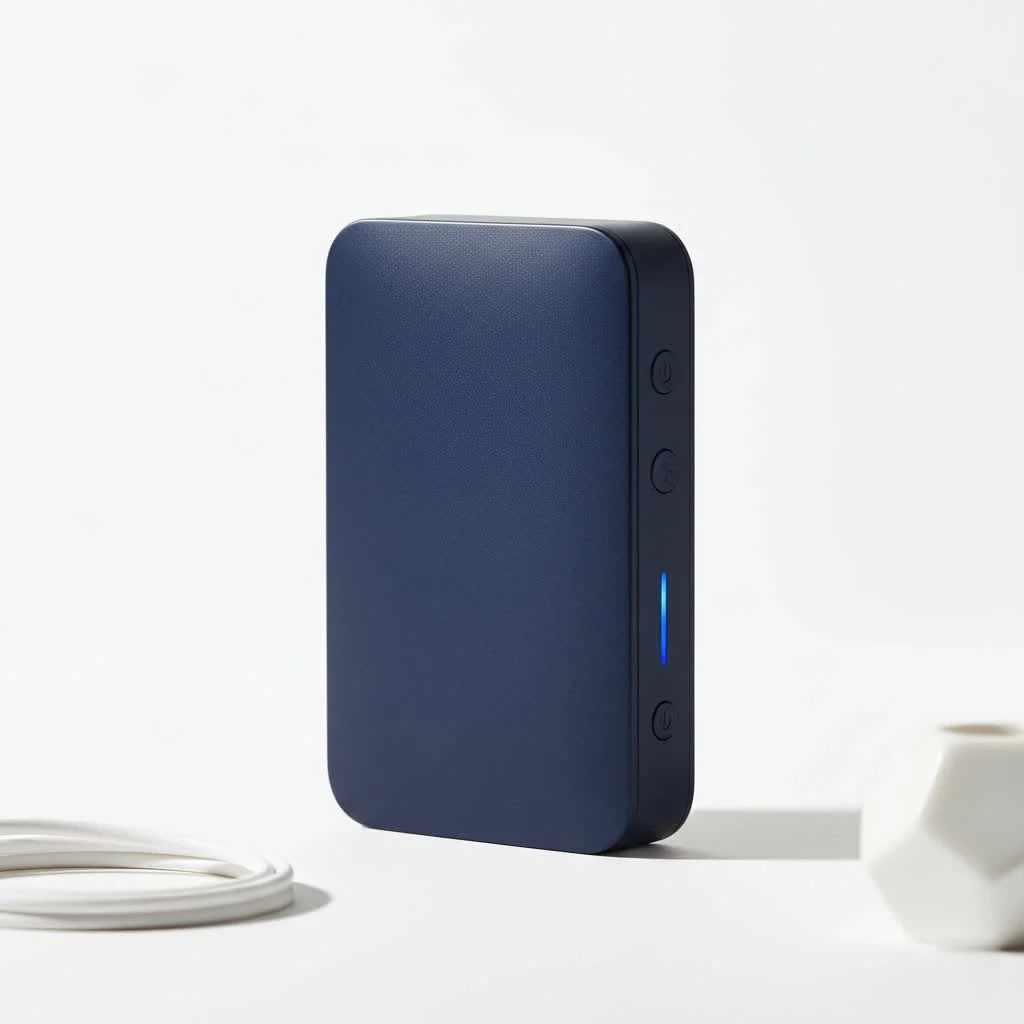
A standard WiFi extender acts as a relay, capturing and re-broadcasting your router’s signal. A WiFi extender with an ethernet port performs this same function but includes a physical LAN port. This port serves as a bridge, converting the extended WiFi signal into a reliable, wired connection for devices that require maximum stability or lack a wireless adapter.
How Does the Ethernet Port on a WiFi Extender Work?
The primary use of an ethernet port on a WiFi extender is to provide a wired internet connection to a device that needs maximum stability or doesn’t have a WiFi adapter. For example, if your gaming PC is in the basement with a weak WiFi signal, placing an extender with an ethernet port nearby allows you to connect the PC directly via a short ethernet cable. The extender picks up the wireless signal from your router and delivers it through the cable, creating a much more stable and often faster connection.
Some advanced models also support an “Access Point” mode. In this configuration, a long ethernet cable runs from your main router to the extender. The extender then uses this wired connection as its source to create a new, full-strength WiFi hotspot, offering optimal performance.
Key Benefits of Using a WiFi Extender with Ethernet
Choosing a model with an ethernet port provides significant performance and flexibility enhancements for your home network.
Unlocking Peak Performance for Wired Devices
For critical activities such as competitive online gaming, 4K streaming, or important video conferences, a wired connection is always superior. It significantly minimizes latency (ping) and packet loss, which are common causes of lag and buffering. Plugging devices like a PlayStation 5, Xbox Series X, smart TV, or desktop PC into the extender’s ethernet port ensures a rock-solid connection, even if the device is several rooms away from your main router.
A Lifeline for Devices Without WiFi
Many devices, particularly older smart TVs, printers, or desktop computers, are not equipped with built-in WiFi. A WiFi extender with an ethernet port offers an ideal solution to bring these devices online without the need to run long, unsightly cables from your main router.
Superior Stability Over Wireless
|
Our Picks for the Best Wifi Extender in 2026
As an Amazon Associate I earn from qualifying purchases.
|
||
| Num | Product | Action |
|---|---|---|
| 1 | Amazon eero 7 with 1 month free eero Plus (auto-renews) - Supports internet plans up to 2.5 Gbps, Coverage up to 2,000 sq. ft., Connect 120+ devices, 1-pack |

|
| 2 | 2025 Fastest WiFi Extender, WiFi Repeater, WiFi Booster, Covers Up to 10000 Sq.ft and 80 Devices, Internet Booster - with Ethernet Port, Quick Setup, Home Wireless Signal Booster |
|
| 3 | WiFi Extender with 4 Antennas 1200Mbps - Dual Band 5GHz/2.4GHz, WiFi Extender Signal Booster with 3 Modes Support, WiFi Repeater with 12880 Sq.ft 105 Devices, Easy Set Up for Home |
|
| 4 | Amazon eero 6 mesh wifi extender with 1-month free eero Plus (auto-renews) - Add up to 1,500 sq. ft. of Wi-Fi 6 coverage to your existing eero mesh wifi network |
|
| 5 | TP-Link AC1200 WiFi Extender, 2023 Engadget Best Budget Pick, 1.2Gbps Signal Booster for Home, Dual Band 5GHz/2.4GHz, Covers Up to 1500 Sq.ft and 30 Devices,Support Onemesh, One Ethernet Port (RE315) |
|
| 6 | 2025 WiFi Extenders Signal Booster for Home Long Range Up to 9800 sq. ft & 40 Devices, WiFi Extender Signal Booster, Quick Setup-Medium, Internet Repeater, WiFi Extender |
|
| 7 | TP-Link AX3000 WiFi 6 Range Extender - PCMag Editor\'s Choice - Dual-Band Wireless Repeater w/Ethernet Port - Up to 2400 Sq. Ft., 64 Devices - Internet Signal Booster - APP Setup - EasyMesh (RE715X) |
|
| 8 | Amazon eero 6+ mesh wifi system with 1 month free eero Plus (auto-renews) - Coverage up to 4,500 sq. ft., Connect 75+ devices, 3-pack |
|
| 9 | TP-Link AC1900 WiFi Range Extender RE550 - Dual-Band Wireless Repeater Amplifier w/Gigabit Ethernet Port - Up to 2200 Sq. Ft., 32 Devices - Internet Signal Booster - APP Setup - EasyMesh Compatible |
|
| 10 | WiFi Extender, WiFi Extenders Signal Booster for Home Up to 5000 sq.ft and 50 Devices, WiFi Range Extender, Wireless Repeater, Long Range Amplifier with Ethernet Port, 1-Tap Setup, Alexa Compatible |
|
Even for WiFi-enabled devices, connecting via ethernet to a nearby extender can provide a more consistent experience. Wireless signals are vulnerable to interference from other networks, microwave ovens, and physical obstructions like walls and floors. A wired link from the extender to your device bypasses this potential interference, ensuring a more reliable connection.
“I often tell my clients that for critical devices, a wire is always better than air,” notes Alex Manning, a network installation expert with over 15 years of experience. “A WiFi extender with an ethernet port gives you that wired reliability exactly where you need it, without needing to rewire your house. It’s a major upgrade for home offices and entertainment setups.”
How to Set Up Your WiFi Extender with Ethernet: A Step-by-Step Guide
Getting started with a WiFi extender with an ethernet port is typically a straightforward process.
- Find the Optimal Location: Plug the extender into a power outlet approximately halfway between your router and the area experiencing a weak signal. Most extenders feature an indicator light to confirm sufficient signal strength from the router at that spot.
- Sync with Your Router: The simplest method is using the WPS (Wi-Fi Protected Setup) button. Press the WPS button on your router, then, within two minutes, press the WPS button on your extender. The devices will connect automatically. Alternatively, you can connect to the extender’s default WiFi network and configure it via a web browser or the manufacturer’s app.
- Connect Your Wired Device: Once the extender is synced and its status light indicates a good connection, use an ethernet cable to plug one end into the extender’s port and the other end into your device (e.g., computer, smart TV, or game console).
- Test the Connection: Your device should now have internet access. Perform a speed test to verify performance and ensure everything is functioning correctly, allowing you to enjoy a more stable connection.
Common Problems and Quick Fixes
Even with a simple setup, issues can arise. Here are common problems and their solutions.
Why are my speeds still slow?
If your speeds are disappointing, the extender might be too far from your router. An extender can only rebroadcast the signal it receives; if it receives a weak, slow signal, it will only broadcast a weak, slow signal. Try relocating it to a power outlet closer to your main router.
Why is there no internet connection?
First, check the status lights on the extender to confirm it has a solid connection to the router. If not, repeat the syncing process. Second, inspect your ethernet cable. Ensure it’s securely plugged in at both ends and try a different cable if available to rule out a faulty wire.
The connection keeps dropping. What should I do?
Intermittent connection drops are often caused by wireless interference. Your extender might be competing with neighboring WiFi networks or other electronic devices. Access your main router’s settings and try changing the WiFi channel to a less congested one, such as 1, 6, or 11 for 2.4 GHz networks.
Frequently Asked Questions (FAQ)
Does a WiFi extender with an ethernet port make the internet faster?
An extender does not increase your internet plan’s speed, but it significantly improves connection speed in areas with weak signals from your main router. By providing a stronger signal or a stable wired connection, it enables your devices to operate closer to your internet plan’s maximum speed.
Can I plug my computer directly into a WiFi extender?
Yes, you can. This is a primary benefit of a WiFi extender with an ethernet port, offering an ideal way to provide a stable, wired-like connection to a desktop computer located far from the router.
Is a WiFi extender with an ethernet port better than a powerline adapter?
It depends on your home’s electrical wiring. Powerline adapters, which transmit internet signals through electrical circuits, can be effective but are often hindered by old or complex wiring. A WiFi extender is generally more flexible and easier to set up, though its performance relies on wireless signal strength. For most situations, a modern WiFi extender is a more reliable choice.
Will it reduce ping for gaming?
Yes, connecting your gaming console or PC to the extender via an ethernet cable can reduce ping. This eliminates a layer of wireless latency, creating a more stable connection with lower and more consistent ping compared to relying on a WiFi signal that travels through multiple walls.
Conclusion: A Simple Upgrade for a Better Connection
In a world where a stable internet connection is essential, dealing with dead zones and lag is frustrating. A WiFi extender with ethernet offers a simple, affordable, and highly effective solution. It not only extends reliable WiFi coverage throughout your home but also provides crucial, high-performance wired connections for devices that need them most. Whether you’re a gamer, a streamer, or a remote worker, this small device can significantly enhance your daily digital life.
Frequently Asked Questions
Does a WiFi extender with an ethernet port make the internet faster?
No, an extender does not increase your internet plan's overall speed. However, it significantly improves connection speed in areas with weak signals by providing a stronger signal or a stable wired connection, allowing devices to operate closer to your internet plan's maximum speed.
Can I plug my computer directly into a WiFi extender for a wired connection?
Yes, absolutely. This is one of the primary reasons to purchase a WiFi extender with an ethernet port. It provides an ideal way to deliver a stable, wired-like connection to a desktop computer located far from the main router, enhancing reliability.
Is a WiFi extender with an ethernet port better than a powerline adapter?
It depends on your home's electrical wiring. Powerline adapters, which use your home's electrical circuits, can be effective but may be hampered by old or complex wiring. A WiFi extender is generally more flexible and easier to set up, with its performance relying on wireless signal strength. For most modern homes, a WiFi extender is a more reliable choice.
Will using an ethernet port on an extender reduce ping for online gaming?
Yes, connecting your gaming console or PC to the extender via an ethernet cable can reduce ping. This method eliminates a layer of wireless latency, creating a more stable connection with lower and more consistent ping compared to relying on a WiFi signal that travels through multiple walls.
What is the optimal placement for a WiFi extender with an ethernet port?
The optimal placement for a WiFi extender with an ethernet port is approximately halfway between your main router and the area experiencing a weak signal. Most extenders have indicator lights to help you confirm that the signal from the router is strong enough at that specific location for effective re-broadcasting.
Set Up Your WiFi Extender with Ethernet
Follow these steps to quickly set up your WiFi extender with an ethernet port and improve your home network's coverage and stability.
Plug the extender into a power outlet roughly halfway between your router and the area with a weak signal. Look for an indicator light on the extender that confirms a strong enough signal from the router at this spot.
Press the WPS button on your router, then within two minutes, press the WPS button on your extender for automatic connection. Alternatively, connect to the extenderu2019s default WiFi network and use a web browser or manufacturer's app for configuration.
Once the extender is synced and shows a good connection, plug one end of an ethernet cable into the extender's port and the other end into your device, such as a computer, smart TV, or game console.
Verify that your device now has internet access. Run a speed test to check the performance and ensure everything is working as expected, allowing you to enjoy a more stable connection.
Get our weekly buyer guide
Practical specs, not advice. Unsubscribe anytime.

I bought one of these to improve my gaming connection in the basement. While it did boost the signal, I still get occasional lag spikes even with the ethernet connection. It’s better than before, but I was hoping for a completely stable experience. Maybe my router is just too far away.
I finally got one of these WiFi extenders with an ethernet port for my home office, and it’s been a game-changer. My old setup had constant drops during video calls, but now with the wired connection to my PC, it’s rock solid. The setup was surprisingly easy too, which was a relief.
This device really helped with the WiFi dead zone in my garage. I can now stream music out there without any buffering. The wireless extension works great, and I even plugged in my smart TV directly to the ethernet port for a smoother experience. Definitely worth the investment.
Our house has always struggled with inconsistent internet, especially upstairs. This WiFi extender with an ethernet port solved that problem perfectly. My kids can now do their online schooling without complaints, and I can work from my bedroom without any interruptions. The dual functionality is a huge plus.