Are you tired of Wi-Fi dead zones in your home? If you’re using a Google Wifi or Nest Wifi system, you might be searching for a Google Wifi extender to eliminate those frustrating spots where the signal just won’t reach. You’ve come to the right place. As a network specialist with over 15 years of hands-on experience, I’m here to demystify how to expand your Google network’s coverage, ensuring you get a fast, reliable connection in every room, from the basement workshop to the attic office. Let’s dive in and transform your home Wi-Fi experience.
Understanding the Google Wifi “Extender” Concept
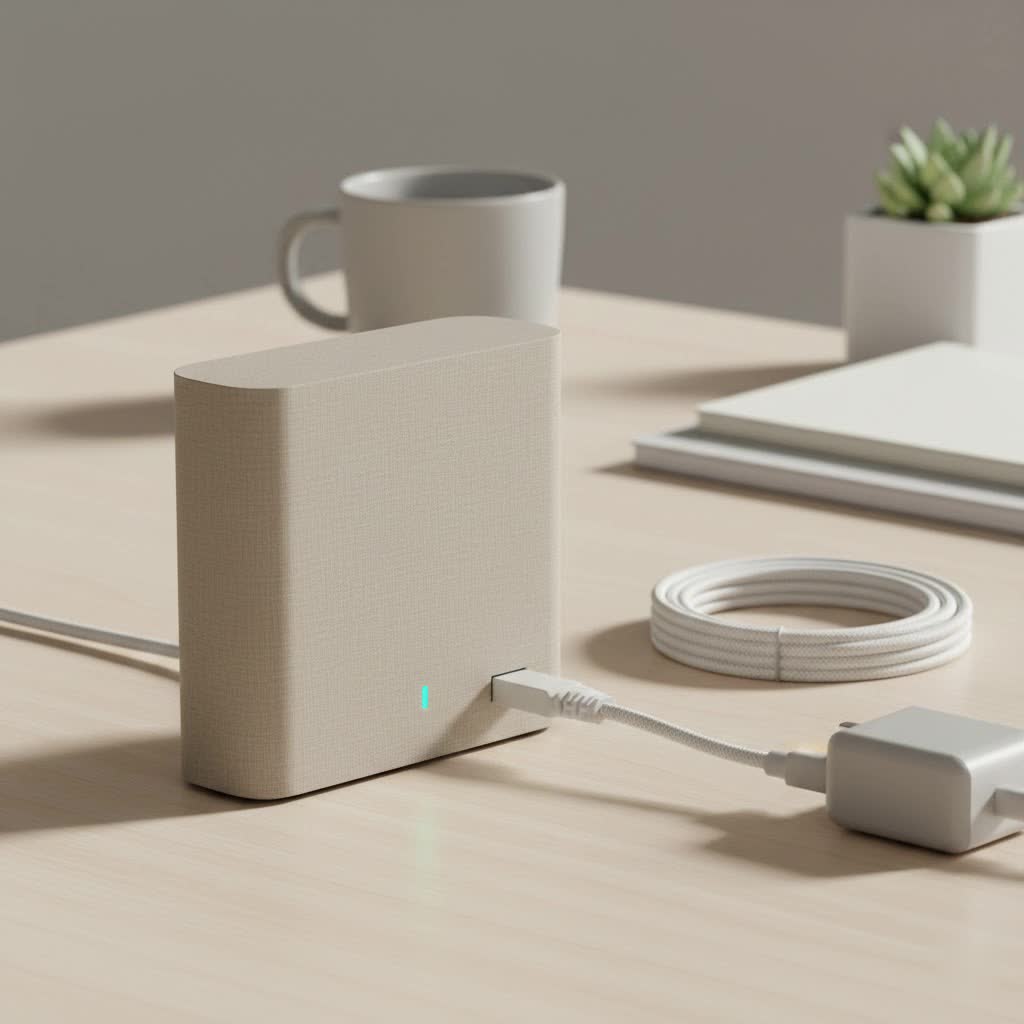
First, let’s clear up a common point of confusion. When you’re looking for a Google Wifi extender, what you’re actually looking for is a Google Wifi or Nest Wifi “point.” Google’s ecosystem doesn’t use traditional Wi-Fi extenders. Instead, it operates as a mesh network.
So, what’s the difference?
- Traditional Wi-Fi Extenders: These devices connect to your main router and rebroadcast its signal. While they can extend coverage, they often create a separate network name (SSID) and can cut your internet speed by 50% or more. It’s a clunky, often inefficient solution.
- Google’s Mesh System: A mesh network uses multiple “points” that work together intelligently. They communicate with each other to create a single, seamless Wi-Fi network under one name. As you move through your house, your devices automatically switch to the strongest point without interruption, ensuring you always have the best possible connection and speed.
Adding a new point is the official and most effective way to extend your Google Wifi system’s range. It’s like adding another player to the team, rather than just having someone shout signals from the sidelines.
How to Extend Your Google or Nest Wifi Network
Expanding your network is incredibly simple and is all done through the Google Home app. Here’s a step-by-step guide to adding a new point and boosting your signal.
Step 1: Choose a Compatible Point
Before you buy, you need to ensure compatibility. Google has released several generations of Wi-Fi products, and while they can work together, there are some rules:
- Google Wifi points can be added to any existing Google Wifi or Nest Wifi network.
- Nest Wifi points (the smaller ones with a built-in Google Assistant speaker) can only be added to a network that has a Nest Wifi router as its primary point.
- Nest Wifi Pro points use the latest Wi-Fi 6E standard and are not backward compatible. You can only add Nest Wifi Pro points to a Nest Wifi Pro network.
|
Our Picks for the Best Wifi Extender in 2026
As an Amazon Associate I earn from qualifying purchases.
|
||
| Num | Product | Action |
|---|---|---|
| 1 | WiFi Extender, WiFi Extenders Signal Booster for Home Up to 5000 sq.ft and 50 Devices, WiFi Range Extender, Wireless Repeater, Long Range Amplifier with Ethernet Port, 1-Tap Setup, Alexa Compatible |

|
| 2 | TP-Link AC1200 WiFi Extender, 2023 Engadget Best Budget Pick, 1.2Gbps Signal Booster for Home, Dual Band 5GHz/2.4GHz, Covers Up to 1500 Sq.ft and 30 Devices,Support Onemesh, One Ethernet Port (RE315) |
|
| 3 | Amazon eero 6+ mesh wifi system with 1 month free eero Plus (auto-renews) - Coverage up to 4,500 sq. ft., Connect 75+ devices, 3-pack |
|
| 4 | 2025 Fastest WiFi Extender, WiFi Repeater, WiFi Booster, Covers Up to 10000 Sq.ft and 80 Devices, Internet Booster - with Ethernet Port, Quick Setup, Home Wireless Signal Booster |
|
| 5 | Amazon eero 7 with 1 month free eero Plus (auto-renews) - Supports internet plans up to 2.5 Gbps, Coverage up to 2,000 sq. ft., Connect 120+ devices, 1-pack |
|
| 6 | 2025 WiFi Extenders Signal Booster for Home Long Range Up to 9800 sq. ft & 40 Devices, WiFi Extender Signal Booster, Quick Setup-Medium, Internet Repeater, WiFi Extender |
|
| 7 | TP-Link AC1900 WiFi Range Extender RE550 - Dual-Band Wireless Repeater Amplifier w/Gigabit Ethernet Port - Up to 2200 Sq. Ft., 32 Devices - Internet Signal Booster - APP Setup - EasyMesh Compatible |
|
| 8 | TP-Link AX3000 WiFi 6 Range Extender - PCMag Editor\'s Choice - Dual-Band Wireless Repeater w/Ethernet Port - Up to 2400 Sq. Ft., 64 Devices - Internet Signal Booster - APP Setup - EasyMesh (RE715X) |
|
| 9 | WiFi Extender with 4 Antennas 1200Mbps - Dual Band 5GHz/2.4GHz, WiFi Extender Signal Booster with 3 Modes Support, WiFi Repeater with 12880 Sq.ft 105 Devices, Easy Set Up for Home |
|
| 10 | Amazon eero 6 mesh wifi extender with 1-month free eero Plus (auto-renews) - Add up to 1,500 sq. ft. of Wi-Fi 6 coverage to your existing eero mesh wifi network |
|
Expert Insight from David Chen, Senior Network Architect:
“Always try to stick with the same generation of hardware if possible. While mixing Google Wifi and Nest Wifi works, a unified system of Nest Wifi Pro points, for example, will deliver the most consistent performance and access to the latest features like Wi-Fi 6E.”
Step 2: Find the Perfect Location for Your New Point
Placement is everything. A poorly placed point won’t effectively extend your coverage. Follow these best practices:
- Midway Point: Place the new point about halfway between your main router and the Wi-Fi dead zone. It needs to be close enough to the main router to get a strong signal to repeat.
- Out in the Open: Avoid placing the point inside cabinets, behind furniture, or near thick concrete walls. An elevated, open position is ideal.
- Avoid Interference: Keep the point away from other electronics like microwave ovens, cordless phones, and large metal objects.
The Google Home app has a built-in mesh test feature that can help you determine if your point has a “Weak” or “Great” connection, so you can adjust the placement for optimal results.
Step 3: Add the New Point Using the Google Home App
Once you have your new point and have found the right spot, the setup process takes just a few minutes.
- Plug It In: Connect the power adapter to your new Google or Nest Wifi point.
- Open the Google Home App: On your smartphone or tablet, open the app.
- Add a New Device: Tap the
+icon in the top-left corner. SelectSet up device, and thenNew device. - Select Your Home: Choose the home you want to add the device to.
- Scan the QR Code: The app will automatically search for the new device. You’ll be prompted to scan the QR code on the bottom of your Wifi point.
- Follow On-Screen Instructions: The app will guide you through the rest of the setup, which includes testing the mesh connection.
That’s it! Your network has now been extended, and your new point will begin working with the rest of your system to blanket your home in strong, reliable Wi-Fi.
Can You Use a Third-Party Wi-Fi Extender with Google Wifi?
This is a question we get all the time at TVCSP. Technically, the answer is yes, you can connect a standard, third-party Wi-Fi extender to a Google Wifi network. However, I almost never recommend it.
Here’s why it’s a bad idea:
- It Defeats the Purpose of Mesh: You lose the core benefit of a seamless, single network. The extender will create its own separate network, forcing you to manually switch between them as you move around.
- Performance Degradation: The extender will likely be much slower than another Google Wifi point. You introduce a significant bottleneck into your otherwise high-performance system.
- Increased Complexity: You create a more complicated, less reliable network that is harder to manage and troubleshoot.
In short, while technically possible, using a third-party extender is an inefficient workaround that undermines the very reason you invested in a Google mesh system in the first place.
Tips for Optimizing Your Google Wifi Network
Once your network is extended, you can take a few more steps to ensure you’re getting the best possible performance.
- Run a Mesh Test: Periodically use the Google Home app (
Wi-Fi>Devices>Points) to test the connection between your points. The app will tell you if the connection is “Great,” “OK,” or “Weak” and suggest moving the point if needed. - Prioritize a Device: If you have a device that needs maximum performance, like a work computer for video calls or a gaming console, you can set it as a “Priority device” in the app for a set period (1, 2, or 4 hours).
- Check Your Internet Speed: Use the speed test feature within the Google Home app to check the speed coming from your Internet Service Provider (ISP). This helps you determine if a slowdown is caused by your Wi-Fi or your internet plan.
- Restart Your Network: The classic “turn it off and on again” works wonders. You can restart your entire network from the Google Home app, which can resolve many common glitches.
Frequently Asked Questions (FAQ)
How do I know if I need a Google Wifi extender?
If you have rooms where the Wi-Fi signal is consistently weak or drops out completely, you likely need to extend your network. Other signs include slow downloads, constant buffering on streaming services, and failed video calls in certain areas of your home. Adding another point is the best solution.
How far apart can Google Wifi points be?
For optimal performance, it’s recommended to place points no more than two rooms apart. The ideal distance depends on your home’s layout and construction materials (brick and concrete walls will block signals more than drywall). Always use the app’s mesh test feature to verify a strong connection.
Can I add a Nest Wifi point to my old Google Wifi system?
Yes, you can. You can add a Nest Wifi router or point to an existing Google Wifi network. However, you cannot add the smaller Nest Wifi point (with the speaker) to a network unless the primary router is a Nest Wifi router.
Is the Nest Wifi Pro compatible with older Google Wifi products?
No, it is not. The Nest Wifi Pro system uses Wi-Fi 6E technology and is not backward compatible with older Google Wifi or Nest Wifi hardware. You must use only Nest Wifi Pro points in a Nest Wifi Pro network.
Is adding another point better than buying a new router?
For extending coverage, absolutely. If you already have a Google Wifi system, adding another point is far more cost-effective and efficient than replacing your entire setup. It enhances what you already own by leveraging powerful mesh technology to eliminate dead zones seamlessly.
Your Path to Whole-Home Wi-Fi Coverage
Eliminating Wi-Fi dead zones shouldn’t be a complicated battle. By understanding that the best Google Wifi extender is simply another Google Wifi or Nest Wifi point, you can easily and effectively expand your network. The built-in intelligence of Google’s mesh system provides a seamless, high-performance solution that traditional extenders just can’t match. Follow the steps outlined here to place and set up your new point, and you’ll be enjoying fast, reliable internet in every corner of your home.
