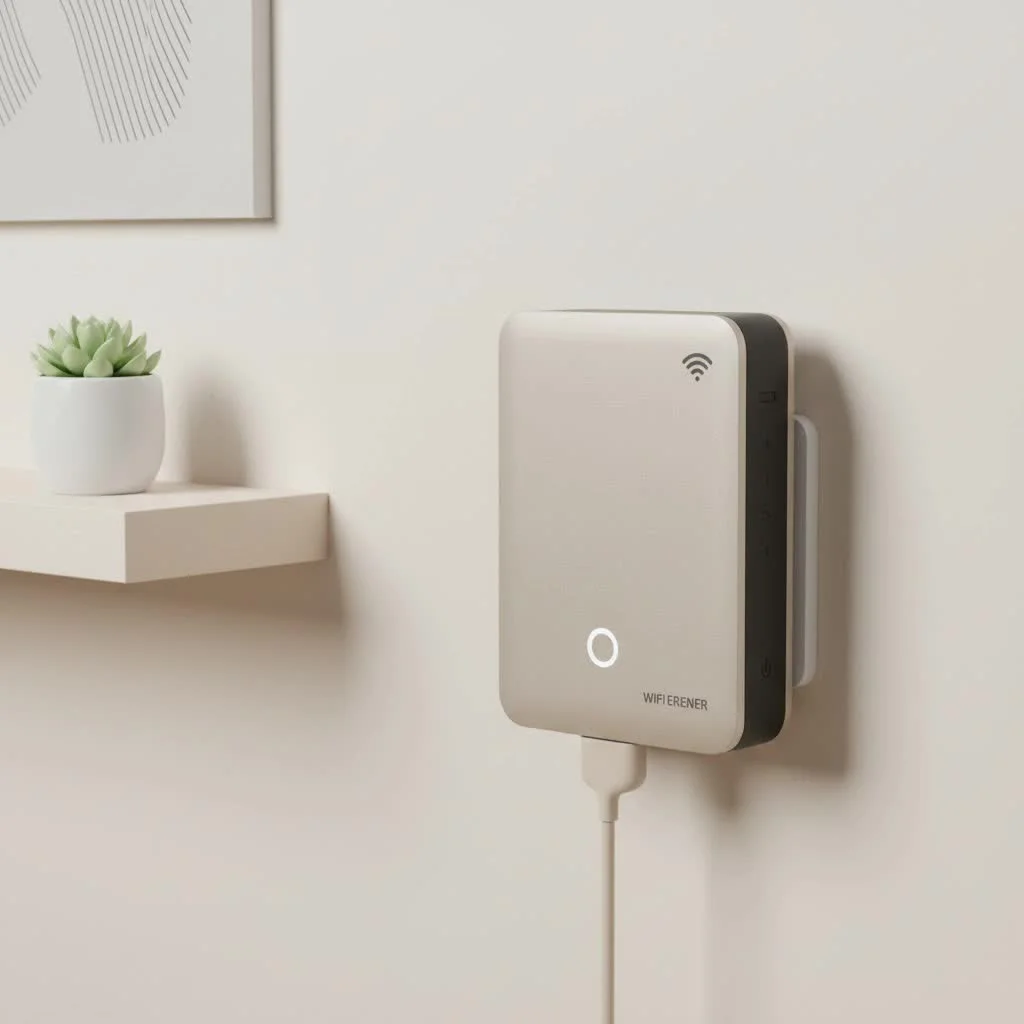
A Wi-Fi extender can significantly boost your laptop’s signal, transforming an unreliable connection into a stable and speedy one by expanding your network’s coverage into areas with weak or non-existent signals. This device captures your existing wireless signal from your router and rebroadcasts it, effectively eliminating frustrating dead zones and ensuring your laptop maintains a strong connection throughout your home or office.
How Does a Wi-Fi Extender Help Your Laptop?
Laptops are designed for portability, but that freedom is often limited by the reach of your Wi-Fi router. Walls, floors, and even furniture can obstruct the signal, leading to a weak and unstable connection. A Wi-Fi extender tackles this problem head-on. For complete wifi extenders library on this site.
By placing an extender halfway between your router and the area with poor connectivity, you create a stronger, more reliable link for your laptop. This results in:
- Eliminating Dead Zones: Finally get a reliable signal in the bedroom, basement, or even the backyard.
- Improved Speeds: A stronger signal means faster data transfer, leading to quicker downloads and smoother streaming.
- Enhanced Stability: Say goodbye to dropped video calls and online gaming lag caused by a fluctuating connection.
- Cost-Effective Solution: It’s a much cheaper alternative to upgrading your internet plan or investing in a complex mesh Wi-Fi system.
Types of Wi-Fi Extenders for Laptops
When choosing a Wi-Fi extender, you’ll generally find two main types. While no extender is made specifically for a laptop, some are better suited for a portable setup than others.
Plug-In Extenders
These are the most common type of extenders. They are compact, easy to install, and plug directly into a wall outlet.
- Pros:
- Simple setup, often with a WPS button for one-touch connection.
- Discreet and doesn’t take up shelf space.
- Often include an Ethernet port for a wired connection if needed.
- Cons:
- Performance can be affected by placement and electrical wiring.
- Can sometimes block the adjacent outlet.
Desktop Extenders
These units look like small routers and often come with multiple external antennas. They tend to offer better performance and more features.
- Pros:
- Superior range and speed due to more powerful hardware and antennas.
- Multiple Ethernet ports for connecting wired devices like gaming consoles or PCs.
- Greater flexibility in placement (not tied to an outlet).
- Cons:
- Larger and more conspicuous than plug-in models.
- Typically more expensive.
As network specialist David Chen often advises, “For the average laptop user battling dead spots at home, a modern dual-band plug-in extender is the sweet spot. It offers a significant performance boost without the complexity or cost of a high-end desktop unit.”
Setting Up Your Wi-Fi Extender: A Step-by-Step Guide
Getting your Wi-Fi extender up and running is usually a straightforward process that doesn’t require deep technical knowledge.
- Find the Optimal Location: Place the extender roughly halfway between your main router and the area where your laptop has a weak signal. Most extenders have indicator lights to help you find a spot with a good existing signal to broadcast.
- Power It On: Plug the extender into a wall outlet.
- Connect to the Extender: On your laptop, open your Wi-Fi settings and connect to the extender’s default network (the name will be in the instruction manual).
- Configure the Extender: Open a web browser on your laptop. It should automatically redirect to the extender’s setup page. If not, type the URL provided in the manual (often something like
mywifiext.net). - Follow the On-Screen Instructions: The setup wizard will guide you through selecting your home Wi-Fi network and entering its password. You’ll also create a new network name (SSID) for the extended signal. It’s often helpful to name it something similar to your main network, like “HomeWiFi_EXT.”
- Connect Your Laptop: Once the setup is complete, the extender will reboot. You can then connect your laptop to the new extended network you just created and enjoy a stronger signal.
Common Problems and How to Fix Them
Even with a simple setup, you might run into issues. Here are some common troubleshooting steps for your Wi-Fi extender.
Slow Speeds on the Extended Network
|
Our Picks for the Best Wifi Extender in 2026
As an Amazon Associate I earn from qualifying purchases.
|
||
| Num | Product | Action |
|---|---|---|
| 1 | 2025 WiFi Extenders Signal Booster for Home Long Range Up to 9800 sq. ft & 40 Devices, WiFi Extender Signal Booster, Quick Setup-Medium, Internet Repeater, WiFi Extender |

|
| 2 | Amazon eero 6+ mesh wifi system with 1 month free eero Plus (auto-renews) - Coverage up to 4,500 sq. ft., Connect 75+ devices, 3-pack |
|
| 3 | TP-Link AC1900 WiFi Range Extender RE550 - Dual-Band Wireless Repeater Amplifier w/Gigabit Ethernet Port - Up to 2200 Sq. Ft., 32 Devices - Internet Signal Booster - APP Setup - EasyMesh Compatible |
|
| 4 | Amazon eero 7 with 1 month free eero Plus (auto-renews) - Supports internet plans up to 2.5 Gbps, Coverage up to 2,000 sq. ft., Connect 120+ devices, 1-pack |
|
| 5 | WiFi Extender, WiFi Extenders Signal Booster for Home Up to 5000 sq.ft and 50 Devices, WiFi Range Extender, Wireless Repeater, Long Range Amplifier with Ethernet Port, 1-Tap Setup, Alexa Compatible |
|
| 6 | TP-Link AC1200 WiFi Extender, 2023 Engadget Best Budget Pick, 1.2Gbps Signal Booster for Home, Dual Band 5GHz/2.4GHz, Covers Up to 1500 Sq.ft and 30 Devices,Support Onemesh, One Ethernet Port (RE315) |
|
| 7 | 2025 Fastest WiFi Extender, WiFi Repeater, WiFi Booster, Covers Up to 10000 Sq.ft and 80 Devices, Internet Booster - with Ethernet Port, Quick Setup, Home Wireless Signal Booster |
|
| 8 | Amazon eero 6 mesh wifi extender with 1-month free eero Plus (auto-renews) - Add up to 1,500 sq. ft. of Wi-Fi 6 coverage to your existing eero mesh wifi network |
|
| 9 | TP-Link AX3000 WiFi 6 Range Extender - PCMag Editor\'s Choice - Dual-Band Wireless Repeater w/Ethernet Port - Up to 2400 Sq. Ft., 64 Devices - Internet Signal Booster - APP Setup - EasyMesh (RE715X) |
|
| 10 | WiFi Extender with 4 Antennas 1200Mbps - Dual Band 5GHz/2.4GHz, WiFi Extender Signal Booster with 3 Modes Support, WiFi Repeater with 12880 Sq.ft 105 Devices, Easy Set Up for Home |
|
A Wi-Fi extender inherently has some speed loss because it has to receive and then rebroadcast the signal. Some older, single-band models can reduce your bandwidth by up to 50%.
- Solution: Ensure you are using a dual-band extender, which uses one band to communicate with the router and the other to connect to your devices, minimizing speed loss. Also, try moving the extender closer to the main router.
The Extender Keeps Disconnecting
If your extender frequently drops its connection to the router, it might be placed too far away.
- Solution: Move the extender to a location closer to your router. Check the indicator lights on the device; they should show a solid, strong connection. Also, make sure your extender’s firmware is up to date by checking the manufacturer’s website.
Can’t Connect to the Extender’s Network
Sometimes, your laptop might fail to connect to the new network, even with the right password.
- Solution: Restart your extender, your router, and your laptop. This simple step can resolve many connectivity issues. If the problem persists, try performing a factory reset on the extender and running through the setup process again.
Frequently Asked Questions (FAQ)
Do I need a special Wi-Fi extender just for my laptop?
No, any standard Wi-Fi extender will work with a laptop. The key is to choose one that meets your speed and coverage needs, regardless of the device you’re using.
Will a Wi-Fi extender give me the same speed as my router?
Not exactly. Because the signal is being rebroadcast, there will always be some speed reduction. However, a weak but fast signal is useless. An extender provides a stronger, more stable signal, which will feel much faster than a constantly dropping one-bar connection.
Can I use my Windows laptop as a Wi-Fi extender?
Yes, modern versions of Windows (10 and 11) have a built-in Mobile Hotspot feature. You can configure your laptop to share its existing Wi-Fi connection, effectively turning it into a temporary range extender. This is a great, free solution in a pinch, but a dedicated hardware extender will offer better performance and reliability for long-term use.
Where is the best place to put my Wi-Fi extender?
The ideal location is halfway between your router and the Wi-Fi dead zone. It needs to be close enough to the router to receive a strong signal but far enough away to extend that signal to where you need it. Avoid placing it near large metal objects or appliances like microwaves, which can cause interference.
What’s the difference between a Wi-Fi extender and a mesh system?
A Wi-Fi extender creates a separate, new network for you to connect to. A mesh Wi-Fi system replaces your router entirely with multiple “nodes” that work together to create a single, seamless network throughout your home. Your device automatically connects to the strongest node as you move around. Mesh systems are more expensive but offer superior coverage and performance for larger homes.
Final Thoughts
You don’t have to put up with a weak Wi-Fi signal on your laptop. A Wi-Fi extender is an affordable, effective, and easy-to-install solution that can eliminate dead zones and boost your internet speed where you need it most. By choosing the right model and finding the optimal placement, you can ensure a stable and reliable connection for all your work, streaming, and gaming needs. Stop letting poor Wi-Fi dictate where you can use your laptop and take control of your connection today.
Frequently Asked Questions
Do I need a special Wi-Fi extender specifically for my laptop?
No, any standard Wi-Fi extender will work with a laptop. The crucial factor is selecting an extender that effectively meets your specific speed and coverage requirements, regardless of the particular device you intend to use it with.
Will a Wi-Fi extender provide the exact same internet speed as my main router?
No, there will always be some speed reduction because the signal is being rebroadcast. However, an extender provides a stronger, more stable signal, which will feel much faster and more reliable than a constantly dropping one-bar connection from your router.
Can I use my Windows laptop to function as a Wi-Fi extender?
Yes, modern Windows versions (10 and 11) include a Mobile Hotspot feature. You can configure your laptop to share its existing Wi-Fi connection, effectively turning it into a temporary range extender. While this is a convenient, free solution for short-term needs, a dedicated hardware extender offers superior performance and reliability for long-term use.
What is the optimal placement for my Wi-Fi extender in my home?
The ideal location for your Wi-Fi extender is approximately halfway between your main router and the specific Wi-Fi dead zone. It must be close enough to the router to receive a strong signal, yet far enough to effectively extend that signal to the desired area. Avoid placing it near large metal objects or appliances like microwaves, which can cause significant interference.
What is the key difference between a Wi-Fi extender and a mesh Wi-Fi system?
A Wi-Fi extender creates a separate, new network that your devices connect to. In contrast, a mesh Wi-Fi system replaces your router with multiple 'nodes' that work together to form a single, seamless network throughout your home. Mesh systems are generally more expensive but offer superior coverage and performance for larger homes, with devices automatically connecting to the strongest node.
Get our weekly buyer guide
Practical specs, not advice. Unsubscribe anytime.
I got this extender hoping to boost my signal in the basement for my laptop, but it’s only a slight improvement. It definitely expanded the coverage, but the speed isn’t as fast as I hoped it would be. It’s better than nothing, but I was expecting a more dramatic change.
My laptop’s Wi-Fi used to be so unreliable in the kitchen, making it impossible to follow recipes online. This extender has been a game-changer! The signal is strong and consistent now, even with multiple walls between the router and the kitchen. Highly recommend for anyone dealing with similar issues.
I was so tired of my laptop constantly dropping Wi-Fi in my bedroom, which is pretty far from our main router. This extender totally fixed it! Now I can stream movies and work without any interruptions. It was super easy to set up too, just plugged it in and followed the quick guide.
This device really helped with the dead zones in my house. My home office used to have a really weak signal, making video calls a nightmare. After installing this, my laptop’s connection is much more stable. I wish the setup instructions were a little clearer for advanced settings, but overall, it’s a solid improvement.