Are you tired of WiFi dead zones in your home? It’s a common frustration: you have a powerful Xfinity internet plan, but the signal just doesn’t reach the back bedroom, the basement, or the patio. This is where an Xfinity WiFi range extender comes into play. It’s a straightforward and effective solution designed to pick up your existing WiFi signal, amplify it, and rebroadcast it to those hard-to-reach areas, ensuring you get a stable and fast connection wherever you need it. Think of it as a bridge that closes the gap between your router and your devices.
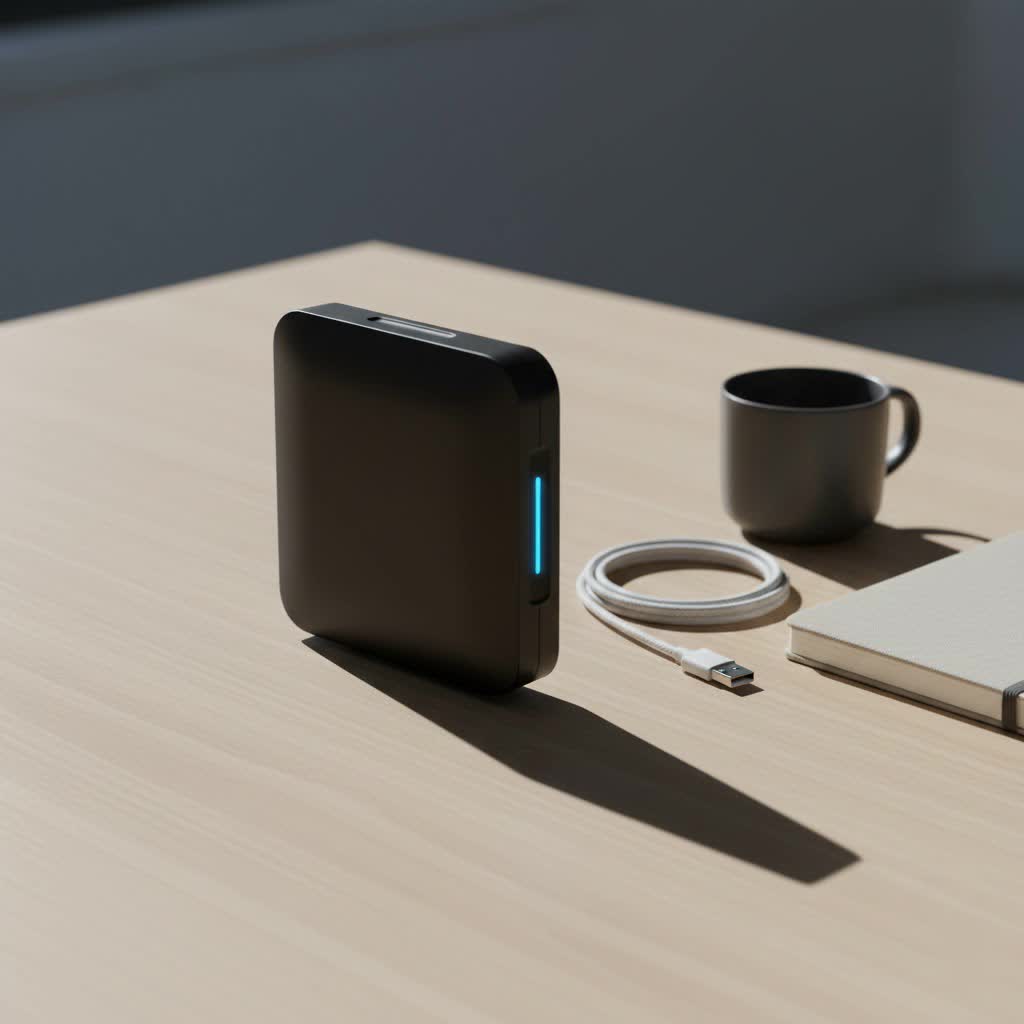
In this comprehensive guide, we’ll walk you through everything you need to know. We’ll cover what these devices are, how to choose the best one for your Xfinity Gateway, a step-by-step setup guide, and tips to get the most out of your newly expanded network.
What Exactly Is a WiFi Range Extender?
A WiFi range extender, also known as a WiFi booster or repeater, is a networking device that captures the wireless signal from your main router and re-broadcasts it. This process effectively extends the coverage area of your wireless network. The primary goal is to eliminate dead spots—areas in your home or office where the WiFi signal is weak or non-existent.
It works as a middleman. You place the extender somewhere between your router and the area with a poor signal. It connects to your existing network and then creates a new, extended network for your devices to connect to. This new network carries the same internet connection from your Xfinity service but from a much closer and stronger source.
How Is an Extender Different from Xfinity’s xFi Pods?
While searching for an Xfinity WiFi range extender, you’ve likely come across Xfinity’s own solution: xFi Pods. It’s important to understand the difference.
- WiFi Extenders: These are universal devices from various manufacturers (like Netgear, TP-Link, Linksys) that work with almost any router, including the Xfinity Gateway. They create a separate, extended network (e.g., “MyNetwork_EXT”). You manually connect your devices to the strongest signal.
- xFi Pods: These are proprietary mesh networking devices designed specifically for the Xfinity ecosystem. They work seamlessly with a compatible xFi Gateway to create a single, unified mesh network. Your devices will automatically switch to the strongest signal (from the Gateway or a Pod) as you move around your home, providing a more seamless experience.
|
Our Picks for the Best Wifi Extender in 2026
As an Amazon Associate I earn from qualifying purchases.
|
||
| Num | Product | Action |
|---|---|---|
| 1 | WiFi Extender with 4 Antennas 1200Mbps - Dual Band 5GHz/2.4GHz, WiFi Extender Signal Booster with 3 Modes Support, WiFi Repeater with 12880 Sq.ft 105 Devices, Easy Set Up for Home |

|
| 2 | 2025 WiFi Extenders Signal Booster for Home Long Range Up to 9800 sq. ft & 40 Devices, WiFi Extender Signal Booster, Quick Setup-Medium, Internet Repeater, WiFi Extender |
|
| 3 | Amazon eero 7 with 1 month free eero Plus (auto-renews) - Supports internet plans up to 2.5 Gbps, Coverage up to 2,000 sq. ft., Connect 120+ devices, 1-pack |
|
| 4 | TP-Link AC1900 WiFi Range Extender RE550 - Dual-Band Wireless Repeater Amplifier w/Gigabit Ethernet Port - Up to 2200 Sq. Ft., 32 Devices - Internet Signal Booster - APP Setup - EasyMesh Compatible |
|
| 5 | 2025 Fastest WiFi Extender, WiFi Repeater, WiFi Booster, Covers Up to 10000 Sq.ft and 80 Devices, Internet Booster - with Ethernet Port, Quick Setup, Home Wireless Signal Booster |
|
| 6 | TP-Link AC1200 WiFi Extender, 2023 Engadget Best Budget Pick, 1.2Gbps Signal Booster for Home, Dual Band 5GHz/2.4GHz, Covers Up to 1500 Sq.ft and 30 Devices,Support Onemesh, One Ethernet Port (RE315) |
|
| 7 | WiFi Extender, WiFi Extenders Signal Booster for Home Up to 5000 sq.ft and 50 Devices, WiFi Range Extender, Wireless Repeater, Long Range Amplifier with Ethernet Port, 1-Tap Setup, Alexa Compatible |
|
| 8 | Amazon eero 6 mesh wifi extender with 1-month free eero Plus (auto-renews) - Add up to 1,500 sq. ft. of Wi-Fi 6 coverage to your existing eero mesh wifi network |
|
| 9 | TP-Link AX3000 WiFi 6 Range Extender - PCMag Editor\'s Choice - Dual-Band Wireless Repeater w/Ethernet Port - Up to 2400 Sq. Ft., 64 Devices - Internet Signal Booster - APP Setup - EasyMesh (RE715X) |
|
| 10 | Amazon eero 6+ mesh wifi system with 1 month free eero Plus (auto-renews) - Coverage up to 4,500 sq. ft., Connect 75+ devices, 3-pack |
|
“For most users with a standard Xfinity Gateway, a third-party WiFi extender offers a cost-effective and flexible way to boost their signal. However, for those deeply integrated into the Xfinity ecosystem and seeking simplicity, xFi Pods are a compelling, albeit more specific, solution,” notes network specialist, David Chen.
Choosing the Best WiFi Extender for Your Xfinity Service
Since Xfinity doesn’t produce its own branded universal extenders, you’ll be looking at third-party options. The good news is that nearly all modern WiFi extenders are compatible with Xfinity routers. Here’s what to look for:
Key Features to Consider
- WiFi Standard (802.11ac or 802.11ax): To make the most of your Xfinity speed, choose an extender that matches or exceeds your router’s WiFi standard. If you have a newer Xfinity Gateway, look for a WiFi 6 (802.11ax) extender. For older models, a WiFi 5 (802.11ac) extender will suffice.
- Dual-Band vs. Tri-Band: Dual-band extenders operate on both 2.4GHz (slower, longer range) and 5GHz (faster, shorter range) frequencies. A tri-band extender adds a second 5GHz band, creating a dedicated link (or “backhaul”) to the router. This dedicated connection prevents the speed loss that typically occurs with extenders, delivering a much faster and more stable signal to your devices.
- Ease of Setup (WPS Button): Look for an extender with a WPS (Wi-Fi Protected Setup) button. This feature makes installation incredibly simple. You just press the WPS button on your Xfinity Gateway and then the WPS button on the extender, and they connect automatically.
- Ethernet Port: An Ethernet port on your extender is a great bonus. It allows you to connect a wired device, like a gaming console, smart TV, or desktop computer, giving it a stable, wired connection even if it’s far from the router.
How to Set Up Your Xfinity WiFi Range Extender: A Step-by-Step Guide
Setting up your new WiFi extender is usually a quick process. While the exact steps may vary slightly by manufacturer, the general method is universal.
Step 1: Find the Optimal Location
Placement is crucial for performance. You need to place the extender in a location that is close enough to your Xfinity router to receive a strong, stable signal, but also close enough to the dead zone to provide effective coverage. A good rule of thumb is to place it about halfway between the router and the area you want to cover. Most extenders have an indicator light that helps you find the sweet spot—it will turn green or blue when the connection to the router is strong.
Step 2: Power On the Extender
Plug the extender into a power outlet in your chosen location. Wait for its power light to become solid, indicating it’s ready for setup.
Step 3: Connect the Extender to Your Xfinity Router
This is the main setup step. You have two primary methods:
Method A: Using the WPS Button (Easiest)
- Press the WPS button on your Xfinity Gateway. You usually have about two minutes to complete the next step.
- Press the WPS button on your WiFi extender.
- The extender’s status light will blink and then turn solid, indicating a successful connection. It has now cloned your router’s network name and password.
Method B: Using a Web Browser
- On your computer or smartphone, connect to the extender’s default WiFi network (e.g., “NETGEAR_EXT” or “TP-Link_Extender”).
- Open a web browser. You should be automatically redirected to the extender’s setup page. If not, type the setup URL (like
mywifiext.netor an IP address like192.168.1.250) found in the user manual. - Follow the on-screen installation wizard. You will be asked to select your existing Xfinity WiFi network from a list and enter its password.
- Once complete, the extender will reboot and begin broadcasting the extended signal.
Step 4: Connect Your Devices
After setup, you will see a new network available in your device’s WiFi list, typically with “_EXT” added to your original network name (e.g., “XF-Network_EXT”). Connect your devices to this new network using the same password as your main Xfinity network.
Tips for Optimizing Your WiFi Extender’s Performance
- Keep Firmware Updated: Manufacturers regularly release firmware updates to improve performance and security. Check the manufacturer’s website or the extender’s web interface for updates.
- Avoid Physical Obstructions: Place the extender in an open area, away from thick walls, metal objects, and appliances like microwaves that can interfere with the signal.
- Use the Right Band: For devices that require high speed, like for streaming 4K video or online gaming, connect to the 5GHz band. For devices that are farther away and don’t need maximum speed, the 2.4GHz band is often more stable.
- Consider a Mesh System: If you have a very large home or persistent dead spots that an extender can’t fix, you might be better served by a mesh WiFi system, such as Xfinity’s xFi Pods or a third-party system from brands like Eero or Google Nest Wifi.
Frequently Asked Questions (FAQ)
Can I use any WiFi extender with Xfinity?
Yes, virtually all modern WiFi range extenders from major brands are compatible with Xfinity Gateways and routers. They are designed to work with any standard WiFi router.
Will a WiFi extender slow down my internet speed?
A WiFi extender can reduce your throughput by up to 50% because it has to use some of its bandwidth to communicate with the main router. This is known as the “half-duplex” issue. To minimize this, opt for a tri-band extender with a dedicated backhaul channel.
What is the difference between a WiFi extender and a WiFi booster?
The terms are often used interchangeably. Both devices aim to improve WiFi coverage. However, “extender” specifically refers to a device that repeats the signal, while “booster” is a more general marketing term.
Where is the best place to put my WiFi extender?
The ideal location is roughly halfway between your Xfinity router and the WiFi dead zone. It needs to be within a good signal range of the router to work effectively. Use the extender’s signal strength indicator light to find the perfect spot.
How do I know if I need an extender or a new router?
If your WiFi is fast near the router but weak or non-existent in other parts of your home, an extender is a good solution. If your speed is slow everywhere, even right next to the router, you may have an issue with your internet plan or need a more powerful router.
Conclusion
An Xfinity WiFi range extender is an excellent and affordable tool to combat frustrating WiFi dead zones and ensure a reliable connection throughout your entire home. By choosing a device that matches your needs—whether it’s a simple plug-in model or a high-performance tri-band unit—and following the straightforward setup process, you can significantly expand your network’s reach. Remember that proper placement is key to getting the best performance. Say goodbye to buffering and dropped connections, and enjoy the full power of your Xfinity internet service in every room.
