In our hyper-connected world, a weak WiFi signal is more than just an annoyance; it’s a barrier to productivity, entertainment, and communication. You’ve likely experienced the frustration of a video call dropping in your home office or endless buffering while trying to stream a movie. While a standard WiFi extender can help, a wifi extender with ethernet port is a game-changing device that offers a superior solution for many common network problems. This guide will walk you through everything you need to know about these versatile gadgets.
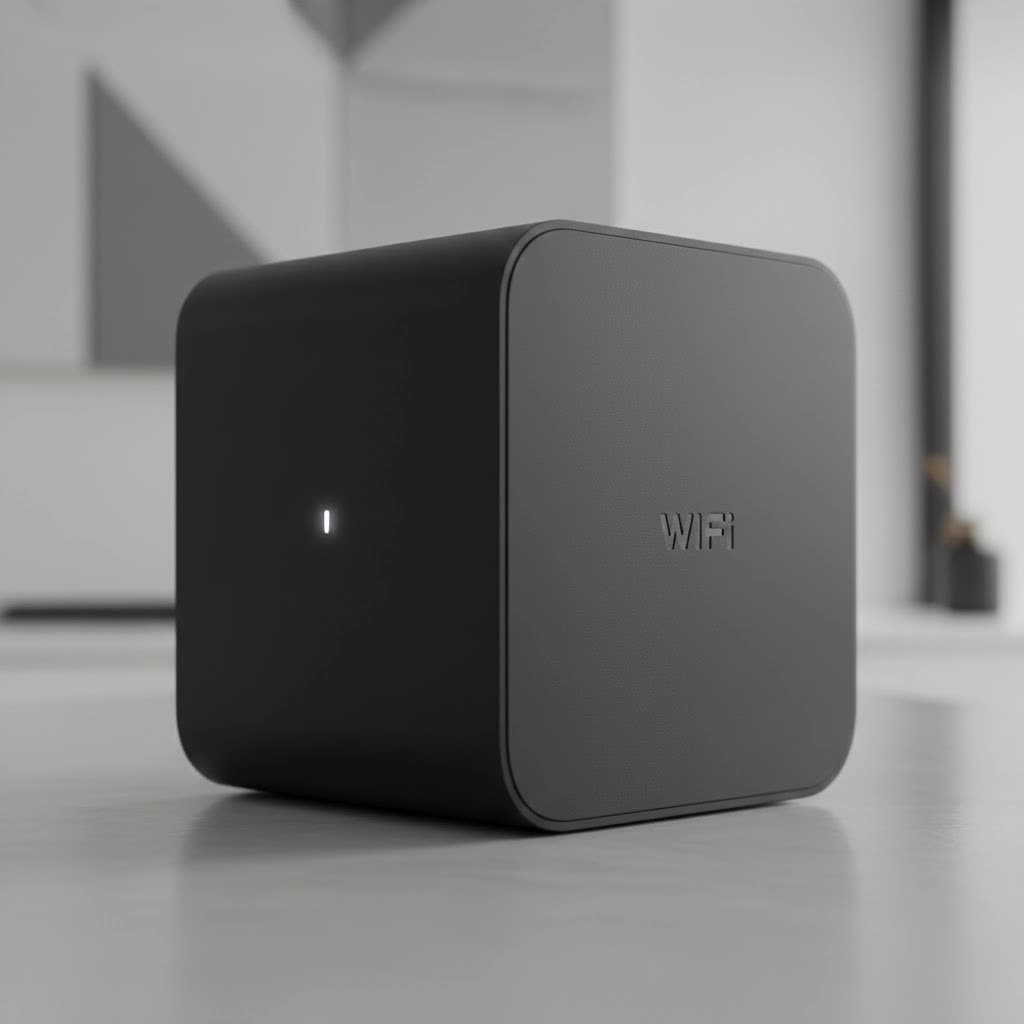
What Exactly is a WiFi Extender with an Ethernet Port?
At its core, a WiFi extender, also known as a range extender or WiFi booster, is a device that captures the existing wireless signal from your main router and rebroadcasts it to cover areas where the signal is weak or non-existent, commonly called “dead zones.”
The magic happens when you add an Ethernet port to the mix. A wifi extender with ethernet port does everything a standard extender does, but it also includes one or more physical network ports. This feature effectively acts as a bridge, converting your wireless network signal into a stable, wired connection for devices that need it most. It’s like having a portable Ethernet jack exactly where you need one, without running cables all through your house.
Why You Absolutely Need an Ethernet Port on Your Extender
You might be wondering if the addition of a simple port is really that significant. In my 15 years of experience, I’ve seen countless situations where this single feature solved persistent and frustrating network issues. The benefits are clear and impactful.
1. Unshakable Stability for Critical Devices
WiFi is convenient, but it’s susceptible to interference from other networks, appliances, and even physical obstructions like walls. For certain devices, a stable connection is non-negotiable. An Ethernet port provides a direct, wired link that is significantly more reliable and less prone to dropouts.
- Gaming Consoles: A wired connection can dramatically reduce lag and latency, giving you a competitive edge in online gaming.
- Smart TVs and Streaming Devices: Say goodbye to buffering. A hardwired connection ensures a smooth, high-resolution streaming experience, especially for 4K content.
- Desktop PCs and Workstations: For important work-from-home tasks, video conferences, or large file transfers, the reliability of an Ethernet connection is unmatched.
|
Our Picks for the Best Wifi Extender in 2026
As an Amazon Associate I earn from qualifying purchases.
|
||
| Num | Product | Action |
|---|---|---|
| 1 | WiFi Extender, WiFi Extenders Signal Booster for Home Up to 5000 sq.ft and 50 Devices, WiFi Range Extender, Wireless Repeater, Long Range Amplifier with Ethernet Port, 1-Tap Setup, Alexa Compatible |

|
| 2 | 2025 WiFi Extenders Signal Booster for Home Long Range Up to 9800 sq. ft & 40 Devices, WiFi Extender Signal Booster, Quick Setup-Medium, Internet Repeater, WiFi Extender |
|
| 3 | 2025 Fastest WiFi Extender, WiFi Repeater, WiFi Booster, Covers Up to 10000 Sq.ft and 80 Devices, Internet Booster - with Ethernet Port, Quick Setup, Home Wireless Signal Booster |
|
| 4 | TP-Link AX3000 WiFi 6 Range Extender - PCMag Editor\'s Choice - Dual-Band Wireless Repeater w/Ethernet Port - Up to 2400 Sq. Ft., 64 Devices - Internet Signal Booster - APP Setup - EasyMesh (RE715X) |
|
| 5 | TP-Link AC1900 WiFi Range Extender RE550 - Dual-Band Wireless Repeater Amplifier w/Gigabit Ethernet Port - Up to 2200 Sq. Ft., 32 Devices - Internet Signal Booster - APP Setup - EasyMesh Compatible |
|
| 6 | Amazon eero 6 mesh wifi extender with 1-month free eero Plus (auto-renews) - Add up to 1,500 sq. ft. of Wi-Fi 6 coverage to your existing eero mesh wifi network |
|
| 7 | TP-Link AC1200 WiFi Extender, 2023 Engadget Best Budget Pick, 1.2Gbps Signal Booster for Home, Dual Band 5GHz/2.4GHz, Covers Up to 1500 Sq.ft and 30 Devices,Support Onemesh, One Ethernet Port (RE315) |
|
| 8 | Amazon eero 7 with 1 month free eero Plus (auto-renews) - Supports internet plans up to 2.5 Gbps, Coverage up to 2,000 sq. ft., Connect 120+ devices, 1-pack |
|
| 9 | WiFi Extender with 4 Antennas 1200Mbps - Dual Band 5GHz/2.4GHz, WiFi Extender Signal Booster with 3 Modes Support, WiFi Repeater with 12880 Sq.ft 105 Devices, Easy Set Up for Home |
|
| 10 | Amazon eero 6+ mesh wifi system with 1 month free eero Plus (auto-renews) - Coverage up to 4,500 sq. ft., Connect 75+ devices, 3-pack |
|
2. Connecting Non-WiFi Devices
Many older or specialized devices don’t have built-in WiFi capabilities. A WiFi extender with an Ethernet port is the perfect solution to bring them onto your network. This includes devices like:
- Older desktop computers
- Network-Attached Storage (NAS) drives
- Certain printers and scanners
- VoIP phones
3. Creating a High-Speed Access Point
Some advanced models allow you to use the Ethernet port in reverse. This is often called “Access Point Mode.” By connecting the extender to your main router via an Ethernet cable, you can create a new, powerful WiFi hotspot. This method provides much faster speeds than the standard wireless repeating mode because it uses a wired backhaul, eliminating the speed loss that typically occurs when an extender has to both receive and transmit a signal wirelessly.
As our Senior Network Technician, Alex Carter, often says, “Using an extender in Access Point mode is one of the most underutilized tricks for creating a rock-solid home network. You get the full speed of your internet plan in a previously unreachable area.”
How to Choose the Best WiFi Extender with an Ethernet Port
Selecting the right model is crucial for getting the performance you need. Don’t just grab the cheapest one off the shelf. Consider these key factors before you buy.
WiFi Standard (The Need for Speed)
The WiFi standard determines the maximum speed and capabilities of your network.
- WiFi 5 (802.11ac): This is a solid, widely available standard that is perfectly adequate for most homes. It offers good speeds and reliability for HD streaming and general browsing.
- WiFi 6 (802.11ax): This is the latest standard. It offers faster speeds, greater capacity for handling many devices simultaneously, and better performance in congested environments. If you have a WiFi 6 router and many smart home devices, investing in a WiFi 6 extender is a smart move for future-proofing your network.
Ethernet Port Speed
Not all Ethernet ports are created equal. Look for a Gigabit Ethernet port (10/100/1000 Mbps). A “Fast Ethernet” port (10/100 Mbps) will cap your wired connection speed at 100 Mbps, which can be a significant bottleneck if your internet plan is faster than that. For a true high-performance connection, Gigabit is a must.
Ease of Setup
Most modern extenders are designed for easy installation. Look for models that feature a WPS (Wi-Fi Protected Setup) button. This typically allows you to sync the extender with your router by simply pressing a button on each device, making the process take minutes instead of requiring a complicated configuration through a web browser.
Design and Form Factor
- Wall-Plug Extenders: These are compact and plug directly into a power outlet. They are discreet and easy to place but may have fewer features and less powerful antennas.
- Desktop Extenders: These are larger units that look like small routers. They often have more powerful external antennas, multiple Ethernet ports, and superior performance, but they require shelf space and a separate power cable.
Step-by-Step Guide: Setting Up Your Extender
Setting up your wifi extender with ethernet port is usually a straightforward process. Here’s a general guide that applies to most models:
- Initial Placement: Plug the extender into a power outlet in the same room as your main router for the initial setup.
- Power On: Wait for the power light to become solid, which usually takes a minute or two.
- Connect to Router:
- Using WPS (Easiest Method): Press the WPS button on your router, and then within two minutes, press the WPS button on the extender. The lights on the extender should indicate when a connection is successfully established.
- Manual Setup: If your router doesn’t have WPS, connect to the extender’s default WiFi network (e.g., “BrandName_EXT”) using a phone or laptop. Open a web browser and follow the on-screen instructions from the manufacturer’s setup wizard.
- Optimal Placement: Once configured, unplug the extender and move it to a new location. The ideal spot is roughly halfway between your router and the area with poor WiFi coverage. The extender needs to be close enough to the router to receive a strong signal to rebroadcast. Most extenders have an indicator light that helps you find the best location.
- Connect Your Device: Once the extender is in its final location and powered on, you can run an Ethernet cable from the port on the extender directly to your smart TV, gaming console, or PC for a stable, wired connection.
Frequently Asked Questions (FAQ)
Can I plug a network switch into my WiFi extender’s ethernet port?
Yes, absolutely. If your extender only has one Ethernet port but you want to connect multiple wired devices (e.g., a gaming console and a Smart TV), you can plug an inexpensive network switch into the extender’s port. This will give you several additional ports to use.
Will a WiFi extender with an ethernet port slow down my internet?
Any WiFi extender will have some speed reduction (often called latency) because it has to receive and then retransmit the signal. However, the wired connection from the Ethernet port will almost always be faster and more stable than connecting that same device to the extended WiFi signal wirelessly. For the best performance, use Access Point mode if possible.
Is this solution better than a Powerline adapter?
It depends on your home’s wiring. Powerline adapters, which transmit network data through your home’s electrical wiring, can be a great alternative. However, their performance can be inconsistent and is highly dependent on the quality and age of your electrical circuits. A wifi extender with ethernet port is often a more reliable and predictable solution.
How many Ethernet ports should I look for?
For most users, a single Gigabit Ethernet port is sufficient. However, if you know you have a cluster of wired devices in one room, such as an entertainment center, a desktop extender with 3-4 ports might be a more convenient option than using a separate switch.
Does the extender create a new WiFi network name?
Traditionally, extenders created a new network name (SSID), such as “MyHomeNetwork_EXT.” Many modern extenders now support “mesh” features that allow them to use the same network name as your main router, enabling your devices to seamlessly switch between the router and extender as you move around your home.
Final Thoughts: Bridge the Gap in Your Connectivity
A weak WiFi signal in the age of remote work and high-definition streaming is a problem that needs a modern solution. A wifi extender with ethernet port is an incredibly powerful and versatile tool that not only eliminates dead zones but also provides the rock-solid, stable connection that many of your most important devices crave. By bridging the gap between wireless convenience and wired reliability, you can unlock the full potential of your home network, ensuring a smooth, fast, and frustration-free online experience in every corner of your home.
