Are you tired of Wi-Fi dead zones in your home where your Fios connection just can’t seem to reach? It’s a common frustration: you have a powerful internet plan, but the signal weakens the further you get from your router. That’s where a Fios Wi-Fi Extender comes in, acting as a bridge to deliver a strong, reliable connection to every corner of your house. As a network specialist with over 15 years of hands-on experience, I’ve helped countless users solve this exact problem. This guide will walk you through everything you need to know, from setup to optimization, turning your Wi-Fi dead spots into hotspots.
What Exactly is a Fios Wi-Fi Extender?
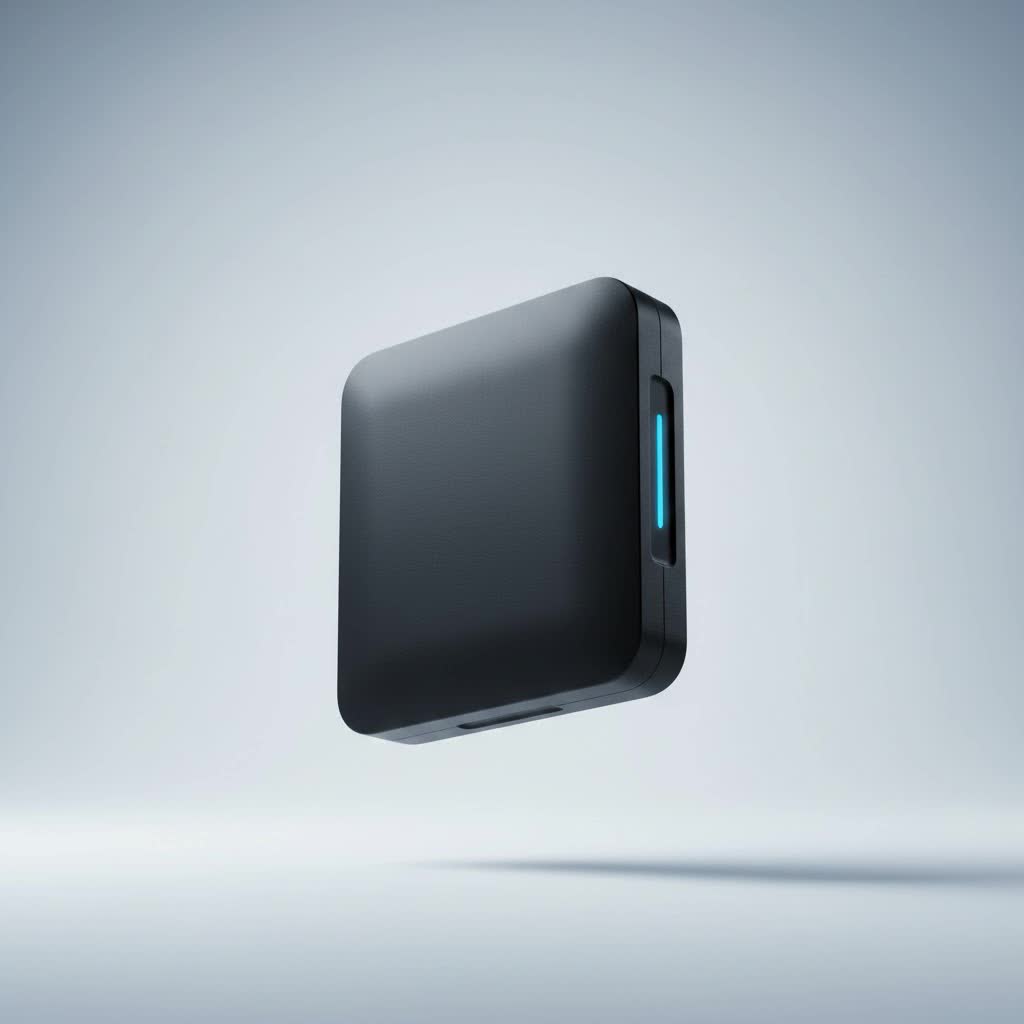
A Fios Wi-Fi Extender, officially known as the Fios Network Extender, isn’t just any off-the-shelf signal booster. It’s a device specifically designed to work seamlessly with your existing Verizon Fios router. Its primary job is to expand the reach of your Wi-Fi network, ensuring consistent coverage in larger homes or areas with signal-blocking obstacles like thick walls or multiple floors.
Unlike standard Wi-Fi repeaters that can sometimes halve your bandwidth, Fios extenders typically use a wired connection back to the main router. They leverage your home’s existing coaxial (TV) cables, creating a super-reliable wired backbone through a technology called MoCA (Multimedia over Coax Alliance). This results in a much faster and more stable connection than what a purely wireless extender can offer.
“The real magic of the Fios Extender is its use of MoCA technology,” notes network architect David Chen. “By using the coax wiring already in your walls, it creates a high-speed, wired link to the router. This avoids the signal degradation you often see with wireless-only extenders, giving you speeds much closer to what you’re actually paying for.”
Do You Really Need a Fios Wi-Fi Extender?
Before you invest in an extender, it’s worth asking if you truly need one. A Fios Wi-Fi Extender is the ideal solution if you experience any of the following:
- Persistent Dead Zones: Areas in your home, like a basement, attic, or backyard patio, where the Wi-Fi signal is consistently weak or non-existent.
- Constant Buffering: You notice that video calls drop or movies buffer endlessly when you move to certain rooms.
- Slow Speeds Far from the Router: Your internet is lightning-fast next to the router but slows to a crawl in your bedroom or home office.
- A Large or Multi-Story Home: The standard Fios router signal may struggle to cover the entire square footage of a larger property.
If these issues sound familiar, an extender can dramatically improve your experience by creating a single, unified network with one name and password, allowing your devices to seamlessly switch to the strongest signal as you move around.
How to Set Up Your Fios Wi-Fi Extender
Setting up a Fios Wi-Fi Extender is surprisingly straightforward. Verizon has designed the process to be as plug-and-play as possible. The most common model is the Fios Extender (E3200), which works with the Fios Router (G3100).
Here is a step-by-step guide to get you up and running:
- Find the Right Location: Identify a room with poor Wi-Fi but a working coaxial outlet. This is where your extender will go.
- Connect the Coax Cable: Take the provided coaxial cable and connect one end to the wall outlet and the other end to the Coax input on the back of the extender. Ensure the connection is finger-tight.
- Power It Up: Plug the extender’s power cord into the device and then into a nearby electrical outlet.
- Wait for the Light: The status light on the front of the extender will initially be solid red or blinking. Be patient. The device is now booting up and attempting to connect with your main Fios router.
- Look for a Solid White Light: After a few minutes, the light should turn solid white. This indicates a successful connection! The extender has automatically copied your existing Wi-Fi network name (SSID) and password.
- Test Your Connection: Go to the previously designated dead zone with a device like a smartphone or laptop. You should now see a full-strength Wi-Fi signal and be able to connect to the internet at significantly higher speeds.
Tips to Optimize Your Fios Extender’s Performance
Once your extender is running, a few simple tweaks can ensure you’re getting the best possible performance.
Placement is Everything
Even with a wired connection, the physical placement of the extender matters for signal distribution.
- Place it in a central location within the weak coverage area.
- Avoid putting it inside cabinets, behind furniture, or near large metal objects.
- Keep it away from other electronics that can cause interference, such as microwave ovens or cordless phones.
|
Our Picks for the Best Wifi Extender in 2026
As an Amazon Associate I earn from qualifying purchases.
|
||
| Num | Product | Action |
|---|---|---|
| 1 | Amazon eero 6 mesh wifi extender with 1-month free eero Plus (auto-renews) - Add up to 1,500 sq. ft. of Wi-Fi 6 coverage to your existing eero mesh wifi network |

|
| 2 | Amazon eero 7 with 1 month free eero Plus (auto-renews) - Supports internet plans up to 2.5 Gbps, Coverage up to 2,000 sq. ft., Connect 120+ devices, 1-pack |
|
| 3 | Amazon eero 6+ mesh wifi system with 1 month free eero Plus (auto-renews) - Coverage up to 4,500 sq. ft., Connect 75+ devices, 3-pack |
|
| 4 | TP-Link AC1200 WiFi Extender, 2023 Engadget Best Budget Pick, 1.2Gbps Signal Booster for Home, Dual Band 5GHz/2.4GHz, Covers Up to 1500 Sq.ft and 30 Devices,Support Onemesh, One Ethernet Port (RE315) |
|
| 5 | TP-Link AX3000 WiFi 6 Range Extender - PCMag Editor\'s Choice - Dual-Band Wireless Repeater w/Ethernet Port - Up to 2400 Sq. Ft., 64 Devices - Internet Signal Booster - APP Setup - EasyMesh (RE715X) |
|
| 6 | 2025 WiFi Extenders Signal Booster for Home Long Range Up to 9800 sq. ft & 40 Devices, WiFi Extender Signal Booster, Quick Setup-Medium, Internet Repeater, WiFi Extender |
|
| 7 | TP-Link AC1900 WiFi Range Extender RE550 - Dual-Band Wireless Repeater Amplifier w/Gigabit Ethernet Port - Up to 2200 Sq. Ft., 32 Devices - Internet Signal Booster - APP Setup - EasyMesh Compatible |
|
| 8 | 2025 Fastest WiFi Extender, WiFi Repeater, WiFi Booster, Covers Up to 10000 Sq.ft and 80 Devices, Internet Booster - with Ethernet Port, Quick Setup, Home Wireless Signal Booster |
|
| 9 | WiFi Extender with 4 Antennas 1200Mbps - Dual Band 5GHz/2.4GHz, WiFi Extender Signal Booster with 3 Modes Support, WiFi Repeater with 12880 Sq.ft 105 Devices, Easy Set Up for Home |
|
| 10 | WiFi Extender, WiFi Extenders Signal Booster for Home Up to 5000 sq.ft and 50 Devices, WiFi Range Extender, Wireless Repeater, Long Range Amplifier with Ethernet Port, 1-Tap Setup, Alexa Compatible |
|
Check Your Splitters
If your home has multiple coaxial outlets, you’re using a coax splitter. An old or low-quality splitter can degrade the MoCA signal. If you experience connection issues, consider upgrading to a MoCA-compliant splitter to ensure a strong signal path between the router and the extender.
Keep Firmware Updated
Verizon periodically releases firmware updates for its routers and extenders to improve performance and security. These updates usually happen automatically overnight, but you can manually check for them through your My Fios app or by logging into your router’s admin panel.
Common Fios Wi-Fi Extender Problems and Fixes
While the Fios Extender is generally reliable, you might occasionally run into a snag. Here are some common issues and how to resolve them.
What does the blinking light on my Fios extender mean?
A blinking light often indicates a connection issue. A slow blinking white light means the extender is trying to connect to the router. A blinking red or yellow light typically signals a connection failure or a problem with the coax link.
Fix: First, double-check that all cables (both coax and power) are securely fastened. If the issue persists, try power cycling the extender by unplugging it for 30 seconds and plugging it back in. If that doesn’t work, reboot your main Fios router as well.
Why is my extender’s speed still slow?
If your speeds are disappointing, the issue might lie with the coaxial wiring. A damaged cable or an incompatible splitter is often the culprit.
Fix: Try connecting the extender to a different coax outlet in the house to rule out a faulty outlet or wire segment. If speeds improve, the original wiring was the problem. If not, contact Verizon support to help diagnose a potential MoCA network issue.
Fios Extender vs. Mesh Wi-Fi: Which is Right for You?
You may have also heard about mesh Wi-Fi systems as a solution for poor coverage. While both extenders and mesh systems aim to solve the same problem, they do it differently.
| Feature | Fios Wi-Fi Extender | Mesh Wi-Fi System |
|---|---|---|
| Backbone | Uses existing coax cables (MoCA) for a fast, wired link. | Typically uses a dedicated wireless band to link nodes. |
| Setup | Extremely simple, plug-and-play with a Fios Router. | Requires replacing your existing router; can be more complex. |
| Cost | Generally a one-time purchase of a single device. | Often sold in packs of 2 or 3, making it more expensive upfront. |
| Best For | Homes already wired with coaxial cable and with a Fios Router. | Homes without coax wiring or users wanting advanced network control. |
For most Verizon Fios customers, the Fios Wi-Fi Extender is the most cost-effective and highest-performing choice because it’s engineered specifically for the Fios ecosystem.
Frequently Asked Questions (FAQ)
Can I use any Wi-Fi extender with Verizon Fios?
Yes, you can use a third-party Wi-Fi extender with Fios. However, it will likely operate as a standard wireless repeater, which may not provide the same speed and reliability as a Fios-branded extender that utilizes the MoCA network over your home’s coax wiring.
How many Fios extenders can I use?
Verizon’s documentation suggests you can add multiple extenders to your network to cover very large or complex properties. However, for most homes, one or two extenders are more than sufficient to eliminate all dead zones.
Will a Fios Extender slow down my internet?
No, a Fios Extender should not slow down your internet. Because it uses a wired coax connection back to the router, it maintains very high speeds, unlike many wireless-only extenders that can cut your bandwidth in half.
Is the Fios Extender the same as a mesh node?
Functionally, it serves a similar purpose to a mesh node by extending Wi-Fi coverage under a single network name. The key difference is its reliance on a wired MoCA connection instead of a dedicated wireless backhaul, making it a hybrid solution perfectly suited for the Fios infrastructure.
Take Control of Your Home Wi-Fi
A Fios Wi-Fi Extender is a powerful and simple solution to one of the most common household tech problems. By leveraging the existing coaxial wiring in your walls, it delivers a robust and speedy connection to every room, eliminating buffering and dead spots for good. You no longer have to settle for weak signals in the far corners of your home. With a quick setup, you can unlock the full potential of your Fios internet plan and enjoy seamless connectivity wherever you are.
