Are you tired of seeing pixelated video or getting delayed notifications from your front door? A weak WiFi signal is often the culprit, but thankfully, a Ring doorbell wifi extender can be a simple and effective solution. If your Ring device constantly struggles to maintain a stable connection, you’re not just missing visitors; you’re compromising your home’s security. This guide will walk you through everything you need to know to boost your signal, enhance your doorbell’s performance, and restore your peace of mind.
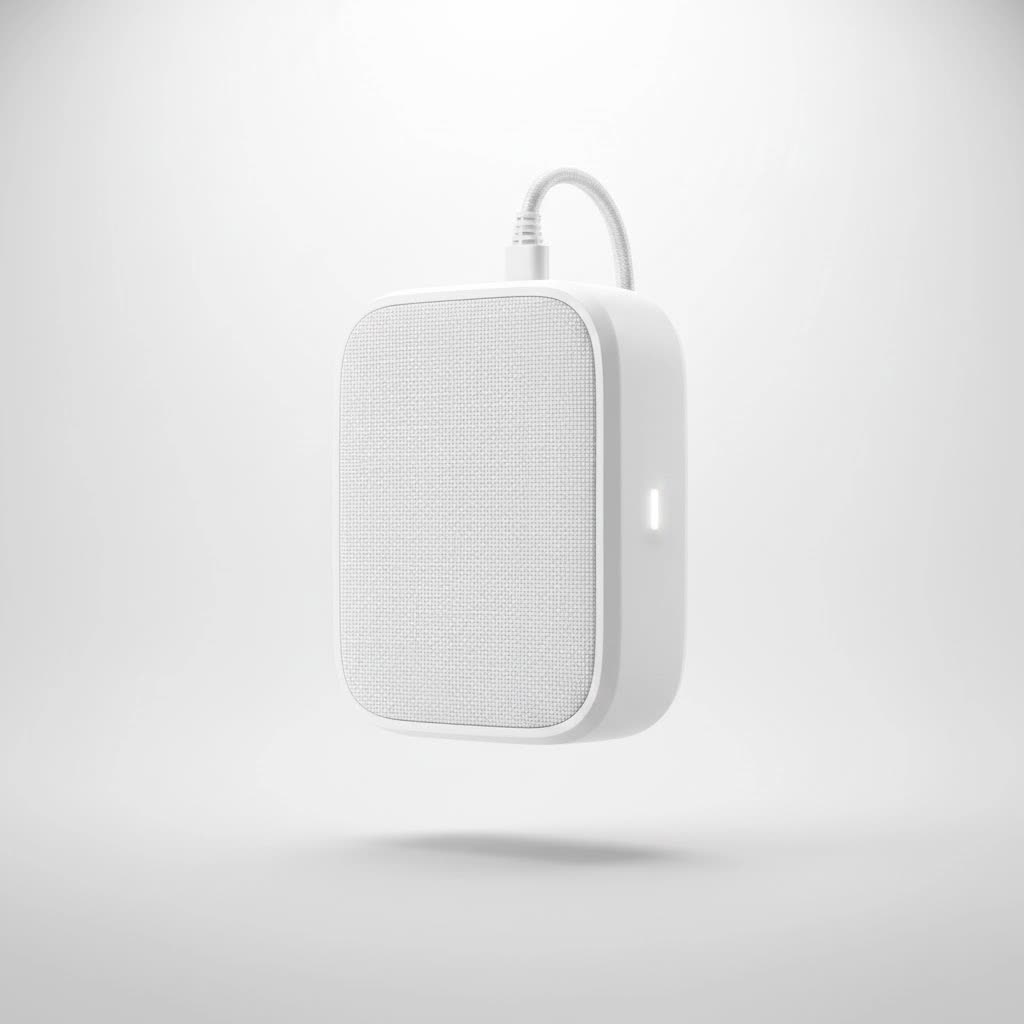
Why Does Your Ring Doorbell Have a Weak WiFi Signal?
Before we jump into solutions, it’s crucial to understand why your Ring doorbell might be struggling. The performance of any WiFi-connected device is measured by its Received Signal Strength Indicator (RSSI). For Ring devices, a good RSSI is anything between 0 and -60. If your Ring app shows an RSSI of -61 to -90, you’re in the poor connection zone.
Several factors can contribute to a weak signal:
- Distance from Router: The farther your doorbell is from your WiFi router, the weaker the signal will be.
- Physical Obstructions: Walls, especially those made of brick, concrete, or metal, can severely block WiFi signals. Even thick wooden doors, floors, and large appliances can cause interference.
- WiFi Interference: Other electronic devices, such as microwaves, cordless phones, and even your neighbor’s WiFi network, can compete for the same wireless channels and weaken your signal.
What is a WiFi Extender and How Does It Help?
A WiFi extender, also known as a WiFi booster or repeater, is a device that takes the existing signal from your router and rebroadcasts it to create a second, extended network. It acts as a bridge, capturing the signal and pushing it farther into areas of your home where the connection is weak or non-existent, like your front porch. By placing an extender halfway between your router and your Ring doorbell, you can provide the strong, stable signal it needs to function correctly.
The Big Question: Ring Chime Pro vs. a Regular WiFi Extender
When looking for a Ring doorbell wifi extender, you’ll quickly encounter two main options: Ring’s own Chime Pro and a standard third-party WiFi extender. They both aim to solve the same problem, but they do it in slightly different ways.
What is the Ring Chime Pro?
|
Our Picks for the Best Wifi Extender in 2026
As an Amazon Associate I earn from qualifying purchases.
|
||
| Num | Product | Action |
|---|---|---|
| 1 | WiFi Extender with 4 Antennas 1200Mbps - Dual Band 5GHz/2.4GHz, WiFi Extender Signal Booster with 3 Modes Support, WiFi Repeater with 12880 Sq.ft 105 Devices, Easy Set Up for Home |

|
| 2 | 2025 WiFi Extenders Signal Booster for Home Long Range Up to 9800 sq. ft & 40 Devices, WiFi Extender Signal Booster, Quick Setup-Medium, Internet Repeater, WiFi Extender |
|
| 3 | TP-Link AC1900 WiFi Range Extender RE550 - Dual-Band Wireless Repeater Amplifier w/Gigabit Ethernet Port - Up to 2200 Sq. Ft., 32 Devices - Internet Signal Booster - APP Setup - EasyMesh Compatible |
|
| 4 | 2025 Fastest WiFi Extender, WiFi Repeater, WiFi Booster, Covers Up to 10000 Sq.ft and 80 Devices, Internet Booster - with Ethernet Port, Quick Setup, Home Wireless Signal Booster |
|
| 5 | Amazon eero 6 mesh wifi extender with 1-month free eero Plus (auto-renews) - Add up to 1,500 sq. ft. of Wi-Fi 6 coverage to your existing eero mesh wifi network |
|
| 6 | WiFi Extender, WiFi Extenders Signal Booster for Home Up to 5000 sq.ft and 50 Devices, WiFi Range Extender, Wireless Repeater, Long Range Amplifier with Ethernet Port, 1-Tap Setup, Alexa Compatible |
|
| 7 | TP-Link AC1200 WiFi Extender, 2023 Engadget Best Budget Pick, 1.2Gbps Signal Booster for Home, Dual Band 5GHz/2.4GHz, Covers Up to 1500 Sq.ft and 30 Devices,Support Onemesh, One Ethernet Port (RE315) |
|
| 8 | TP-Link AX3000 WiFi 6 Range Extender - PCMag Editor\'s Choice - Dual-Band Wireless Repeater w/Ethernet Port - Up to 2400 Sq. Ft., 64 Devices - Internet Signal Booster - APP Setup - EasyMesh (RE715X) |
|
| 9 | Amazon eero 7 with 1 month free eero Plus (auto-renews) - Supports internet plans up to 2.5 Gbps, Coverage up to 2,000 sq. ft., Connect 120+ devices, 1-pack |
|
| 10 | Amazon eero 6+ mesh wifi system with 1 month free eero Plus (auto-renews) - Coverage up to 4,500 sq. ft., Connect 75+ devices, 3-pack |
|
The Ring Chime Pro is a clever 2-in-1 device designed specifically for the Ring ecosystem. It functions as an audible indoor chime for your doorbell and as a dedicated WiFi extender for your Ring devices. It creates a separate network that only your Ring cameras and doorbells can connect to, which can help reduce congestion on your main network.
What is a Standard WiFi Extender?
A standard WiFi extender from brands like TP-Link, Netgear, or Eero is a more versatile solution. It rebroadcasts your main WiFi network under a new name (e.g., “MyHomeWiFi_EXT”) or as a seamless mesh network. The key difference is that it extends coverage for all your WiFi-enabled devices, not just your Ring products.
Head-to-Head Comparison
| Feature | Ring Chime Pro | Standard WiFi Extender |
|---|---|---|
| Primary Function | Audible chime & Ring device extender | General WiFi network extender |
| Device Compatibility | Only Ring devices | All WiFi devices |
| Network | Creates a dedicated network for Ring | Extends your existing network for all |
| Setup | Simple, via the Ring app | Usually via a web browser or app |
| Versatility | Limited to the Ring ecosystem | Highly versatile for the whole home |
| Cost | Moderately priced | Wide range of prices and features |
As our lead network technician, John Carter, often advises, “The Ring Chime Pro is a fantastic, streamlined solution if your only connectivity issue is with your Ring devices. However, if you also have dead spots affecting your phone or laptop in other parts of the house, a standard WiFi extender offers far greater value and solves multiple problems at once.”
How to Choose the Best WiFi Extender for Your Ring Doorbell
If you’ve decided a standard extender is right for you, here’s what to look for:
- Compatibility: Ring doorbells primarily operate on the 2.4 GHz WiFi band because it offers better range through walls. Ensure the extender you choose has strong 2.4 GHz performance. A dual-band extender (offering both 2.4 GHz and 5 GHz) is ideal for overall home use.
- Range and Coverage: Check the extender’s specifications to see how much additional coverage it provides (measured in square feet). Choose one that comfortably covers the distance to your front door.
- Ease of Setup: Look for models with a simple setup process, often involving a WPS (Wi-Fi Protected Setup) button. This allows you to connect the extender to your router with a single press.
- Price: You don’t need the most expensive model. A reliable plug-in extender is often more than sufficient for boosting the signal to a single device like a Ring doorbell.
Step-by-Step: How to Set Up Your Ring Doorbell with a WiFi Extender
Connecting your Ring doorbell to an extender is a two-part process. First, you set up the extender. Then, you connect your doorbell to the new, extended network.
Part 1: Setting Up the WiFi Extender
- Find the Optimal Location: Plug the extender into a power outlet roughly halfway between your WiFi router and your Ring doorbell. This is the sweet spot for it to receive a strong signal to rebroadcast.
- Power It On: Wait for the power light to become solid.
- Connect to Your Router: The easiest way is using the WPS button. Press the WPS button on your router, and then within two minutes, press the WPS button on your extender. The lights should indicate a successful connection.
- Configure Manually (if needed): If WPS doesn’t work, connect to the extender’s default network from your phone or computer and follow the setup instructions in its web interface. You will select your home network and enter your password.
Part 2: Connecting Your Ring Doorbell to the Extender’s Network
- Open the Ring App: Tap the three lines on the top left.
- Select Your Device: Tap on your Ring Doorbell.
- Go to Device Health: Tap the gear icon for settings, then tap on “Device Health.”
- Change WiFi Network: Under the “Network” section, tap “Change Wi-Fi Network” or “Reconnect to Wi-Fi.”
- Follow In-App Instructions: The app will guide you to put your doorbell into setup mode (usually by pressing the small button on the back or side).
- Select the Extender’s Network: When your phone shows a list of available WiFi networks, choose the new network created by your extender (e.g., “MyHomeWiFi_EXT”).
- Enter Password: Type in your regular WiFi password.
- Confirm Connection: Once complete, go back to “Device Health” and check the RSSI. You should see a significantly improved signal strength.
Pro Tips for Optimizing Your Connection
- Placement is Everything: The “halfway” rule is a great starting point, but don’t be afraid to experiment. Move the extender a few feet in either direction to find the absolute best location.
- Avoid Obstacles: Try to keep the extender in an open area, away from large metal objects, fish tanks, or microwave ovens.
- Update Firmware: Regularly check for firmware updates for both your router and your extender to ensure they are running efficiently and securely.
Frequently Asked Questions (FAQ)
Can I use any WiFi extender with my Ring doorbell?
Yes, virtually any modern WiFi extender is compatible with Ring devices. Just ensure it supports the 2.4 GHz band, as this is what Ring Doorbells primarily use for its superior range.
Is the Ring Chime Pro better than a WiFi extender?
It depends on your needs. The Chime Pro is simpler to set up within the Ring ecosystem and provides a chime. However, a standard extender is more versatile, often more powerful, and benefits all your devices, not just Ring products.
How do I know if I need a WiFi extender for my Ring doorbell?
Check your doorbell’s RSSI in the Ring app under “Device Health.” If the number is consistently lower than -60 (e.g., -65, -70), and you experience poor video quality or connection drops, you would likely benefit from an extender.
Will a WiFi extender slow down my internet speed?
An extender can introduce a small amount of latency, which might slightly reduce speeds. However, for a Ring doorbell, the benefit of a stable, strong connection far outweighs any minor speed reduction. The connection will still be much faster and more reliable than a very weak signal from your main router.
Where is the best place to put a WiFi extender?
The ideal location is approximately halfway between your router and the Ring doorbell. It needs to be close enough to the router to get a strong signal to repeat, but close enough to the doorbell to broadcast that strong signal to it effectively.
Conclusion
A weak WiFi signal shouldn’t stand in the way of your home security. By understanding the causes of poor connectivity and choosing the right solution, you can ensure your Ring doorbell operates at peak performance. Whether you opt for the dedicated Ring Chime Pro or a more versatile standard Ring doorbell wifi extender, boosting your signal will provide clearer video, faster notifications, and the reliability you expect from a smart security device. Don’t let a WiFi dead spot be your home’s weak link; extend your network and stay connected.
