Are you tired of wandering around your house, phone in hand, searching for a stable WiFi signal? We’ve all been there. You have a great internet plan, a powerful router, but there are still infuriating dead zones in the back bedroom, the basement, or out on the patio. You might think the solution is a simple WiFi extender, and you’ve likely come across the eero wifi extender in your search. But what you’ve found is something much more advanced than a traditional extender.
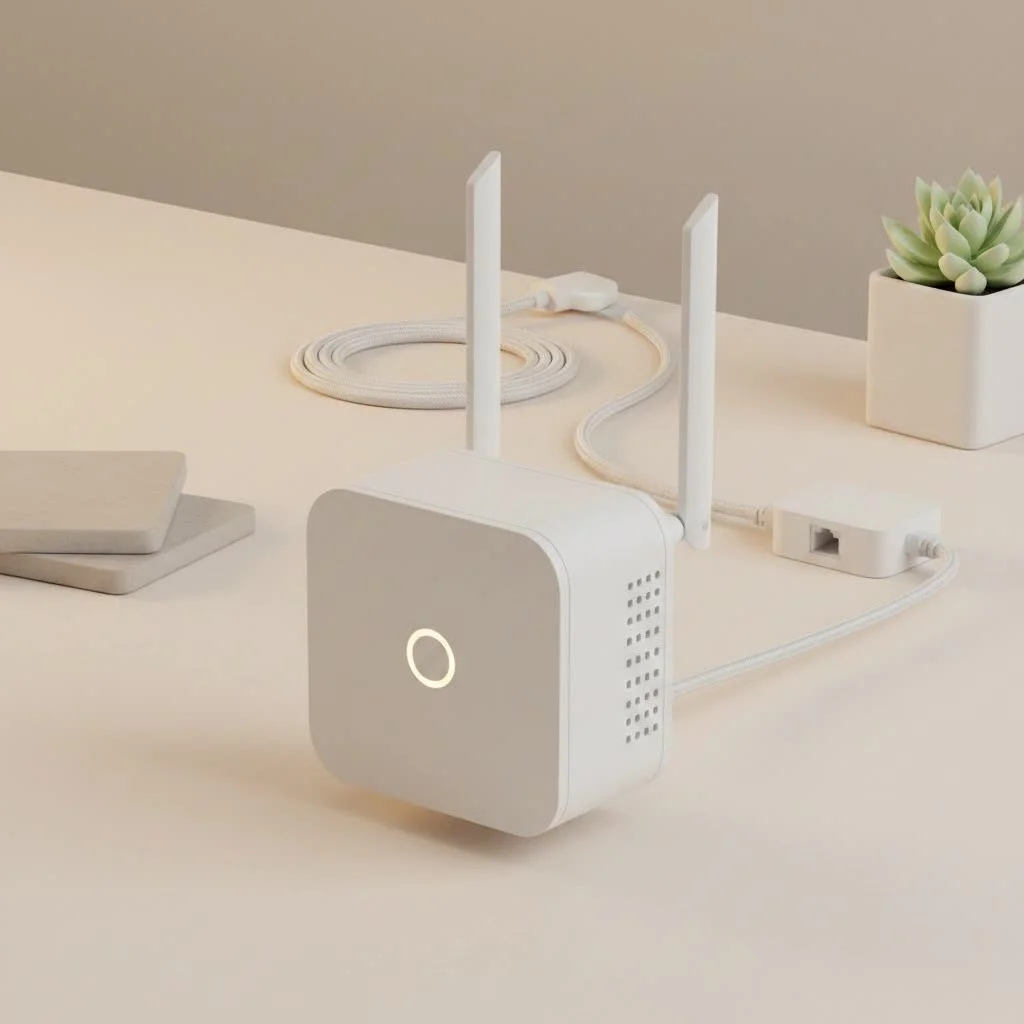
Eero isn’t just an extender; it’s a revolutionary mesh WiFi system designed to bathe your entire home in fast, reliable internet. Forget about dropped video calls and endless buffering. In this comprehensive guide, we’ll dive deep into the world of Eero, explaining how it works, why it’s different, and how you can set it up to finally kill those dead zones for good. For explore our wifi extenders reviews on this site.
What is an Eero Mesh System and How Does It Differ?
It’s a common point of confusion, so let’s clear it up right away. While you might search for an “eero wifi extender,” Eero devices are technically nodes in a mesh WiFi system. So, what’s the difference between that and a traditional extender?
A traditional WiFi extender works by picking up the signal from your main router and rebroadcasting it. Think of it like a relay. The problem is, this process often cuts your internet speed in half and creates a separate network name (like “MyNetwork_EXT”). As you move through your home, you have to manually switch between networks, which is hardly a seamless experience.
An Eero mesh system, on the other hand, replaces your single router with multiple, intelligent access points, or “nodes.” These nodes work together as a single, unified team.
- One Network Name: You have one seamless network throughout your entire home. Your devices will automatically connect to the strongest Eero node without you ever noticing a switch.
- Intelligent Traffic Routing: Eero’s TrueMesh technology intelligently routes internet traffic, avoiding congestion and interference. If one node goes down, the system automatically reroutes to keep you online.
- Full Speed: Unlike extenders that degrade your signal, each Eero node provides a powerful connection, ensuring you get more of the speed you pay for in every corner of your home.
“People often confuse Eero with a traditional wifi extender,” says Alex Carter, a Senior Network Engineer with over 15 years of experience. “While both aim to eliminate dead zones, Eero’s mesh technology creates a seamless, intelligent network that’s fundamentally more robust and efficient than a simple signal repeater.”
The Pros and Cons of Using an Eero System
Making the switch to a mesh network is a big decision. Let’s weigh the advantages and disadvantages to see if an Eero system is the right choice for you.
Advantages of Eero
|
Our Picks for the Best Wifi Extender in 2026
As an Amazon Associate I earn from qualifying purchases.
|
||
| Num | Product | Action |
|---|---|---|
| 1 | WiFi Extender, WiFi Extenders Signal Booster for Home Up to 5000 sq.ft and 50 Devices, WiFi Range Extender, Wireless Repeater, Long Range Amplifier with Ethernet Port, 1-Tap Setup, Alexa Compatible |

|
| 2 | TP-Link AC1200 WiFi Extender, 2023 Engadget Best Budget Pick, 1.2Gbps Signal Booster for Home, Dual Band 5GHz/2.4GHz, Covers Up to 1500 Sq.ft and 30 Devices,Support Onemesh, One Ethernet Port (RE315) |
|
| 3 | 2025 WiFi Extenders Signal Booster for Home Long Range Up to 9800 sq. ft & 40 Devices, WiFi Extender Signal Booster, Quick Setup-Medium, Internet Repeater, WiFi Extender |
|
| 4 | TP-Link AX3000 WiFi 6 Range Extender - PCMag Editor\'s Choice - Dual-Band Wireless Repeater w/Ethernet Port - Up to 2400 Sq. Ft., 64 Devices - Internet Signal Booster - APP Setup - EasyMesh (RE715X) |
|
| 5 | WiFi Extender with 4 Antennas 1200Mbps - Dual Band 5GHz/2.4GHz, WiFi Extender Signal Booster with 3 Modes Support, WiFi Repeater with 12880 Sq.ft 105 Devices, Easy Set Up for Home |
|
| 6 | Amazon eero 7 with 1 month free eero Plus (auto-renews) - Supports internet plans up to 2.5 Gbps, Coverage up to 2,000 sq. ft., Connect 120+ devices, 1-pack |
|
| 7 | Amazon eero 6 mesh wifi extender with 1-month free eero Plus (auto-renews) - Add up to 1,500 sq. ft. of Wi-Fi 6 coverage to your existing eero mesh wifi network |
|
| 8 | 2025 Fastest WiFi Extender, WiFi Repeater, WiFi Booster, Covers Up to 10000 Sq.ft and 80 Devices, Internet Booster - with Ethernet Port, Quick Setup, Home Wireless Signal Booster |
|
| 9 | TP-Link AC1900 WiFi Range Extender RE550 - Dual-Band Wireless Repeater Amplifier w/Gigabit Ethernet Port - Up to 2200 Sq. Ft., 32 Devices - Internet Signal Booster - APP Setup - EasyMesh Compatible |
|
| 10 | Amazon eero 6+ mesh wifi system with 1 month free eero Plus (auto-renews) - Coverage up to 4,500 sq. ft., Connect 75+ devices, 3-pack |
|
- Eliminates Dead Zones: This is the primary benefit. With multiple nodes placed strategically, you can cover homes of any shape or size with consistent WiFi.
- Seamless Roaming: Move freely from room to room, and even outdoors, without ever losing your connection or having to switch networks manually.
- Incredibly Simple Setup: The Eero app guides you through the entire setup process in minutes. It’s designed for people who aren’t tech experts.
- Automatic Updates: Eero systems update automatically overnight, so you always have the latest security patches and feature enhancements without lifting a finger.
- Sleek, Minimalist Design: Eero devices are designed to blend into your home decor, unlike bulky, antenna-laden traditional routers.
Disadvantages of Eero
- Cost: A multi-unit Eero system is generally more expensive upfront than a single traditional WiFi extender.
- Fewer Advanced Controls: For tech enthusiasts who love to tinker with every network setting, Eero’s simplified interface may feel a bit restrictive compared to high-end traditional routers.
How to Set Up Your Eero WiFi Extender System
One of Eero’s most celebrated features is its user-friendly setup. You don’t need a networking degree to get it running. Here’s a simple step-by-step guide.
Before you begin, you’ll need:
- An Eero system (one main Eero and one or more Eero Beacons or Eero 6 Extenders)
- A smartphone with the Eero app installed (available for iOS and Android)
- Your modem and an internet connection
Step-by-Step Installation Guide
- Download the Eero App: First things first, go to your phone’s app store, search for “Eero,” and download the official app. Create an account to get started.
- Unplug Your Old Equipment: To avoid any conflicts, completely unplug your old router from both the power outlet and your modem. It’s also a good idea to power-cycle your modem by unplugging it for 30 seconds and plugging it back in.
- Connect Your Gateway Eero: The app will instruct you to connect your primary Eero device (the “gateway”) to your modem using the supplied Ethernet cable. Then, plug the Eero into a power outlet.
- Create Your WiFi Network: Follow the prompts in the Eero app. It will detect the gateway Eero and guide you through choosing your network name (SSID) and password.
- Place Your Additional Eeros: Now it’s time to place your “eero wifi extender” nodes. The app will provide placement tips. The general rule is to place them halfway between your gateway Eero and a known dead zone. Plug them into a power outlet.
- Add Nodes to Your Network: In the app, tap to add a new Eero device. The app will automatically find the new node, test its connection, and add it to your mesh network. Repeat this for any remaining nodes.
- Connect Your Devices: Once all your Eero nodes are online and the app gives you the green light, you can start connecting all your devices—laptops, phones, smart TVs—to your new, powerful WiFi network.
Tips for Optimizing Your Eero Performance
Once you’re set up, a few simple tweaks can ensure you’re getting the best possible performance from your Eero system.
Finding the Perfect Placement
The Eero app has a built-in placement tool that checks the signal strength between nodes, but here are some general guidelines:
- Keep them in the open: Don’t hide your Eero nodes in cabinets, behind furniture, or in media consoles.
- Avoid interference: Place them away from large metal objects, fish tanks, and microwave ovens.
- Elevate them: If possible, place nodes on a shelf or table rather than on the floor.
Understanding Your Eero Models
Eero offers different models, and it’s good to know what you have. For example, the Eero 6 Extender is designed to be an add-on node to an existing Eero 6 network. It doesn’t have an Ethernet port, so it can’t act as a gateway. The Eero Beacon is a similar add-on device for older Eero systems that conveniently plugs directly into an outlet and even has a handy nightlight.
Common Eero Problems and How to Troubleshoot Them
Even the best systems can run into hiccups. Here are some common issues and their quick fixes.
My Eero Has a Red Light
A solid red light means your Eero node can’t connect to the internet.
- Check the Gateway: Ensure your gateway Eero is properly connected to your modem and that your internet service is active.
- Check the Ethernet Cable: Make sure the cable connecting your modem and Eero is secure at both ends.
- Power Cycle Everything: Unplug your modem and your Eero devices. Wait 60 seconds. Plug the modem back in first and wait for it to fully boot up, then plug in your Eero devices.
Slow Speeds or Buffering
If your speeds feel sluggish, it could be a placement issue.
- Move Nodes Closer: Your Eero nodes might be too far apart. Try moving them slightly closer to each other to strengthen the mesh connection.
- Run a Health Check: The Eero app has a health check feature that can diagnose issues with your network and offer suggestions.
- Check for Interference: A new appliance or electronic device could be causing interference.
Frequently Asked Questions (FAQ)
Can I use an Eero with my existing router?
Yes, you can. You can put your Eero system into “bridge mode,” which allows it to handle your WiFi while your existing router continues to manage your network. However, for the simplest setup and best performance, it’s recommended to replace your old router with the Eero gateway.
Is Eero a true WiFi extender?
While it extends your WiFi coverage, Eero is a mesh WiFi system, which is technologically superior to a traditional WiFi extender. It creates a single, seamless network that provides better speed and reliability throughout your home.
How many Eero devices do I need for my home?
Eero generally recommends one device for every 1,000 to 1,500 square feet. A standard three-pack is often sufficient for most homes up to 4,500 square feet. The Eero app will help you determine if you need more coverage.
Does the Eero 6 Extender work by itself?
No, the Eero 6 Extender is an add-on device. It requires an existing Eero 6 or Eero Pro 6 network to function and cannot be used as a standalone gateway router.
Will Eero work with my internet service provider?
Yes, Eero is compatible with virtually all internet service providers (ISPs). All you need is a modem to connect your gateway Eero to your internet service.
The Final Verdict on Eero
If you’re struggling with inconsistent WiFi and frustrating dead zones, upgrading to an eero wifi extender mesh system is one of the most effective solutions available today. While it may seem like just another extender, its underlying mesh technology offers a far more powerful, stable, and user-friendly experience than any traditional repeater on the market. With its dead-simple setup, intelligent network management, and whole-home coverage, Eero lets you stop thinking about your WiFi and just enjoy it. Go ahead, take that video call from the backyard—your network can handle it.
Get our weekly buyer guide
Practical specs, not advice. Unsubscribe anytime.
We have a pretty large house and the basement always had terrible WiFi. I’d tried a few traditional extenders before, but they never really made a difference. The Eero system is definitely more advanced, and I appreciate how it creates a seamless network. My kids can finally stream without complaints down there.
No more dropped video calls! That was my biggest frustration with our old setup. The Eero mesh system really does bathe the entire home in fast, reliable internet just like it said. I can move from room to room without losing connection, which is fantastic for my work calls.
I was so tired of the dead zone in my back bedroom, it was impossible to get any work done there. After reading about the Eero mesh system, I decided to give it a try. Setup was surprisingly easy, and now I have full bars everywhere. It’s a game-changer for my home office setup!
The Eero system did improve my WiFi coverage, especially out on the patio where it was non-existent before. However, I found the initial cost a bit steep compared to what I was expecting for a ‘WiFi extender’. It works well, but be prepared for the investment.