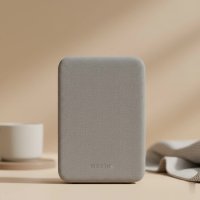
In the modern home, a strong and reliable WiFi signal is no longer a luxury—it’s a necessity. From streaming movies in the living room to video calls in the home office, we depend on a seamless connection. But what happens when your router’s signal just can’t reach that back bedroom or the basement? You’re left with a dreaded “dead zone.” This is where a WiFi extender comes in, a simple yet powerful device designed to eliminate those frustrating areas of weak or non-existent signal.
As a network specialist with over 15 years of hands-on experience at TVCSP, I’ve helped countless individuals and businesses conquer their connectivity woes. Today, I’m here to demystify the WiFi extender, guiding you through what it is, how it works, and how you can use one to blanket your entire space with fast, reliable internet. For more wifi extenders guides on this site.
What is a WiFi Extender and How Does It Work?
Think of a WiFi extender as a bridge or a relay for your internet signal. Its job is to capture the existing wireless signal from your main router and then rebroadcast it to areas that are farther away. This process effectively extends the reach of your network, covering spots the original signal couldn’t penetrate due to distance, thick walls, or other physical obstructions.
The concept is simple:
- It Connects: The extender wirelessly connects to your existing WiFi network.
- It Receives: It picks up the signal being broadcast by your router.
- It Rebroadcasts: It then pushes that signal out again, creating a new, stronger bubble of coverage around itself.
This allows your devices in previously weak-signal areas to connect to the extender’s amplified signal, giving you a much more stable and usable connection.
Is a WiFi Extender the Same as a Booster or Repeater?
You’ll often hear the terms “extender,” “booster,” and “repeater” used interchangeably. While they all aim to improve your WiFi coverage, there can be subtle technical differences. However, for most consumer purposes, these terms all refer to the same type of device: one that takes an existing wireless signal and rebroadcasts it to increase its range.
The Different Types of WiFi Extenders
WiFi extenders primarily come in two form factors, each suited for different needs and environments.
Plug-In Extenders
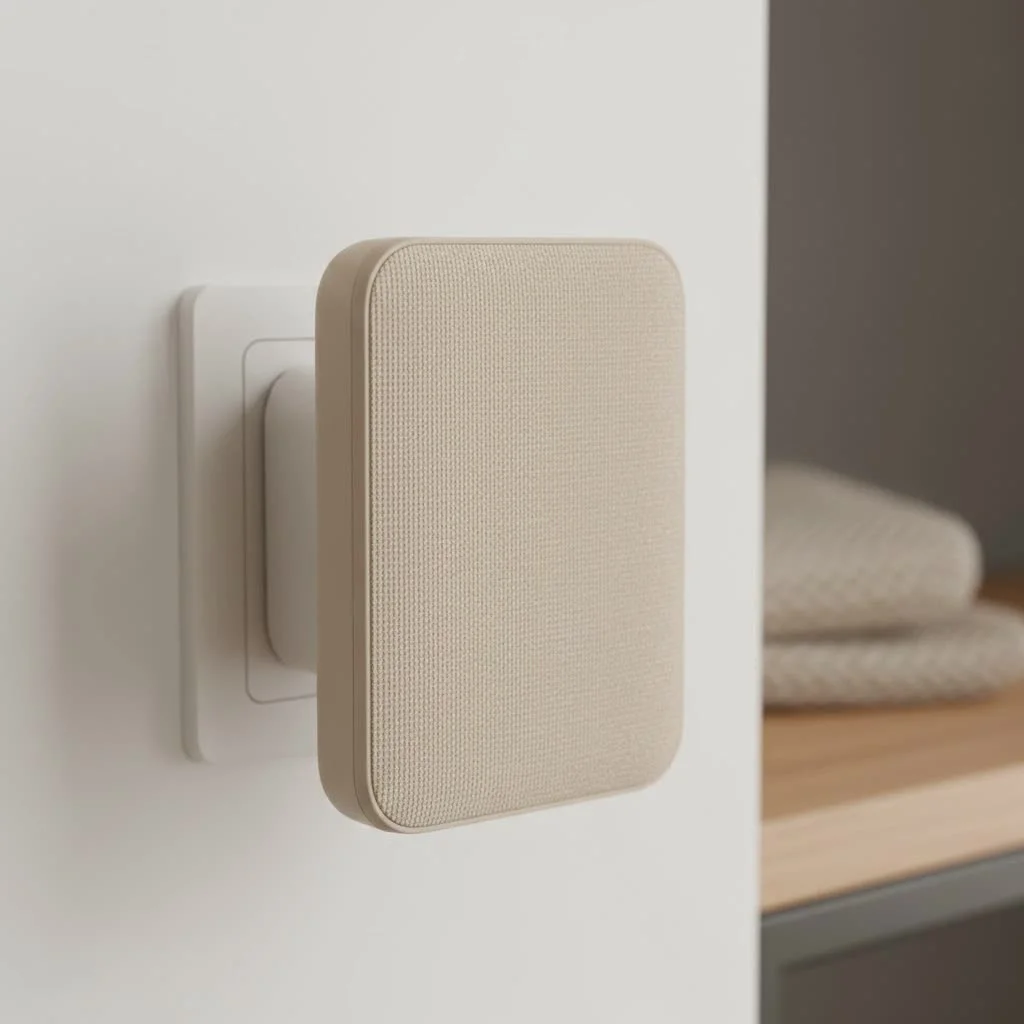
These are the most common type. They are compact devices that plug directly into a wall outlet, much like an air freshener. Their small size makes them discreet and incredibly easy to install. They are perfect for covering a single room or a small area where the signal is just a bit too weak.
Desktop Extenders
|
Our Picks for the Best Wifi Extender in 2026
As an Amazon Associate I earn from qualifying purchases.
|
||
| Num | Product | Action |
|---|---|---|
| 1 | 2025 WiFi Extenders Signal Booster for Home Long Range Up to 9800 sq. ft & 40 Devices, WiFi Extender Signal Booster, Quick Setup-Medium, Internet Repeater, WiFi Extender |

|
| 2 | WiFi Extender, WiFi Extenders Signal Booster for Home Up to 5000 sq.ft and 50 Devices, WiFi Range Extender, Wireless Repeater, Long Range Amplifier with Ethernet Port, 1-Tap Setup, Alexa Compatible |
|
| 3 | 2025 Fastest WiFi Extender, WiFi Repeater, WiFi Booster, Covers Up to 10000 Sq.ft and 80 Devices, Internet Booster - with Ethernet Port, Quick Setup, Home Wireless Signal Booster |
|
| 4 | Amazon eero 6 mesh wifi extender with 1-month free eero Plus (auto-renews) - Add up to 1,500 sq. ft. of Wi-Fi 6 coverage to your existing eero mesh wifi network |
|
| 5 | TP-Link AC1900 WiFi Range Extender RE550 - Dual-Band Wireless Repeater Amplifier w/Gigabit Ethernet Port - Up to 2200 Sq. Ft., 32 Devices - Internet Signal Booster - APP Setup - EasyMesh Compatible |
|
| 6 | Amazon eero 7 with 1 month free eero Plus (auto-renews) - Supports internet plans up to 2.5 Gbps, Coverage up to 2,000 sq. ft., Connect 120+ devices, 1-pack |
|
| 7 | TP-Link AX3000 WiFi 6 Range Extender - PCMag Editor\'s Choice - Dual-Band Wireless Repeater w/Ethernet Port - Up to 2400 Sq. Ft., 64 Devices - Internet Signal Booster - APP Setup - EasyMesh (RE715X) |
|
| 8 | Amazon eero 6+ mesh wifi system with 1 month free eero Plus (auto-renews) - Coverage up to 4,500 sq. ft., Connect 75+ devices, 3-pack |
|
| 9 | TP-Link AC1200 WiFi Extender, 2023 Engadget Best Budget Pick, 1.2Gbps Signal Booster for Home, Dual Band 5GHz/2.4GHz, Covers Up to 1500 Sq.ft and 30 Devices,Support Onemesh, One Ethernet Port (RE315) |
|
| 10 | WiFi Extender with 4 Antennas 1200Mbps - Dual Band 5GHz/2.4GHz, WiFi Extender Signal Booster with 3 Modes Support, WiFi Repeater with 12880 Sq.ft 105 Devices, Easy Set Up for Home |
|
Desktop extenders are larger, box-like units that resemble a small router. They often feature more powerful internal hardware and multiple external antennas. While they take up more space and require a surface to sit on, they typically offer superior performance, better range, and additional features like Ethernet ports for connecting wired devices such as gaming consoles or smart TVs.
Pros and Cons of Using a WiFi Extender
Like any technology, a WiFi extender has its advantages and disadvantages. Understanding them can help you decide if it’s the right solution for you.
Pros:
- Cost-Effective: They are an affordable way to improve coverage compared to more complex solutions.
- Easy to Install: Most models can be set up in minutes, often with a simple push of a WPS button.
- Flexible Placement: You can easily move them to different outlets to find the optimal location.
- Universal Compatibility: They generally work with any standard WiFi router.
Cons:
- Reduced Speed: Because the extender has to receive and then rebroadcast the signal, it can effectively cut the available bandwidth in half. This is the most significant drawback.
- Separate Network Name (SSID): Many older or basic extenders create a separate network (e.g., “MyHomeWiFi_EXT”). This means you may need to manually switch between your router’s network and the extender’s network as you move around your home. More modern devices can often clone your existing network name for a more seamless experience.
- Placement is Crucial: Placing it in a poor location (too far from the router) will result in it rebroadcasting an already weak signal, leading to poor performance.
“A common mistake people make is placing the WiFi extender in the actual dead zone. You need to place it in a spot where it can still receive a strong, stable signal from the main router. Think of it as a relay runner—it needs a good handoff to run the next leg of the race effectively.”
— David Chen, Senior Network Engineer at TVCSP
How to Set Up Your WiFi Extender: A Step-by-Step Guide
Setting up a WiFi extender is typically a straightforward process. While the exact steps can vary by manufacturer, here is a general guide that applies to most models.
- Unbox and Power On: Take the extender out of the box and plug it into a power outlet in the same room as your main router for the initial setup.
- Wait for the Power Light: Give the extender a minute or two to boot up. A solid power light will usually indicate it’s ready.
- Choose Your Setup Method: You generally have two options:
- WPS (Wi-Fi Protected Setup): This is the easiest method. Press the WPS button on your main router, and then within two minutes, press the WPS button on your extender. The devices will automatically connect. A light on the extender will confirm a successful link.
- Web Browser or App: Connect a device (like a laptop or smartphone) to the extender’s default WiFi network (the name is usually printed on the device or in the manual). Open a web browser and navigate to the setup URL provided in the instructions. Follow the on-screen wizard to select your home WiFi network and enter its password.
- Find the Optimal Location: Once the setup is complete, unplug the extender and move it to its permanent location. This should be about halfway between your router and the area you want to cover.
- Check the Signal Strength: Most extenders have indicator lights that tell you if the connection to the router is strong. Look for a solid green or blue light. If you see a red light or no light, it means the extender is too far from the router and you need to move it closer.
- Connect Your Devices: In your target area, connect your devices to the extender’s network. You’re all set!
Tips to Optimize Your WiFi Extender’s Performance
To get the most out of your device, follow these best practices:
- Update Firmware: Regularly check the manufacturer’s website for firmware updates for both your router and your extender. These updates often include performance improvements and security patches.
- Avoid Obstructions: Keep the extender away from thick walls, large metal objects (like refrigerators), and electronics that can cause interference, such as microwaves and cordless phones.
- Use the 5GHz Band: If you have a dual-band extender, use the 5GHz band for the connection between the router and the extender if possible. It’s generally faster and less crowded than the 2.4GHz band.
- Reboot Periodically: Just like a computer, rebooting your extender and router once a month can help clear out any glitches and keep them running smoothly.
Common WiFi Extender Problems and How to Fix Them
| Problem | Potential Cause | Solution |
|---|---|---|
| Constantly Dropping Connection | The extender is too far from the router or there is significant interference. | Move the extender closer to the router. Change the WiFi channel on your main router to a less congested one (1, 6, or 11 for 2.4GHz). |
| Slow Speeds | This is an inherent limitation. You may also have placed the extender too far from the router. | Ensure the extender is in an optimal location with a strong signal from the router. For speed-critical devices, consider a desktop extender with a Gigabit Ethernet port and connect the device via a cable. |
| Cannot Connect to the Extender | Incorrect password or configuration issue. | Double-check that you are using the correct WiFi password. If problems persist, perform a factory reset on the extender and go through the setup process again. |
| Extender Not Showing Up | Device is not powered on or has a hardware issue. | Check that the extender is plugged in and the power light is on. Try a different power outlet. If it still doesn’t appear, it may be faulty. |
WiFi Extender vs. Mesh WiFi: Which is Right for You?
While a WiFi extender is a great tool, for larger homes or those demanding top performance everywhere, a Mesh WiFi System might be a better choice.
- WiFi Extender: Best for smaller homes or for targeting one or two specific dead zones. It’s a single device that acts as a simple relay. It’s affordable and easy to set up.
- Mesh WiFi System: Best for large, multi-story homes or complex layouts. It consists of a main router and multiple “satellite” nodes that you place around your home. They work together intelligently to create a single, seamless WiFi network with the same name everywhere. There is no significant speed loss, and your devices automatically connect to the strongest node as you move around. The downside is that mesh systems are significantly more expensive.
Frequently Asked Questions (FAQ)
Can a WiFi extender increase my internet speed?
No, a WiFi extender cannot make your internet plan faster. Its purpose is to extend the coverage of your existing signal, not increase its speed. In fact, due to the way it rebroadcasts the signal, it will typically provide slower speeds than you would get when connected directly to your main router.
Where is the best place to put a WiFi extender?
The ideal location is approximately halfway between your main router and the WiFi dead zone. It needs to be close enough to the router to pick up a strong signal, but far enough away to extend that signal effectively into the desired area.
Will a WiFi extender work with any router?
Yes, virtually all modern WiFi extenders are designed to be universally compatible and will work with any standard WiFi router, regardless of the brand or your internet service provider.
Do I need a separate password for my WiFi extender?
During setup, you will connect the extender to your main network using your existing WiFi password. The extender itself may broadcast a new network name (SSID), but some models allow you to clone your existing SSID for a more seamless experience.
How many WiFi extenders can I use at once?
While you can technically use more than one, it is generally not recommended. Chaining extenders (connecting an extender to another extender’s signal) will dramatically decrease performance and create a complicated, unreliable network. If you need coverage in multiple large areas, a mesh WiFi system is a much better solution.
Conclusion
A WiFi extender is a fantastic and affordable solution for banishing frustrating WiFi dead zones from your home or office. By capturing and rebroadcasting your router’s signal, it can bring a reliable connection to every corner of your space. By understanding how to choose the right type, position it correctly, and optimize its settings, you can significantly improve your wireless experience. Say goodbye to buffering and dropped signals, and enjoy the strong, consistent connectivity you deserve.
Get our weekly buyer guide
Practical specs, not advice. Unsubscribe anytime.