Is a stubborn Wi-Fi dead zone cutting you off in your own home? Or perhaps you have a smart TV, gaming console, or desktop PC that needs a wired connection, but it’s nowhere near your router. If you’re nodding along, you’ve stumbled upon the perfect solution. A wifi range extender with ethernet port is more than just a signal booster; it’s a versatile tool that can fundamentally upgrade your home network’s stability and reach. As a network specialist with over 15 years of hands-on experience, I’ve seen these devices solve countless connectivity headaches, and I’m here to show you how.
This guide will break down everything you need to know, from setup to optimization, turning you into the master of your own home network.
What Exactly Is a WiFi Extender with an Ethernet Port?
At its core, a WiFi range extender (also known as a booster or repeater) is a device that captures your existing router’s wireless signal, amplifies it, and rebroadcasts it to cover a larger area. This eliminates those frustrating dead zones in basements, backyards, or upstairs bedrooms.
The addition of an Ethernet port transforms this simple booster into a powerful networking hub. This physical LAN port allows you to connect a device directly to the extender using an Ethernet cable, creating a wired, stable connection where one was previously impossible.
Why the Ethernet Port is a Game-Changer
That small port unlocks two powerful capabilities that can dramatically improve your network’s performance. It essentially allows the extender to act as a wireless bridge, linking your wired devices to your wireless network.
Connect Your Wired-Only Devices to WiFi
Many essential devices perform best—or only work—with a wired connection. This includes:
- Gaming Consoles (PlayStation, Xbox): A wired connection lowers latency (ping), which is critical for smooth, lag-free online gaming.
- Smart TVs and Streaming Devices: Get a more reliable, buffer-free experience when streaming 4K or 8K content.
- Desktop PCs: Older desktops or workstations without a built-in WiFi card can instantly get online.
- Network Attached Storage (NAS) and Printers: Place these devices anywhere in your home, not just next to the router.
By plugging one of these into the extender’s Ethernet port, you give it a fast and stable link to your network without running a 50-foot cable across your house.
Create a More Stable Access Point
For the absolute best performance, you can use the Ethernet port in reverse. This is often called Access Point (AP) Mode. Instead of the extender picking up a WiFi signal, you run an Ethernet cable from your main router directly to the extender. The extender then broadcasts a brand-new, full-strength WiFi signal from that location.
Expert Take by John Carter, Senior Network Technician at TVCSP:
“Using an extender in Access Point mode is the single best way to guarantee performance. Because the signal is delivered over a physical cable, you eliminate the potential for signal loss that occurs when an extender has to wirelessly repeat a weak signal. If you can run a cable, this is the superior setup.”
Step-by-Step: Setting Up Your WiFi Extender
Getting your extender up and running is typically straightforward. While exact steps vary by manufacturer, the general process is universal.
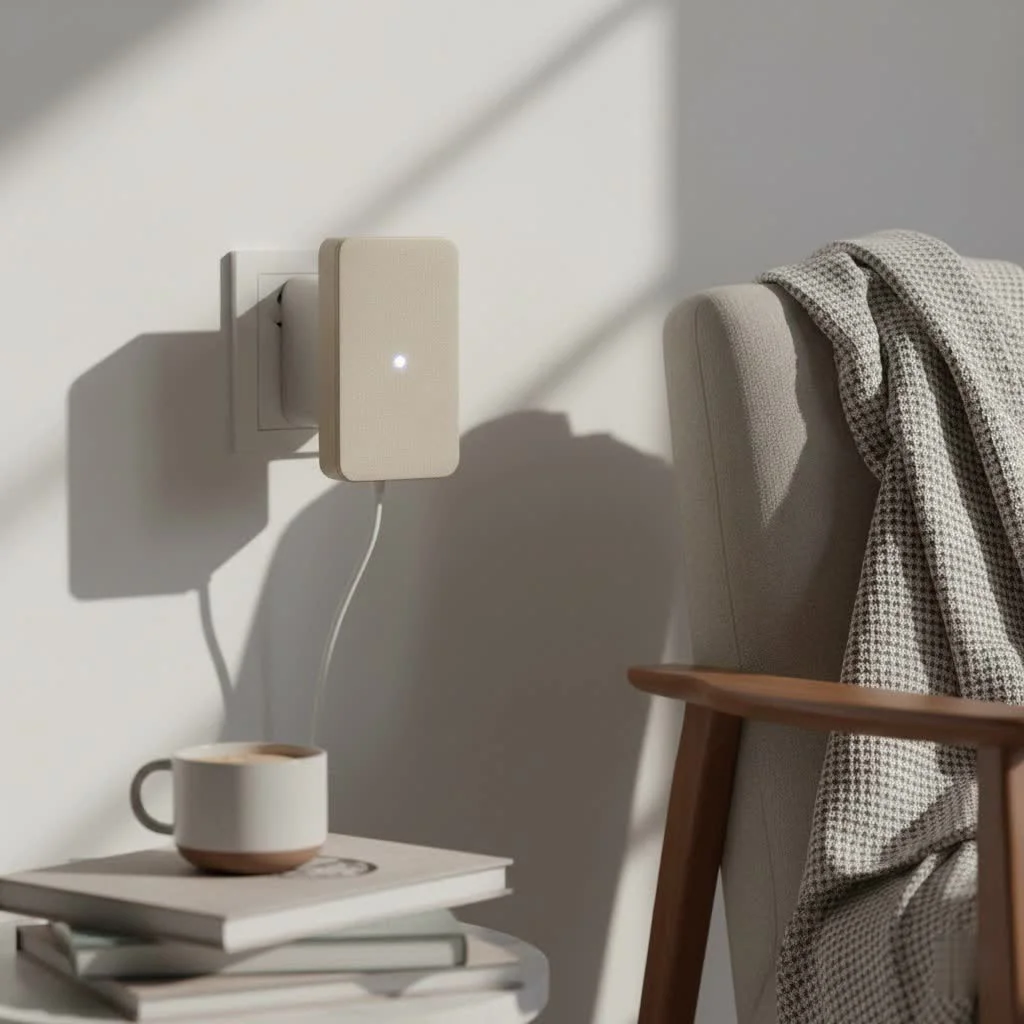
- Placement is Key: Plug the extender into a power outlet roughly halfway between your router and the area with a weak signal. You need a location where it can still receive a decent signal from the router to rebroadcast effectively. Most extenders have an indicator light that tells you if the connection to the router is strong, weak, or just right.
- Power On: Wait for the device to boot up, which usually takes a minute or two.
- Connect for Configuration: You can usually connect to the extender’s default WiFi network using your phone or laptop. The network name (SSID) will be in the instruction manual.
- Use WPS (Wi-Fi Protected Setup): The easiest method. Press the WPS button on your router, and then within two minutes, press the WPS button on your extender. They should connect automatically.
- Use a Web Browser: If WPS doesn’t work, navigate to the extender’s setup URL (e.g.,
mywifiext.netor an IP address like192.168.1.250). Follow the on-screen wizard to select your home WiFi network and enter its password. - Configure the New Network: You’ll be asked to set up the extended network’s name (SSID). You can either keep the same name as your main network for seamless roaming or create a new one (e.g.,
HomeNetwork_EXT) to know which one you’re connected to. - Connect Your Device: Once set up, you can plug your PC, console, or TV into the Ethernet port. Your device will automatically detect the wired connection and join the network.
Pro Tips for Maximum Performance
Setting up the extender is just the beginning. To get the most out of your wifi range extender with ethernet port, follow these expert tips.
- Update the Firmware: Manufacturers regularly release firmware updates that improve performance, patch security holes, and fix bugs. Check the manufacturer’s website or the device’s admin panel for the latest version.
- Aim for a Gigabit Ethernet Port: When buying an extender, ensure it has a “Gigabit” (10/100/1000 Mbps) Ethernet port, not a “Fast” (10/100 Mbps) port. A Fast Ethernet port will cap your wired speed at 100 Mbps, even if your internet plan is faster.
- Match Your WiFi Standards: For best results, match your extender’s WiFi standard to your router’s. If you have a WiFi 6 router, get a WiFi 6 extender to take full advantage of the speed and efficiency improvements.
- Avoid Obstructions: Place the extender in an open area, away from thick concrete walls, metal appliances, and microwave ovens, which can interfere with the wireless signal.
Choosing the Best Extender: Key Features to Look For
The market is flooded with options. Here’s a quick checklist to help you choose the right model for your needs.
| Feature | Why It Matters |
|---|---|
| WiFi Standard (WiFi 5, 6, 6E) | Determines maximum speed and network efficiency. WiFi 6 (AX) is the current standard and offers significant improvements over WiFi 5 (AC). |
| Gigabit Ethernet Port | Essential for getting speeds over 100 Mbps to your wired devices. A must-have for modern internet plans. |
| Dual-Band or Tri-Band | Dual-band extenders use both 2.4 GHz (for range) and 5 GHz (for speed) bands. Tri-band models add a second 5 GHz band as a dedicated link to the router, drastically improving performance. |
| MU-MIMO Technology | Stands for “Multi-User, Multiple Input, Multiple Output.” It allows the extender to communicate with multiple devices simultaneously, reducing wait times and speeding up the network. |
| Easy Setup (WPS/App) | A simple, app-based setup or a reliable WPS button can save you a lot of time and frustration. |
Frequently Asked Questions (FAQ)
Is a WiFi extender with an Ethernet port faster?
|
Our Picks for the Best Wifi Extender in 2026
As an Amazon Associate I earn from qualifying purchases.
|
||
| Num | Product | Action |
|---|---|---|
| 1 | 2025 Fastest WiFi Extender, WiFi Repeater, WiFi Booster, Covers Up to 10000 Sq.ft and 80 Devices, Internet Booster - with Ethernet Port, Quick Setup, Home Wireless Signal Booster |

|
| 2 | 2025 WiFi Extenders Signal Booster for Home Long Range Up to 9800 sq. ft & 40 Devices, WiFi Extender Signal Booster, Quick Setup-Medium, Internet Repeater, WiFi Extender |
|
| 3 | TP-Link AX3000 WiFi 6 Range Extender - PCMag Editor\'s Choice - Dual-Band Wireless Repeater w/Ethernet Port - Up to 2400 Sq. Ft., 64 Devices - Internet Signal Booster - APP Setup - EasyMesh (RE715X) |
|
| 4 | Amazon eero 6+ mesh wifi system with 1 month free eero Plus (auto-renews) - Coverage up to 4,500 sq. ft., Connect 75+ devices, 3-pack |
|
| 5 | WiFi Extender with 4 Antennas 1200Mbps - Dual Band 5GHz/2.4GHz, WiFi Extender Signal Booster with 3 Modes Support, WiFi Repeater with 12880 Sq.ft 105 Devices, Easy Set Up for Home |
|
| 6 | WiFi Extender, WiFi Extenders Signal Booster for Home Up to 5000 sq.ft and 50 Devices, WiFi Range Extender, Wireless Repeater, Long Range Amplifier with Ethernet Port, 1-Tap Setup, Alexa Compatible |
|
| 7 | Amazon eero 7 with 1 month free eero Plus (auto-renews) - Supports internet plans up to 2.5 Gbps, Coverage up to 2,000 sq. ft., Connect 120+ devices, 1-pack |
|
| 8 | TP-Link AC1900 WiFi Range Extender RE550 - Dual-Band Wireless Repeater Amplifier w/Gigabit Ethernet Port - Up to 2200 Sq. Ft., 32 Devices - Internet Signal Booster - APP Setup - EasyMesh Compatible |
|
| 9 | TP-Link AC1200 WiFi Extender, 2023 Engadget Best Budget Pick, 1.2Gbps Signal Booster for Home, Dual Band 5GHz/2.4GHz, Covers Up to 1500 Sq.ft and 30 Devices,Support Onemesh, One Ethernet Port (RE315) |
|
| 10 | Amazon eero 6 mesh wifi extender with 1-month free eero Plus (auto-renews) - Add up to 1,500 sq. ft. of Wi-Fi 6 coverage to your existing eero mesh wifi network |
|
The Ethernet port itself doesn’t make the WiFi signal faster, but it provides a more stable and often faster connection for the device plugged into it compared to connecting that same device via WiFi. A wired connection is less susceptible to interference and signal drops.
Can I plug a PC directly into a WiFi extender?
Absolutely. This is one of the primary uses for an extender with an Ethernet port. It acts as a wireless adapter for your PC, giving it a stable, wired connection to your network.
Does a WiFi extender need to be connected to the router via an Ethernet cable?
No, it typically connects to the router wirelessly. However, if you can connect it to the router with an Ethernet cable, you can use it in Access Point mode, which provides significantly better performance as it eliminates any wireless signal loss between the router and the extender.
What is the difference between a WiFi extender and a Powerline adapter?
A WiFi extender repeats a wireless signal. A Powerline adapter uses your home’s electrical wiring to transmit the network signal. A Powerline kit comes with two adapters: one plugs in near the router and connects to it via Ethernet, and the other plugs in near your device, offering its own Ethernet port and/or WiFi signal. Powerline can be more stable in homes with very thick walls but can be affected by old or complex electrical wiring.
How far should my extender be from my router?
The ideal spot is about halfway between the router and the dead zone. It needs to be close enough to the router to get a strong, reliable signal to repeat. Most extenders have a signal strength indicator light to help you find the optimal location.
Your Solution to a Better Connection
A wifi range extender with ethernet port is an incredibly powerful and flexible tool for solving common network problems. Whether you’re aiming to eliminate dead zones, connect a non-wireless device, or provide a rock-solid link for your gaming console, this device is your all-in-one answer. By understanding how it works and following best practices for placement and setup, you can build a faster, more reliable home network that reaches every corner. It’s time to say goodbye to buffering and welcome seamless connectivity.
Get our weekly buyer guide
Practical specs, not advice. Unsubscribe anytime.