Are you tired of Wi-Fi dead zones in your home? It’s a frustratingly common problem: you have a strong connection in the living room, but the signal barely reaches the bedroom or the back patio. Before you consider upgrading your entire internet plan, there’s a simpler, more effective solution. A Linksys WiFi range extender can be the key to eliminating those dead spots and ensuring a stable, fast connection throughout your entire space. As a network specialist with over 15 years of hands-on experience, I’ve seen firsthand how the right extender can transform a home network from frustrating to flawless. This guide will walk you through everything you need to know.
What Exactly is a Wi-Fi Range Extender?
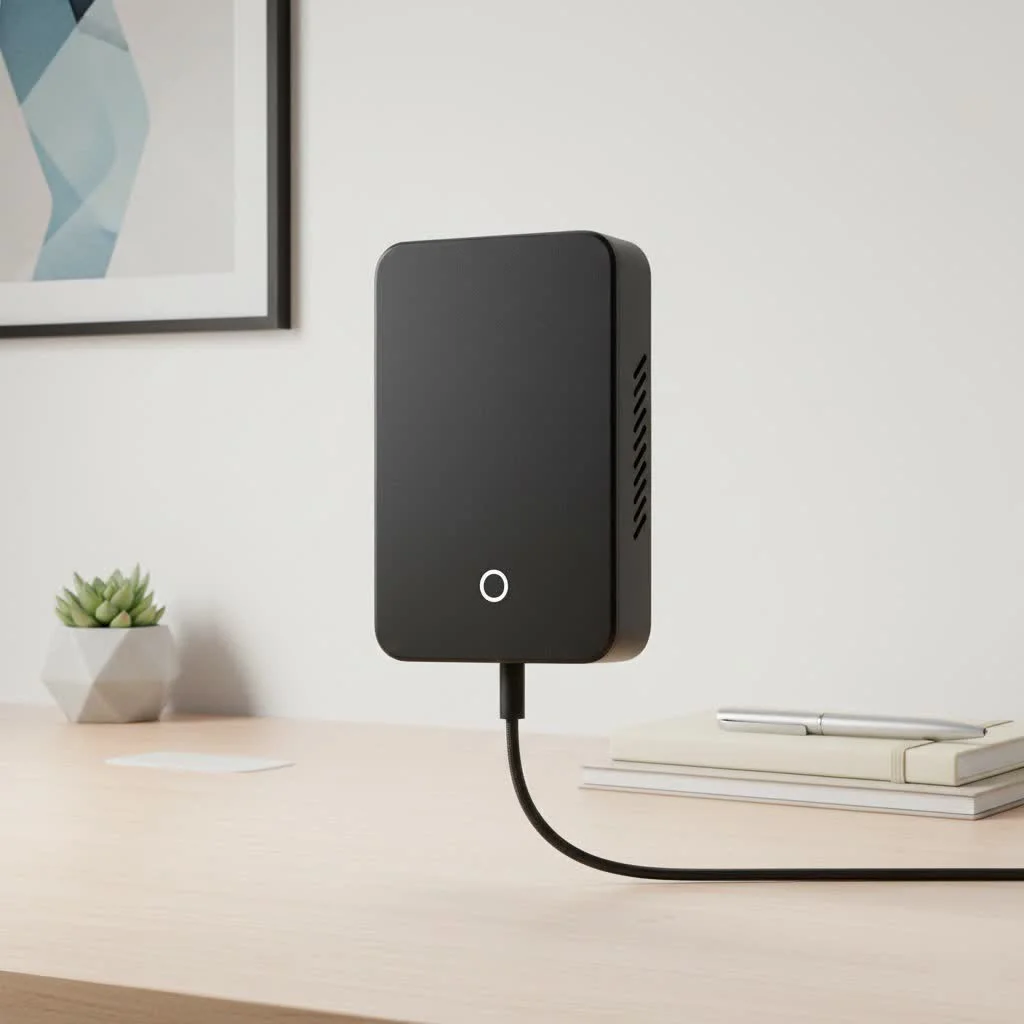
Think of a Wi-Fi range extender, often called a Wi-Fi booster, as a bridge. Its job is simple but crucial: it captures the existing Wi-Fi signal from your main router and rebroadcasts it to areas where the signal is weak or non-existent. This effectively expands your network’s coverage area, allowing you to enjoy a reliable internet connection on all your devices, no matter where you are in the house. For expert wifi extenders reviews on this site.
Linksys extenders do this intelligently. They create a new, extended network that works in harmony with your primary one, so your devices can connect to whichever signal is stronger as you move around.
Why Choose a Linksys WiFi Range Extender?
While many brands offer extenders, Linksys has consistently stood out for its reliability and user-friendly technology. Here’s why it’s a brand I frequently recommend:
- Spot Finder Technology: One of the biggest challenges with any extender is finding the perfect placement. Too close to the router, and it won’t extend the range much. Too far, and it will receive a weak signal to rebroadcast. Linksys’s exclusive Spot Finder technology solves this by using your phone or tablet to visually guide you to the optimal installation spot.
- Seamless Roaming: Select Linksys models support seamless roaming. This means your devices will automatically switch to the strongest Wi-Fi signal (either from your router or extender) without you having to manually disconnect and reconnect. It’s a seamless experience, especially for video calls or streaming.
- Cross-Compatibility: A Linksys extender works with any standard Wi-Fi router, so you don’t need to have a Linksys router to benefit from their extenders. This universal compatibility makes it a flexible choice for any existing network setup.
- Reliability and Performance: With years of experience in the networking industry, Linksys builds products known for stable performance and longevity.
As networking expert Johnathan Carter puts it, “A range extender isn’t just about boosting a signal; it’s about creating a more stable and consistent network experience. Linksys has refined this with features that take the guesswork out of the setup process, which is a huge win for the average user.”
How to Set Up Your Linksys WiFi Range Extender
Getting your Linksys extender up and running is straightforward. Most users can complete the setup in under 10 minutes. Here is a step-by-step guide.
Step 1: Find the Right Location
|
Our Picks for the Best Wifi Extender in 2026
As an Amazon Associate I earn from qualifying purchases.
|
||
| Num | Product | Action |
|---|---|---|
| 1 | Amazon eero 7 with 1 month free eero Plus (auto-renews) - Supports internet plans up to 2.5 Gbps, Coverage up to 2,000 sq. ft., Connect 120+ devices, 1-pack |

|
| 2 | TP-Link AC1200 WiFi Extender, 2023 Engadget Best Budget Pick, 1.2Gbps Signal Booster for Home, Dual Band 5GHz/2.4GHz, Covers Up to 1500 Sq.ft and 30 Devices,Support Onemesh, One Ethernet Port (RE315) |
|
| 3 | Amazon eero 6 mesh wifi extender with 1-month free eero Plus (auto-renews) - Add up to 1,500 sq. ft. of Wi-Fi 6 coverage to your existing eero mesh wifi network |
|
| 4 | WiFi Extender, WiFi Extenders Signal Booster for Home Up to 5000 sq.ft and 50 Devices, WiFi Range Extender, Wireless Repeater, Long Range Amplifier with Ethernet Port, 1-Tap Setup, Alexa Compatible |
|
| 5 | TP-Link AC1900 WiFi Range Extender RE550 - Dual-Band Wireless Repeater Amplifier w/Gigabit Ethernet Port - Up to 2200 Sq. Ft., 32 Devices - Internet Signal Booster - APP Setup - EasyMesh Compatible |
|
| 6 | 2025 Fastest WiFi Extender, WiFi Repeater, WiFi Booster, Covers Up to 10000 Sq.ft and 80 Devices, Internet Booster - with Ethernet Port, Quick Setup, Home Wireless Signal Booster |
|
| 7 | 2025 WiFi Extenders Signal Booster for Home Long Range Up to 9800 sq. ft & 40 Devices, WiFi Extender Signal Booster, Quick Setup-Medium, Internet Repeater, WiFi Extender |
|
| 8 | WiFi Extender with 4 Antennas 1200Mbps - Dual Band 5GHz/2.4GHz, WiFi Extender Signal Booster with 3 Modes Support, WiFi Repeater with 12880 Sq.ft 105 Devices, Easy Set Up for Home |
|
| 9 | Amazon eero 6+ mesh wifi system with 1 month free eero Plus (auto-renews) - Coverage up to 4,500 sq. ft., Connect 75+ devices, 3-pack |
|
| 10 | TP-Link AX3000 WiFi 6 Range Extender - PCMag Editor\'s Choice - Dual-Band Wireless Repeater w/Ethernet Port - Up to 2400 Sq. Ft., 64 Devices - Internet Signal Booster - APP Setup - EasyMesh (RE715X) |
|
Before you even plug it in, think about placement. The ideal spot is roughly halfway between your main router and the area with the weakest Wi-Fi signal. Avoid placing it in an area that is already a complete dead zone, as it needs to receive a stable signal from the router to work effectively.
Step 2: Plug It In and Wait for the Light
Plug the Linksys extender into a power outlet. Wait about a minute for the indicator light on the front to start blinking, which typically indicates it’s ready for setup.
Step 3: Connect to the Extender’s Network
On your computer, smartphone, or tablet, go to your Wi-Fi settings. Look for and connect to the network named “Linksys Extender Setup.”
Step 4: Launch the Setup Wizard
Once connected, open a web browser. You should be automatically redirected to the setup page. If not, type http://extender.linksys.com into the address bar.
- Start Setup: Click the “Start” button on the setup wizard.
- Select Your Wi-Fi Network: The extender will scan for available Wi-Fi networks. Select your home network (both 2.4 GHz and 5 GHz bands, if available) from the list and enter your password.
- Configure the Extended Network: You can keep the default extended network names (which usually have “_Ext” added to your current network name) or customize them. For seamless roaming, it’s often best to give them the same name and password as your main router.
- Use Spot Finder: The setup will guide you through the Spot Finder tool to confirm your chosen location is optimal. It will tell you if you are “Too Close,” “Too Far,” or “Just Right.” Adjust the extender’s location if needed.
- Finalize Setup: Once you’re in the sweet spot, the setup will finalize, and your extender will reboot.
Alternative Method: Wi-Fi Protected Setup (WPS)
If your router supports WPS, the process is even simpler:
- Plug in the extender near your router.
- Press the WPS button on your router.
- Within two minutes, press the WPS button on the Linksys extender.
- The light on the extender will turn solid green once a connection is established. You can then unplug it and move it to your desired location.
Tips for Optimizing Performance
Once your Linksys WiFi range extender is set up, a few extra steps can ensure you’re getting the best possible performance.
- Firmware Updates: Regularly check for firmware updates through the Linksys settings dashboard. These updates often include security patches and performance improvements.
- Avoid Physical Obstructions: Wi-Fi signals can be weakened by thick walls (especially concrete or brick), large metal objects like refrigerators, and even mirrors. Try to ensure a clear line of sight between the router, extender, and your devices.
- Use the Right Band: If you have a dual-band extender, use the 5 GHz band for activities that require more bandwidth, like streaming 4K video or online gaming, as it’s typically faster and less congested. Use the 2.4 GHz band for general browsing and for devices that are farther away, as it has a longer range.
Common Problems and Easy Fixes
Even with the best technology, you might run into a snag. Here are some common issues and how to resolve them quickly.
Issue: The extender keeps disconnecting.
- Solution: The extender may be placed too far from the router. Try moving it a little closer to the main router. Also, check for firmware updates, as this can sometimes resolve stability issues.
Issue: Internet speed is slow through the extender.
- Solution: Remember that an extender rebroadcasts a signal, which can inherently cut the bandwidth in half. This is normal. However, if it’s extremely slow, ensure you’ve placed it in a location where it receives a strong signal from the router. Interference from other electronics like microwaves or cordless phones can also be a culprit.
Issue: I can’t connect to the setup page.
- Solution: Make sure you are connected to the “Linksys Extender Setup” network first. If you’ve tried and it still doesn’t work, perform a factory reset by pressing and holding the reset button on the extender for 10 seconds. Then, try the setup process again.
Frequently Asked Questions (FAQ)
Can I use a Linksys extender with a non-Linksys router?
Yes, absolutely. Linksys Wi-Fi range extenders are designed to be universally compatible with any standard Wi-Fi router, regardless of the brand.
Will a Wi-Fi extender slow down my internet speed?
A Wi-Fi extender works by using half of its bandwidth to receive the signal and the other half to transmit it, so some speed reduction is inherent to the technology. However, a slow but stable connection from an extender is far better than an unstable or non-existent connection without one.
What is the difference between a range extender and a mesh system?
A range extender is a single device that repeats a signal. A mesh Wi-Fi system consists of multiple “nodes” that work together to create a single, unified, and intelligent network. Mesh systems are generally better for very large or multi-story homes, while an extender is a perfect and cost-effective solution for smaller homes with specific dead zones.
How do I reset my Linksys extender to factory settings?
With the extender plugged in, press and hold the physical reset button (you may need a paperclip) for about 10 seconds. The indicator light will flash, indicating that it has been reset.
Conclusion: Banish Dead Zones for Good
Wi-Fi dead zones don’t have to be a permanent frustration. With its user-friendly setup, smart placement technology, and reliable performance, a Linksys WiFi range extender is one of the most effective tools for expanding your network coverage. By following the simple steps for installation and optimization, you can ensure a strong, stable signal reaches every corner of your home. It’s a small investment that pays huge dividends in seamless connectivity, allowing you to stream, work, and browse without interruption.
Get our weekly buyer guide
Practical specs, not advice. Unsubscribe anytime.
I got a Linksys extender hoping to fix the dead spot in my garage. While it did boost the signal somewhat, it wasn’t as strong as I’d hoped for that particular area. It’s better than nothing, but I still get occasional drops when I’m out there. Maybe my garage is just too far from the main router.
As someone who’s been frustrated with Wi-Fi dead zones for ages, this was a lifesaver. I appreciate the explanation of how these devices capture and rebroadcast the signal. My Linksys extender completely eliminated the weak spots in my upstairs bedrooms. It’s like having a whole new network without upgrading my internet plan.
My bedroom always had a weak signal, making it impossible to work from home effectively. I picked up a Linksys extender after reading about them here, and it’s made a huge difference. The connection is stable now, though I did have to try a couple of different outlets to find the optimal spot for coverage. Still, a solid improvement.
I was so tired of my Wi-Fi dropping out on the back patio. This guide really helped me understand how a Linksys extender works as a ‘bridge’ to rebroadcast the signal. Setup was surprisingly easy, and now I can stream videos outside without any buffering. Definitely worth it for anyone dealing with dead zones.