An Orbi WiFi Extender, more accurately known as an Orbi satellite, is a component of a mesh WiFi system designed to eliminate dead zones and provide seamless, high-speed WiFi coverage throughout your entire home. Unlike traditional extenders that create separate networks, Orbi satellites work with a main Orbi router to form a single, unified network, ensuring devices automatically connect to the strongest signal as you move around.
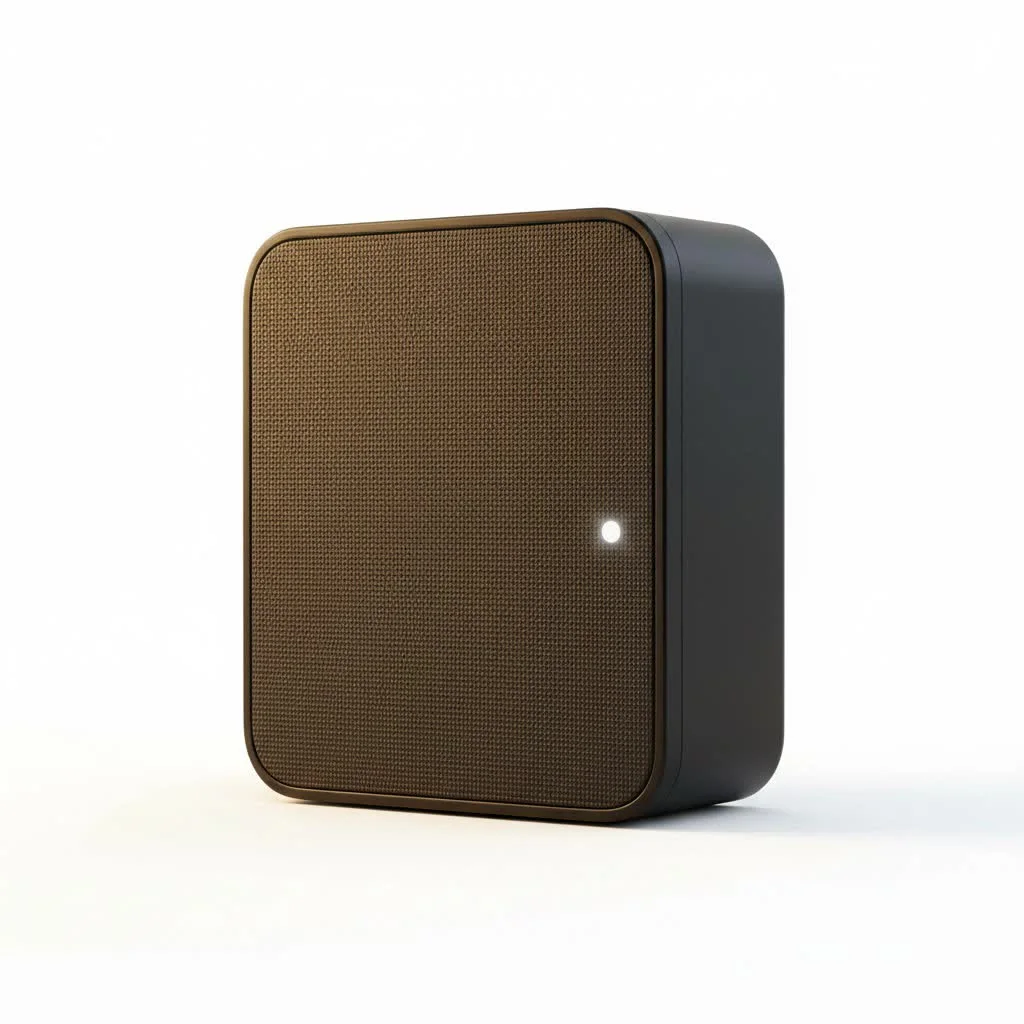
As a network professional with over 15 years of hands-on experience, I’ve seen countless products promise to solve WiFi woes. The Netgear Orbi line consistently stands out for its performance and simplicity. This guide will walk you through everything you need to know, from setup and optimization to troubleshooting common issues, ensuring you get the most out of your network.
What Makes an Orbi WiFi Extender Different?
First, let’s clear up a common point of confusion. While you might be searching for an “Orbi WiFi Extender,” what you’re really looking for is an Orbi satellite. Orbi systems are mesh WiFi systems. Instead of a single router, a mesh system uses a main router and one or more “satellites” placed around your home.
The key difference lies in how they communicate. A traditional extender creates a separate, new network (e.g., “MyNetwork_EXT”). You have to manually switch between networks as you move around. Orbi satellites, however, work together to create a single, unified network. You have one network name (SSID) and one password, and your devices automatically connect to the strongest signal as you roam your home.
“The magic of the Orbi system is its dedicated backhaul,” says network architect David Chen. “Many Orbi models use a third, hidden WiFi band exclusively for the router and satellites to communicate. This frees up the other two bands for your devices, preventing the 50% speed loss common with cheaper, dual-band extenders.”
This tri-band technology ensures your extended signal remains fast and stable, making it ideal for streaming 4K video, online gaming, and video conferencing, even at the far corners of your property.
How to Set Up Your Orbi WiFi Extender (Satellite)
Getting your Orbi system up and running is refreshingly simple. Netgear has streamlined the process, which can typically be done in under 15 minutes using the Orbi mobile app.
Step-by-Step Installation Guide
- Download the Orbi App: Before you unplug anything, go to the App Store or Google Play Store and download the official Netgear Orbi app on your smartphone.
- Position Your Router: Place the main Orbi router in a central location in your home, connecting it to your modem with the included Ethernet cable. Power it on and wait for the light ring to turn a solid white or blue.
- Position Your Satellite: Take your Orbi satellite to a different area of your home. The ideal placement is about halfway between the router and the area with a weak signal. Plug it in.
- Sync Your Devices: Open the Orbi app and follow the on-screen instructions. The app will automatically detect your router and satellite. The satellite’s light ring will glow magenta during the sync process and then turn solid blue once a strong connection is established.
- Customize Your Network: The app will guide you through setting a network name (SSID) and a secure password. It will also prompt you to set up security questions for account recovery.
- Update Firmware: Once setup is complete, the app will likely check for and install the latest firmware. This is a crucial step for security and performance, so don’t skip it.
If the satellite’s light is amber or magenta after setup, it means the connection to the router is weak or it has failed to connect. Try moving the satellite closer to the main router.
Tips for Optimizing Your Orbi Extender’s Performance
Once your system is online, a few simple tweaks can ensure you’re getting the best possible performance.
Placement is Everything
|
Our Picks for the Best Wifi Extender in 2026
As an Amazon Associate I earn from qualifying purchases.
|
||
| Num | Product | Action |
|---|---|---|
| 1 | WiFi Extender with 4 Antennas 1200Mbps - Dual Band 5GHz/2.4GHz, WiFi Extender Signal Booster with 3 Modes Support, WiFi Repeater with 12880 Sq.ft 105 Devices, Easy Set Up for Home |

|
| 2 | 2025 WiFi Extenders Signal Booster for Home Long Range Up to 9800 sq. ft & 40 Devices, WiFi Extender Signal Booster, Quick Setup-Medium, Internet Repeater, WiFi Extender |
|
| 3 | TP-Link AC1900 WiFi Range Extender RE550 - Dual-Band Wireless Repeater Amplifier w/Gigabit Ethernet Port - Up to 2200 Sq. Ft., 32 Devices - Internet Signal Booster - APP Setup - EasyMesh Compatible |
|
| 4 | 2025 Fastest WiFi Extender, WiFi Repeater, WiFi Booster, Covers Up to 10000 Sq.ft and 80 Devices, Internet Booster - with Ethernet Port, Quick Setup, Home Wireless Signal Booster |
|
| 5 | TP-Link AX3000 WiFi 6 Range Extender - PCMag Editor\'s Choice - Dual-Band Wireless Repeater w/Ethernet Port - Up to 2400 Sq. Ft., 64 Devices - Internet Signal Booster - APP Setup - EasyMesh (RE715X) |
|
| 6 | Amazon eero 6+ mesh wifi system with 1 month free eero Plus (auto-renews) - Coverage up to 4,500 sq. ft., Connect 75+ devices, 3-pack |
|
| 7 | Amazon eero 6 mesh wifi extender with 1-month free eero Plus (auto-renews) - Add up to 1,500 sq. ft. of Wi-Fi 6 coverage to your existing eero mesh wifi network |
|
| 8 | WiFi Extender, WiFi Extenders Signal Booster for Home Up to 5000 sq.ft and 50 Devices, WiFi Range Extender, Wireless Repeater, Long Range Amplifier with Ethernet Port, 1-Tap Setup, Alexa Compatible |
|
| 9 | Amazon eero 7 with 1 month free eero Plus (auto-renews) - Supports internet plans up to 2.5 Gbps, Coverage up to 2,000 sq. ft., Connect 120+ devices, 1-pack |
|
| 10 | TP-Link AC1200 WiFi Extender, 2023 Engadget Best Budget Pick, 1.2Gbps Signal Booster for Home, Dual Band 5GHz/2.4GHz, Covers Up to 1500 Sq.ft and 30 Devices,Support Onemesh, One Ethernet Port (RE315) |
|
The location of your Orbi satellite is the single most important factor for success. Follow these guidelines:
- Central Location: Place it halfway between your router and the dead zone.
- Elevate It: Position the satellite on a shelf or table, not on the floor. This helps the signal travel further.
- Avoid Obstructions: Keep it away from thick concrete walls, large metal objects (like refrigerators), and electronics that can cause interference (like microwave ovens or cordless phones).
Keep Your Firmware Updated
Netgear regularly releases firmware updates that include security patches, bug fixes, and performance improvements. You can enable automatic updates through the Orbi app or manually check for them by logging into the Orbi web interface.
Check Your Device Connections
You can see which devices are connected to which Orbi unit (router or satellite) through the app. If a stationary device, like a smart TV or desktop PC, is connecting to a farther satellite, you may need to adjust the satellite’s position for a stronger, more direct connection.
Common Orbi WiFi Extender Problems and Fixes
Even the best technology can have hiccups. Here are some of the most common issues users face and how to resolve them quickly.
Why is my Orbi satellite blinking?
A blinking light on your satellite usually indicates a problem with its connection to the router.
- Blinking White/Blue: The satellite is starting up or applying new settings. Wait a few minutes.
- Blinking Amber: The connection to the router is weak. Move the satellite closer to the router.
- Blinking Magenta: The satellite failed to connect to the router. Try moving it closer and restarting both the satellite and the router.
Why is my WiFi speed slow?
If your speeds are disappointing, try these steps:
- Check Satellite Placement: A weak backhaul connection (amber light) is the most common cause of slow speeds.
- Restart Your System: A simple reboot of your modem, Orbi router, and satellite can often clear up network congestion.
- Check for Interference: Ensure your Orbi units aren’t near other powerful electronics.
Why does my connection keep dropping?
Intermittent connection drops can be frustrating.
- Update Firmware: Outdated firmware is a frequent culprit. Ensure your entire system is up to date.
- Reduce Network Congestion: If you have dozens of devices connected, some may be struggling for bandwidth. You can use the Orbi app to pause the internet for non-essential devices.
- Hardwire a Connection: If you have an Orbi model with Ethernet ports on the satellite, consider using a wired connection for critical devices like a gaming console or work computer. This provides the most stable connection possible.
Frequently Asked Questions (FAQ)
Can I use an Orbi satellite with a non-Orbi router?
No, Orbi satellites are designed to work exclusively within the Orbi mesh ecosystem. They will not function as a standard WiFi extender with a router from another brand.
How many Orbi satellites can I add?
The number of satellites depends on the Orbi system model. Most Orbi systems support between 3 to 6 satellites, which is more than enough to cover even very large homes.
Does an Orbi WiFi Extender create a new network name?
No, and that is its biggest advantage. The entire Orbi system operates under a single network name (SSID), providing seamless connectivity as you move throughout your home.
Can I use an Ethernet cable to connect my Orbi satellite?
Yes, this is called a “wired backhaul” or “Ethernet backhaul.” Connecting your satellite to your router with an Ethernet cable provides the fastest and most stable connection possible, and it’s a great option if your home is already wired for Ethernet.
Is an Orbi WiFi Extender the same as a WiFi booster?
While the terms are often used interchangeably, an Orbi system is more advanced. A simple “booster” or “repeater” just rebroadcasts an existing signal, often at a reduced speed. An Orbi mesh system intelligently manages your entire network to deliver optimal performance everywhere.
The Final Verdict
For homeowners looking to eliminate WiFi dead zones for good, an Orbi WiFi Extender system is one of the best investments you can make. It replaces the clunky, inefficient experience of traditional extenders with a powerful, seamless, and easy-to-manage mesh network. By creating a single, robust WiFi blanket over your entire property, you can finally stream, work, and play from any room without worrying about a dropped connection. Take the time to position your satellite correctly, keep your firmware updated, and you’ll have a home network that just works.
How to Set Up Your Orbi WiFi Extender (Satellite)
Setting up your Orbi WiFi extender, or satellite, is a straightforward process that can be completed in under 15 minutes using the Orbi mobile app. This guide ensures you get your mesh system running efficiently.
Before starting, download the official Netgear Orbi app from the App Store or Google Play Store onto your smartphone. This app will guide you through the entire setup process.
Place the main Orbi router in a central location and connect it to your modem. Then, position your Orbi satellite about halfway between the router and the area experiencing a weak signal. Plug in both devices.
Open the Orbi app and follow the on-screen instructions. The app will automatically detect and sync your router and satellite. The satellite's light ring will turn solid blue once a strong connection is established.
Use the app to set a network name (SSID) and a secure password. Crucially, allow the app to check for and install the latest firmware updates for optimal security and performance.
Get our weekly buyer guide
Practical specs, not advice. Unsubscribe anytime.

I was so tired of dead zones in my house, especially in the back bedroom. This Orbi satellite totally fixed it! Setup was a breeze, just like the guide said. Now I have strong WiFi everywhere, even out on the patio. Definitely worth the investment for seamless coverage.
The Orbi system really does deliver on its promise of a single, unified network. I used to have a traditional extender that created a separate network, and it was always a hassle switching between them. With Orbi, my devices just connect to the strongest signal automatically. My only minor complaint is the price point, but the performance is top-notch.
I got an Orbi satellite to boost the signal in my garage, and it mostly works. The speed is good when it’s connected, but sometimes it seems to drop the connection for a few seconds. It’s not a deal-breaker, but it’s a bit annoying when I’m streaming music out there. Maybe I need to try a different placement.
As someone who works from home, reliable WiFi is non-negotiable. My old router just couldn’t reach my home office consistently. Adding an Orbi satellite made a huge difference. The high-speed WiFi coverage is fantastic, and I haven’t had a single dropped video call since. Highly recommend for anyone struggling with inconsistent signals.