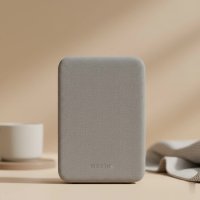
Are you tired of buffering videos, dropped video calls, and WiFi dead zones in your own home? It’s a frustratingly common problem. You have a great internet plan and a powerful router, but the signal just doesn’t reach the back bedroom or the basement. Before you consider a costly internet upgrade, the solution might be a simple and affordable device: the wifi router extender. As a network specialist at TVCSP, I’ve spent over a decade helping people conquer weak signals, and in this comprehensive guide, I’ll walk you through everything you need to know to boost your network and enjoy seamless connectivity in every corner of your space.
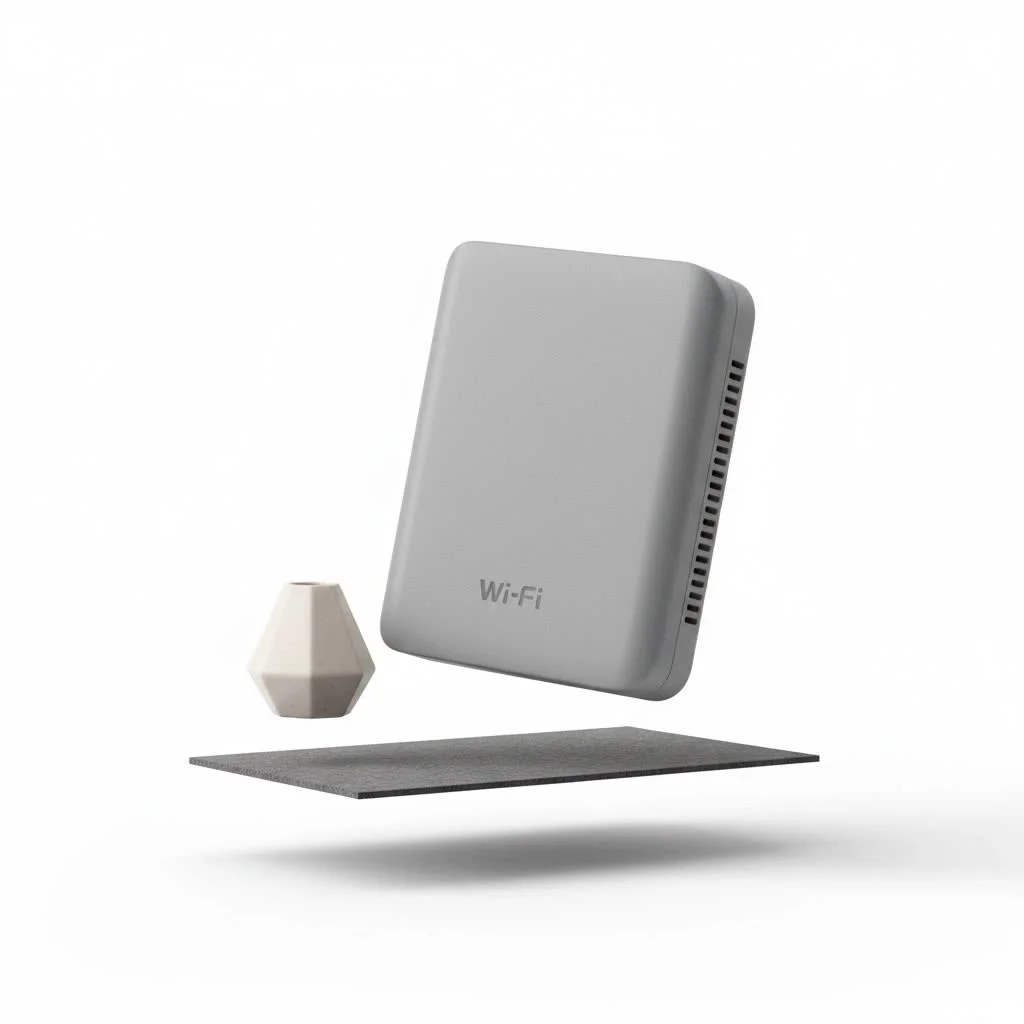
What is a WiFi Router Extender and How Does It Work?
Think of a wifi router extender, sometimes called a WiFi repeater or booster, as a megaphone for your existing WiFi signal. It’s a separate device that captures the wireless signal from your main router, amplifies it, and then rebroadcasts it to areas where the signal is weak or non-existent.
The process is straightforward:
- It Catches the Signal: You place the extender in a location that can still receive a decent signal from your primary router.
- It Amplifies and Rebroadcasts: The extender then creates a new, secondary network by rebroadcasting this boosted signal. Devices in the previously dead zone can then connect to this new extended network.
This is different from a mesh WiFi system, which creates a single, seamless network using multiple nodes. An extender is a simpler, point-to-point solution ideal for extending coverage to a specific area.
The Different Types of WiFi Extenders
WiFi extenders generally come in two main form factors, each suited for different needs and environments.
Wall Plug-in Extenders
These are the most common type. They are compact devices that plug directly into an electrical outlet, resembling an air freshener or a smart plug.
- Best for: Small to medium-sized homes, covering a specific room or area.
- Pros: Discreet, easy to install, and generally more affordable.
- Cons: Can have fewer features and less powerful antennas due to their small size. Plugging them in can also block the second electrical outlet.
Desktop Extenders
Desktop extenders look more like a small router and sit on a flat surface like a table or shelf. They are larger and often have external, adjustable antennas.
- Best for: Larger homes or areas requiring a more powerful signal boost. They are also great for connecting wired devices like gaming consoles or smart TVs.
- Pros: More powerful with better range, often include extra features like Ethernet ports and faster speeds.
- Cons: They are bulkier, require shelf space, and are typically more expensive than their wall-plug counterparts.
How to Set Up Your WiFi Router Extender
Getting your extender up and running is usually a quick process. While specific steps can vary by manufacturer, here is a general step-by-step guide.
- Find the Optimal Location: This is the most critical step. Place the extender roughly halfway between your main router and the area with the weak signal. It needs to be close enough to the router to pick up a strong, stable signal to rebroadcast. Most extenders have an indicator light to help you find the sweet spot.
- Power It On: Plug the wifi router extender into a power outlet and wait for it to boot up, which is usually indicated by a solid power light.
- Connect to Your Router: You have two primary methods for this:
- WPS (Wi-Fi Protected Setup): This is the easiest method. Press the WPS button on your main router, and then within two minutes, press the WPS button on your extender. The devices will automatically connect.
- Web Browser Setup: If WPS doesn’t work or isn’t an option, connect a device (like a laptop or smartphone) to the extender’s default WiFi network (the name will be in the manual). Open a web browser, and you should be redirected to the extender’s setup page. Follow the on-screen instructions to select your home WiFi network and enter its password.
- Configure the Extended Network: During setup, you’ll be prompted to create a name (SSID) for your new extended network. It’s often helpful to give it a name that’s slightly different from your main network, such as “HomeWiFi_EXT,” so you can easily distinguish between the two.
- Connect Your Devices: Once setup is complete, you can connect your devices in the dead zone to the new extended network using the same password as your main WiFi.
Tips for Optimizing Your Extender’s Performance
Simply plugging in a wifi router extender will work, but a few tweaks can significantly improve its performance and your overall internet experience.
- Keep Firmware Updated: Manufacturers regularly release firmware updates that improve performance, patch security vulnerabilities, and fix bugs. Check the manufacturer’s website or the extender’s admin panel for updates periodically.
- Use the Right WiFi Band: Many modern extenders are dual-band, meaning they can broadcast on both 2.4GHz and 5GHz frequencies. The 2.4GHz band offers better range but slower speeds, while the 5GHz band provides faster speeds over a shorter distance. Use the 5GHz band for activities like streaming and gaming if you’re close enough.
- Avoid Obstructions: WiFi signals are weakened by physical barriers like thick concrete walls, metal appliances, and even fish tanks. Try to ensure a clear line of sight between the router, the extender, and your devices whenever possible.
- Secure Your Network: Always use a strong, unique password for your WiFi network. When you set up your extender, it will typically clone the security settings of your main router, but it’s always good practice to double-check that WPA2 or WPA3 security is enabled.
“The biggest mistake people make with a wifi router extender is placement,” notes Dr. Alistair Finch, a network engineer with over 20 years of experience. “Putting it in the dead zone itself is useless because there’s no good signal to extend. The halfway point is a rule of thumb for a reason—it balances signal reception and broadcast range perfectly.”
Common WiFi Extender Problems and How to Fix Them
Even with a perfect setup, you might occasionally run into issues. Here are some common problems and their solutions.
Why does my extender keep disconnecting?
|
Our Picks for the Best Wifi Extender in 2026
As an Amazon Associate I earn from qualifying purchases.
|
||
| Num | Product | Action |
|---|---|---|
| 1 | 2025 Fastest WiFi Extender, WiFi Repeater, WiFi Booster, Covers Up to 10000 Sq.ft and 80 Devices, Internet Booster - with Ethernet Port, Quick Setup, Home Wireless Signal Booster |

|
| 2 | Amazon eero 6+ mesh wifi system with 1 month free eero Plus (auto-renews) - Coverage up to 4,500 sq. ft., Connect 75+ devices, 3-pack |
|
| 3 | TP-Link AX3000 WiFi 6 Range Extender - PCMag Editor\'s Choice - Dual-Band Wireless Repeater w/Ethernet Port - Up to 2400 Sq. Ft., 64 Devices - Internet Signal Booster - APP Setup - EasyMesh (RE715X) |
|
| 4 | Amazon eero 7 with 1 month free eero Plus (auto-renews) - Supports internet plans up to 2.5 Gbps, Coverage up to 2,000 sq. ft., Connect 120+ devices, 1-pack |
|
| 5 | Amazon eero 6 mesh wifi extender with 1-month free eero Plus (auto-renews) - Add up to 1,500 sq. ft. of Wi-Fi 6 coverage to your existing eero mesh wifi network |
|
| 6 | 2025 WiFi Extenders Signal Booster for Home Long Range Up to 9800 sq. ft & 40 Devices, WiFi Extender Signal Booster, Quick Setup-Medium, Internet Repeater, WiFi Extender |
|
| 7 | WiFi Extender with 4 Antennas 1200Mbps - Dual Band 5GHz/2.4GHz, WiFi Extender Signal Booster with 3 Modes Support, WiFi Repeater with 12880 Sq.ft 105 Devices, Easy Set Up for Home |
|
| 8 | WiFi Extender, WiFi Extenders Signal Booster for Home Up to 5000 sq.ft and 50 Devices, WiFi Range Extender, Wireless Repeater, Long Range Amplifier with Ethernet Port, 1-Tap Setup, Alexa Compatible |
|
| 9 | TP-Link AC1900 WiFi Range Extender RE550 - Dual-Band Wireless Repeater Amplifier w/Gigabit Ethernet Port - Up to 2200 Sq. Ft., 32 Devices - Internet Signal Booster - APP Setup - EasyMesh Compatible |
|
| 10 | TP-Link AC1200 WiFi Extender, 2023 Engadget Best Budget Pick, 1.2Gbps Signal Booster for Home, Dual Band 5GHz/2.4GHz, Covers Up to 1500 Sq.ft and 30 Devices,Support Onemesh, One Ethernet Port (RE315) |
|
This is often a sign that the extender is placed too far from the main router. Try moving it closer to the router until its signal strength indicator shows a stable, strong connection. Interference from other electronic devices like microwaves or cordless phones can also cause drops.
Why is the internet from my extender so slow?
An extender inherently cuts your bandwidth in half because it has to use the same antenna to both receive and transmit the signal. If speeds are exceptionally slow, it could be due to poor placement or network congestion. Try switching to a different WiFi channel in your main router’s settings or using a dual-band extender to dedicate one band for communication with the router and the other for connecting devices.
I can’t connect to the extended network.
First, double-check that you’re entering the correct password. If that doesn’t work, try a simple reboot of both your router and your extender. If the problem persists, you may need to perform a factory reset on the extender (usually by holding a small reset button for 10-15 seconds) and go through the setup process again.
Frequently Asked Questions (FAQ)
Will a WiFi extender work with any router?
Yes, virtually all modern WiFi extenders are designed to be universally compatible with any standard WiFi router, regardless of the brand or your internet service provider.
Does a WiFi extender slow down your internet?
Technically, yes. Because it has to receive and then rebroadcast the signal, an extender reduces the available bandwidth by about 50%. However, for most activities like browsing and streaming, the stable connection in a previously dead zone is a significant improvement over having no connection at all.
What is the difference between a WiFi extender and a mesh WiFi system?
A WiFi extender creates a separate network that you manually connect to, while a mesh system uses multiple nodes to create one large, seamless network. Your device automatically connects to the strongest node as you move around. Mesh systems are more expensive but offer better performance and convenience for larger homes.
How many WiFi extenders can you use in a house?
While you can technically connect multiple extenders, it is not recommended. “Daisy-chaining” extenders (connecting an extender to another extender) will severely degrade your internet speed and create an unstable network. If you need to cover a very large area, a mesh WiFi system is a much better solution.
Can a WiFi extender increase my internet speed?
No, a wifi router extender cannot increase the internet speed you get from your provider. It can only extend the coverage of your existing WiFi signal. If your internet speed is slow everywhere, the issue is likely with your internet plan or your main router, not your WiFi coverage.
Conclusion: Reclaim Your WiFi
A wifi router extender is a powerful and budget-friendly tool for eliminating frustrating WiFi dead zones. By understanding how it works, choosing the right type for your needs, and placing it in the optimal location, you can significantly improve your home network’s reach. It’s the perfect solution for ensuring your smart TV can stream without buffering, your home office in the attic has a stable connection, and you can browse freely from your backyard patio. Stop letting weak signals dictate where you can connect and take control of your home network today.
Get our weekly buyer guide
Practical specs, not advice. Unsubscribe anytime.