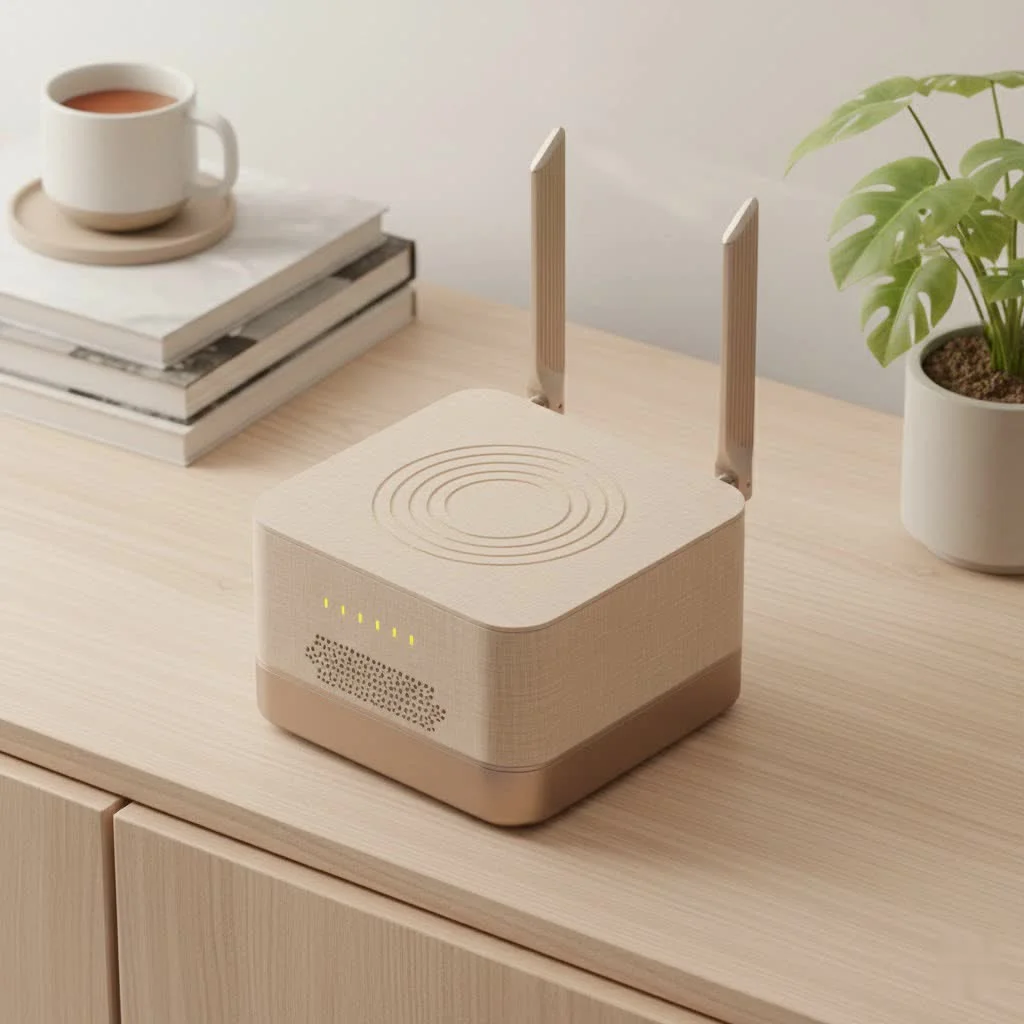
An Asus WiFi extender effectively eliminates WiFi dead zones by capturing your main router’s signal and rebroadcasting it to areas with weak or no coverage, acting as a relay station to extend your network’s reach. Asus offers both traditional range extenders and advanced AiMesh systems, which create a single, seamless whole-home WiFi network using compatible Asus routers for uninterrupted connectivity.
 WiFi extender device with strong signal” style=”margin: 20px auto;width: 800px;max-width: 100%;height: auto” />
What Exactly Is an Asus WiFi Extender and How Does It Work?
At its core, a WiFi extender, also known as a range extender or booster, is a device that captures the existing wireless signal from your main router and rebroadcasts it to areas where the signal is weak or non-existent. Think of it as a relay station for your WiFi. It picks up the signal baton from your router and carries it further, covering those pesky dead spots in the far corners of your house, basement, or even your backyard.
Asus takes this concept to the next level with its innovative technology. While they offer traditional range extenders, their standout feature is AiMesh. This proprietary technology allows you to create a flexible and powerful whole-home mesh WiFi system using compatible Asus routers. Instead of having separate networks, AiMesh creates a single, seamless network. You can move around your home without ever manually switching connections, as your device will automatically connect to the strongest signal.
Range Extenders vs. AiMesh Systems: What’s the Difference?
Understanding the distinction is key to making the right choice.
- Traditional Range Extender: This device creates a new, extended network. For example, if your main network is “HomeWiFi,” the extender might create “HomeWiFi_EXT.” You sometimes have to manually switch between them to get the best signal. They are a simple and cost-effective solution for smaller areas or specific dead zones.
- Asus AiMesh System: This is a more advanced solution. By using multiple compatible Asus routers or nodes, you create one unified network with a single name (SSID). It provides seamless roaming, so your connection is uninterrupted as you move through your home. This is ideal for larger homes with multiple floors or complex layouts.
As networking expert Jonathan Chen puts it, “While a standard extender is like adding a loudspeaker to a concert, AiMesh is like synchronizing multiple speakers throughout the venue. Both amplify the sound, but only the synchronized system provides a truly seamless listening experience everywhere.”
How to Set Up Your Asus WiFi Extender: A Step-by-Step Guide
Getting your Asus WiFi extender up and running is surprisingly straightforward. Asus provides several user-friendly methods. The most common is using the WPS (Wi-Fi Protected Setup) button.
- Placement is Key: First, plug the extender into a power outlet roughly halfway between your main router and the area with a weak signal. Wait for the power LED to turn solid.
- Press the WPS Button: Press the WPS button on your main router.
- Activate the Extender: Within two minutes, press the WPS button on your Asus extender. The WiFi LED will begin to blink.
- Wait for Connection: The LED on the extender will turn solid once a secure connection is established with your router. This usually takes a couple of minutes.
- Final Placement: Unplug the extender and move it to the location that needs a signal boost. Use the signal indicator LED on the extender to find the optimal spot—a solid light indicates a good connection back to the router.
If your router doesn’t have a WPS button, you can easily use the Asus Extender app or a web browser for setup. Just connect to the extender’s default network and follow the on-screen instructions.
Tips for Optimizing Your Extender’s Performance
Once your extender is set up, a few tweaks can ensure you’re getting the best possible performance.
- Optimal Placement: The signal indicator is your best friend. Avoid placing the extender too far from the router, as it needs to receive a strong signal to rebroadcast one. Keep it away from metal objects, microwave ovens, and concrete walls that can obstruct the signal.
- Update Your Firmware: Asus regularly releases firmware updates that include performance improvements, new features, and crucial security patches. Check for updates periodically through the Asus Extender app or web interface.
- Use the Right WiFi Band: Most modern Asus extenders are dual-band, offering both 2.4GHz and 5GHz frequencies. The 2.4GHz band has a longer range but is slower, while the 5GHz band is faster but has a shorter range. For devices that need speed (like for streaming or gaming), connect them to the 5GHz band if they are close enough.
- Secure Your Network: Always protect your extended network with a strong password. Use WPA2 or WPA3 encryption for the best security.
Common Asus WiFi Extender Problems and Fixes
Even the best technology can have hiccups. Here are some common issues and how to solve them.
Frequent Disconnections
|
Our Picks for the Best Wifi Extender in 2026
As an Amazon Associate I earn from qualifying purchases.
|
||
| Num | Product | Action |
|---|---|---|
| 1 | TP-Link AC1900 WiFi Range Extender RE550 - Dual-Band Wireless Repeater Amplifier w/Gigabit Ethernet Port - Up to 2200 Sq. Ft., 32 Devices - Internet Signal Booster - APP Setup - EasyMesh Compatible |

|
| 2 | 2025 Fastest WiFi Extender, WiFi Repeater, WiFi Booster, Covers Up to 10000 Sq.ft and 80 Devices, Internet Booster - with Ethernet Port, Quick Setup, Home Wireless Signal Booster |
|
| 3 | 2025 WiFi Extenders Signal Booster for Home Long Range Up to 9800 sq. ft & 40 Devices, WiFi Extender Signal Booster, Quick Setup-Medium, Internet Repeater, WiFi Extender |
|
| 4 | WiFi Extender with 4 Antennas 1200Mbps - Dual Band 5GHz/2.4GHz, WiFi Extender Signal Booster with 3 Modes Support, WiFi Repeater with 12880 Sq.ft 105 Devices, Easy Set Up for Home |
|
| 5 | TP-Link AC1200 WiFi Extender, 2023 Engadget Best Budget Pick, 1.2Gbps Signal Booster for Home, Dual Band 5GHz/2.4GHz, Covers Up to 1500 Sq.ft and 30 Devices,Support Onemesh, One Ethernet Port (RE315) |
|
| 6 | TP-Link AX3000 WiFi 6 Range Extender - PCMag Editor\'s Choice - Dual-Band Wireless Repeater w/Ethernet Port - Up to 2400 Sq. Ft., 64 Devices - Internet Signal Booster - APP Setup - EasyMesh (RE715X) |
|
| 7 | Amazon eero 7 with 1 month free eero Plus (auto-renews) - Supports internet plans up to 2.5 Gbps, Coverage up to 2,000 sq. ft., Connect 120+ devices, 1-pack |
|
| 8 | WiFi Extender, WiFi Extenders Signal Booster for Home Up to 5000 sq.ft and 50 Devices, WiFi Range Extender, Wireless Repeater, Long Range Amplifier with Ethernet Port, 1-Tap Setup, Alexa Compatible |
|
| 9 | Amazon eero 6+ mesh wifi system with 1 month free eero Plus (auto-renews) - Coverage up to 4,500 sq. ft., Connect 75+ devices, 3-pack |
|
| 10 | Amazon eero 6 mesh wifi extender with 1-month free eero Plus (auto-renews) - Add up to 1,500 sq. ft. of Wi-Fi 6 coverage to your existing eero mesh wifi network |
|
If your devices keep dropping the connection from the extender, the extender itself might be placed too far from the main router. Try moving it closer and check the signal indicator LED. Interference from other electronic devices could also be the culprit.
Slow Speeds
Slow performance is often another symptom of poor placement. Ensure the extender has a strong link to the router. If many devices are connected and performing high-bandwidth activities simultaneously, it can slow things down. Consider upgrading to a more powerful model if your needs have grown.
Can’t Connect to the Extender
If you’re unable to connect, a simple reboot of both your router and the extender can often fix the problem. If that doesn’t work, you may need to perform a factory reset on the extender and go through the setup process again.
Top Asus WiFi Extender Models to Consider
Asus offers a range of models to suit different needs and budgets.
- Asus RP-AX58: An excellent choice for those looking to upgrade to WiFi 6. It delivers faster speeds, greater capacity, and better performance in device-dense environments. It fully supports AiMesh, making it a great, scalable option.
- Asus RP-AC1900: A powerful WiFi 5 extender that offers fantastic speeds and coverage. It’s a reliable workhorse for streaming 4K video and online gaming, and it also works seamlessly with AiMesh.
Frequently Asked Questions (FAQ)
Q: Can I use an Asus WiFi extender with a non-Asus router?A: Yes, Asus standalone range extenders are designed to be universally compatible and will work with any standard router. However, to use the AiMesh feature, you will need a system of compatible Asus routers.
Q: Will a WiFi extender slow down my internet speed?A: A traditional extender can reduce bandwidth by about half because it has to use the same channel to both receive and transmit data. However, modern Asus extenders, especially in an AiMesh system, are designed to minimize this speed loss for a much better user experience.
Q: How many WiFi extenders can I use at once?A: While you can technically daisy-chain multiple extenders, it’s not recommended as it will significantly degrade performance. For large areas, an Asus AiMesh system with multiple nodes is a much more effective and stable solution.
Q: What is the difference between an Asus WiFi extender and a powerline adapter?A: A WiFi extender works by wirelessly rebroadcasting your existing WiFi signal. A powerline adapter uses your home’s electrical wiring to transmit the internet signal, which can sometimes be more stable in homes with very thick walls.
Q: Do I need to update my Asus extender’s firmware?A: Absolutely. Firmware updates are crucial for security and performance. They patch vulnerabilities and often include improvements that make your device run more smoothly.
Conclusion: Banish Dead Zones for Good
An Asus WiFi extender is a powerful and reliable tool in the fight against poor wireless coverage. Whether you need a simple plug-in extender to boost the signal in one room or a comprehensive AiMesh system to cover a large, multi-story home, Asus has a high-quality solution. By understanding how they work, choosing the right model, and following the simple setup and optimization tips outlined in this guide, you can ensure a strong, stable connection everywhere you need it. Say goodbye to buffering and hello to seamless connectivity.
Frequently Asked Questions
Can I use an Asus WiFi extender with a non-Asus router?
Yes, Asus standalone range extenders are universally compatible and will work with any standard router. However, the advanced AiMesh feature requires a system of compatible Asus routers to function.
Will a WiFi extender reduce my internet speed significantly?
A traditional extender can reduce bandwidth by about 50% because it uses the same channel for both receiving and transmitting data. Modern Asus extenders, especially those in an AiMesh system, are designed to minimize this speed loss for a much better user experience.
How many WiFi extenders can be used in a single home network?
While technically possible to daisy-chain multiple extenders, it is not recommended as it significantly degrades performance. For large areas, an Asus AiMesh system with multiple nodes provides a more effective and stable solution than multiple traditional extenders.
What is the difference between a WiFi extender and a powerline adapter?
A WiFi extender wirelessly rebroadcasts your existing WiFi signal to extend coverage. In contrast, a powerline adapter uses your home's electrical wiring to transmit the internet signal, which can offer a more stable connection in homes with very thick walls that block wireless signals.
Is it necessary to update the firmware on my Asus extender?
Yes, firmware updates are crucial for both security and performance. They patch vulnerabilities, improve device stability, and often include new features that enhance your extender's functionality and efficiency.
Set Up Your Asus WiFi Extender Using WPS
This guide outlines the straightforward steps to set up your Asus WiFi extender using the WPS button for quick and easy network expansion.
Plug the extender into a power outlet roughly halfway between your main router and the area needing a signal boost. Wait for the power LED on the extender to turn solid, indicating it's ready.
Press the WPS button on your main router. This initiates the pairing process and makes the router discoverable by the extender for a short period.
Within two minutes of pressing the router's WPS button, press the WPS button on your Asus extender. The WiFi LED on the extender will begin to blink, signaling it's attempting to connect.
Wait for the LED on the extender to turn solid. This indicates that a secure connection has been successfully established with your router, typically taking a couple of minutes.
Unplug the extender and move it to the desired location that requires a signal boost. Use the signal indicator LED on the extender to find the optimal spot; a solid light confirms a strong connection back to the router.
Get our weekly buyer guide
Practical specs, not advice. Unsubscribe anytime.
I upgraded to an AiMesh system with my compatible Asus router, and the difference is incredible. Having a single, seamless whole-home WiFi network is exactly what I needed. No more switching networks as I move around the house, and the connection is super stable everywhere, even in the garden.
The Asus extender definitely helped with the weak signal in my basement, but setting it up was a bit more fiddly than I expected. I eventually got it working, and the coverage is better, but it wasn’t as plug-and-play as some other boosters I’ve tried. Still, it does the job for gaming down there.
I was so tired of dead zones in my house, especially in the back office. This Asus extender was a game-changer! It really does act like a relay station, picking up the signal and boosting it perfectly. Now I can take video calls without any drops, which is a huge relief.
This Asus range extender really did eliminate the WiFi dead spots in my garage. I can finally stream music while I’m working on projects without buffering. It’s a solid device for extending your network’s reach, though I did notice a slight speed drop compared to being right next to the main router, which is expected with any extender.