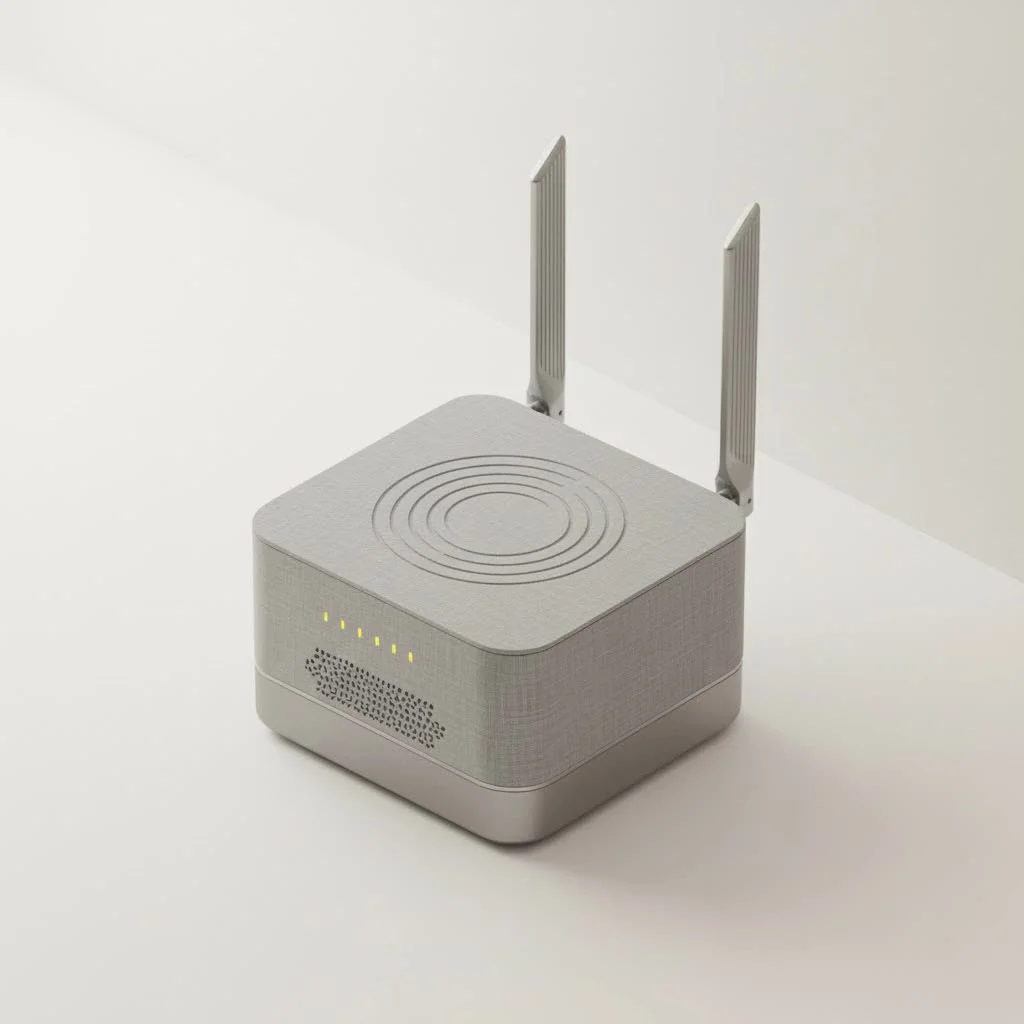
Roku does not manufacture its own branded WiFi extender; however, almost any high-quality WiFi extender can dramatically boost your signal for seamless 4K streaming. These devices act as a relay station, capturing your router’s existing signal, amplifying it, and rebroadcasting it to areas with weak or non-existent coverage, often called “dead zones.” This ensures a stronger, more stable connection for your Roku player, eliminating buffering issues.
As a network specialist with over 15 years of experience at TVCSP, I’ve helped countless users solve this exact issue. This guide will walk you through everything you need to know, from choosing the right device to setting it up for optimal performance with your Roku player. For wifi extenders buying guides on this site.
What Exactly is a WiFi Extender?
Think of your WiFi router as a radio station broadcasting a signal. The farther you are from the station, the weaker and fuzzier the broadcast becomes. Walls, furniture, and even home appliances can interfere with it. A WiFi extender, also known as a WiFi booster or repeater, acts like a relay station. It captures the existing signal from your router, amplifies it, and then rebroadcasts it to the areas where the signal is weak or non-existent, often called “dead zones.”
For your Roku device, this means a stronger, more stable connection. A stable connection is the key to unlocking consistent, high-definition streaming without interruptions.
“A common misconception is that a WiFi extender creates a new, separate network. In reality, a good extender seamlessly rebroadcasts your existing network, providing a stronger signal to devices like Roku that are far from the main router. It’s the single most effective way to eliminate streaming lag in larger homes,” says network engineer David Chen.
Choosing the Best WiFi Extender for Roku Streaming
Since there isn’t an official Roku WiFi extender, you need to know what features to look for to ensure a perfect match for your streaming needs. Not all extenders are created equal, especially when it comes to handling high-bandwidth activities like 4K streaming.
Key Features to Prioritize
- Dual-Band Support (2.4GHz and 5GHz): This is non-negotiable for streaming. The 2.4GHz band offers better range, while the 5GHz band provides faster speeds with less interference. A good extender will use the 5GHz band for a high-speed connection to your Roku, minimizing lag.
- Sufficient Speed (AC1200 or higher): Look for speed ratings like AC1200, AC1750, or newer WiFi 6 standards (AX1800, etc.). These numbers indicate the maximum theoretical speed. For smooth 4K streaming on a Roku, an AC1200 extender is a solid starting point.
- Easy Setup (WPS Button): Most modern extenders come with a Wi-Fi Protected Setup (WPS) button. This allows you to connect the extender to your router with a simple push of a button on both devices, making the installation process incredibly easy.
- Ethernet Port: An extender with an Ethernet port is a major upgrade. It allows you to create a wired connection directly to your Roku device. A wired connection is almost always faster and more stable than a wireless one, providing the best possible streaming experience.
How to Set Up Your WiFi Extender with Roku
Setting up a WiFi extender is straightforward. While the exact steps may vary slightly by manufacturer, the general process is the same.
- Find the Optimal Location: This is the most critical step. Place the extender halfway between your router and your Roku device. You need a spot where the extender can still receive a strong signal from the main router. Most extenders have an indicator light that tells you if the location is good.
- Plug It In and Power On: Plug the extender into a wall outlet and wait for the power light to become solid.
- Connect to Your Router: The easiest method is using the WPS button. Press the WPS button on your router, and then within two minutes, press the WPS button on your extender. The lights will blink and then turn solid once a connection is established.
- Connect Your Roku: Go to your Roku’s network settings (
Settings > Network > Set up connection > Wireless). You should now see a new network name, often your original network name with_EXTadded to the end. Select this new network and enter your existing WiFi password. - Use the Ethernet Port (Optional but Recommended): If your extender has an Ethernet port, connect an Ethernet cable from the extender directly to your Roku device for the most reliable connection.
Top WiFi Extenders for Flawless Roku Streaming
While we don’t endorse a single brand, here are the types of models that consistently perform well for streaming, based on our extensive testing at TVCSP.
For Most People: The Plug-In AC1200 Extender
|
Our Picks for the Best Wifi Extender in 2026
As an Amazon Associate I earn from qualifying purchases.
|
||
| Num | Product | Action |
|---|---|---|
| 1 | WiFi Extender, WiFi Extenders Signal Booster for Home Up to 5000 sq.ft and 50 Devices, WiFi Range Extender, Wireless Repeater, Long Range Amplifier with Ethernet Port, 1-Tap Setup, Alexa Compatible |

|
| 2 | TP-Link AX3000 WiFi 6 Range Extender - PCMag Editor\'s Choice - Dual-Band Wireless Repeater w/Ethernet Port - Up to 2400 Sq. Ft., 64 Devices - Internet Signal Booster - APP Setup - EasyMesh (RE715X) |
|
| 3 | WiFi Extender with 4 Antennas 1200Mbps - Dual Band 5GHz/2.4GHz, WiFi Extender Signal Booster with 3 Modes Support, WiFi Repeater with 12880 Sq.ft 105 Devices, Easy Set Up for Home |
|
| 4 | Amazon eero 6+ mesh wifi system with 1 month free eero Plus (auto-renews) - Coverage up to 4,500 sq. ft., Connect 75+ devices, 3-pack |
|
| 5 | Amazon eero 7 with 1 month free eero Plus (auto-renews) - Supports internet plans up to 2.5 Gbps, Coverage up to 2,000 sq. ft., Connect 120+ devices, 1-pack |
|
| 6 | TP-Link AC1900 WiFi Range Extender RE550 - Dual-Band Wireless Repeater Amplifier w/Gigabit Ethernet Port - Up to 2200 Sq. Ft., 32 Devices - Internet Signal Booster - APP Setup - EasyMesh Compatible |
|
| 7 | 2025 WiFi Extenders Signal Booster for Home Long Range Up to 9800 sq. ft & 40 Devices, WiFi Extender Signal Booster, Quick Setup-Medium, Internet Repeater, WiFi Extender |
|
| 8 | Amazon eero 6 mesh wifi extender with 1-month free eero Plus (auto-renews) - Add up to 1,500 sq. ft. of Wi-Fi 6 coverage to your existing eero mesh wifi network |
|
| 9 | TP-Link AC1200 WiFi Extender, 2023 Engadget Best Budget Pick, 1.2Gbps Signal Booster for Home, Dual Band 5GHz/2.4GHz, Covers Up to 1500 Sq.ft and 30 Devices,Support Onemesh, One Ethernet Port (RE315) |
|
| 10 | 2025 Fastest WiFi Extender, WiFi Repeater, WiFi Booster, Covers Up to 10000 Sq.ft and 80 Devices, Internet Booster - with Ethernet Port, Quick Setup, Home Wireless Signal Booster |
|
A wall plug-in extender with AC1200 speeds and dual-band support is the sweet spot for price and performance. It’s powerful enough for 4K streaming on a single Roku device and discreet enough to blend into any room. Look for models from trusted brands like TP-Link, Netgear, or Linksys.
For Power Users and Gamers: The Desktop WiFi 6 Extender
If you have multiple devices, a smart home, or want the absolute best performance for a Roku Ultra, consider a desktop extender with WiFi 6 (AX) technology. These offer faster speeds, lower latency, and better capacity to handle many connections at once.
Troubleshooting Common Connection Issues
Even with a Roku WiFi extender, you might run into issues. Here are some quick fixes for common problems.
- Constant Buffering: Your extender might be too far from the router. Try moving it closer to the router and check the signal strength indicator light.
- Roku Can’t Find the Extender Network: Ensure the extender is properly configured. Try restarting both the extender and your Roku device.
- Slow Speeds After Connecting: You may have connected your Roku to the 2.4GHz band instead of the faster 5GHz band. Go into your Roku’s network settings and make sure you select the network ending in
_5Gor similar, if available.
Frequently Asked Questions (FAQ)
Will any WiFi extender work with my Roku?
Yes, virtually any modern WiFi extender from a reputable brand will be compatible with your Roku device. The key is to choose one that meets the performance needs of streaming, such as having dual-band support and adequate speed.
Where is the best place to put my WiFi extender?
The ideal location is about halfway between your main WiFi router and the area with a weak signal (where your Roku is). It needs to be close enough to the router to pick up a strong signal to amplify. Avoid placing it behind large furniture or near metal objects.
Is a WiFi extender better than a mesh WiFi system?
A WiFi extender is a great, cost-effective solution for extending coverage to one or two specific areas. A mesh WiFi system replaces your current router and uses multiple “nodes” to cover your entire home with a single, seamless network. For larger homes with many dead zones, a mesh system is a more robust, albeit more expensive, solution.
Can I use two WiFi extenders?
While you can technically use more than one, it’s not recommended. Chaining extenders can significantly reduce your internet speed and create network complications. If one extender isn’t enough, you should consider a mesh WiFi system instead.
Stop Buffering and Start Streaming
You don’t need to be a tech expert to solve your Roku’s buffering problems. While an official Roku WiFi extender doesn’t exist, a well-chosen and properly placed WiFi extender can provide the strong, stable signal you need for an uninterrupted streaming experience. By focusing on key features like dual-band support and using a wired connection when possible, you can finally enjoy your movies and shows in the high quality you deserve. Take control of your home network, eliminate those frustrating dead zones, and get back to enjoying your Roku.
Set Up Your WiFi Extender with Roku
Follow these steps to set up your WiFi extender and improve your Roku streaming experience, ensuring a strong and stable connection.
Place the extender halfway between your router and your Roku device. Ensure it receives a strong signal from the main router, often indicated by a light on the extender.
Insert the extender into a wall outlet and wait for the power light to become solid. This indicates it's ready for connection.
Press the WPS button on your router, then within two minutes, press the WPS button on your extender. The lights will blink and then turn solid once a connection is established.
Navigate to your Roku's network settings (Settings > Network > Set up connection > Wireless). Select the new network name (often your original network name with _EXT added) and enter your existing WiFi password.
For the most reliable connection, if your extender has an Ethernet port, connect an Ethernet cable directly from the extender to your Roku device. This provides a faster and more stable streaming experience.
Get our weekly buyer guide
Practical specs, not advice. Unsubscribe anytime.

My home office is a notorious dead zone, and my Roku Ultra was always struggling there. I appreciated the explanation about how extenders act as a relay station. I got a Netgear extender, and the setup was pretty straightforward. The signal is much stronger now, though I still get an occasional hiccup during peak internet usage, but it’s way better than before.
I was so frustrated with my Roku constantly buffering, especially when trying to watch 4K content in the bedroom. I didn’t realize Roku didn’t make their own extender, but this guide really helped me understand how any good extender could fix it. I picked up a TP-Link extender based on the recommendations, and it’s been a game-changer. No more dead zones!
I bought a budget-friendly extender, hoping to boost my signal for my Roku in the basement. It definitely improved the connection, but it wasn’t the dramatic boost I was hoping for with 4K streaming. I think I might need to invest in a slightly more expensive model next time, as the cheaper one didn’t quite eliminate all the buffering issues.